
Blog
Run GNU Octave on Windows

Run GNU Octave on Windows
This tutorial will teach us to run GNU Octave software on Windows. To Run Octave, double-click on the desktop shortcut icons. Octave installs two desktop shortcuts.
- Octave CLI(Command Line Interface)
- Octave GUI(Graphical User Interface)
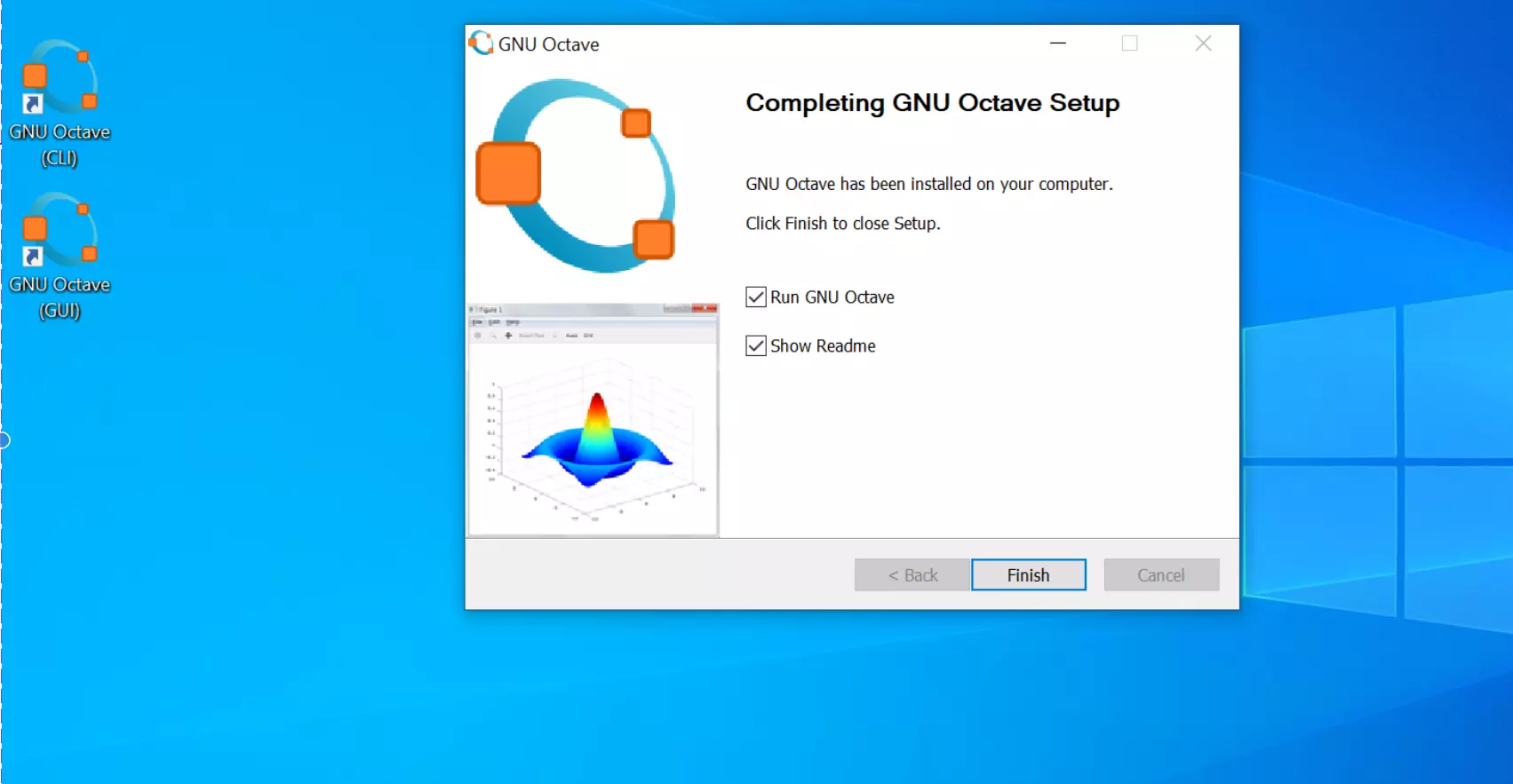
Check the Run GNU Octave option to launch Octave for the first time after installation. This will launch the Octave GUI.
Octave CLI
Double-click on the Octave CLI to run the Octave command-line interface.

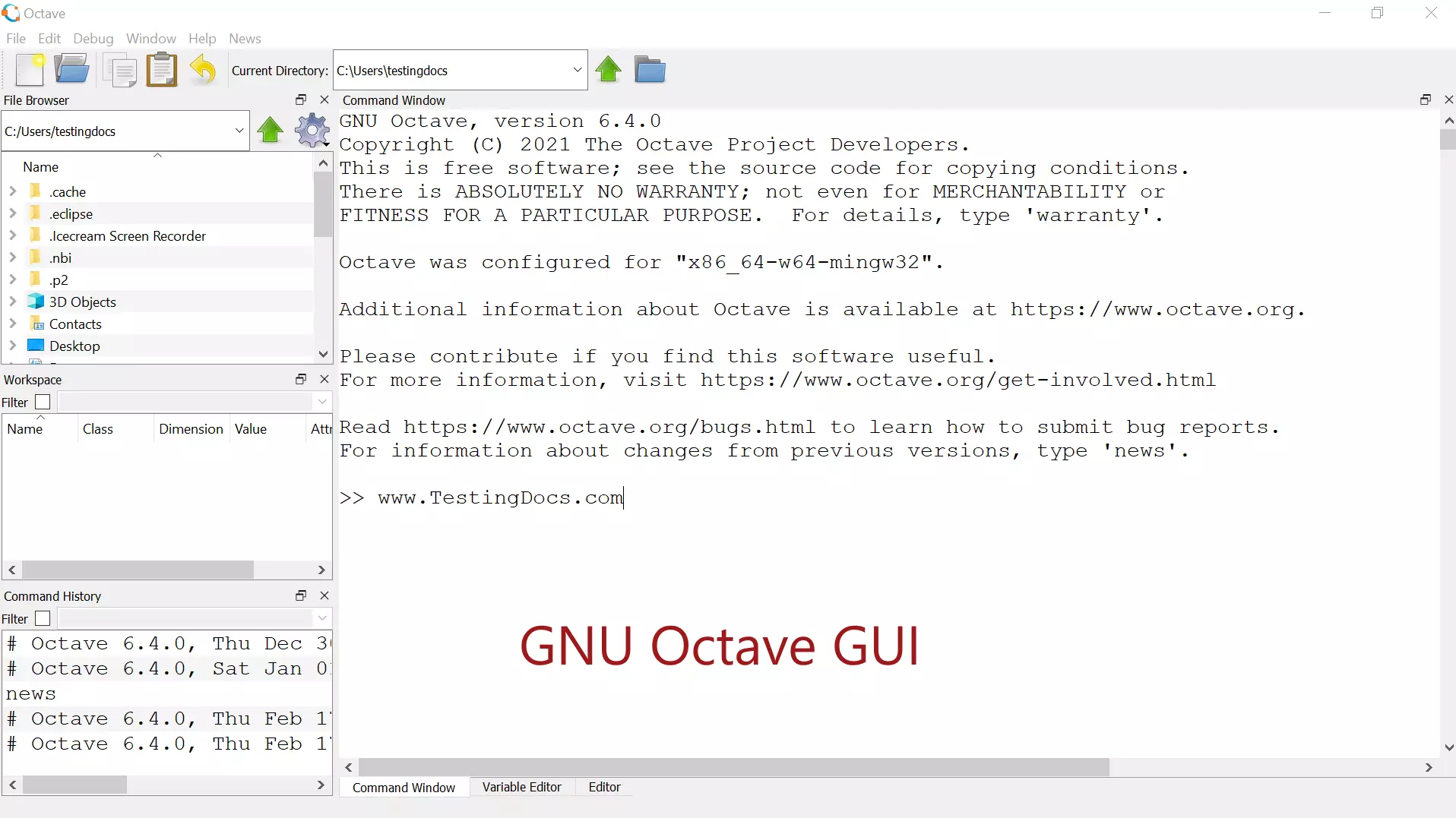
Octave GUI
Double-click on the Octave GUI to run the Octave GUI interface.
Command Prompt
We can run Octave from the command prompt. Open the command prompt window and change the directory to the Octave install folder.
Type the octave command to run the Octave software.
\> octave

That’s it. This will launch the Octave GUI window.
—
Octave Tutorials
GNU Octave Tutorials on this website can be found at: