
Comet Browser Tutorials
Comet Browser Tutorials
What is Comet?
Comet is an AI-enhanced web browser (built on Chromium) that blends a familiar browsing experience with a powerful assistant capable of summarizing pages, managing tabs, drafting emails, scheduling, shopping, and performing step-by-step actions you can approve. Think of it as a browser that can also do things for you.
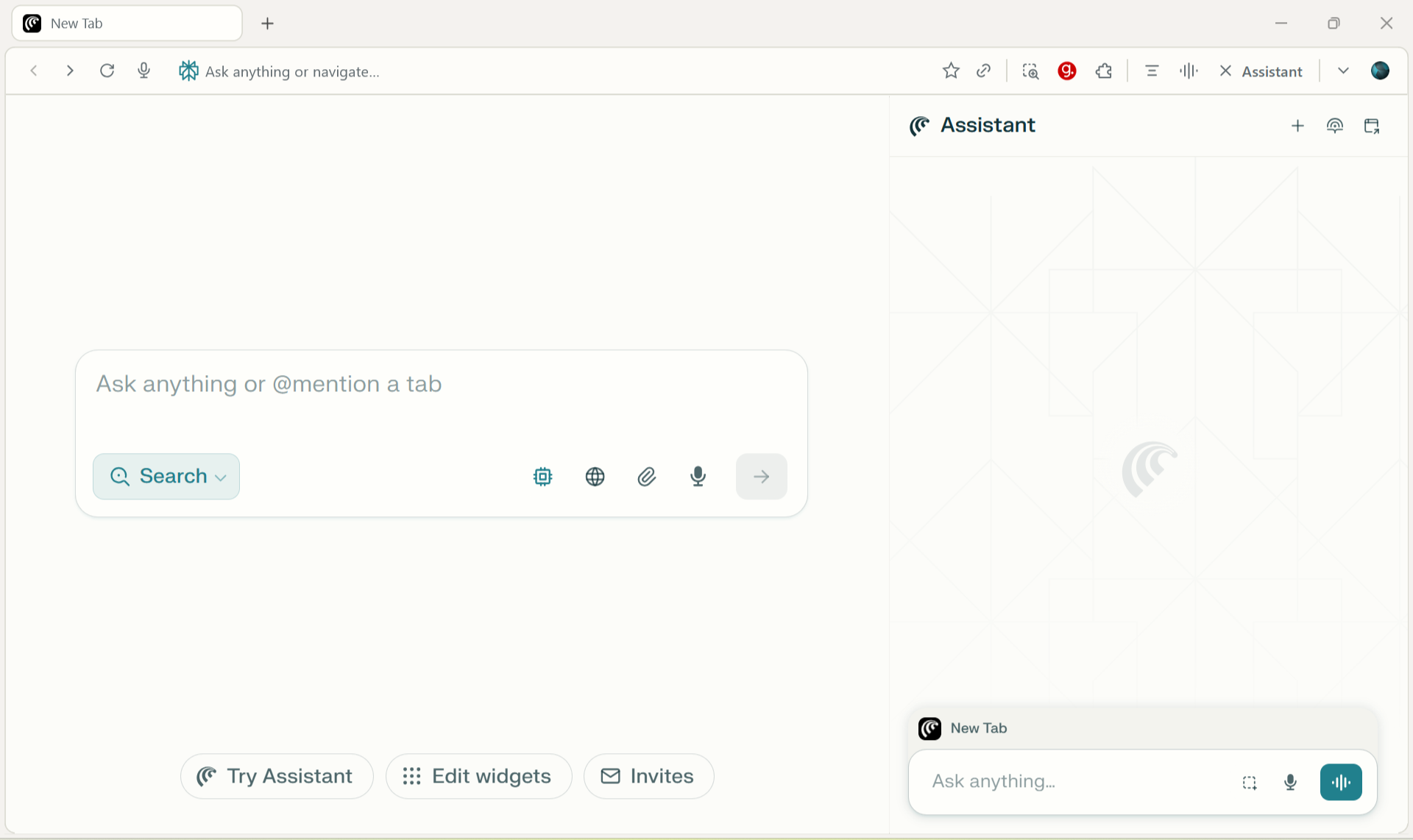
- AI Sidebar: Ask questions about the page, summarize, translate, extract data, or generate tasks.
- Actionable Agents: Let Comet walk through flows (e.g., âbook dinner at 7pmâ), showing every step for approval.
- Chromium Core: Use your favorite extensions, bookmarks, profiles, and dev tools.
Install & First-Time Setup
- Download & Install: Get the Comet installer for your OS and follow the on-screen steps.
- Sign In: Log in with your account to enable the AI assistant and syncing.
- Import: Settings â Import to bring over bookmarks, passwords, history from your current browser.
- Extensions: Install must-have Chromium extensions (password manager, ad blocker, note-taking, etc.).
- Privacy Presets: Settings â Privacy to pick tracking protection, site permissions, and data retention.
Tip: Create separate profiles for Work and Personal to keep sessions, extensions, and automation rules cleanly separated.
UI Interface
Everyday Workflows
1) Research & Summarization
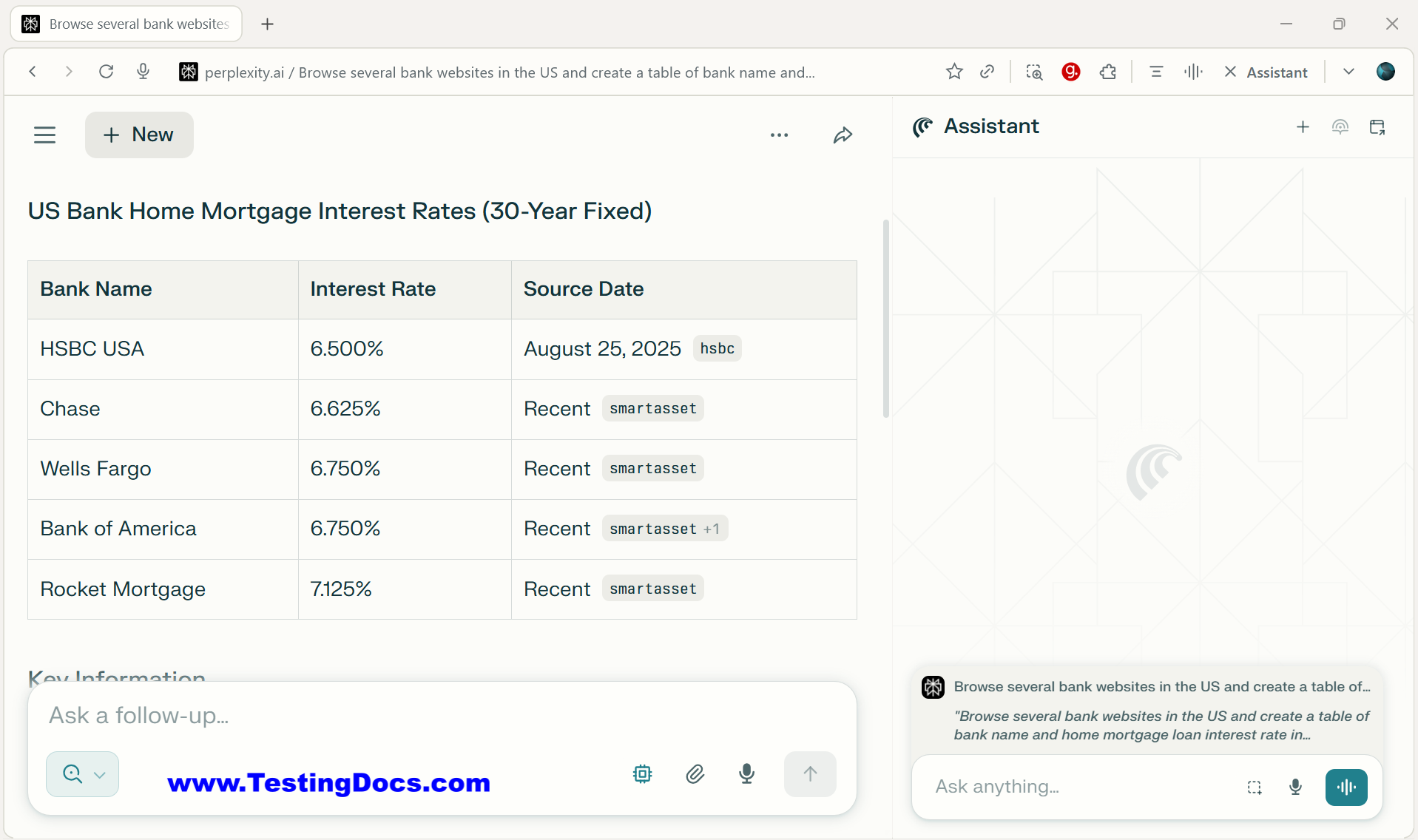
- Ask: âBrowse several bank websites in the US and create a table of bank name and home mortgage loan interest rate in ascending orderâ
- “Create a table of bank name and home mortgage loan interest rate in ascending orderâ
2) Content Drafting
- Ask: âExtract stats with sources and generate a 300-word blog draft.â
- Refine tone: âMake it concise and add a CTA.â
3) Task Automation (Approval-First)
- Command: âBook a table for two tomorrow 7pm near Jubilee Hills, budget â¹1,500.â
- Review the step log; approve/deny each step.
Prompt Cookbook
Summarize a page
Summarize this page in 7 bullets; highlight definitions and action items.
Compare multiple tabs
Compare the open tabs by features, price, pros/cons. Output a table.
Tab cleanup
Close duplicates, suspend idle tabs > 2 hours, group by topic.
Inbox triage
Summarize unread emails since Monday and draft short replies.
Shopping
Find top 3 options under â¹30,000, list key specs and provide cart links.
Calendar
Create a 30-min focus block daily at 9:30am; skip weekends.
Tab & Workspace Mastery
- Group by Topic: âGroup tabs by project and color-code.â
- Auto-Archive: âArchive tabs inactive for 7 days into âCold Storageâ.â
- Save Sessions: âSnapshot this workspace as âSprint 10 Wrap-Upâ.â
- Switch Fast: Use the command palette to jump between workspaces.
Pro Tip: Pair workspaces with profiles (e.g., âClient Aâ profile + âClient A â Q3â workspace) for clean isolation.
Comet Connectors
Email & Calendar Automation
- Open your email provider in a tab.
- Ask: âSummarize threads awaiting my reply and propose responses.â
- Approve drafts one by one before sending.
- For scheduling: âFind a time with John next week; prefer Tue-Thu, mornings.â
- Approve the calendar event details (attendees, time zone, meeting link).
Shopping & Research Assistant
- Product Scouting: âCompare mid-range phones under â¹25,000. Show battery, camera, updates policy.â
- Deal Tracking: âAlert me if any pick drops below â¹22,000 this week.â
- Cart Flow: Let Comet add items to cart, then you approve checkout steps.
Privacy & Safety Controls
- Permissions: Review per-site permissions (camera, mic, location, clipboard).
- Data Retention: Choose whether to store conversations, activity logs, and auto-delete cadence.
- Local-Only Tasks: When available, prefer on-device actions for sensitive flows.
- Approval Gates: Require confirmation before purchases, emails, or calendar sends.
- Profiles: Keep banking/shopping in a dedicated, locked-down profile.
Heads-up: Always review the step-by-step action log before approving any automated operation.
Comet Widgets
Handy Shortcuts
| Action | Windows/Linux | macOS |
|---|---|---|
| Open Command Palette | Ctrl + K | â + K |
| New Tab | Ctrl + T | â + T |
| Close Tab | Ctrl + W | â + W |
| Reopen Closed Tab | Ctrl + Shift + T | â + Shift + T |
| Jump to Address Bar | Ctrl + L | â + L |
| Switch Tabs | Ctrl + Tab / Ctrl + Shift + Tab | â + Tab / â + Shift + Tab |
| Open Downloads | Ctrl + J | â + Shift + J |
Troubleshooting
AI Sidebar isnât responding
- Check youâre signed in and online.
- Reload the tab; if needed, restart Comet.
- Disable conflicting extensions temporarily and retry.
Automation stalls mid-flow
- Open the Activity Log and review the last approved step.
- Manually complete any CAPTCHA or 2FA prompts.
- Retry with a narrower command (e.g., specify date/time/location).
High memory usage with many tabs
- Run: âSuspend tabs idle > 60 minutes.â
- Export or snapshot a workspace, then close it.
- Ensure hardware acceleration is enabled (or toggle if already on).
FAQ
Do my normal Chrome extensions work?
Yes. Comet is Chromium-based, so most extensions work as expected.
Can Comet complete purchases by itself?
Comet prepares the flow and shows you a step-by-step log. You approve or deny before any irreversible step.
Does Comet replace my email or calendar app?
No. It works on top of your existing tabs to summarize, draft, and schedule faster.
Is my data private?
You control tracking protection, storage, and approval gates. Use separate profiles for sensitive tasks.
Next Steps
- Install Comet and import your browsing data.
- Pin the AI Sidebar and try the quickstart guide.
- Create two workspaces: Today and Backlog.
- Test one automation end-to-end with approvals.