
Blog
Create Maven Project with IntelliJ IDEA

Create Maven Project with IntelliJ IDEA
IntelliJ IDEA has excellent built-in support for build tools like Ant, Maven, and Gradle. We can create blank projects or Maven projects based on the Maven archetype. Let’s learn the steps involved in Creating a Maven Project with IntelliJ IDEA IDE.
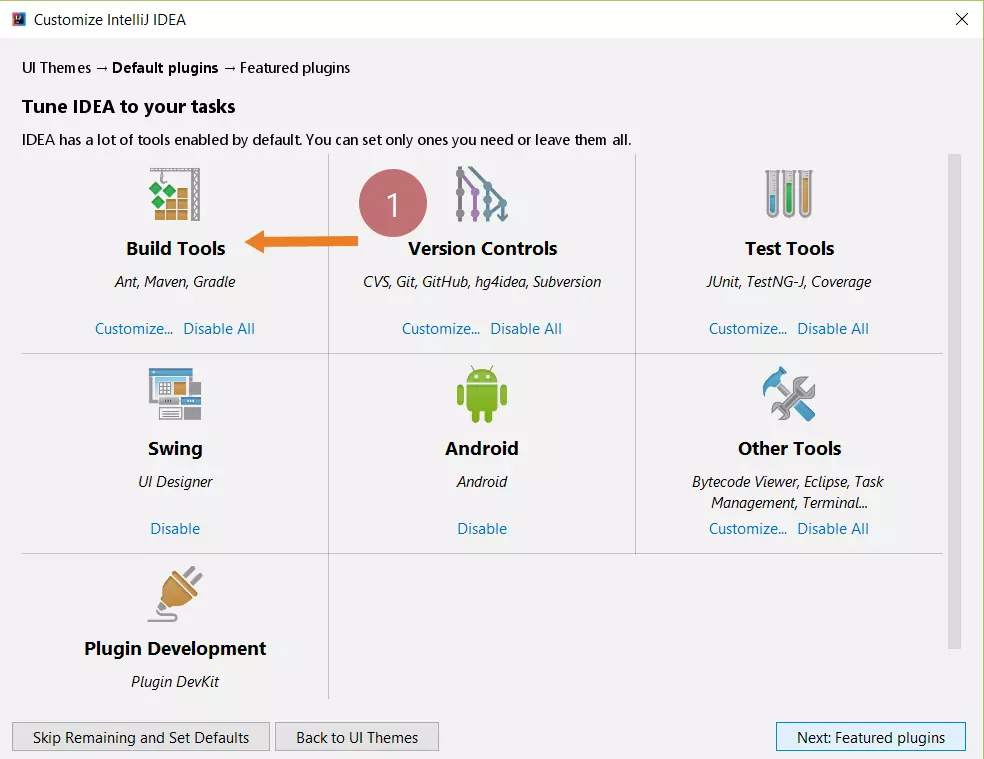
Enable Maven
Enabling Maven build tool in IntelliJ IDEA.
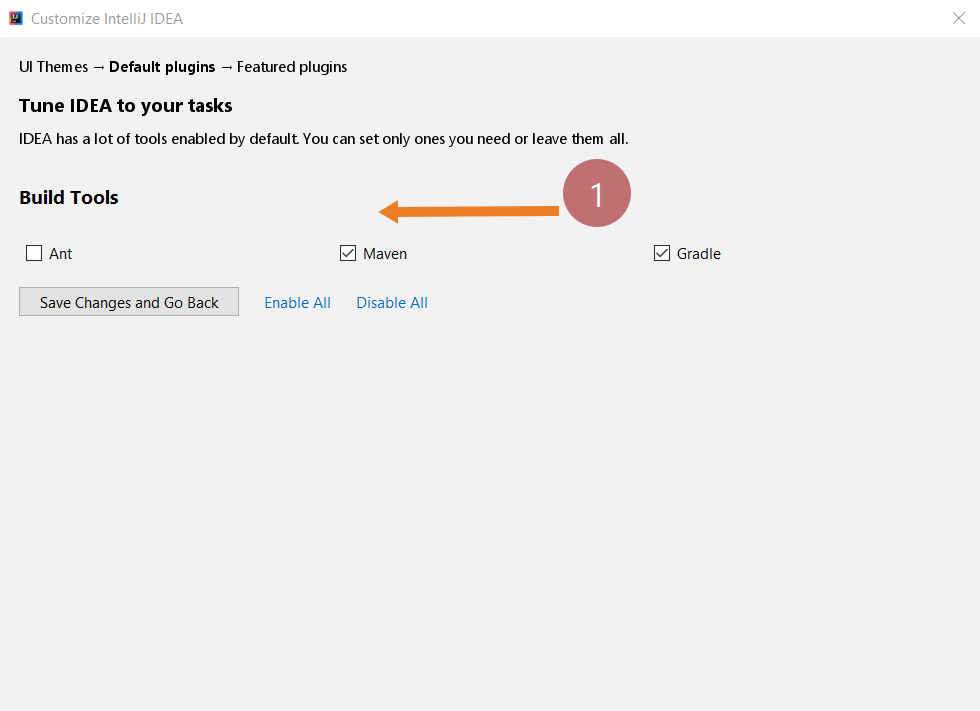
Create Maven Project
Using Maven you can easily and quickly create a new project based on the Maven archetype. An archetype is a Maven plugin to create a project as per the template.
maven-archetype-quickstart archetype plugin is used to create a quick and simple Java application.
Steps
Launch IntelliJ IDEA.
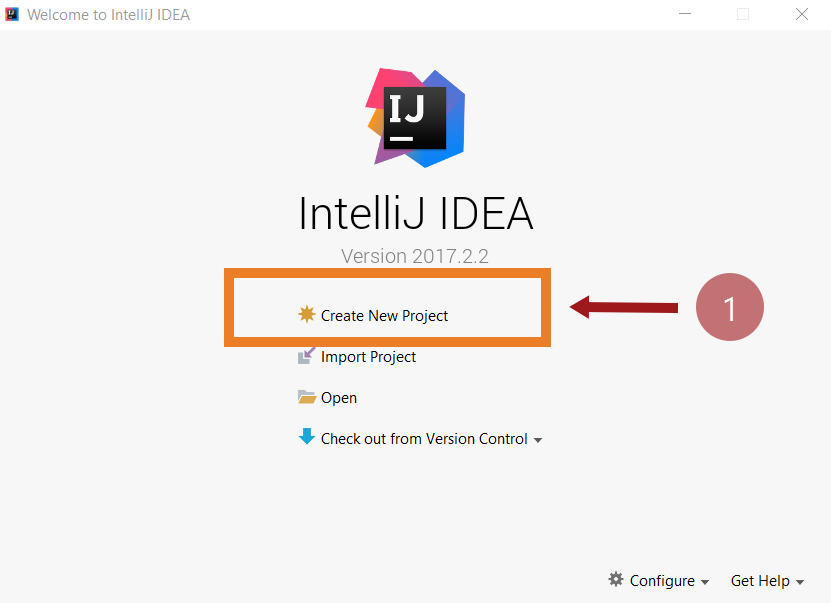
Click on Create New Project.
Select the Maven build tool from the left menu.
Check the option Create from the archetype.
Select the quickstart archetype to create a simple Java project and click the Next button.

Enter groupID,artifactID details for your project.
Optionally, you can override the default paths for settings.xml and local repository .m2 folder.
Hit on the Finish button to create the java maven project.
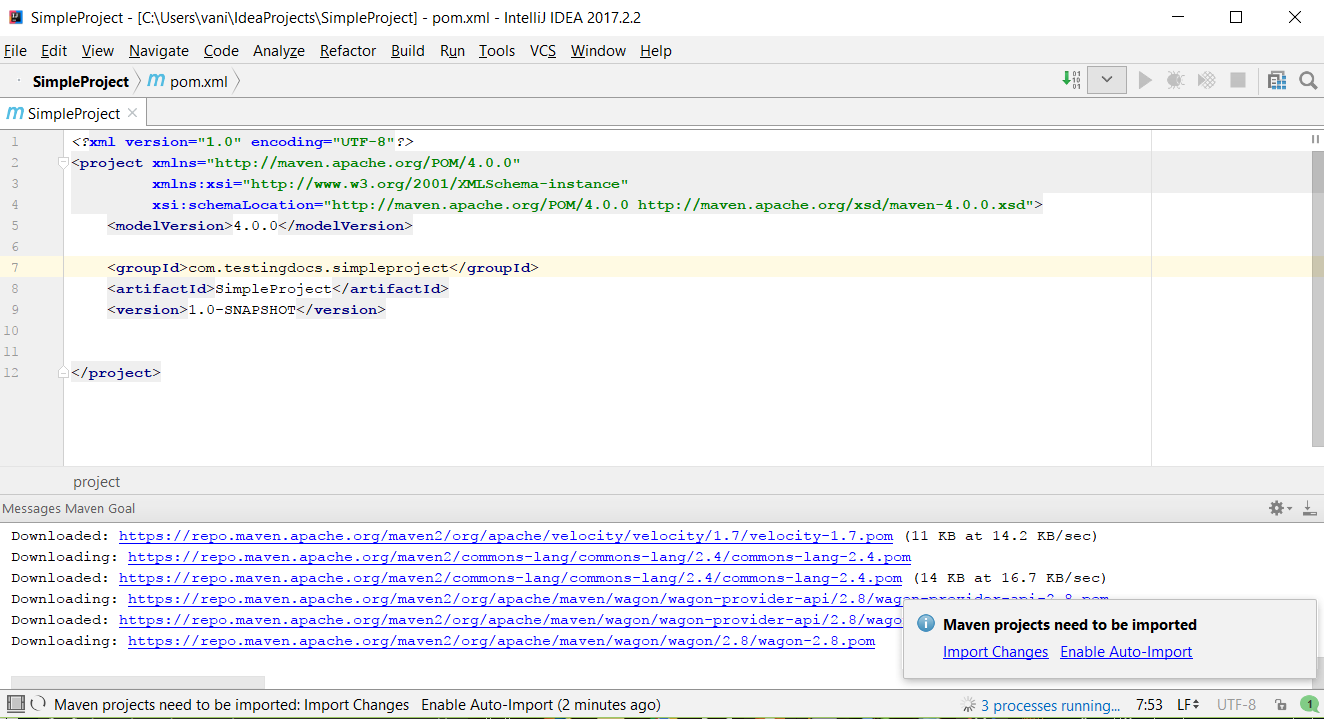
To import changes to the maven project automatically, click on Enable Auto-Import feature.
You can see that the project structure is created for you automatically as shown below. The structure has a resembling test artifact for enabling testing of the development artifacts.
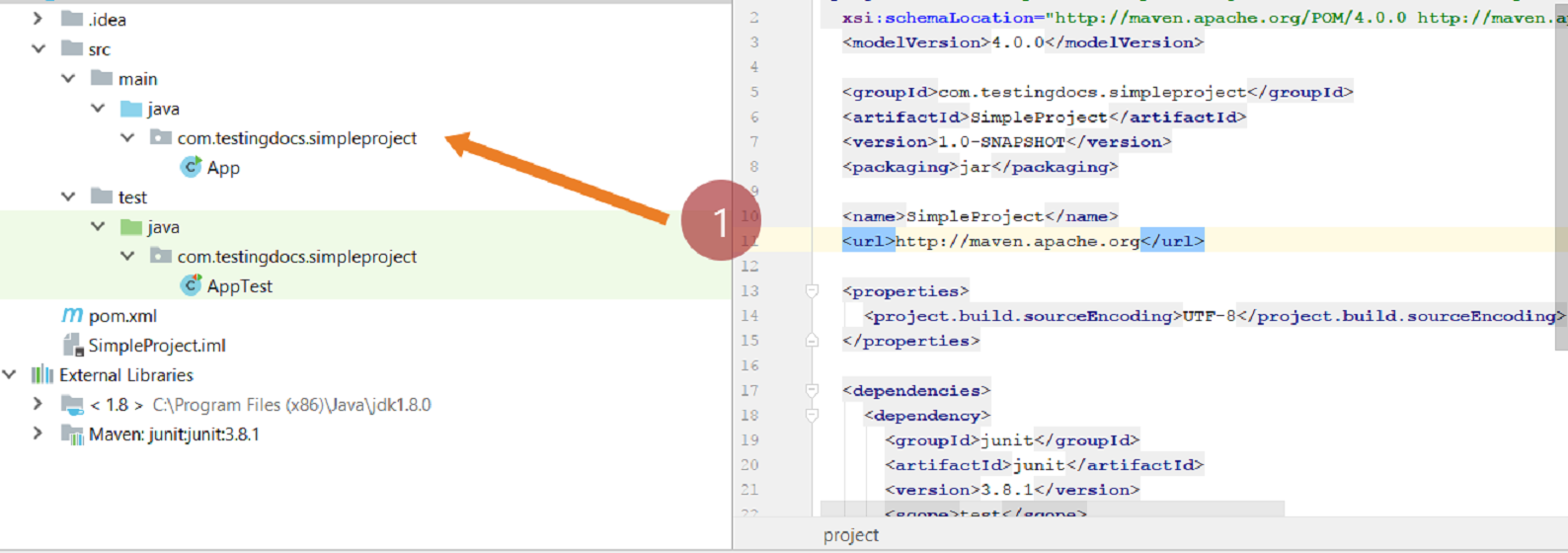
Created POM.xml
<project xmlns="http://maven.apache.org/POM/4.0.0"
xmlns:xsi="http://www.w3.org/2001/XMLSchema-instance"
xsi:schemaLocation="http://maven.apache.org/POM/4.0.0
http://maven.apache.org/xsd/maven-4.0.0.xsd">
<modelVersion>4.0.0</modelVersion>

<groupId>com.testingdocs.simpleproject</groupId>
<artifactId>SimpleProject</artifactId>
<version>1.0-SNAPSHOT</version>
<packaging>jar</packaging>

<name>SimpleProject</name>
<url>http://maven.apache.org</url>

<properties>
<project.build.sourceEncoding>UTF-8</project.build.sourceEncoding>
</properties>

<dependencies>
<dependency>
<groupId>junit</groupId>
<artifactId>junit</artifactId>
<version>3.8.1</version>
<scope>test</scope>
</dependency>
</dependencies>
</project>
That’s it. We have create a simple Java maven project using a template. We can work by adding the code and test artifacts(classes) to the project. There are several archetypes in Maven to fit for the project purpose. Explore them to create a specific project using the Maven tool.
IntelliJ IDEA Tutorials
IntelliJ IDEA ( Community Edition)Â Tutorials on this website can be found at: