
Blog
Import a Maven Project with IntelliJ IDEA

Import a Maven Project with IntelliJ IDEA
We can import a maven project in IntelliJ IDEA by importing a collection of existing sources/ existing model options. Also, you can import the sources from Eclipse, Gradle, Maven, etc. In this example, I will show you how to import a Maven project created in Eclipse. However, you can also follow the same steps to import from other tools.
Importing a Maven Project
We can perform the import using IntelliJ IDEA as importing from an external model/existing source. Follow the below steps to import an existing project.
File >> New >> Project from Existing Sources
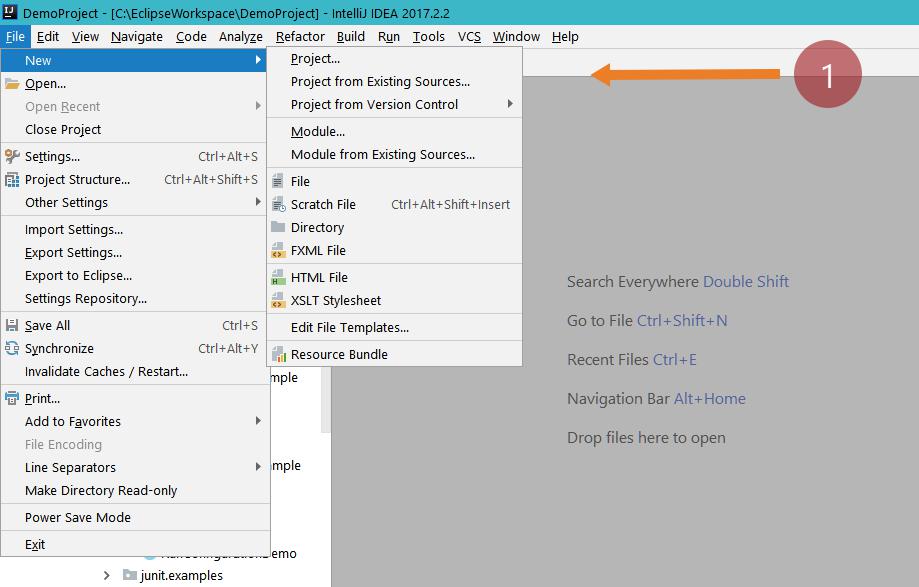
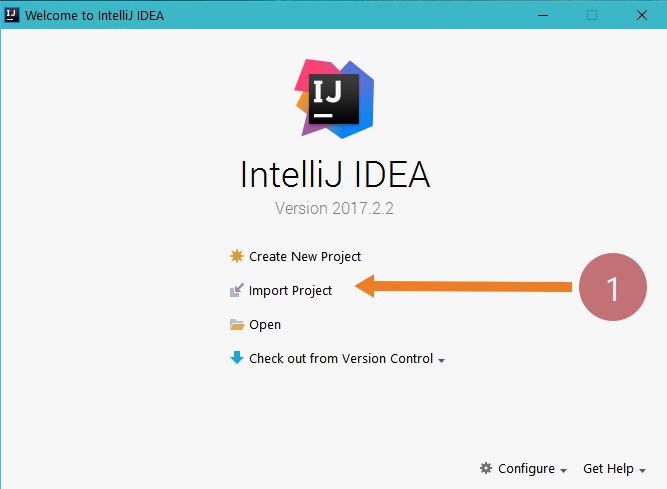
If no project is currently open in IntelliJ IDEA, click on Import Project on the Welcome screen.
Welcome screen >> Import Project
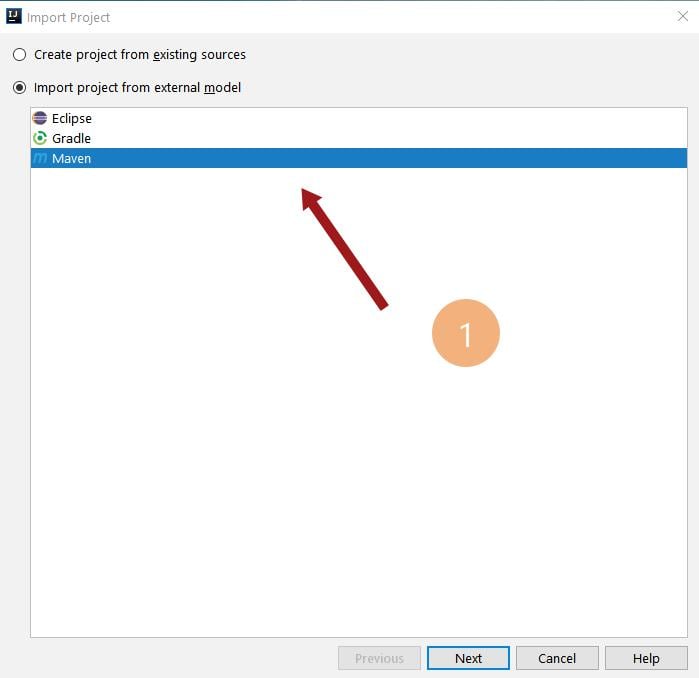
Select Maven
Select the directory with the existing source
Import project from the existing model.
Select the Maven tool.
Choose the Maven project pom.xml file.
Optionally, you can modify the project settings in the import window. You can select the option Import Maven projects automatically.
Using this option you can import automatically every time you make changes to your project POM file after the import.
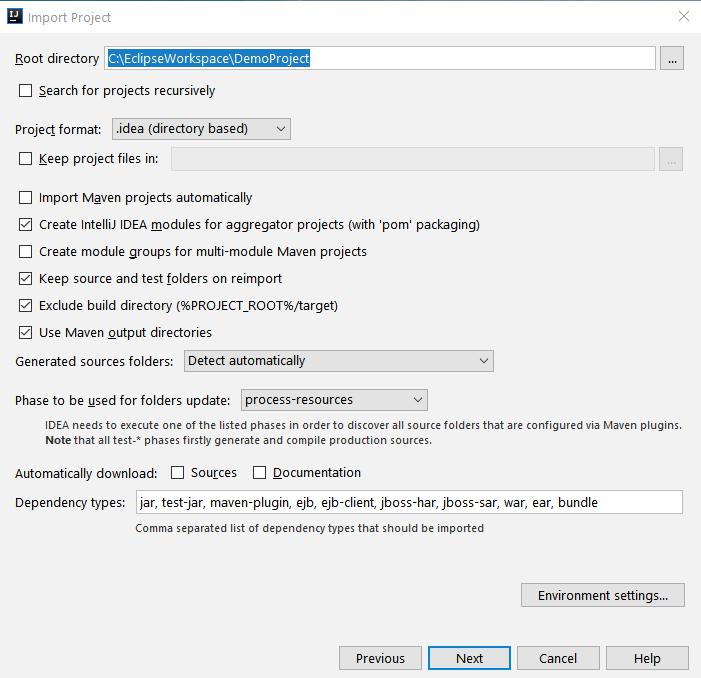
Specify the project’s SDK and click Next.
Specify a name and the location of your project.
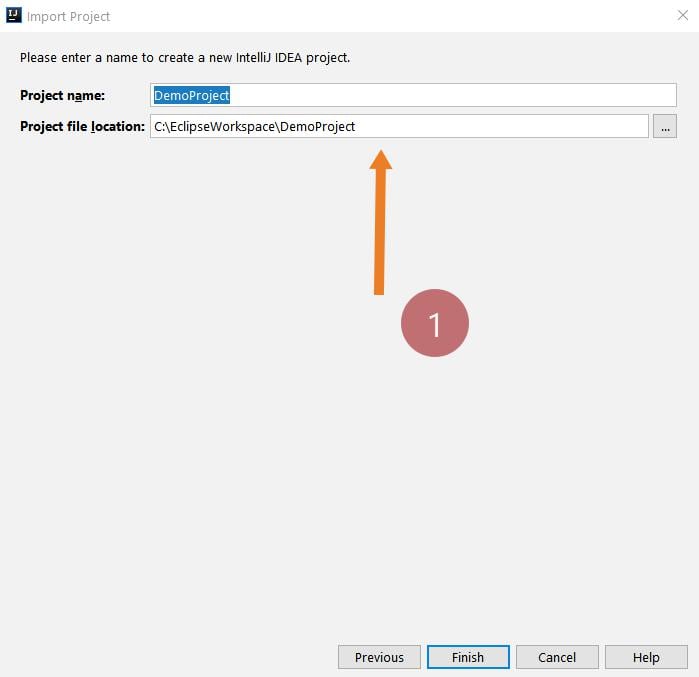
Finish
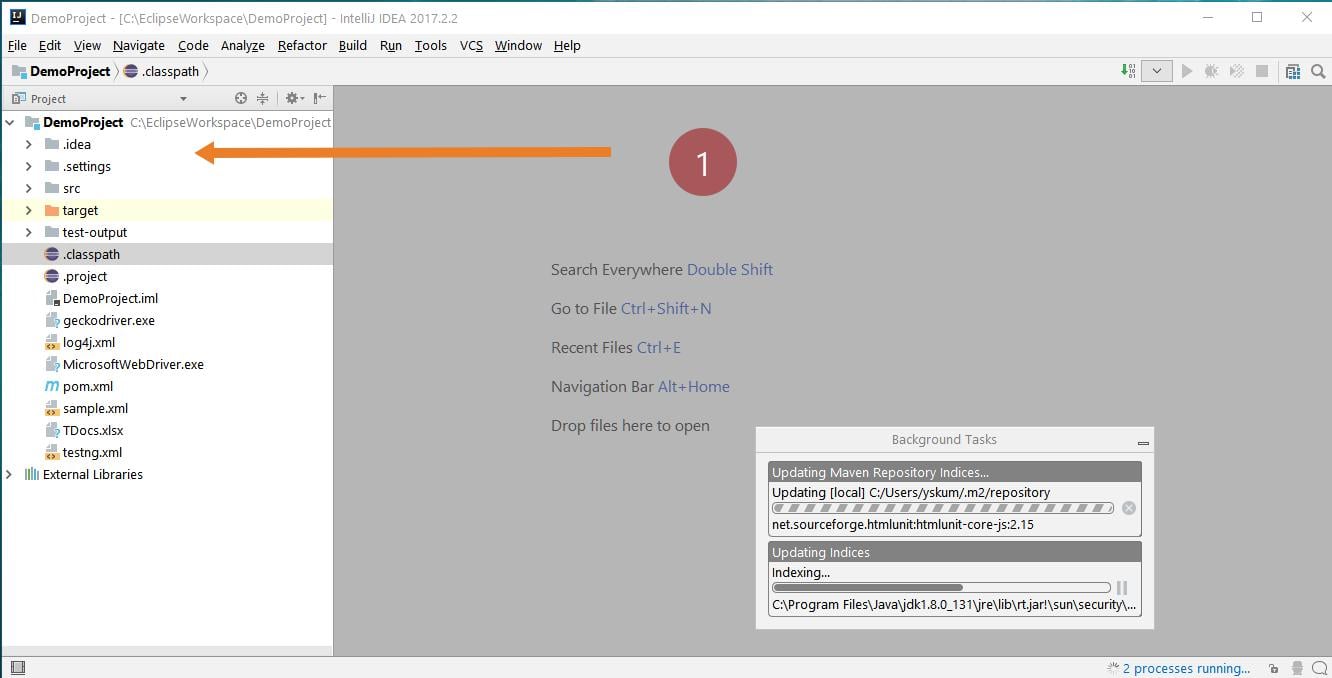
That’s it you are done with the project import. Note that the import process may take a while if the project you are importing is large.
IntelliJ Tutorials on this website can be found at: