
Blog
Install Firefox Selenium IDE Addon

Install Firefox Selenium IDE Addon
In this tutorial, we will learn how to install the Selenium IDE Add-on for the Firefox Browser. We can add the plugin to the Firefox browser by installing it from the Mozilla Add-on Marketplace.
Firefox Selenium IDE Addon
Steps to install the Selenium IDE Addon is as follows:
Launch Firefox Browser
Navigate to the following URL. Alternatively, navigate to the Mozilla add-on marketplace and search for the Selenium IDE add-on.
- https://addons.mozilla.org/en-US/firefox/addon/selenium-ide/
Click on Add to Firefox button and complete the install process.

Verify Install
We can check the plugin’s proper installation on the extensions page in the browser. Alternatively, we can type the following in the browser address bar.
about: addons
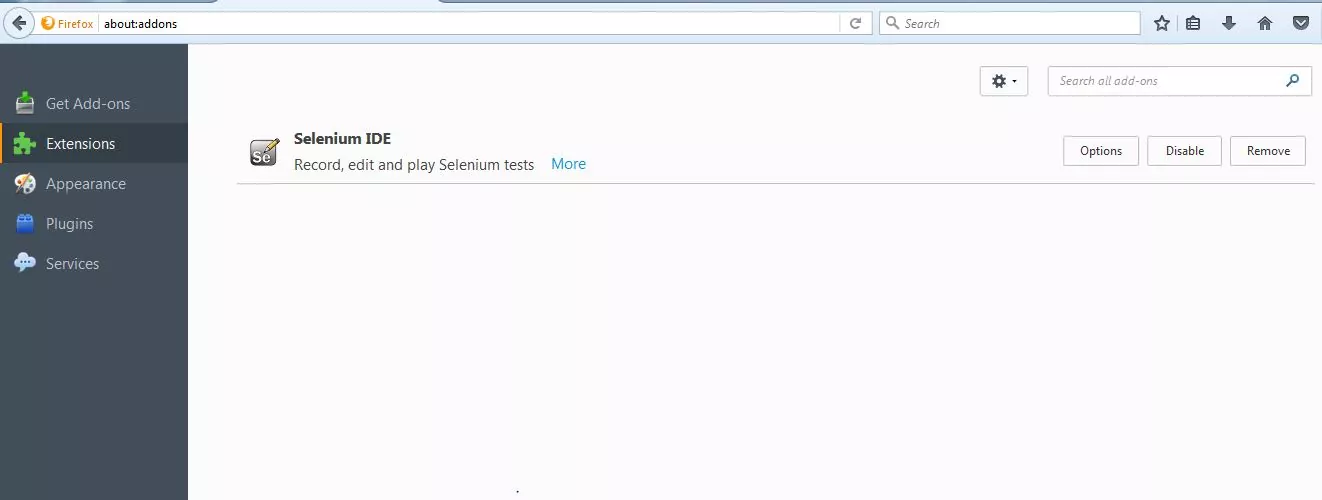
We can choose the custom location for the add-on by customizing the Firefox browser as shown on the screen.

On Ubuntu OS
Launch the Firefox browser from the Dock. (The default left sidebar has default applications on Ubuntu Desktop.

Search for Selenium IDE on the add-ons marketplace.
Click the Add to Firefox button. Click on Add button to the permission pop-up.

By default, the IDE button would be added to the browser window.
That’s it. The tool would be added to the Firefox browser.
Chrome Browser Plugin
Steps to install Selenium IDE on Google Chrome Browser can be found here: