
Blog
Install R on Windows 11

Install R on Windows 11
This tutorial will download and install R software on the Windows 11 operating system. R is free and open-source software. It is a programming language and an environment for statistical computing, data analysis, and visualization. R is cross-platform and can be installed on many operating system platforms.
Download R
We can download the R from the CRAN mirrors. (Comprehensive R Archive Network )
Open a web browser and navigate to the CRAN mirrors URL.
- https://cran.r-project.org/mirrors.html
Pick the closest mirror and click on the mirror URL link.
Alternatively, pick the URL below to redirect servers worldwide automatically.
- https://cloud.r-project.org/
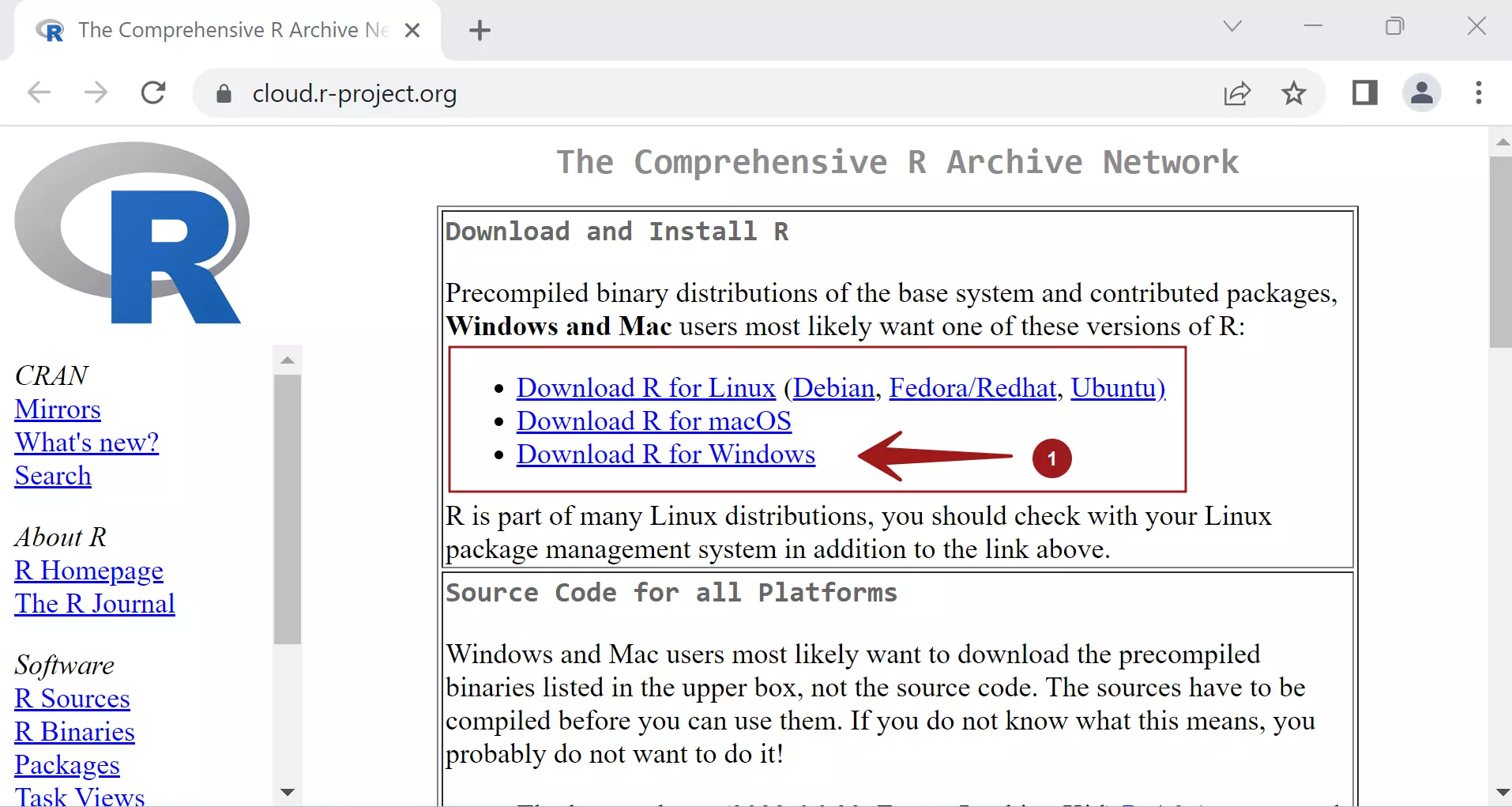
Click on the link Download R for Windows link to download the software. This will open a webpage with R subdirectories. To install R for the first time, click on the base link:
install R for the first time
This will launch the R download installer page.
Click on the link Download <version> for Windows link to download the R installer file.
The installer file format: R-<version>-win.exe
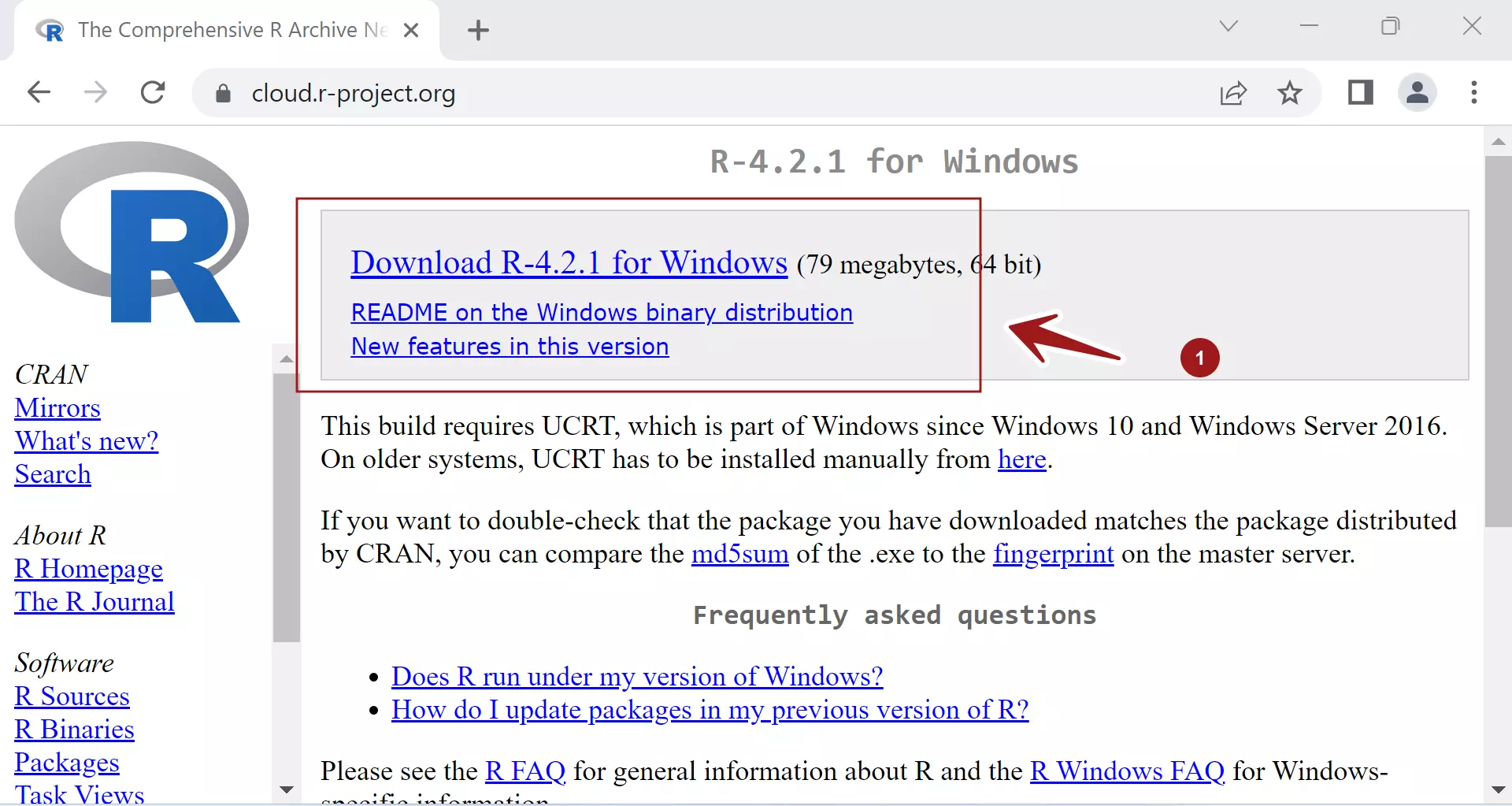
Install R
Double-click the R installer file to launch the install wizard. From the drop-down menu, select the setup language to use during the installation. The default setup language is English.
Click on the OK button.
Click on the Next button on the Setup screen.

Choose the installation location for the R. By default, the software would be installed into the following folder:
C:\Program Files\R\R-<version>
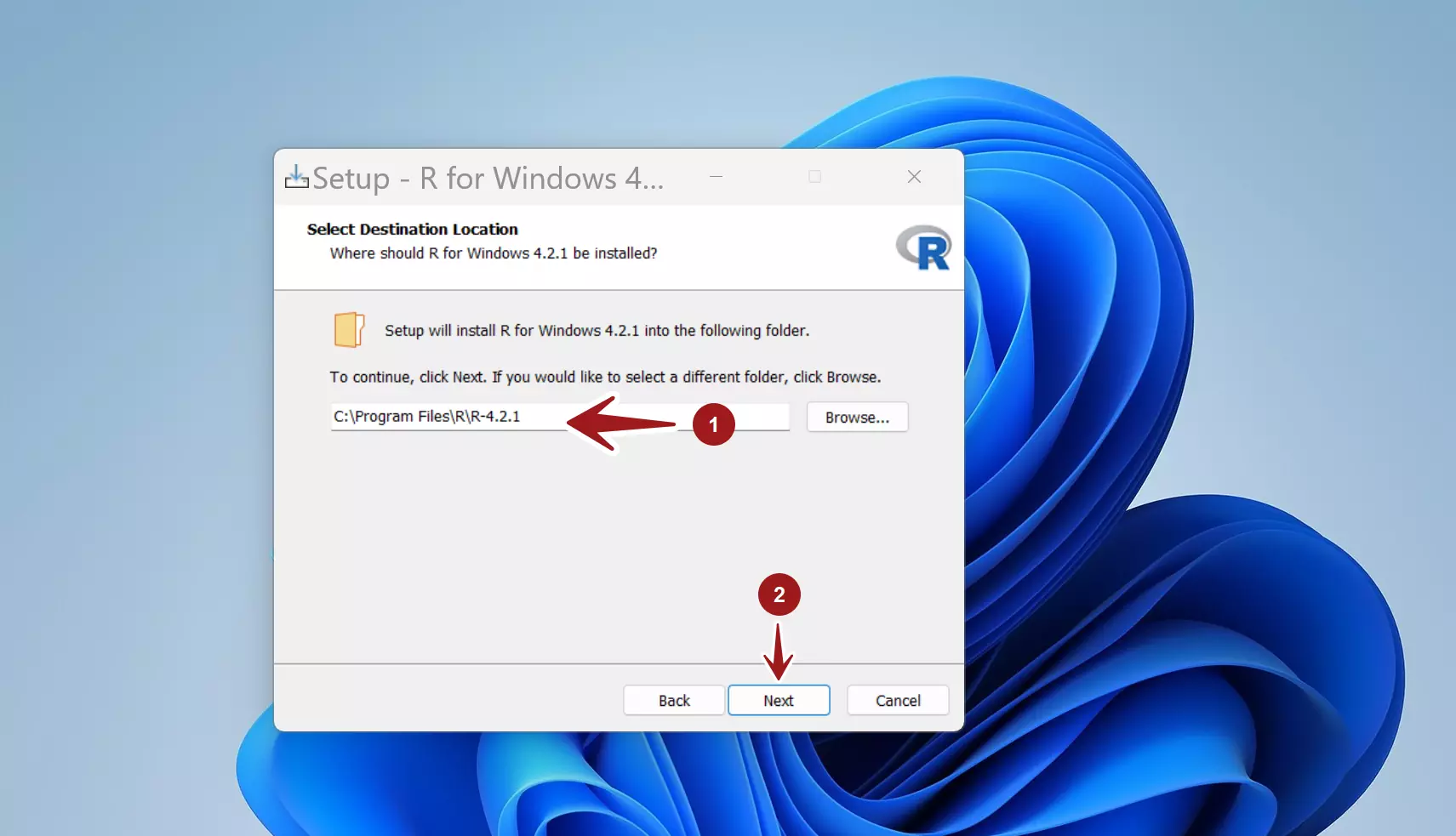
It’s recommended that you install the software into the default install folder. If you need to change the location, click the Browse button and select the installation folder.
Select the components. By default, select all the components.
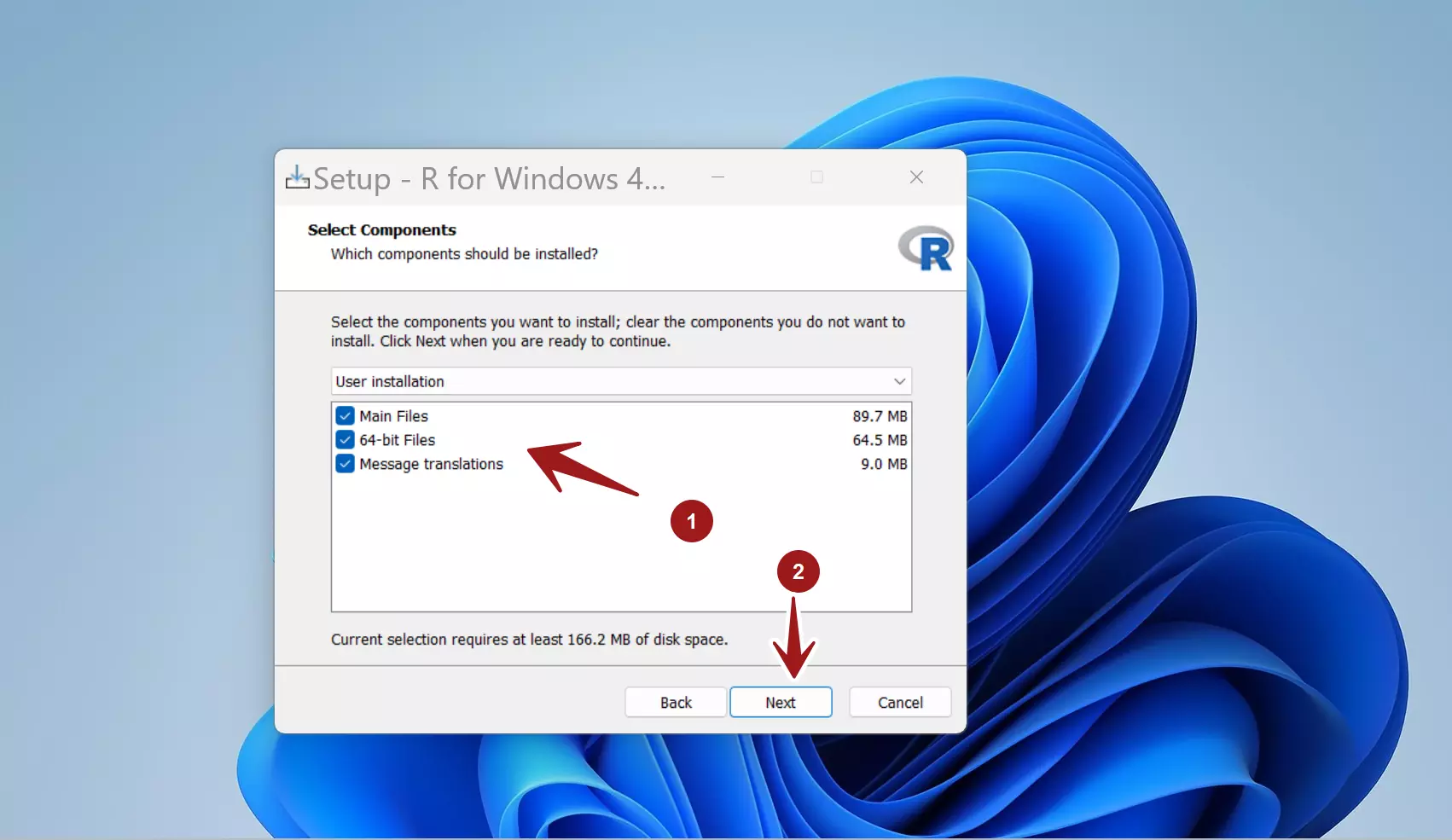
Startup Options
On this screen, you can customize the startup options.
- We can choose from MDI or SDI(The default option is MDI single window)
- Plain text help or HTML help. ( The default option is the HTML help)
Click on the No option to accept the default options. Click on the Next button.
Start Menu shortcut
We can set up the R start menu program shortcut on this screen. Click on the Next button.

On the next screen, we can choose additional installation tasks. The additional tasks are:
- Create a desktop shortcut icon.
- Create a QuickLaunch shortcut.
- Save the version number in the Windows registry.
- Associate R software with the.RData files.
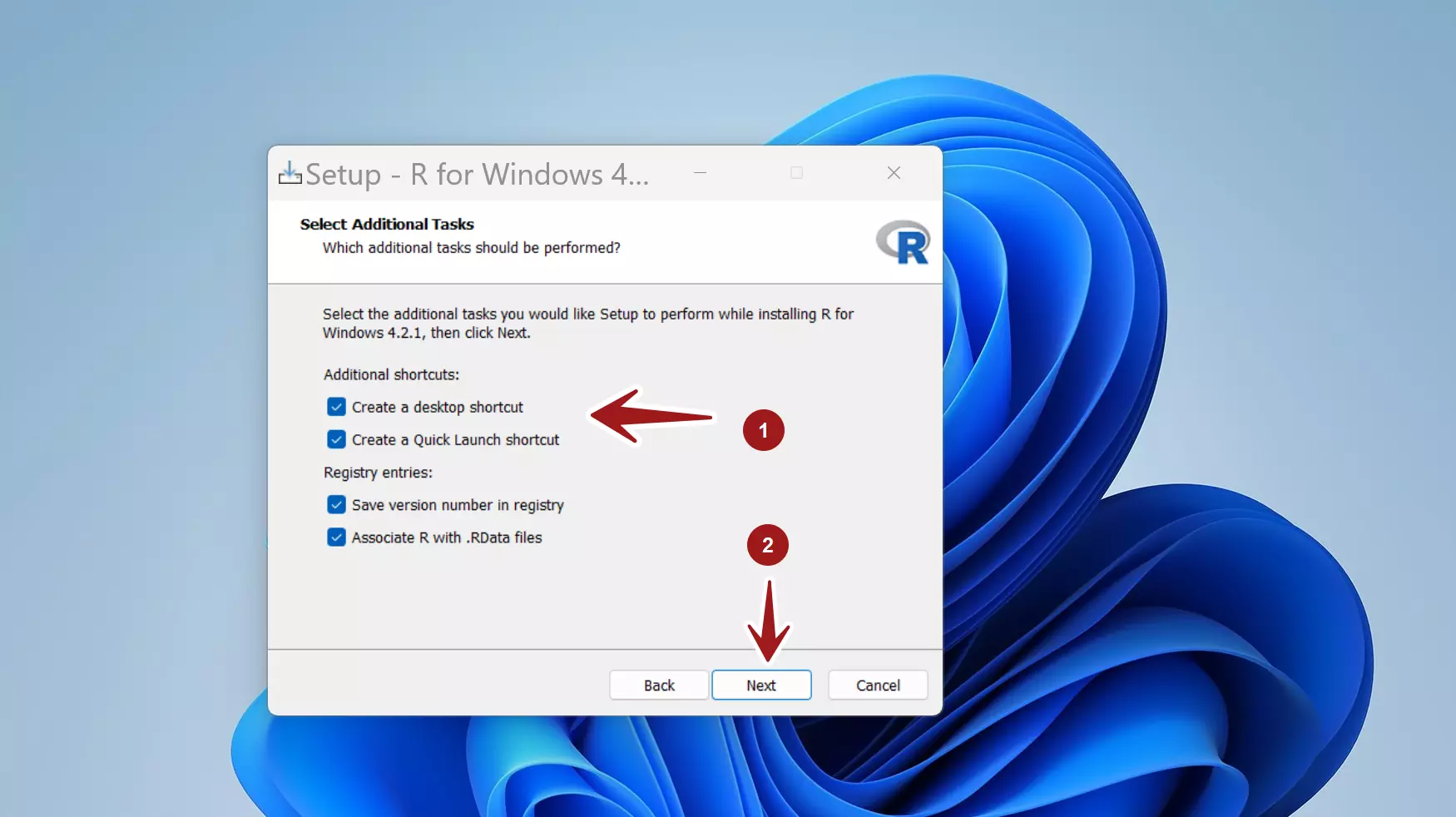
Click on the Next button to install the software. The setup wizard will install the software. Once done, click the Finish button to complete the installation and quit the R setup wizard screen.
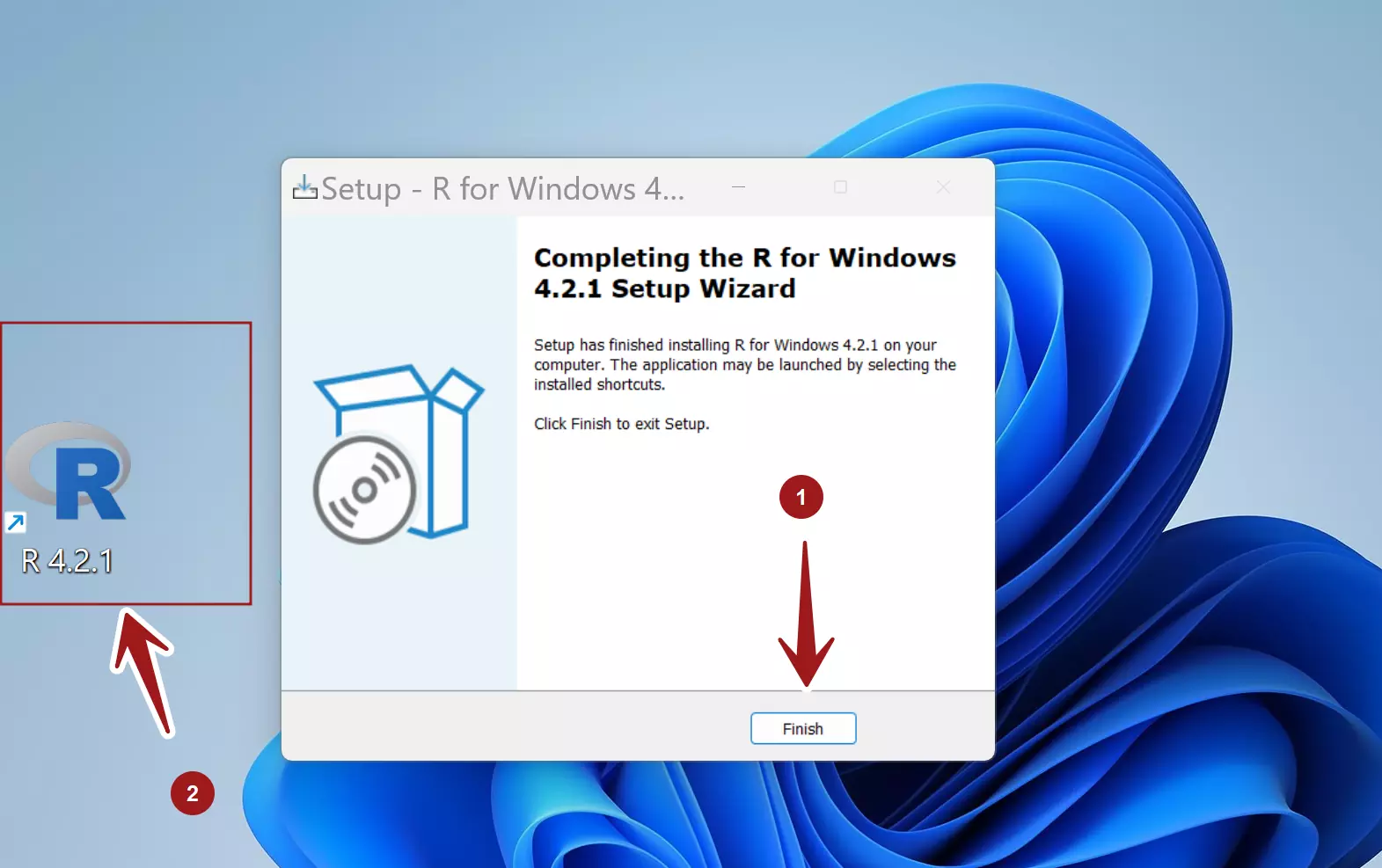
That’s it. We have successfully installed R on the Windows 11 machine.