
Blog
Install Python on Windows 11

Install Python on Windows 11
This tutorial will download and install Python on the Windows 11 Operating System. Windows 11 is the latest major release of Microsoft’s Windows NT operating system in October 2021. It’s a successor to Windows 10 and offers several new features and improvements.
Download Python
Here are the steps to download Python on a Windows 11 machine:
Open a web browser like Chrome, Firefox, or Edge.
Navigate to the Python website:
- https://www.python.org/
Click on the Downloads link.
This will display the Download for Windows Python installer button.
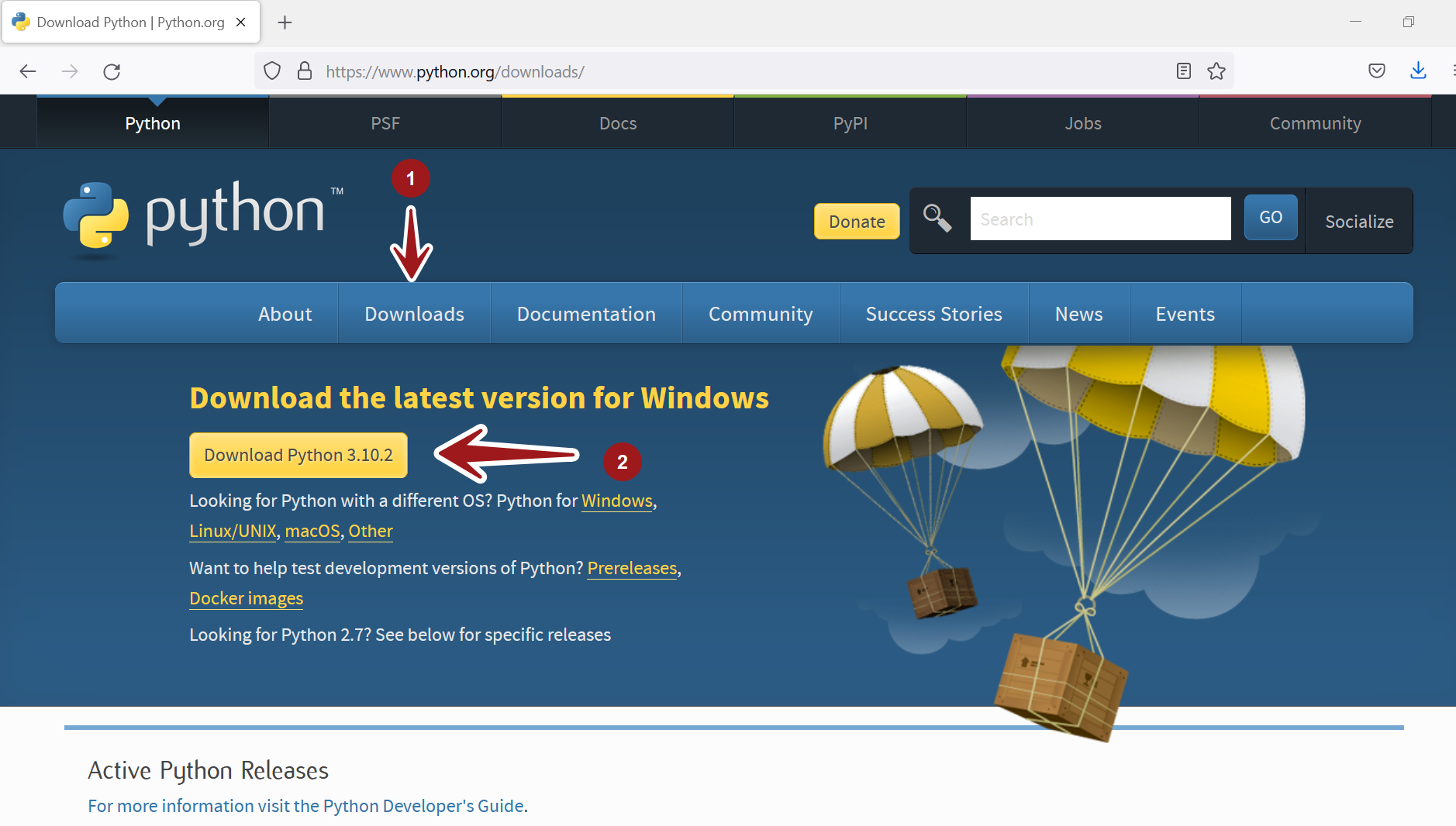
Download the Windows installer( 64-bit). For Example, the filename would be:
python-<version>.exe
Save the installer to the Downloads folder.
Install Python
Run the downloaded installer file. Locate the installer and double-click on the installer file.

This will launch the Python install wizard screen. Accept the default settings and wait until the installation is finished.
To install it for all users, check the options
Install launcher for all users(recommended)
To add Python to the PATH variable, check the option
Add Python <version> to PATH
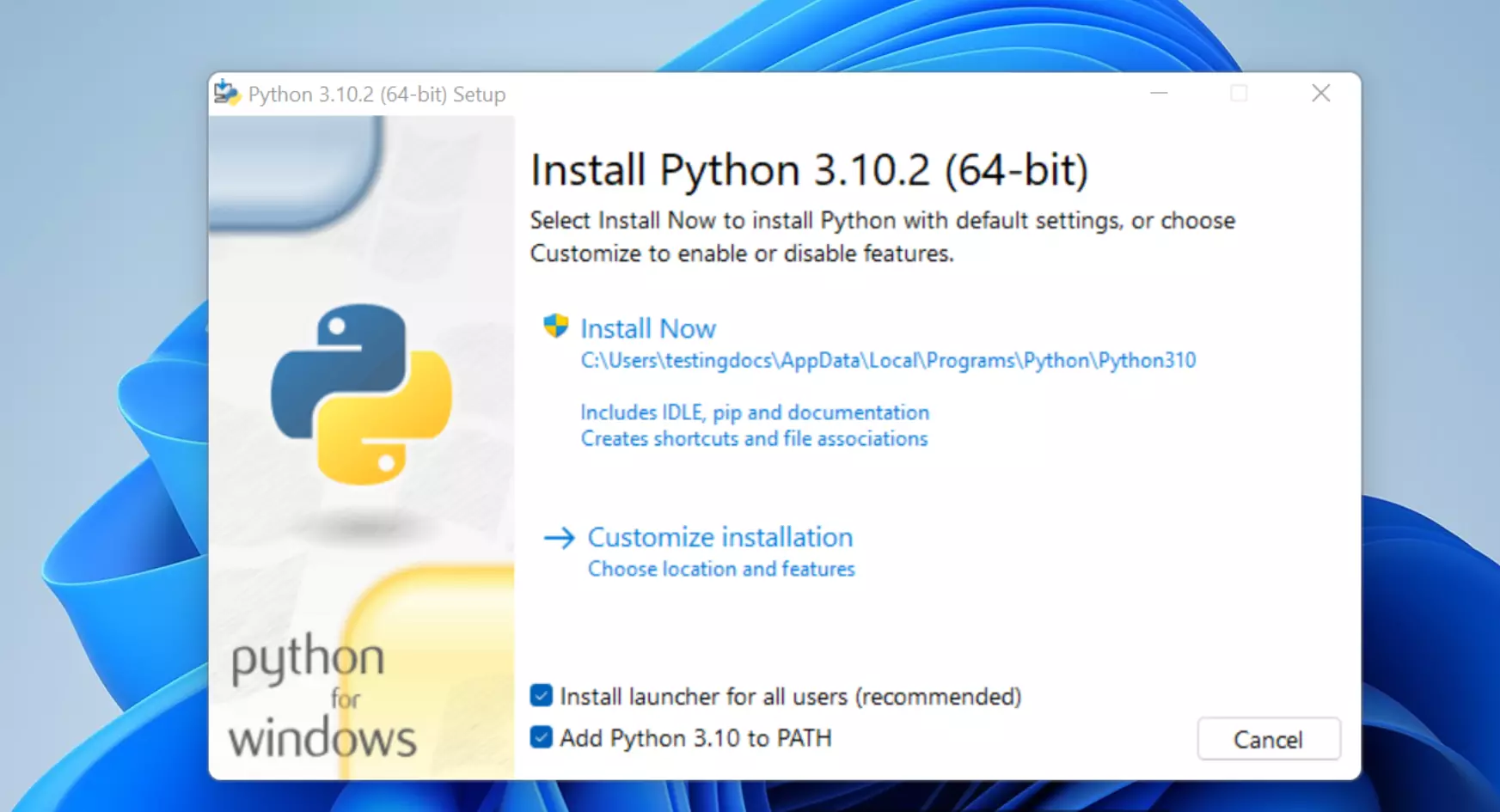
Click on the Customize installation link to customize the installation. We can choose the Python installation location.
Select the components. Checking and installing all components is recommended.
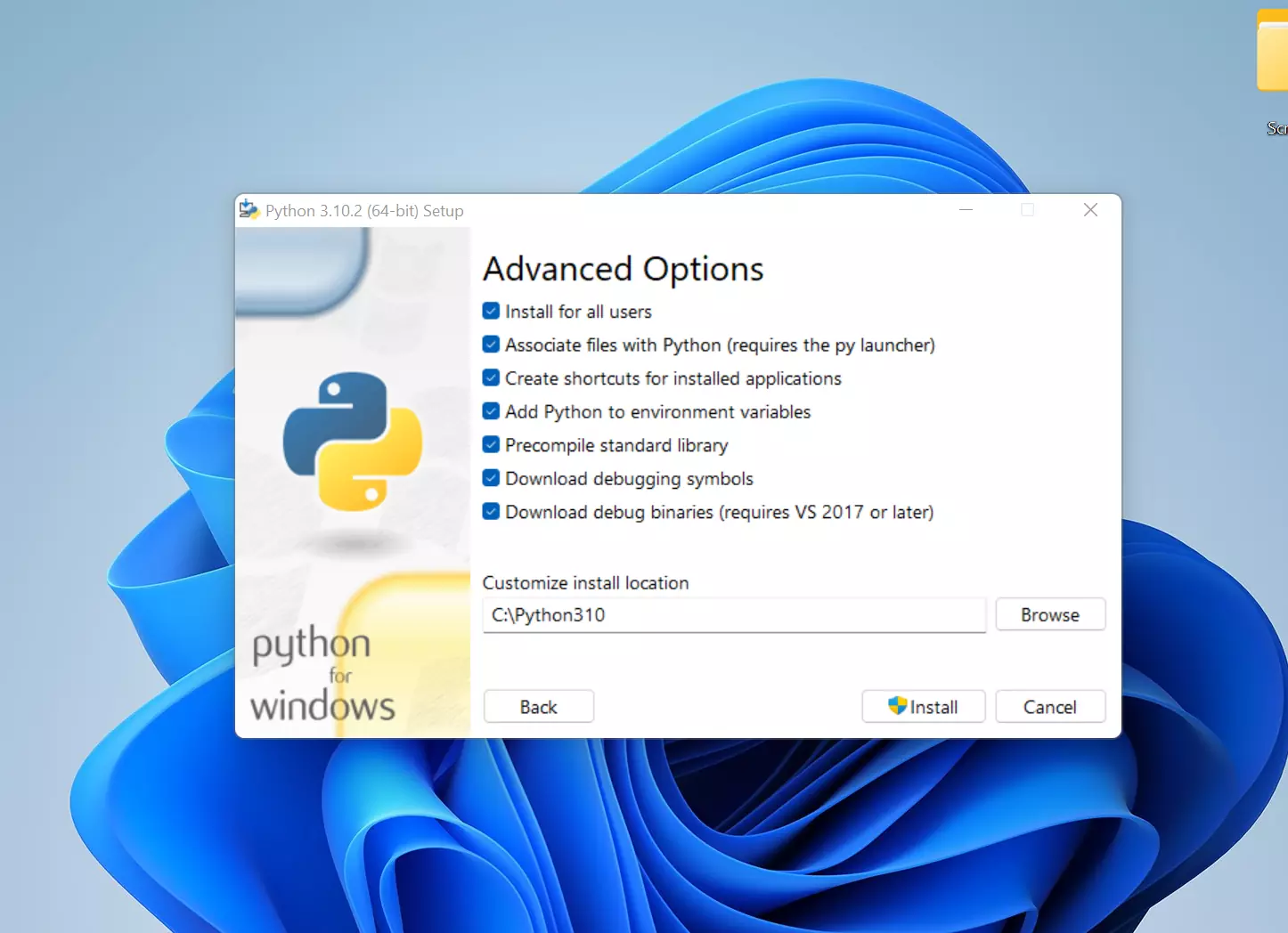
Click on the Browse button and choose the install location.
Click the Install button to install Python on the machine. Python requires administrative privileges on the computer. To do so, click Yes on the UAC elevation prompt or enter administrative credentials.
This will install the software. Once done, the setup success screen will be displayed. This screen has links to Python online tutorials and Python release notes for information about new features and bug fixes.
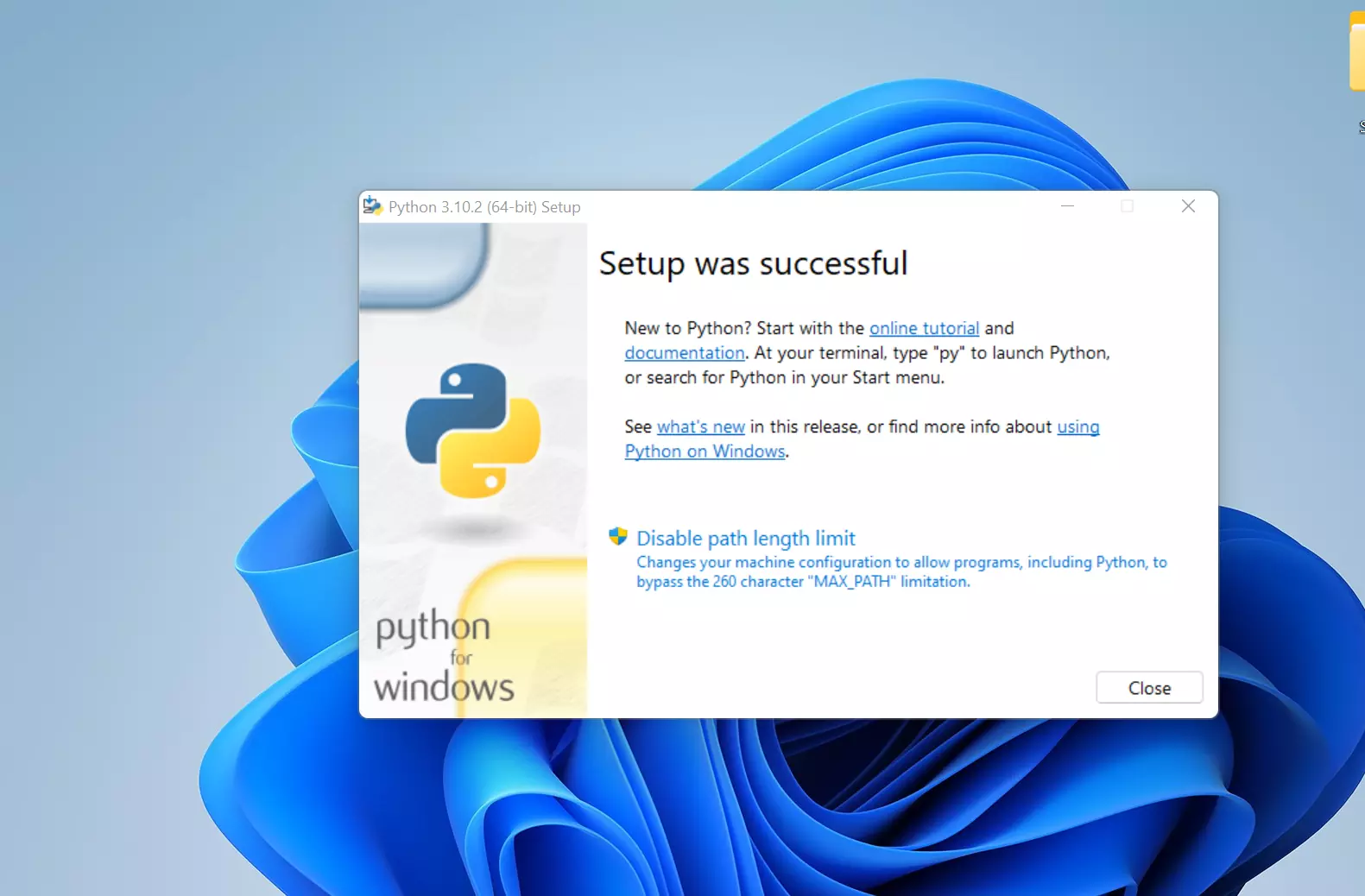
It’s recommended to click on the Disable path length limit option. This configuration setting would allow programs to overcome the path length limitation. On the production machine, check with the System administrators before making this change.
IDLE
IDLE is Pythonâs Integrated Development and Learning Environment. The GUI is uniform between Linux, Windows, and Mac OS. IDLE provides an easy way to start writing, running, and debugging Python applications.
Check the Install
Launch the Windows command prompt and issue the following command to check the Python install on Windows 11.
/> python -V
This command should output the Python version on the screen.
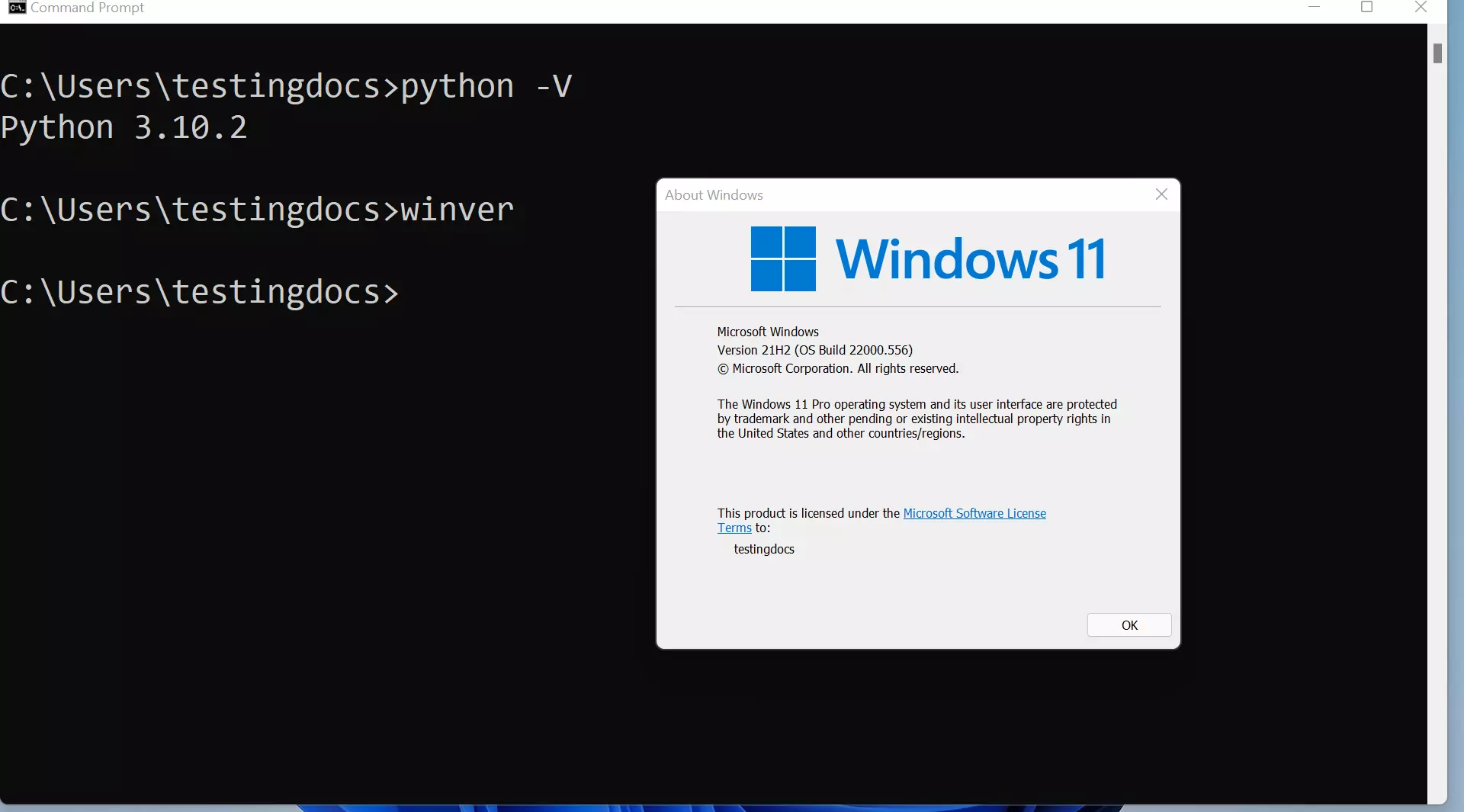
That’s it. We are done with the Python installation on the Windows 11 machine. We can launch the IDLE Python Interactive Shell and practice Python commands.
Related:
Install Python on Linux: click here
—
Python Tutorials
Python Tutorial on this website can be found at: