Blog
Windows 11 Virus & Threat Protection

Windows 11 Virus & Threat Protection
Windows 11 ships with in-built Windows Defender Antivirus and brings next-generation protection. In this tutorial, we will look at Windows 11 Scan options, Virus & Threat protection settings.
Windows Defender Antivirus availability:
- Windows 10
- Windows 11
Windows Defender Modes
Windows Defender supports three modes or states.
- Active Mode – Defender is the primary antivirus application on the machine.
- Passive Mode – Defender is not the primary antivirus application on the machine.
- Disabled state – Defender is disabled or uninstalled on the machine.
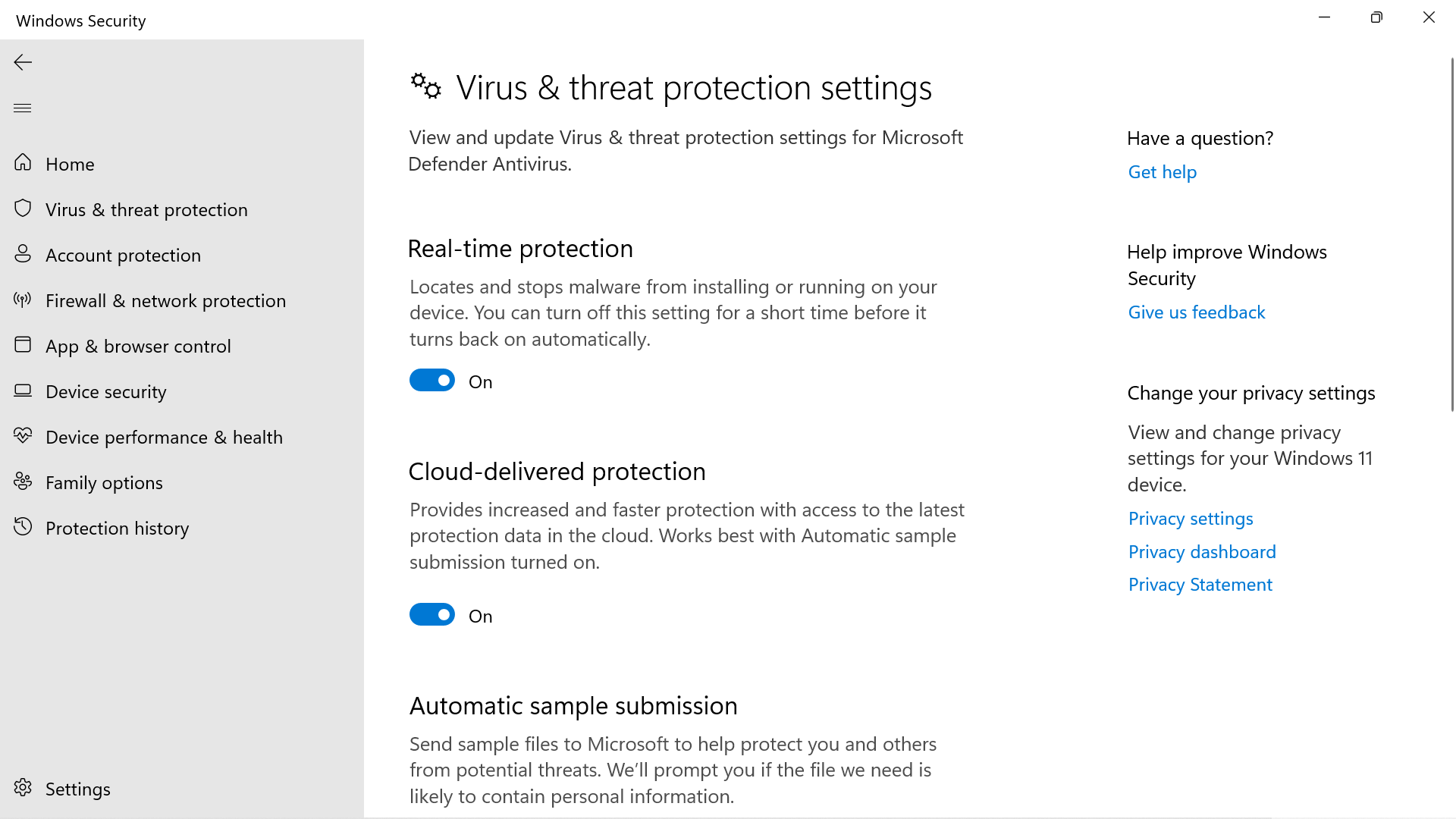
Norton 360 Anti-virus application is protecting the Windows 11 PC. Microsoft Defender is in a disabled state.
Defender Scan options
Windows Defender Scan options.
- Quick scan
- Full scan
- Custom Scan
- Microsoft Defender Offline Scan
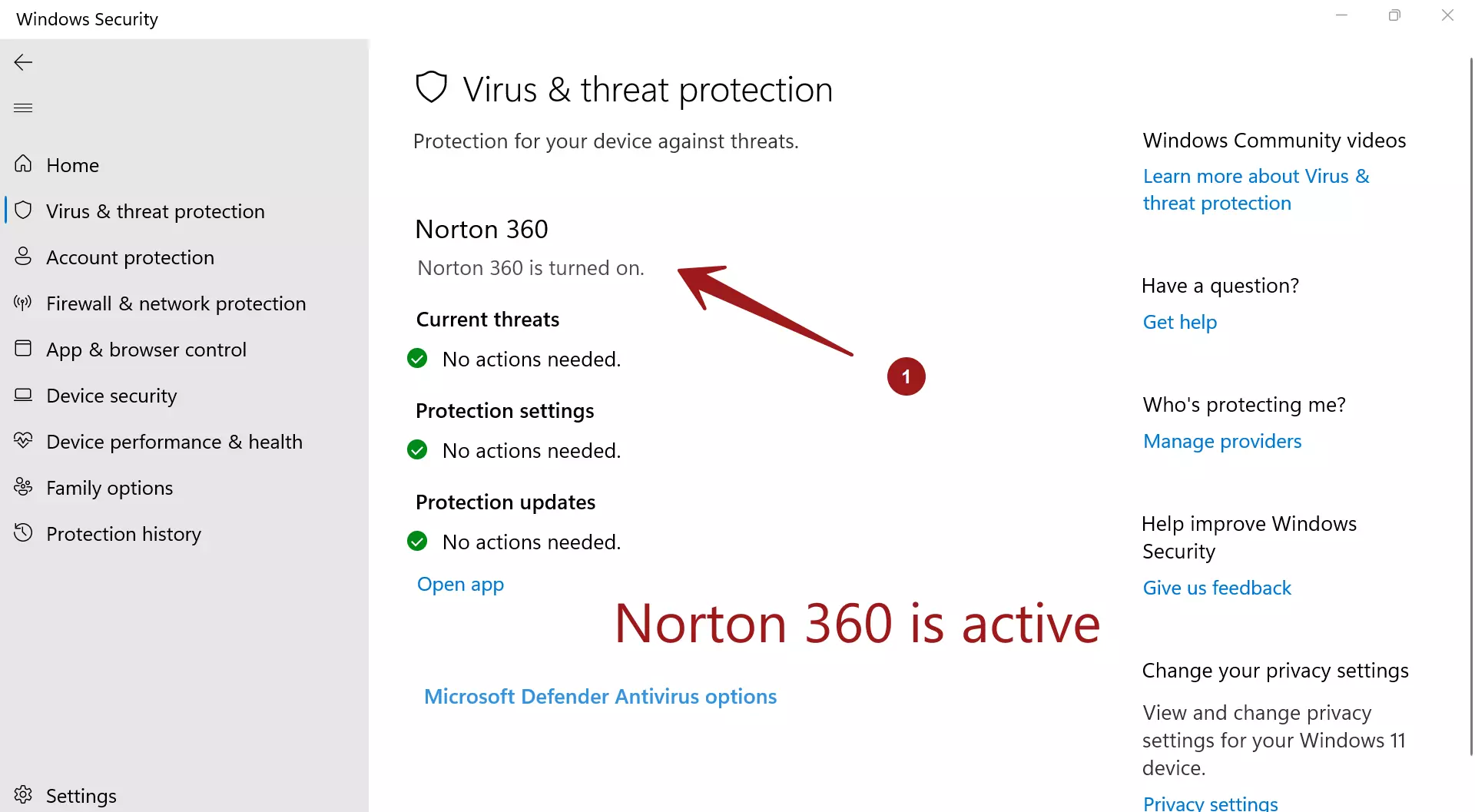
Quick scan only scans common files and folders for threats. This scan takes less time. Quick scan is the default scan. To perform this scan click on the Quick scan button.
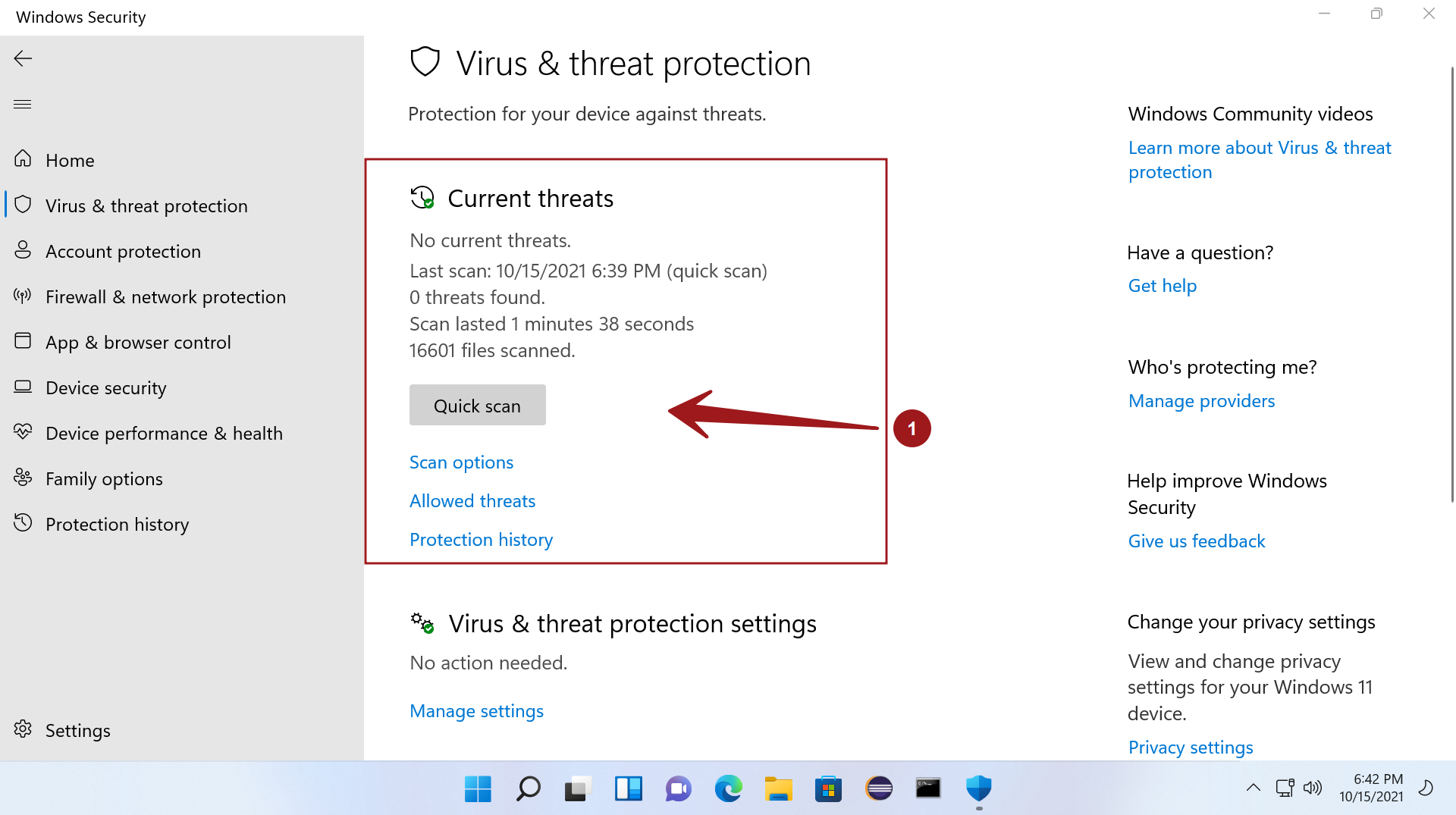
To choose other scan options click on the Scan options link.
Full scan scans all the files and programs on the system. This scan takes a longer time.
In the Custom Scan user can choose the files and folders.
Microsoft Defender offline scan– This option can be used if you suspect that the machine is infected with persistent malware or rootkits. Malicious rootkits are harmful programs that hide their existence and perform unintended activities on the infected PC.
Before using this option, save all important work because the PC would restart automatically.
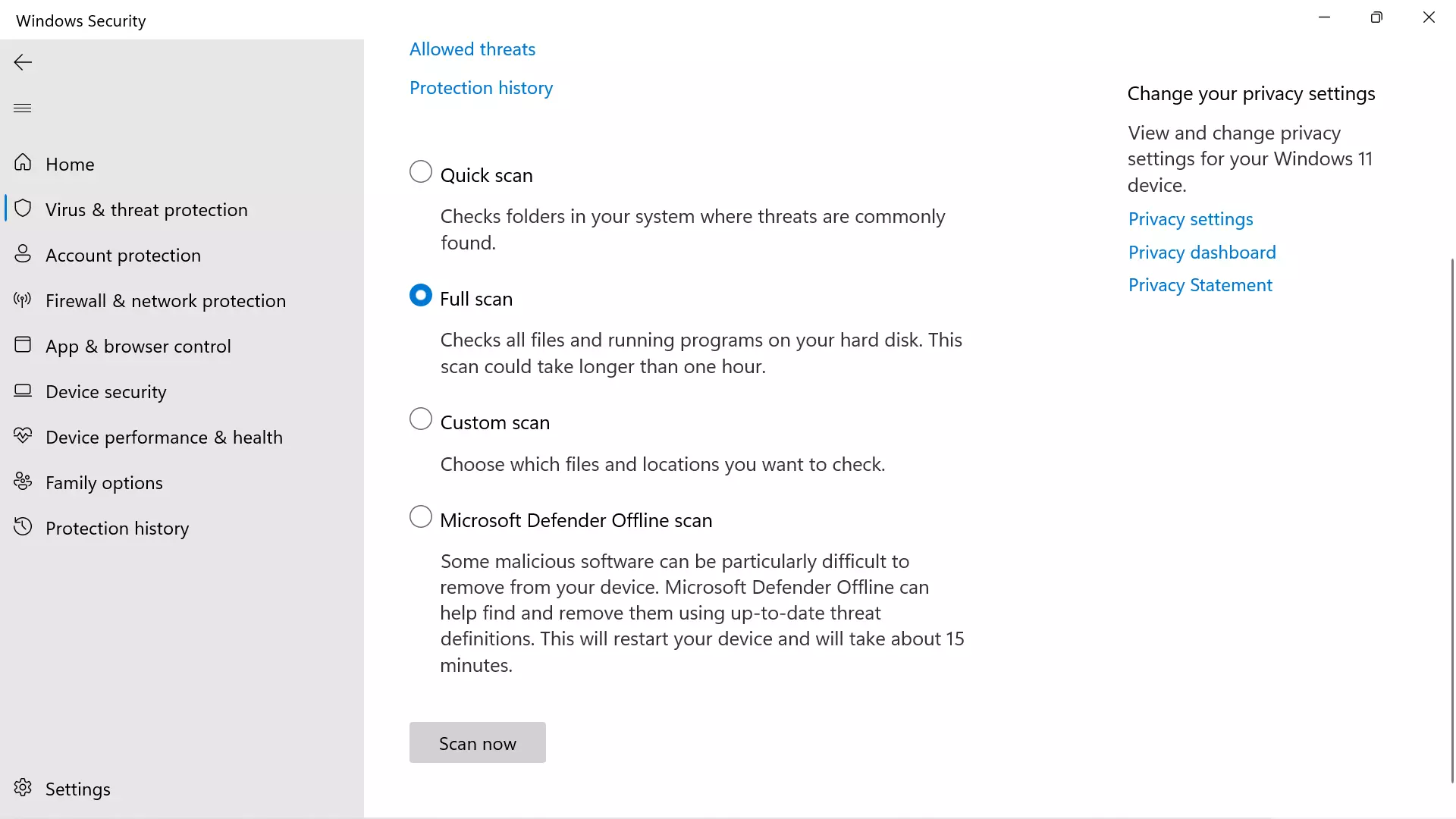
Virus & Threat protection settings
- Real-time protection
- Cloud-delivered Protection
- Automatic Sample Submission
- Tamper protection
- Controlled folder access