
Blog
Control Panel on Windows 11

Control Panel on Windows 11
In this tutorial, we will learn about the Control Panel on the Windows 11 operating system. The Control Panel App is used to change settings for a Windows PC. It is a handy tool for setting up and managing Windows, personalizing the look and feel of settings, and setting up security on the PC.
How to Launch?
There are multiple ways to launch the tool on Windows 11.
Click on the Search icon in the Taskbar. Type Control Panel in the search bar.
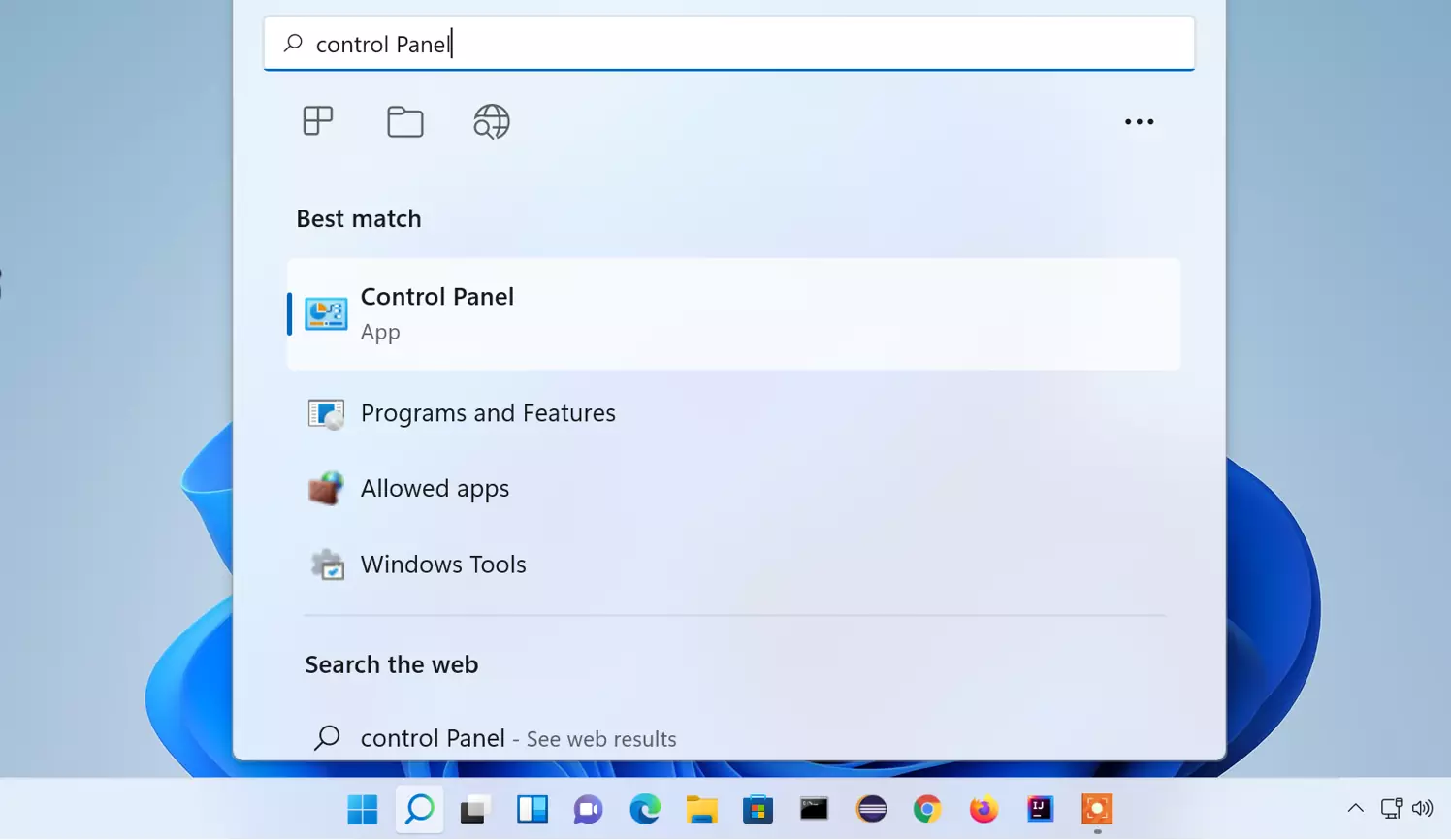
Click on the application search result. This will launch the tool.
Categories in the Control Panel dashboard are as follows:
- System and Security
- User Accounts
- Network and Internet
- Appearance and Personalization
- Hardware and Sound
- Clock and Region
- Ease of Access
- Programs
Control Panel Items split by Category. By default Control Panel items are grouped into different categories. We can browse and explore each category by selecting them.

We can also search for a specific setting in the Search bar. Search bar is located in the top- right corner.
All Items
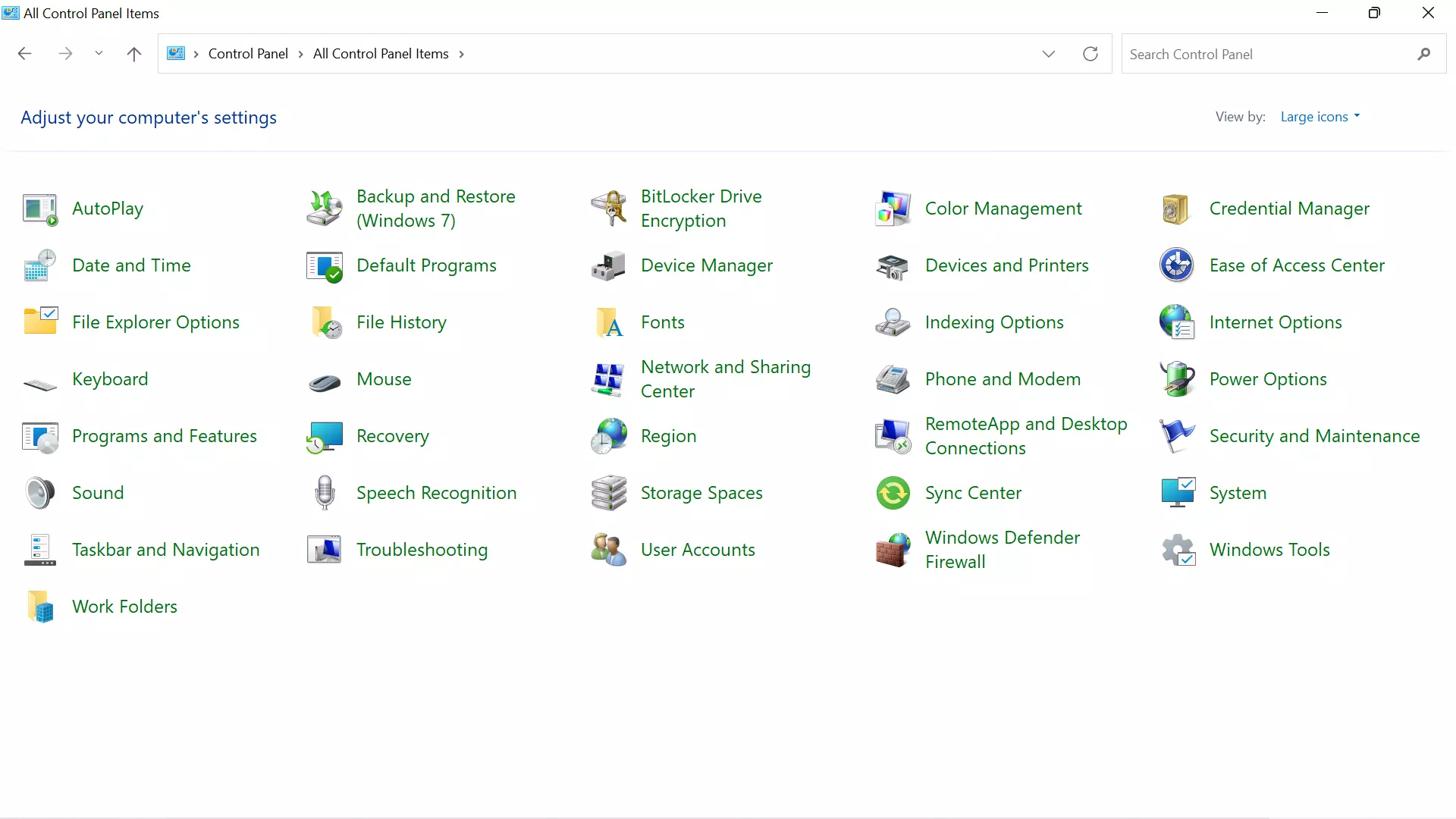
To view all control panel items click on the View By: drop down and choose the view Large icons or Small icons.
Run prompt
We can also launch the Control Panel from Run window.
Press Windows Key + R to launch Run prompt window.
Type control and click OK button. This will open All Control Panel Items screen.