
Blog
Windows Virtual Machine using ISO file

Windows Virtual Machine using ISO file
This post will create a Windows Virtual machine using VMWare Workstation with .iso file. This is a step-by-step guide with screenshots for almost every step.
Create ISO file
We can create an ISO file for Windows Installation using Media creation tool. Steps to create .iso file can be found at:
New Virtual Machine
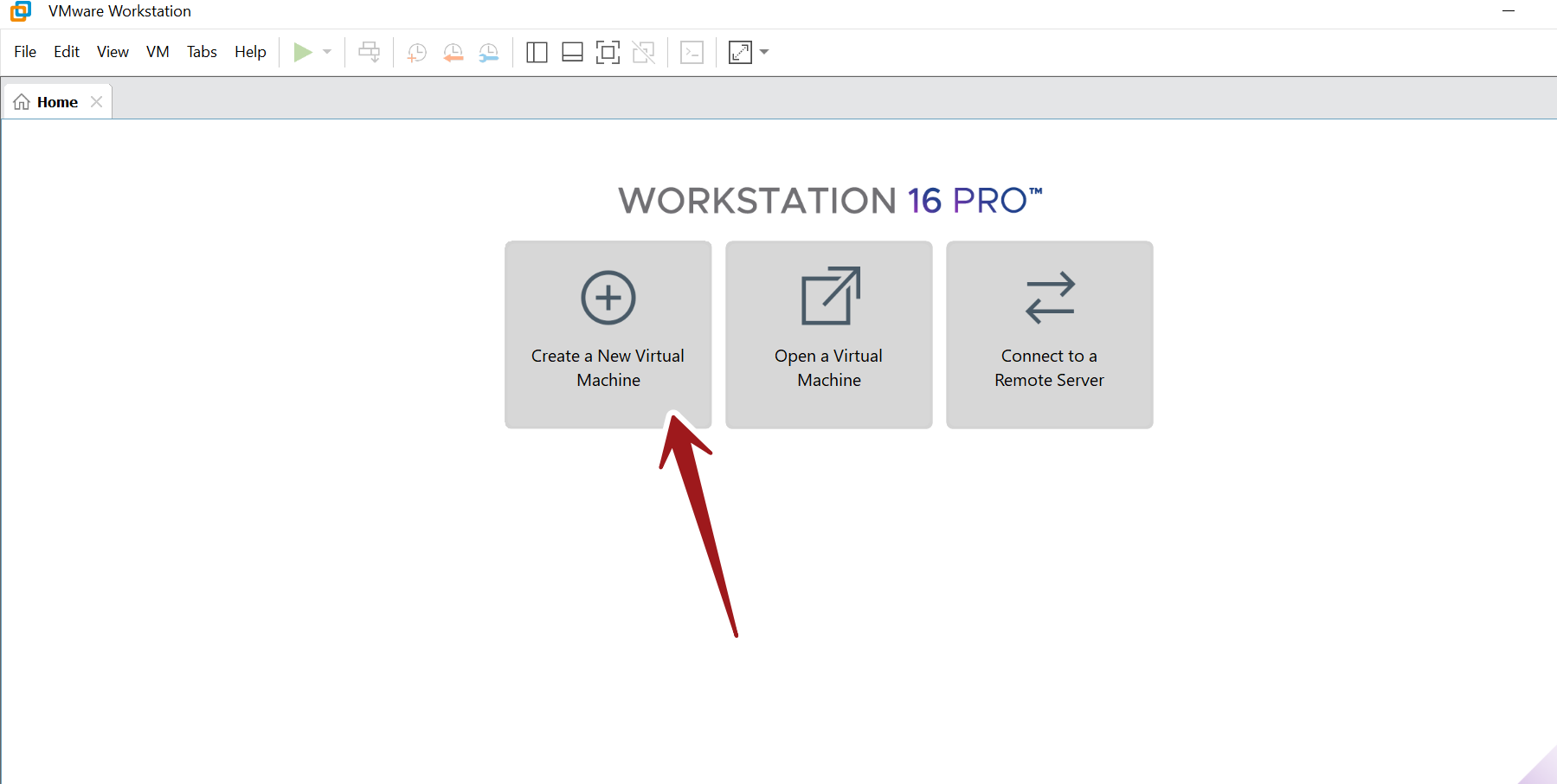
To create a new virtual machine, open the VMWare Workstation application.
Click on the Create a New Virtual Machine + button
or
Choose File >> New Virtual Machine… menu option. Both the options would launch the New Virtual Machine Wizard screen.
Choose Typical option and click on the Next > button.
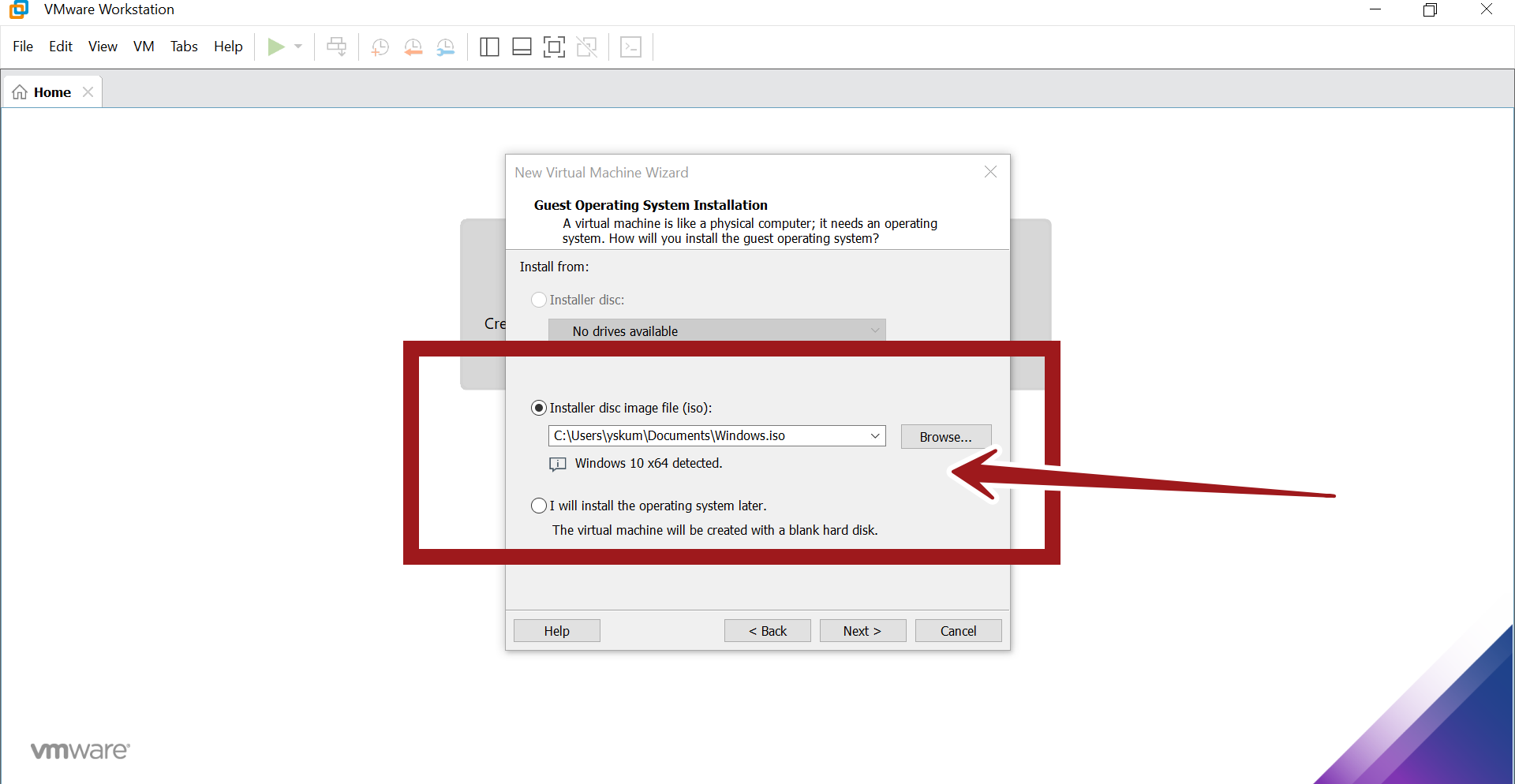
Click on the Installer disk image file ( iso ) radio button. Click on the Browse button and choose the Windows ISO file. The file create using the Media creation tool.
Once done click on the Next > button.
Give a name to the Virtual machine and choose the location to store the Virtual Machine.

Specify the disk capacity for the VM and click on the Next > button.

To customize the VM Hardware configuration click on the Customize Hardware… button.

Check the option Power on this virtual machine after creation and click on the Finish button. The Virtual disk file for the VM would be created at this step based on the VM configuration.
The virtual machine will power up. Press any key inside the VM to boot from CD.
Windows 10 Install Steps
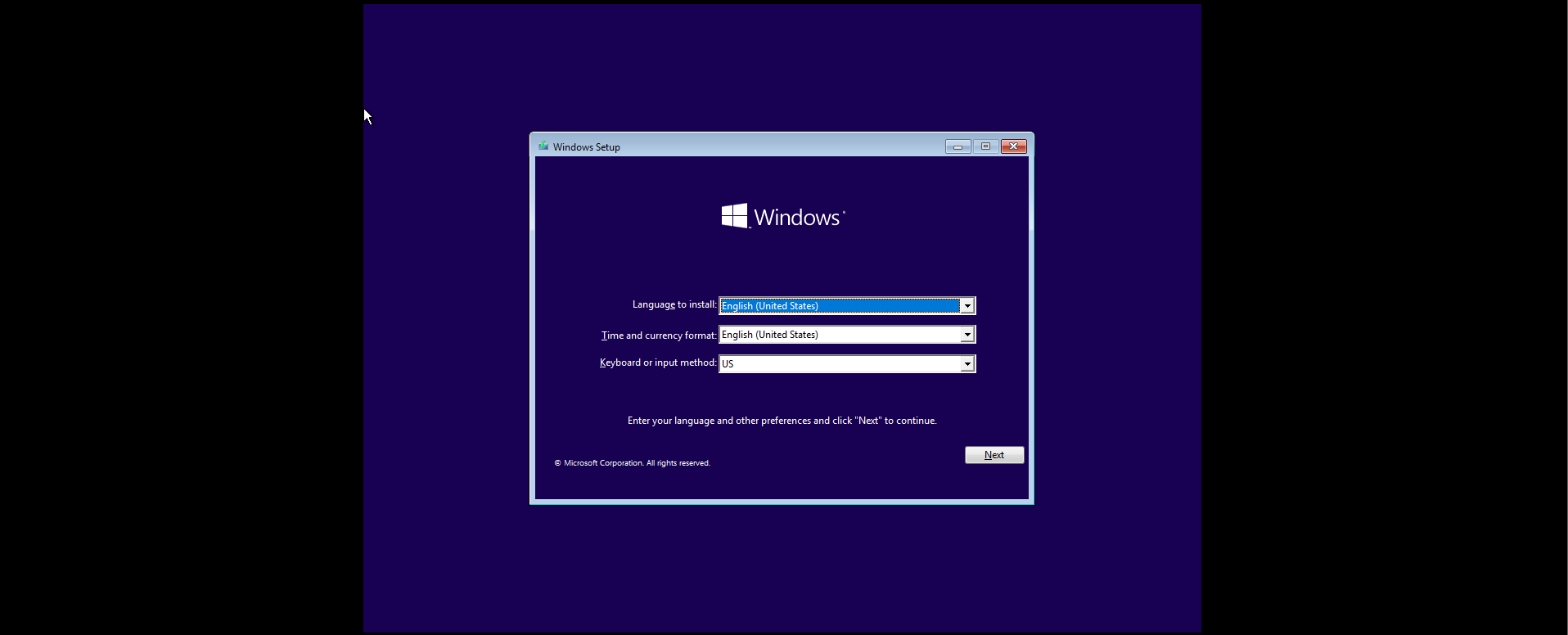
Choose Windows 10 language and keyboard settings. Click on the Next button.
Click on the Install Now button to install Windows 10.

Activate Windows with the Product key.

Select the Windows Edition you want to install. Select the operating system you want to install.
Click on the Next > button. Read and accept the license terms and click on the Next> button.

Choose the upgrade option or custom install option to install Windows.
In custom install we can format the disk, create a new partition and install Windows on the new partition.
Installing Windows step might take a while. You can grab a cup of coffee or tea 🙂

Install Options
Choose the region and click on the Yes button.

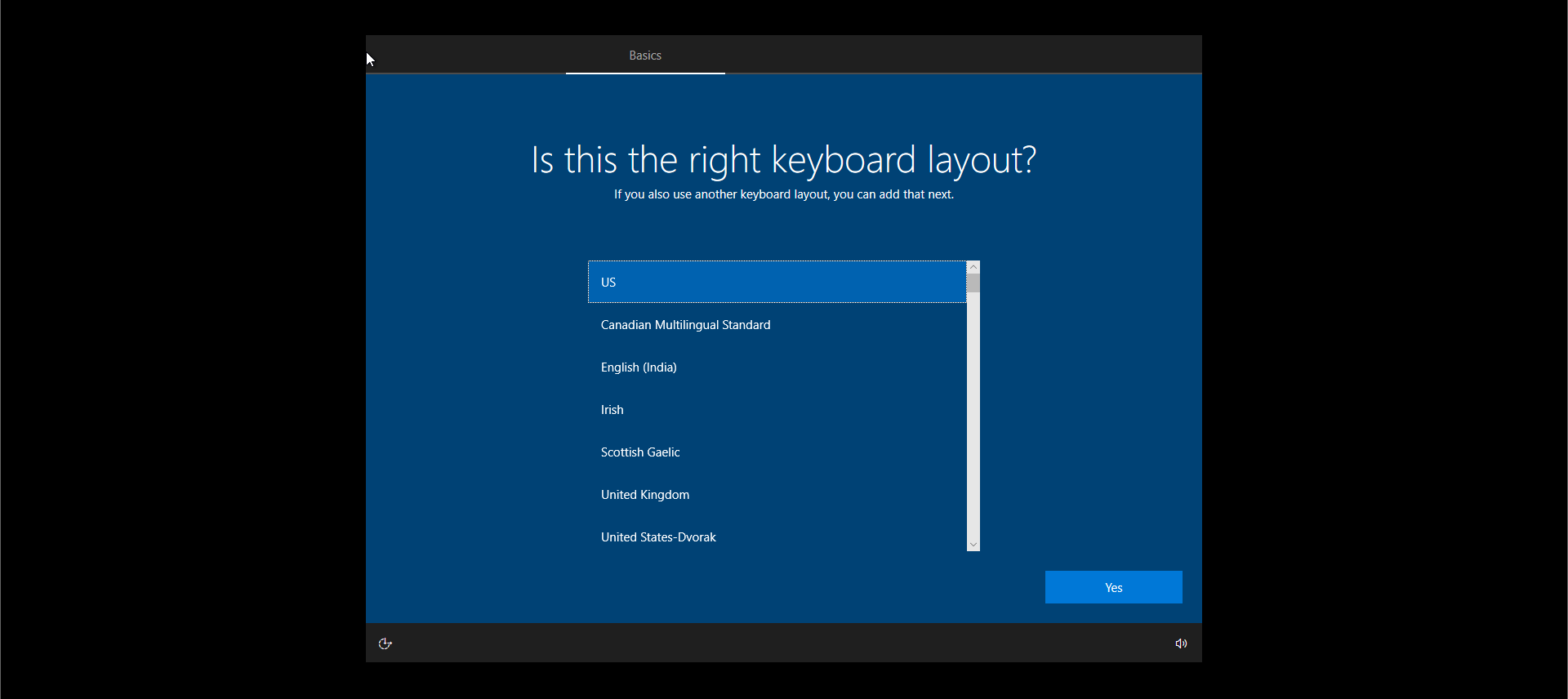
Select the keyboard layout option and click on Yes button to proceed.
Choose the machine setting for personal use or office use.

Create an offline user account or connect to an online Microsoft account. To create an offline account click on the link Offline Account.

Next few screens would prompt you to install options to turn on Cortona, One Drive integration, Connect to Android phone, create a PIN for the machine and privacy settings.
That’s it these are the basic steps and screens for installing Windows 10 Virtual Machine.