
Blog
Extend Disk Volume on Windows 10

Extend Disk Volume on Windows 10
In this tutorial, we will learn the steps involved in extending disk volume on a Windows 10 PC. We can expand disk volume provided unallocated free disk space.
Extend Disk Volume
Right-click on the Start button and choose Disk Management
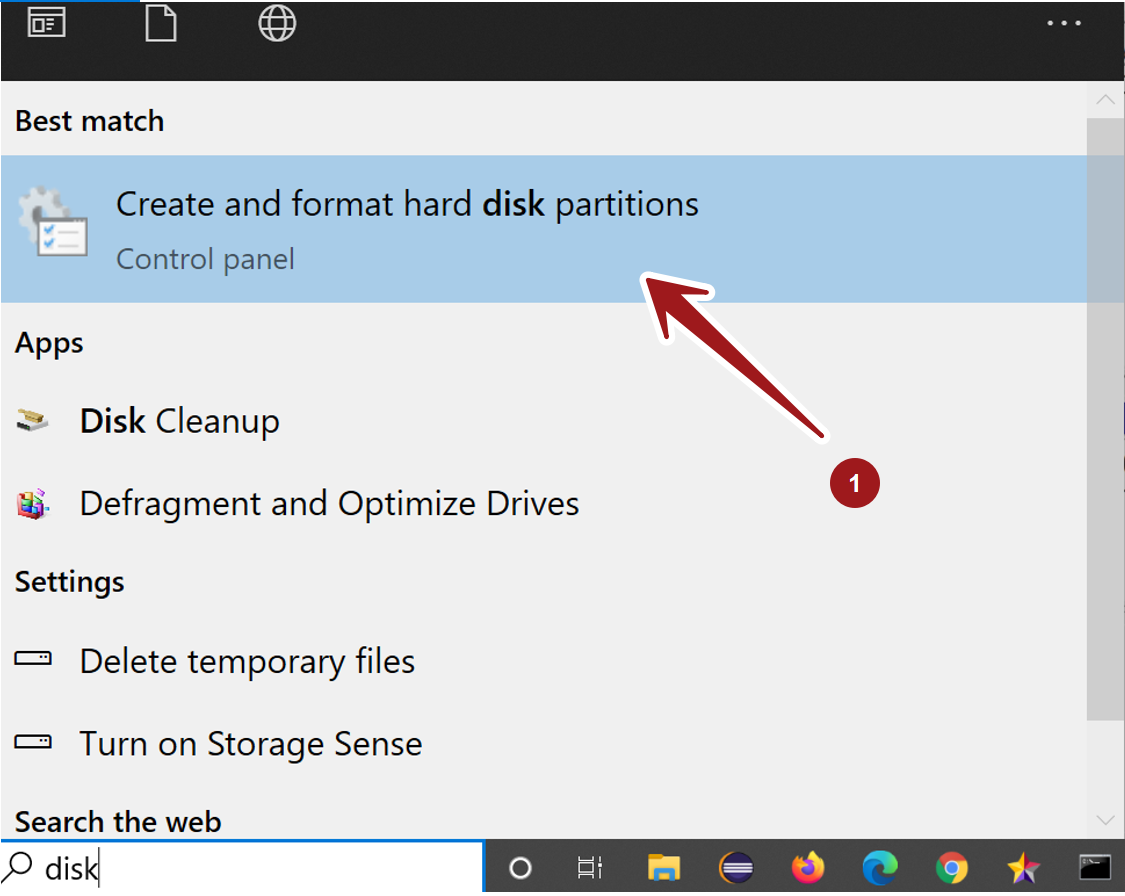
Alternatively, open the hard disk partition screen.
Open Create and format hard disk partitions Control Panel screen.
Disk Management is a dynamic disk and volume management tool.
Right click on the partition and choose Extend Volume… option. This will launch the Extend Volume wizard.
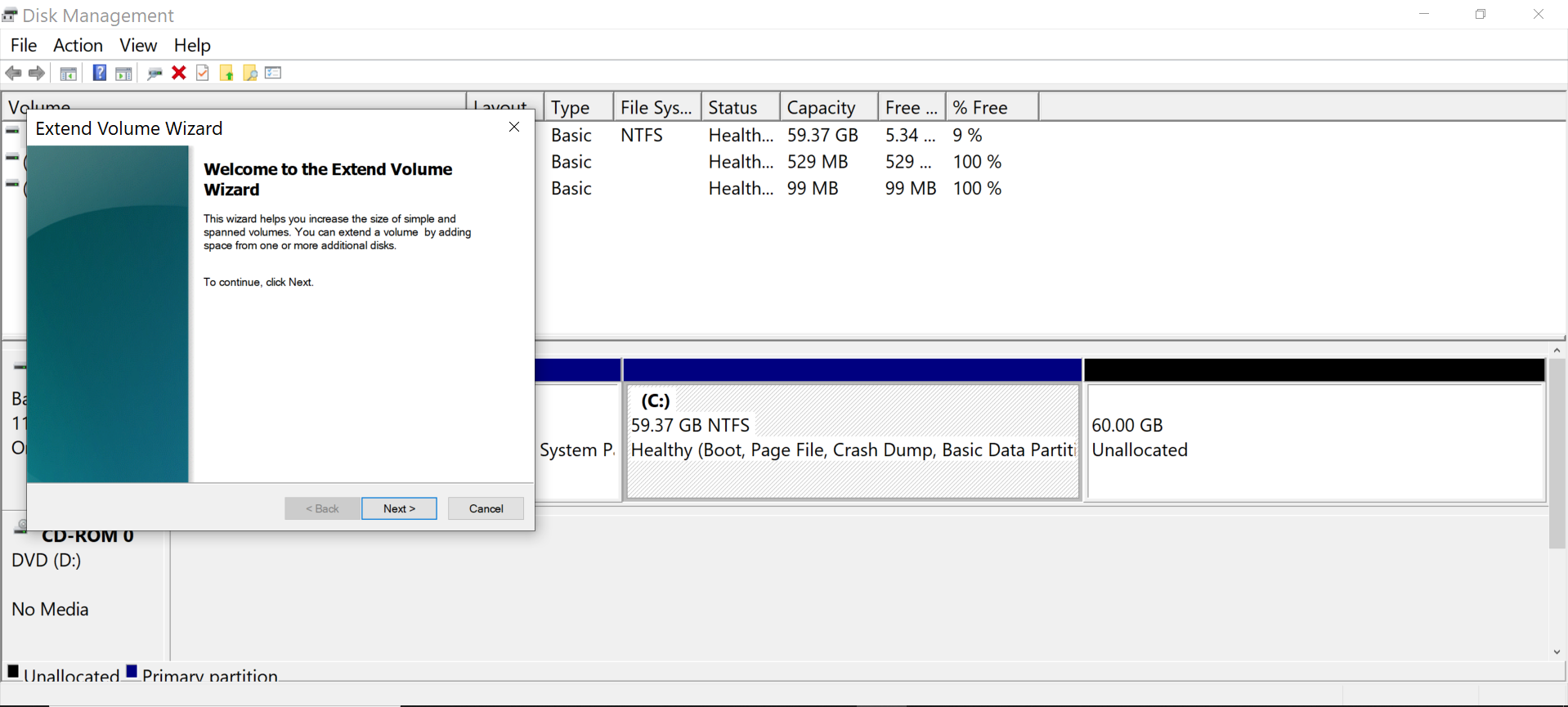
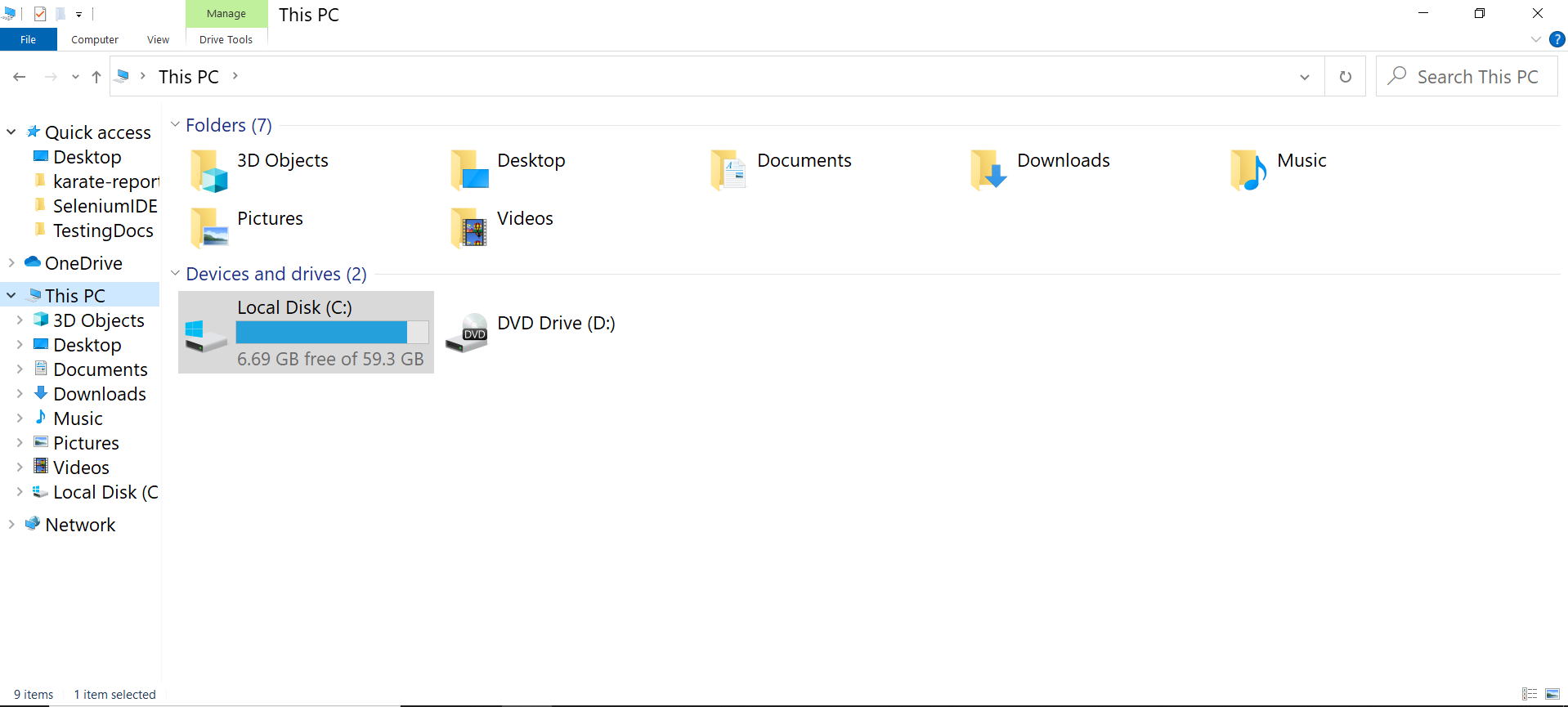
Notice that C drive volume is almost full and there is 60GB of free unallocated space.
C: is ~ 60GB
Click on the Next > button on the wizard. Choose the disk space and complete the wizard.
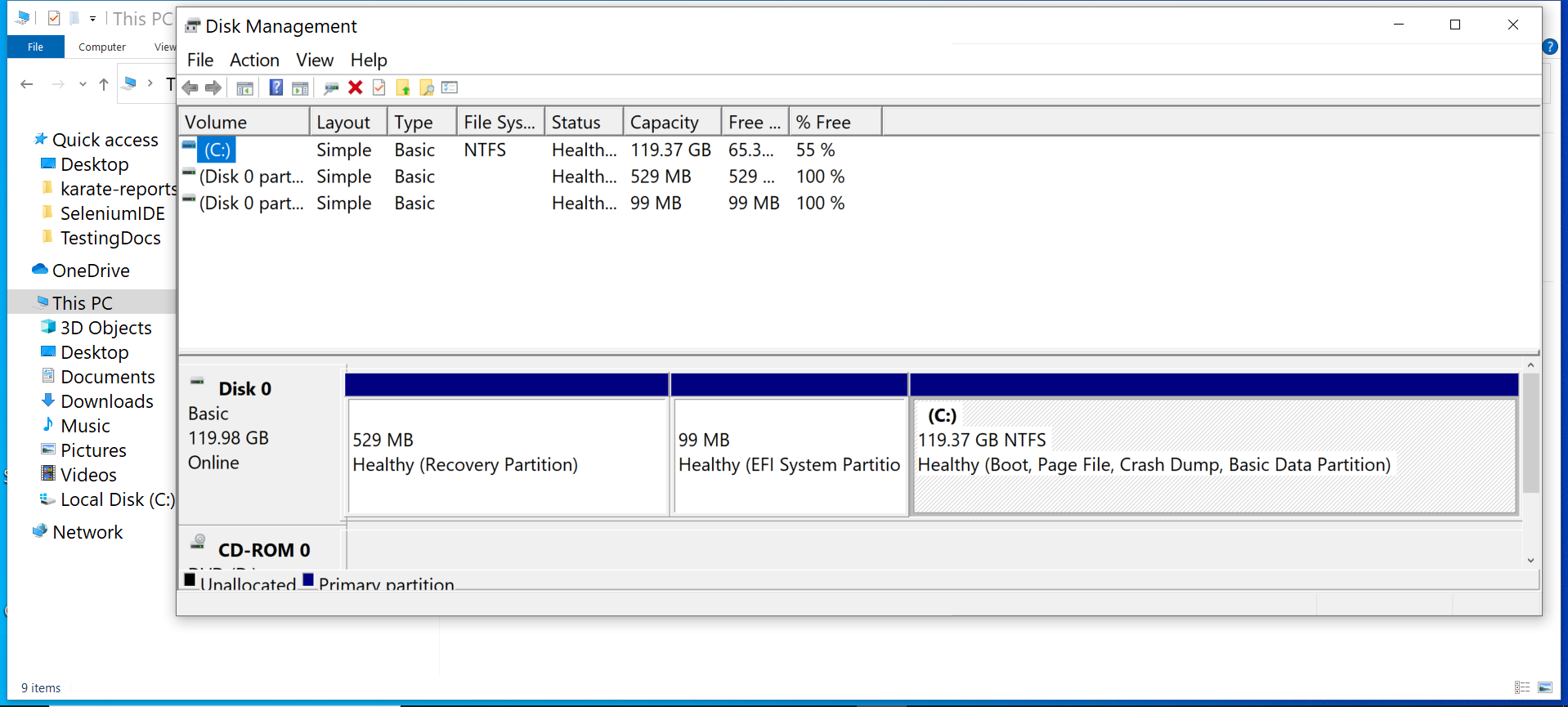
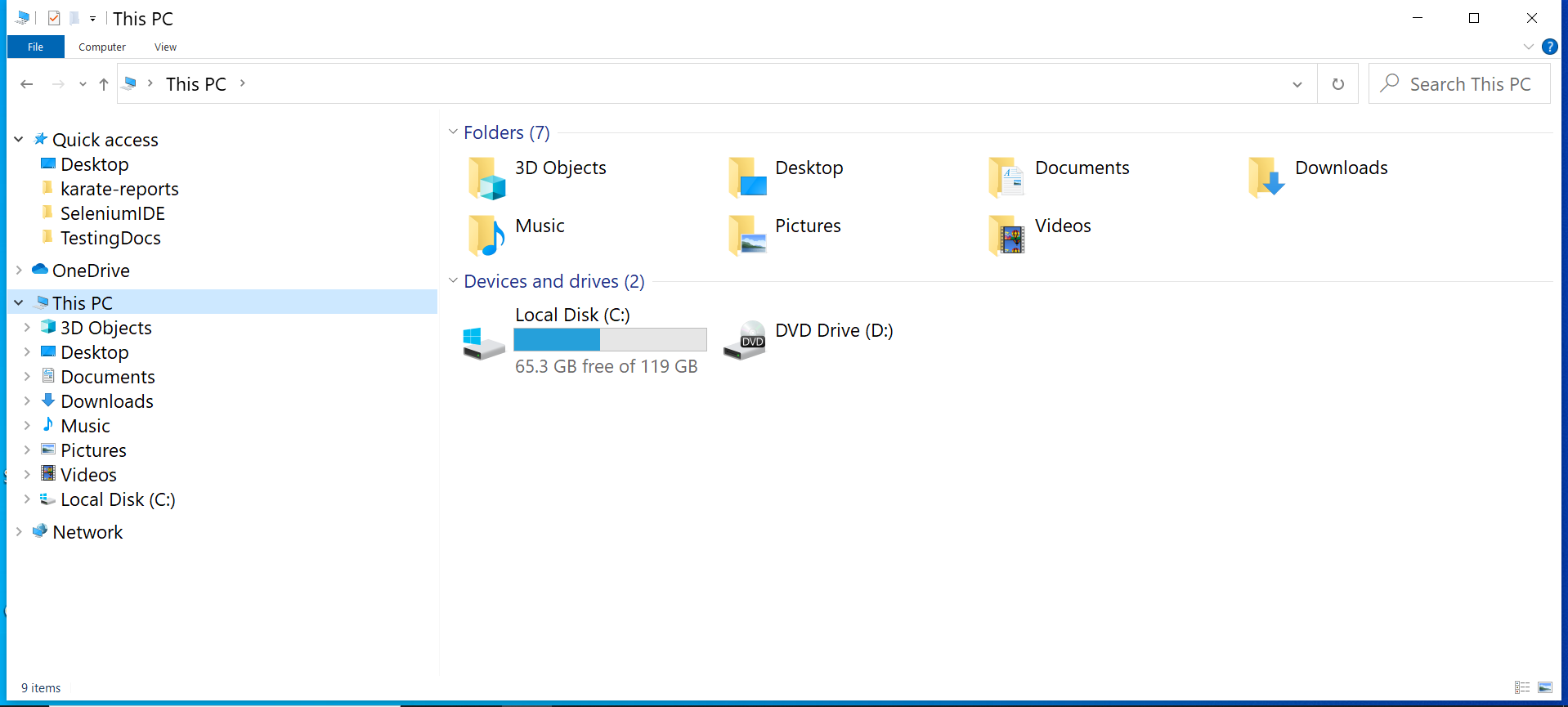
In this example, we have added the 60GB unallocated disk space to the C volume.
C: is now ~ 120 GB
That’s it. We have succes