
Blog
Java Swing CardLayout

Java Swing CardLayout
In this tutorial, you will learn about Java Swing CardLayout.
In Java Swing, CardLayout is a layout manager used to manage multiple components (like panels) where only one component is visible at a time. Think of it like a deck of cardsâonly the top card is visible, and you can flip to the next one when needed.
This is useful when you want to create wizard-style interfaces, tab-like behavior, or step-by-step forms in your GUI. The CardLayout manages components in a stack, with only the top visible at a given point in time. Users can choose which components to display through GUI components like buttons, combo boxes, etc.
Basic Methods of CardLayout
-
first(container)â Shows the first card. -
next(container)â Shows the next card. -
previous(container)â Shows the previous card. -
last(container)â Shows the last card. -
show(container, name)â Shows the card with the specified name.
Java Demo Program
package com.testingdocs.swing.layouts;

/****************************************
 * Filename:  CardLayoutDemo.java
 * Package :  com.testingdocs.swing.layouts
 * Java Tutorials - www.TestingDocs.com
 *****************************************/

import java.awt.*;
import java.awt.event.*;
import javax.swing.JButton;
import javax.swing.JFrame;
import javax.swing.JPanel;
import javax.swing.text.AttributeSet.ColorAttribute;
import javax.swing.text.StyleConstants.ColorConstants;


public class CardLayoutDemo {

    public static void main(String[] args) {

        final String card1Text = "Card 1";
        final String card2Text = "Card 2";
        final String card3Text = "Card 3";
        final JPanel cards;
        // buttons
        final String NEXT = "NEXT";
        final String PREVIOUS = "PREVIOUS";

        // Create a frame
        JFrame frame = new JFrame("CardLayout Demo - www.TestingDocs.com");


        //Create cards.
        JPanel card1 = new JPanel();
        card1.add(new JButton("Button Card 1"));

        JPanel card2 = new JPanel();
        card2.add(new JButton("Button Card 2"));

        JPanel card3 = new JPanel();
        card3.add(new JButton("Button Card 3"));

        cards = new JPanel(new CardLayout());
        cards.add(card1, card1Text);
        cards.add(card2, card2Text);
        cards.add(card3, card3Text);


        class ControlActionListenter implements ActionListener {
            public void actionPerformed(ActionEvent e) {
                CardLayout cl = (CardLayout) (cards.getLayout());
                String cmd = e.getActionCommand();
                if (cmd.equals(NEXT)) {
                    cl.next(cards);
                } else if (cmd.equals(PREVIOUS)) {
                    cl.previous(cards);
                }
            }
        }
        ControlActionListenter cal = new ControlActionListenter();

        JButton btn1 = new JButton("Next Card");
        btn1.setActionCommand(NEXT);
        btn1.addActionListener(cal);

        JButton btn2 = new JButton("Previous Card");
        btn2.setActionCommand(PREVIOUS);
        btn2.addActionListener(cal);


        // add buttons
        JPanel controlButtons = new JPanel();
        controlButtons.add(btn1);
        controlButtons.add(btn2);

        Container pane = frame.getContentPane();
        pane.add(cards, BorderLayout.CENTER);
        pane.add(controlButtons, BorderLayout.PAGE_END);

        //Frame properties
        frame.setDefaultCloseOperation(JFrame.EXIT_ON_CLOSE);
        frame.setSize(400, 200);
        frame.setVisible(true);
    }
}
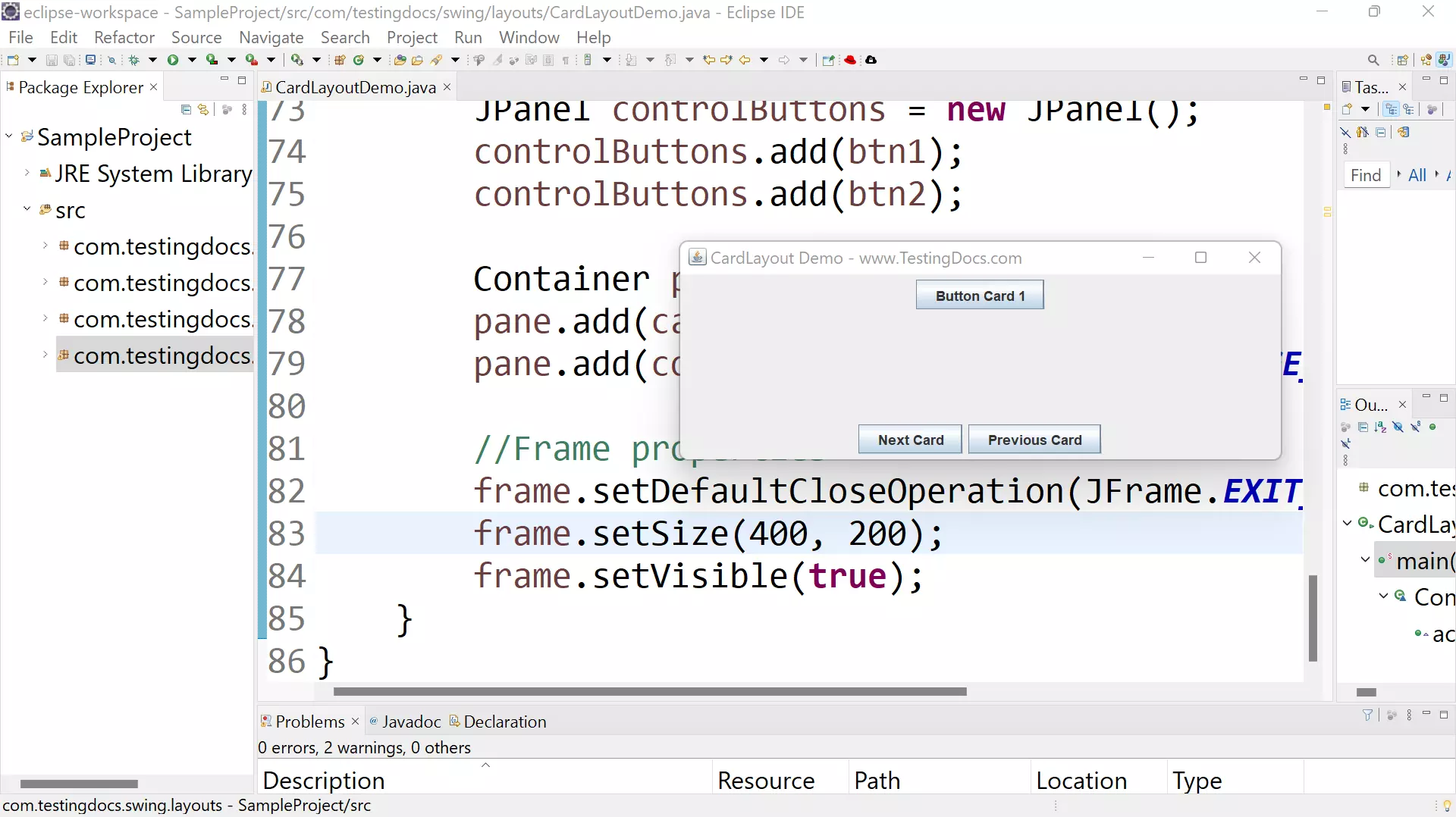
Output
Run the Java application to view the output.
—
Java Tutorial on this website: