
Blog
Install Mozilla Firefox on Windows 11

Install Mozilla Firefox on Windows 11
This tutorial outlines the steps to install Mozilla Firefox on the Windows 11 operating system. Windows 11 is Microsoft Corporation’s latest operating system version.
Environment
- Windows 11 Operating System
- Microsoft Edge Browser
Download Firefox
Open Microsoft Edge browser on Windows 11 PC. We can easily find the Edge browser icon on the Taskbar.
Navigate to the official Firefox Website download URL
- https://www.mozilla.org/en-US/firefox/new/
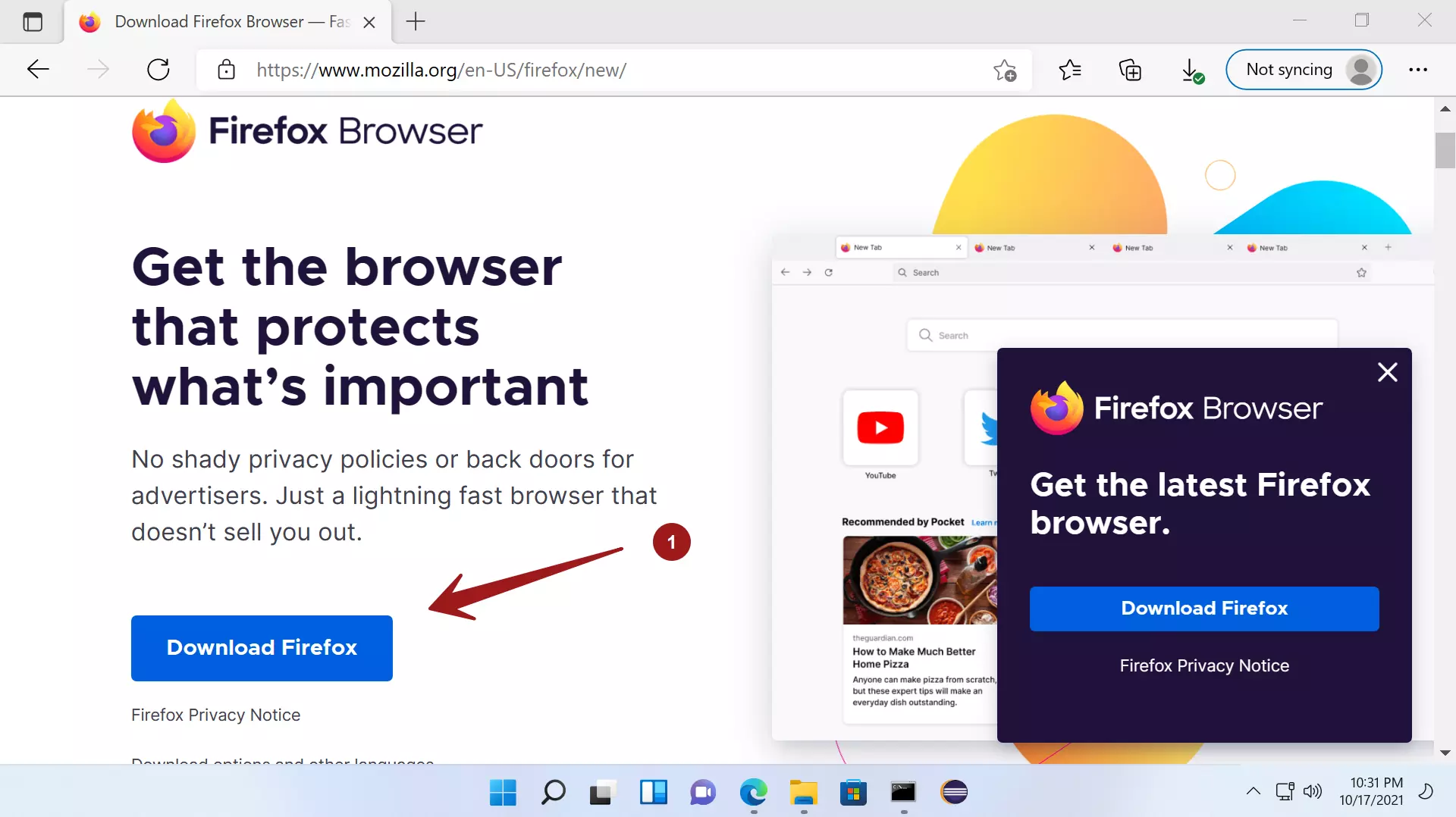
Click on the Download Firefox button. This will download the Firefox Installer.exe on to the computer.

Install Firefox
Open File explorer and locate the Firefox Installer.exe. Double click on the installer to run it.

UAC prompt
UAC( User Account Control) prompt is a built-in security feature that alerts and notifies you whenever applications perform administrative tasks on the machine. Verify the Publisher’s name and details in the prompt. We can see that the publisher’s name is Mozilla Corporation.
Click on the Yes button in the UAC prompt. Firefox would be installed on the machine.

Quick Access
We can pin the Firefox browser application to the Start menu and Taskbar for easy access. Right click on the desktop icon and choose Pin to Start menu option. This will pin the Firefox browser to the Start pinned apps list.
Add to Taskbar
To access Firefox quickly, we can pin the application icon to the Taskbar. Right click on the Start menu pinned icon and choose Pin to taskbar option. This will pin and create a Firefox browser icon in the Taskbar. We can quickly launch the browser by clicking on the icon in the Taskbar.

Incase if we are re-installing Firefox browser. A notification bar with a Refresh Firefox button will be shown at the top of the page Click on the Refresh Firefox button to refresh the previously installed settings.
That’s it. We have successfully installed Firefox browser on Windows 11 machine!
Double click the desktop icon on the desktop to launch the browser.