
Blog
Debug Flowgorithm Flowchart

Debug Flowgorithm Flowchart
In this tutorial, we will learn the steps involved in debugging a Flowgorithm flowchart. Debugging allows you to trace errors in the flowchart, examine the variables, and help identify the errors in the Flowchart.
Add Breakpoint
A Breakpoint symbol temporarily pauses the flowchart execution. To add a Breakpoint symbol to the flowchart, right-click on the flowchart control line and choose the Breakpoint flowchart symbol.
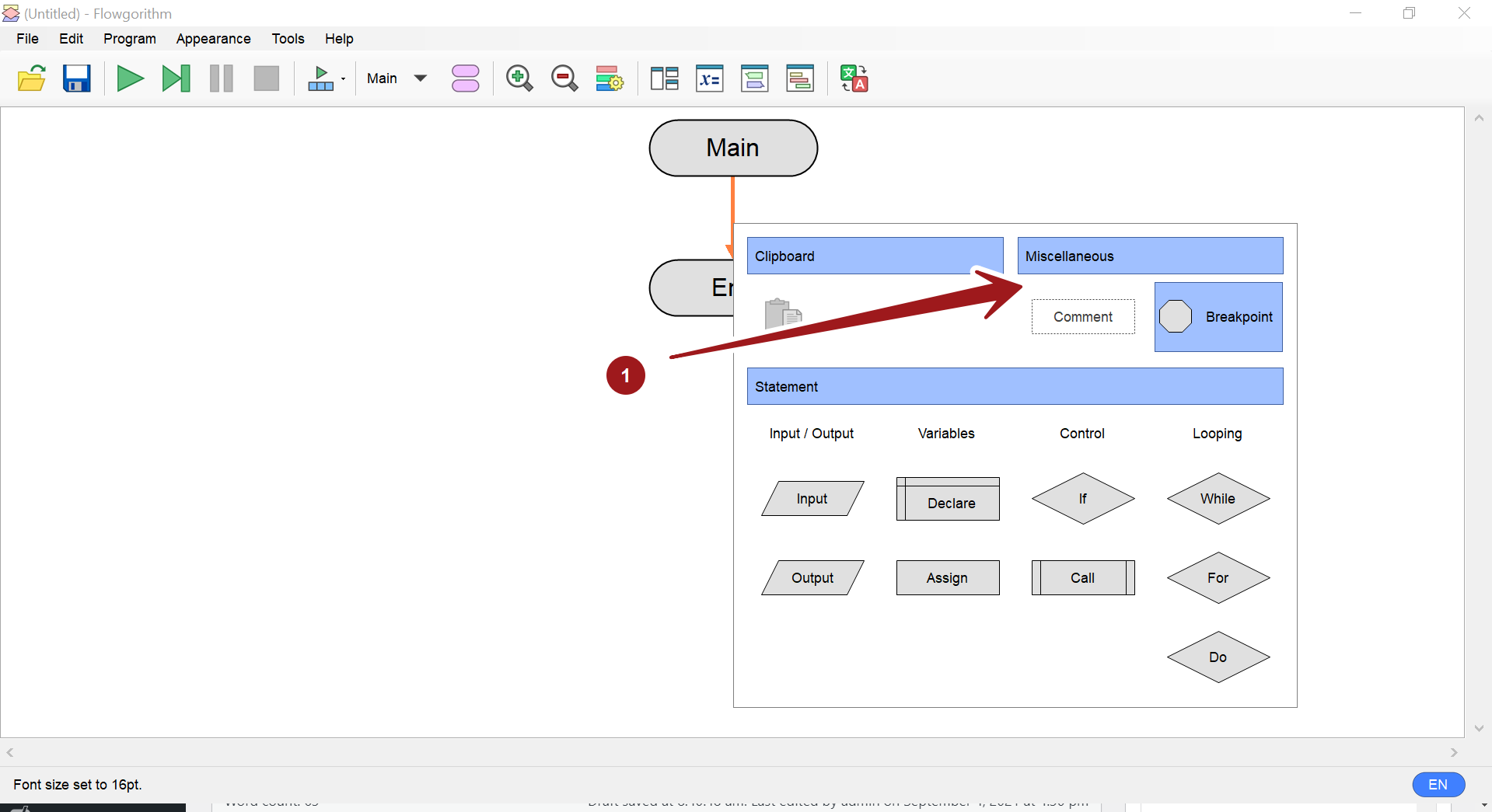
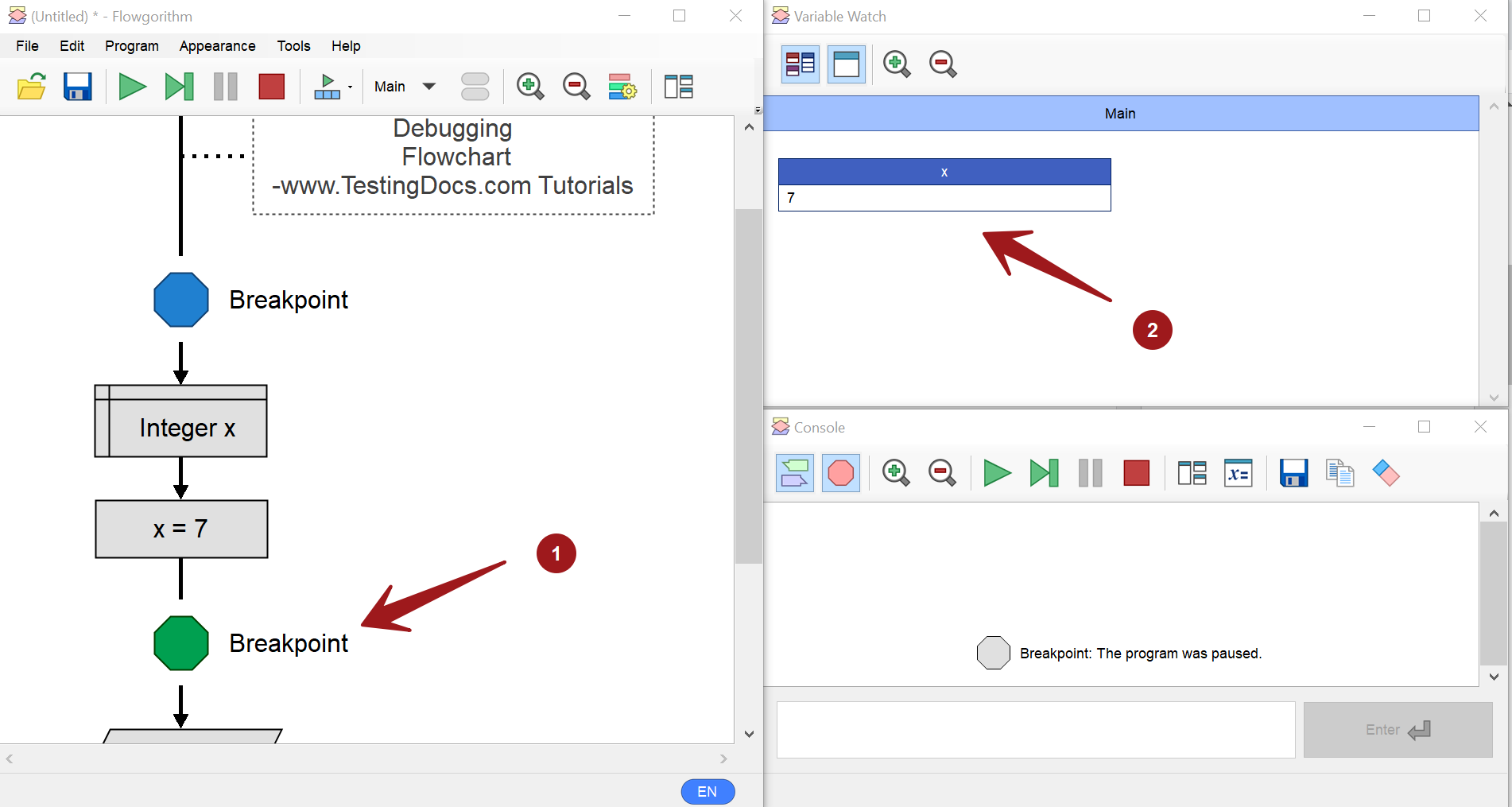
When the flow reaches the Breakpoint symbol the flowchart execution is halted. We can use the Variable watch window to examine the variable values in the flowchart.
Step
Click on the Step button next to the play green button to Step the flowchart. Step allows us to execute a flowchart symbol one at a time.
Alternatively, we can step using the function key F6 or the menu option Program >> Step.
Run Speed
Flowgorithm supports multiple run speeds of the Program. The predefined run speeds of the program are:
- Fast
- Medium
- Slow
We can choose the run speed to be slow while debugging the flowchart. To set the run speed, choose the menu option:
Program >> Run Speed >> Slow
Remove Breakpoints
Once, we are done with debugging process, we can remove all the breakpoints in the flowchart. To remove all the breakpoints in the flowchart, choose the following in the menu:
Program >> Remove BreakpointsÂ
Click on the Ok button in the dialog Do you want to remove all the breakpoints?
To debug a complex flowchart we may need to set multiple breakpoints in the flowchart. Examine the output, and variables window to trace the error in the flowchart.
Flowgorithm Tutorials
Flowgorithm tutorials on this website: