
Blog
Manual Test Cases for Windows Calculator

Manual Test Cases for Windows Calculator
This tutorial will teach you how to document sample Manual Test Cases for Calculator Windows Applications.
In reality, we don’t write test cases for an application straight away. The actual process depends on many factors like SDLC methodology (System Development Life Cycle), Test Strategy, Organization, Input documents, etc.
Input Documents
We need documents to develop efficient and effective Test cases for an application under test(AUT).
Example Input Documents:
- Functional Requirements.
- SRS Document( Software Requirement Specification ).
- User stories, Actors, etc.
Actors and User stories
Windows Calculator Test Cases
Windows Calculator is a standard default Windows Application (calc.exe ) under the folder:
C:\Windows\System32
The Calculator application has many types:
- Standard
- Scientific
- Graphing
- Programmer
- Date Calculation
The standard calculator is limited to simple mathematical calculations. A scientific calculator is advanced with trigonometric, logarithmic functions, etc. In this tutorial, let’s stick to the Standard Windows Calculator.
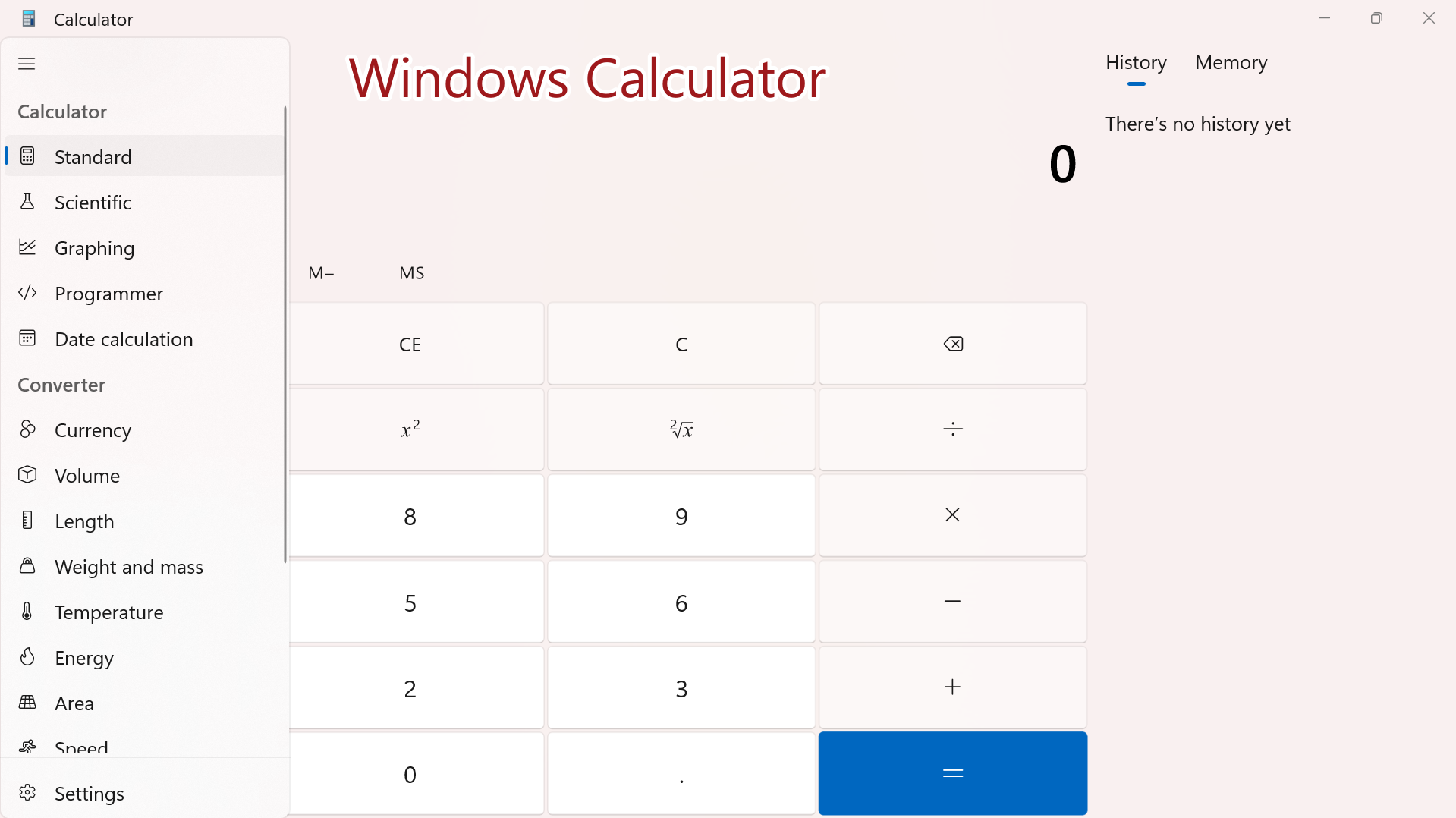
The Standard Windows Calculator UI on the Windows 10 operating system:
Testcase categories
Functional Test Cases
Windows calculator basic functional test cases are outlined here:
Profiling Calculator
Verify that all modules are loaded without any initialization errors.
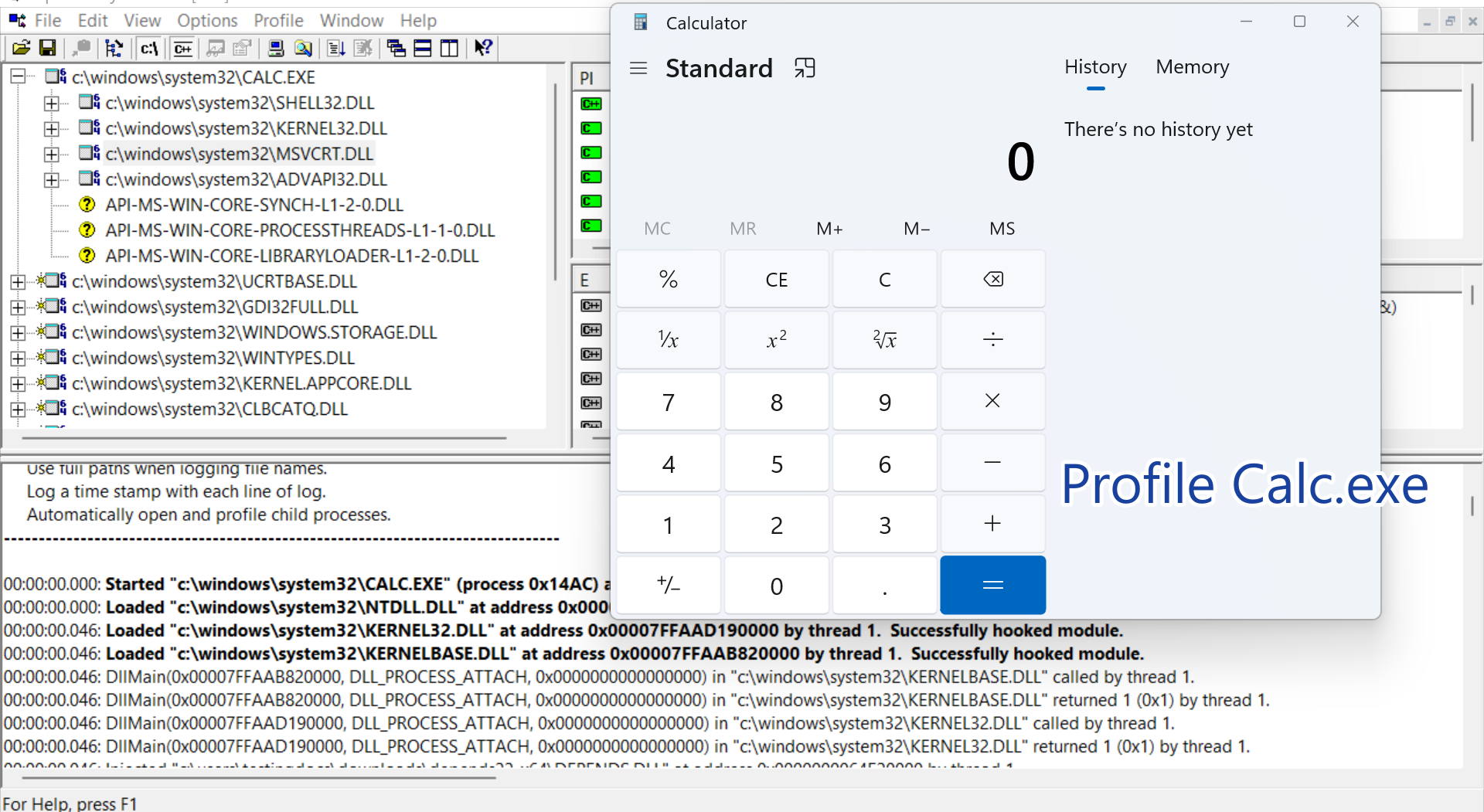
Profile the Calculator application for DLL errors, module loading and executing, first chance exceptions, etc., with a profiler.
Uninstall Test Case
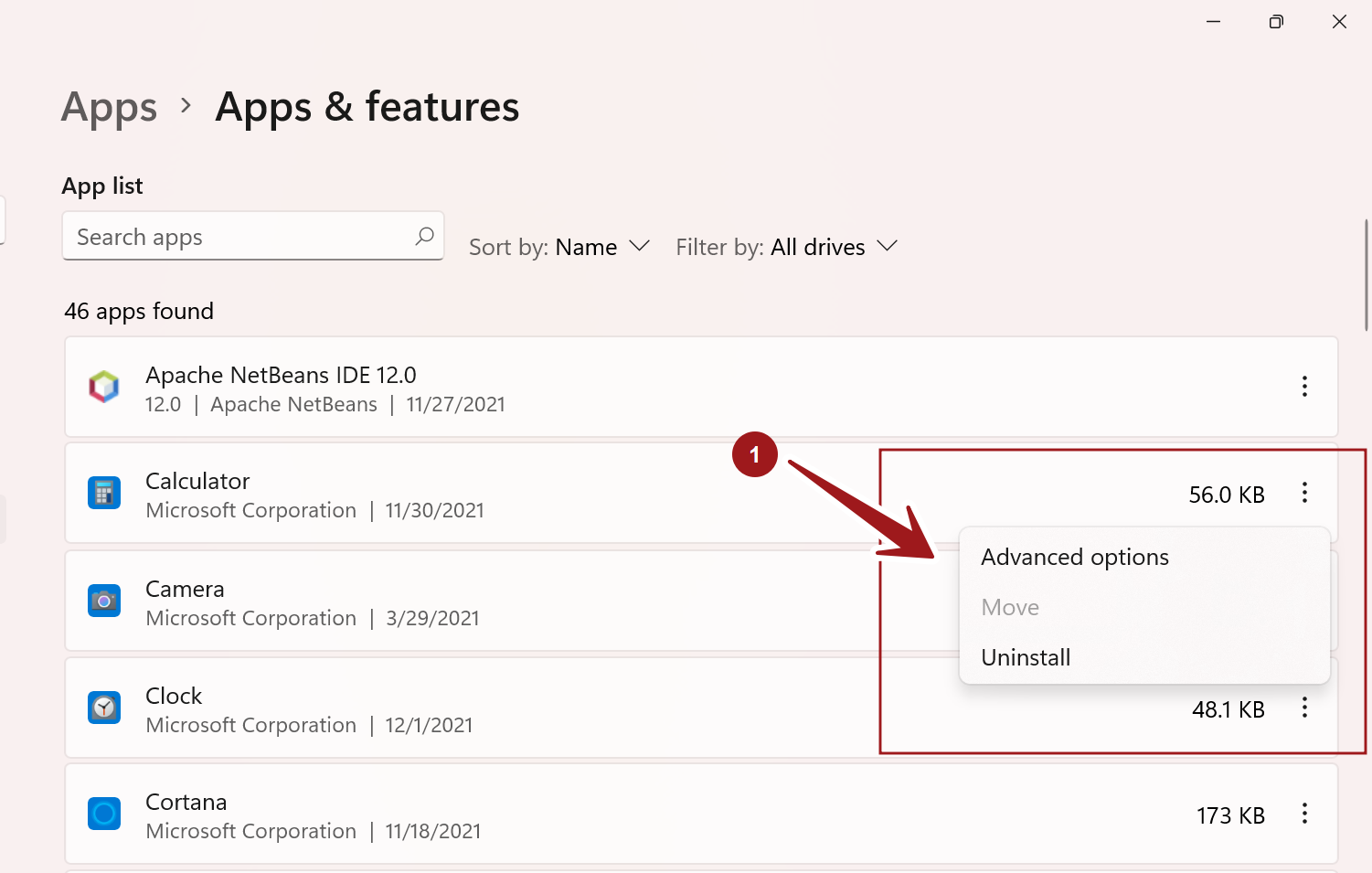
Verify that the Uninstall removes the Calculator App.
System -> Apps -> Apps & features -> Calculator
GUI Manual Test Cases
GUI test cases are Look and Feel test cases. These test cases are the usability and GUI test cases for the calculator application. Windows, Button colors combinations, easy of use like Start Menu launch, desktop shortcut, usability, and accessibility of the application.
For example, the button is accessible because the background and digit colors are different and clearly visible. If the developer chooses the same color for both the button background and the digit color, the button will not be accessible.
Application Menu
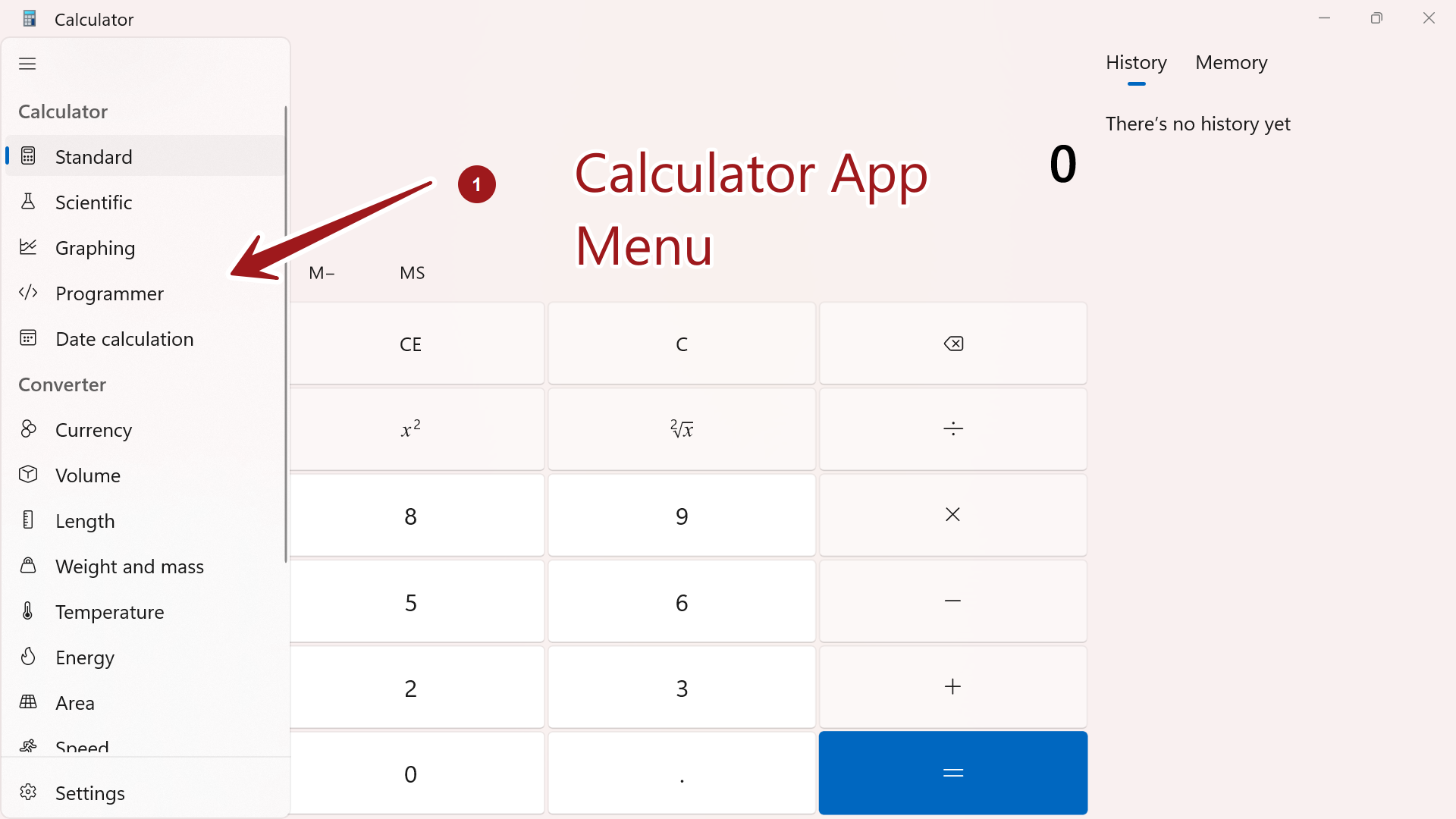
Verify the Application menu is working as expected.
For example, If the user selects the Scientific menu option, the Application should switch to Scientific mode.
Usability
Application settings, Themes, Help, and Documentation for the end-user, Pin to Start Menu, Pin to Taskbar, etc.
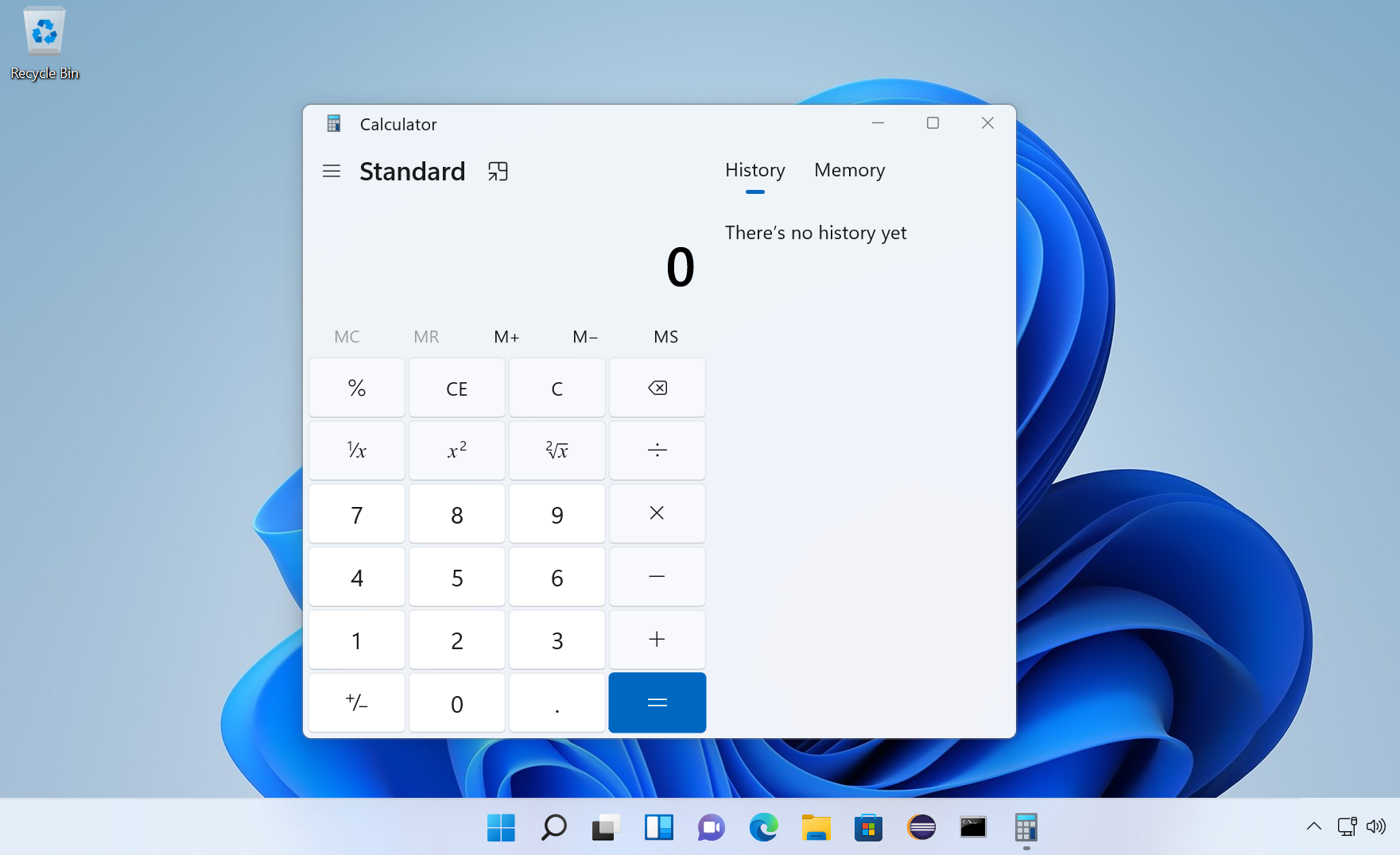
Calculator UI Light Theme
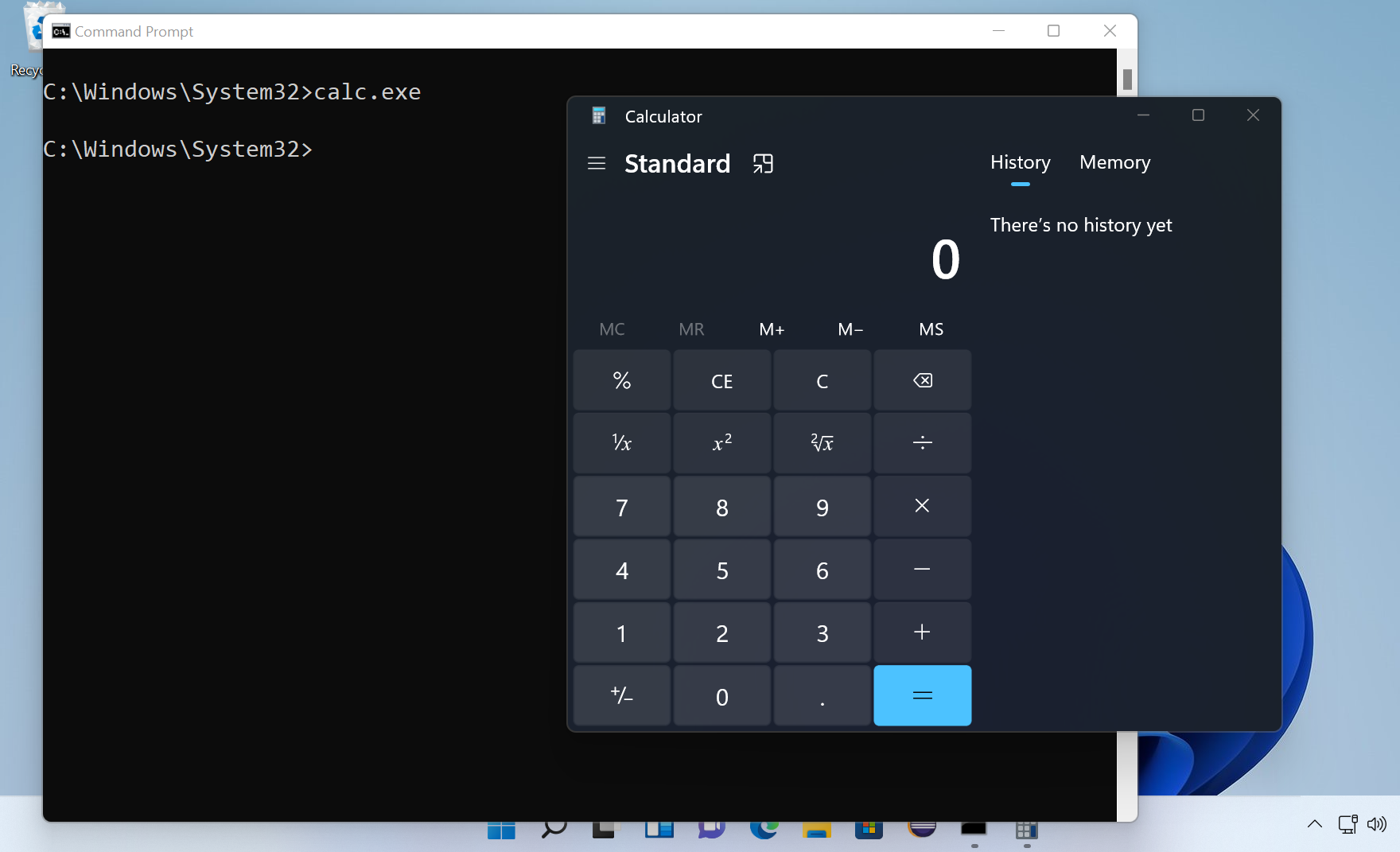
Calculator UI Dark Theme
This theme emits less light and consumes less battery power on the PC.
Benchmark test:
Obtain two identical Windows machines. OEM reset both machines. Charge the machines to 100% battery. On one machine, leave the Calculator with a Light theme, and on another, leave the Calculator running with a Dark theme.
Record the system uptimes.
Help, Pin to Start Menu
Verify the Help documentation of the Calculator application.
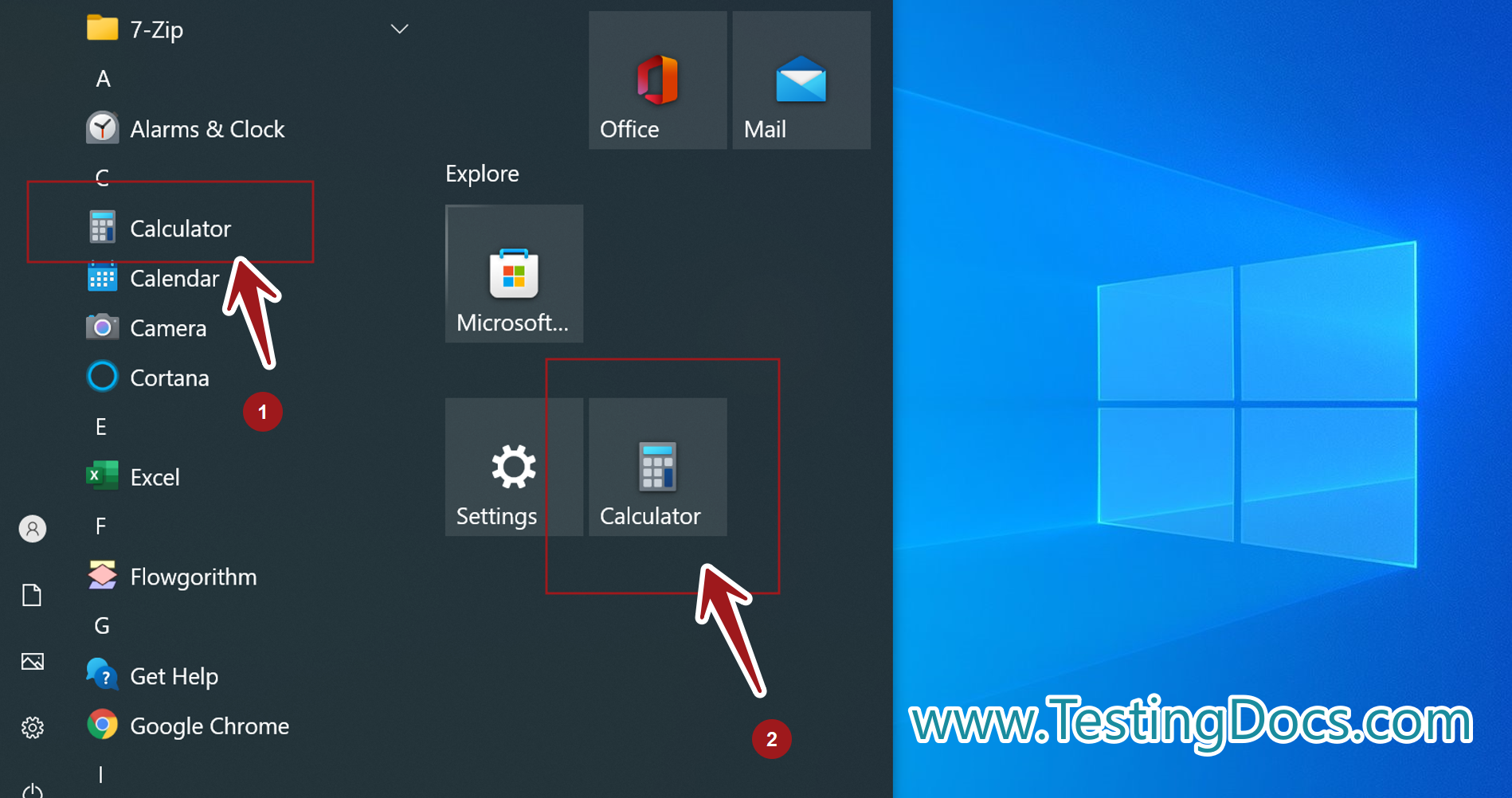
Pin to Start Menu for Easy access to the application:
i18n and l10n Test cases
i18n stands for internationalization, and l10n stands for localization. These are the short forms of the words replacing the number of letters in between them.
i18n is customizing the application to many international languages. l10n is localizing the application to a particular locale.
Verify that the Calculator UI strings are localized in non-English locales. Install a non-English Windows OS, such as Spanish (es) locale. Launch the Windows Calculator in a Spanish locale.
Verify that the UI is localized.
Verify that the strings are correctly localized(semantics) with language experts.
Machine architectures
Verify the Calculator application on different machine processor architectures like 32-bit and 64-bit.
Non-Functional Test Cases
These are non-functional test cases related to the calculator application. Some examples are performance, security, stress test cases, memory leak tests, etc.
Some examples of the test cases are:
What happens if the user leaves the application running for a long duration – does the application crash, leak memory, consume hardware resources, etc.
What happens when the user launches more than one instance of the application.
What happens when the user stores more calculations in the application. What is the limit?
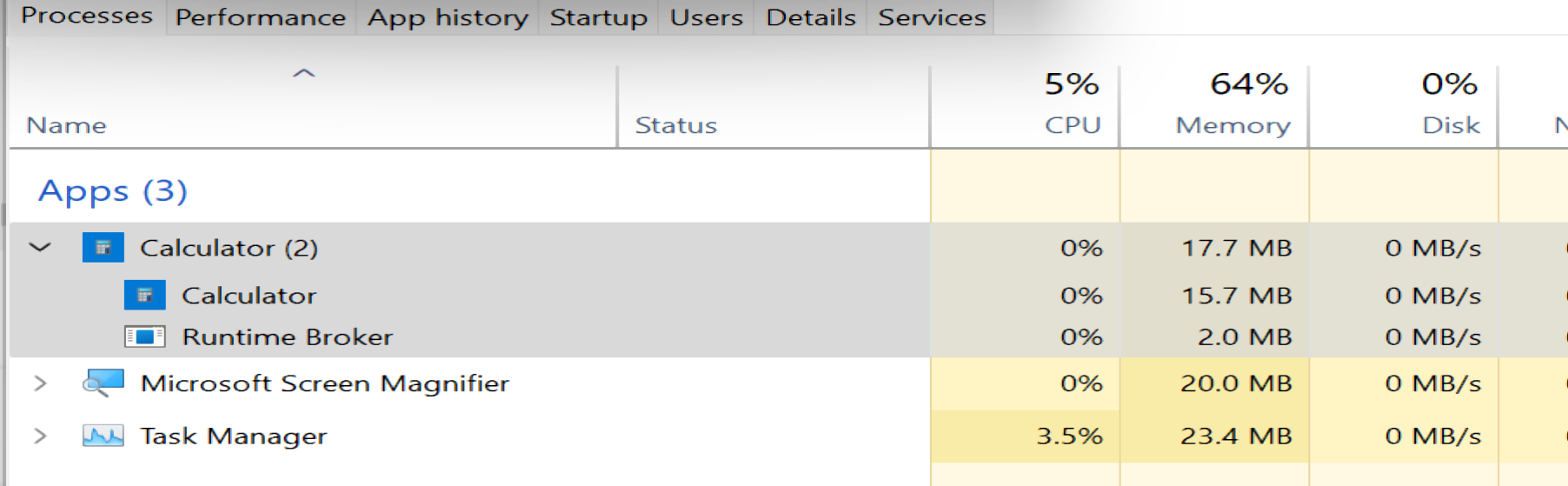
The hardware footprint of the Calculator application in Task Manager application.
Endurance and Soak Test cases
These test cases stress the calculator application from normal working conditions. Example test cases
Soak Test Case
- Launch the Calculator Application.
- Leave the application running for a long period.
- Resume and perform some calculations.
- Verify that the application doesn’t crash.
Stress Test Case
- Launch multiple instances of the Calculator application. ( perhaps using an automation script)
- Randomly choose an instance and perform some calculations.
- Verify that the Calculator application is working.
Compatibility Testing
Test the Calculator application on different screen resolutions and sizes.
Downgrade the operating system to Windows 7, 8Â and test the backward compatibility.
Calculator on Windows 7 Operating System:

Upgrade the operating system to Windows 11 Operating system and test the forward compatibility.

Automation
We can use tools like AutoIT to automate the Windows calculator.
Automated Unit Testing of Calculator Java class with JUnit testing framework: