
Blog
Windows Laptop Battery Report

Windows Laptop Battery Report
A laptop battery report provides detailed insights into the health, performance, and usage statistics of your laptop’s battery.
Laptop battery report
The steps to generate the battery report on Windows are as follows:
Step 1:
- Open command prompt and type the following command.
Step 2:
- Issue the following command:
/> powercfg /batteryreport
Step 3:
- The report will be generated and saved as an HTML file (e.g., battery-report.html) in the following directory.
C:\Users\[Your Username] folder.
For example, if the Windows username is testingdocs, the file path would be:
C:/Users/testingdocs/battery-report.html
Navigate to the file path provided, open the HTML file, and your Battery Report is ready!
Open the file in a web browser to view the details.
Report
The report contains the following information to debug the issues with the battery.
Battery Information
Manufacturer, Serial Number, Chemistry, Design Capacity, and Full Charge Capacity. Compare Design Capacity vs. Full Charge Capacity to assess battery health.
Recent Usage
Logs of battery drain and charging patterns over recent sessions.
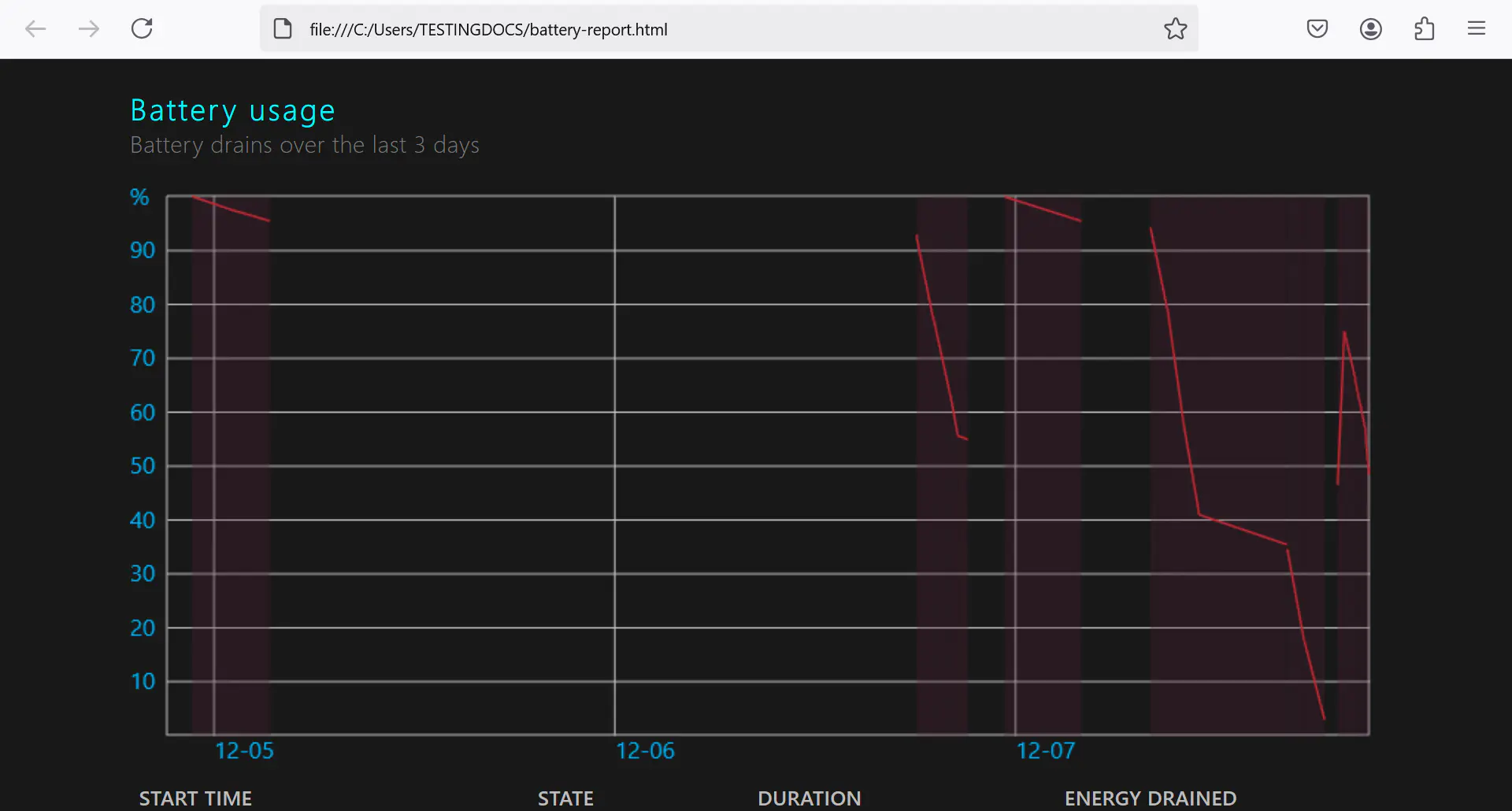
Battery Usage
Tracks charge/discharge cycles and power consumption.
Usage History
A timeline of charging and usage sessions over time.

Health and Wear Level
Indicates how much the battery capacity has degraded compared to its original capacity.
Battery Life Estimates
Provides estimates for battery life under different conditions based on usage data.
