
Blog
Keep Windows 11 up-to-date

Keep Windows 11 up-to-date
Microsoft continuously releases Software Updates and Security patches. These updates are delivered to your Windows 11 machine via the Windows Update feature. To ensure the machine is kept up-to-date, periodically check for and run Windows Update.
Windows Update
Launch the Search bar and search for Check for updates.
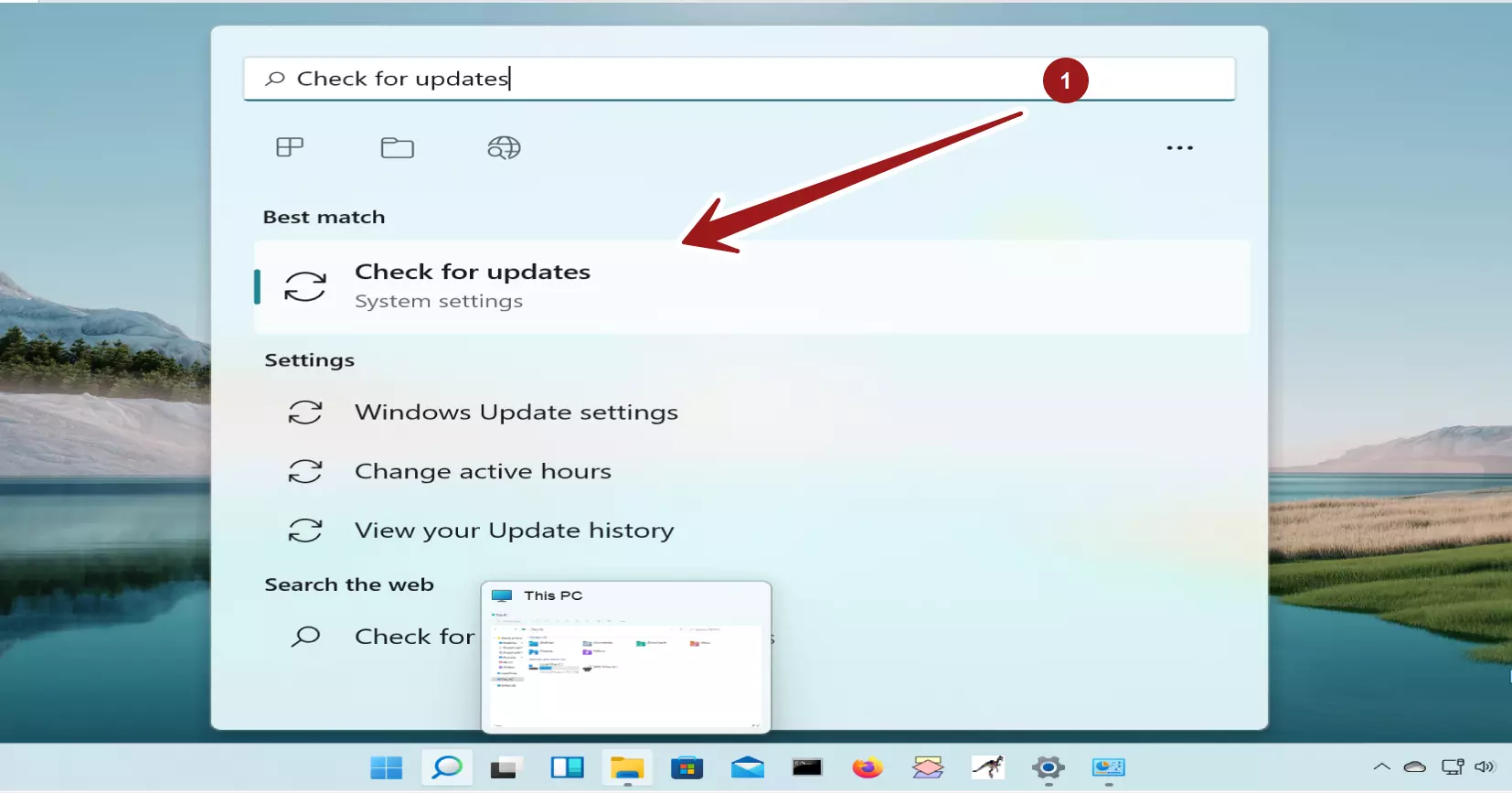
OR
Navigate to
Settings >> Windows Update >> Check for updatesÂ

Download the updates. Click on the Download Now button.
The update is a cumulative update for Windows 11 to next build. The update would download and install automatically.

Based on your update settings the Windows will prompt for restart after the update. Click on the Restart now button to complete the update.

Windows Update Options
We can adjust the Windows Update settings in Advanced Options screen.

BITS
BITS(Background Intelligent Transfer Service ) Service should be up and running for Windows Update to work. BITS transfer files in the background when the computer network is idle. BITS enables Windows Update to automatically download updates to the machine.
To check the service, search for the Services app in the Search bar.

Locate and check for the BITS status in the Services window.

It is also important to ensure that your machine has enough free disk space to install the Windows Updates.