
Blog
How to manually Update Edge Browser on Windows 10

How to manually update new Edge Browser on Windows
In this tutorial, we will go through the steps involved in updating the new Edge browser to the latest version. Automatic updates to the Edge browser would be done using the Windows Update feature.
Steps to install the Edge browser can be found here.
Steps to Update
Below are the steps if you want to manually update the Edge browser.
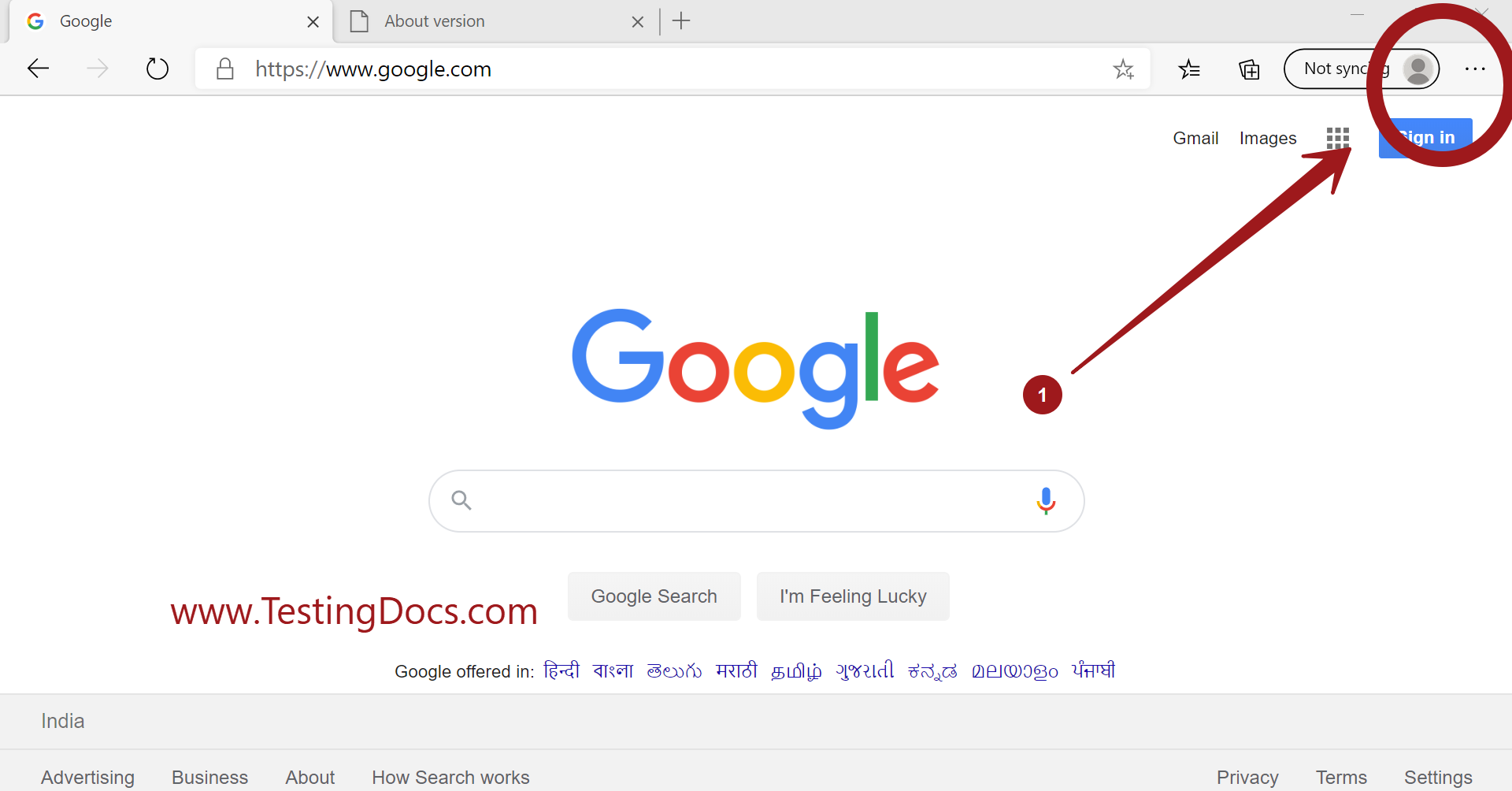
Launch the Edge browser.
Click on the three-dot button on the menu in the top-right corner of the window.
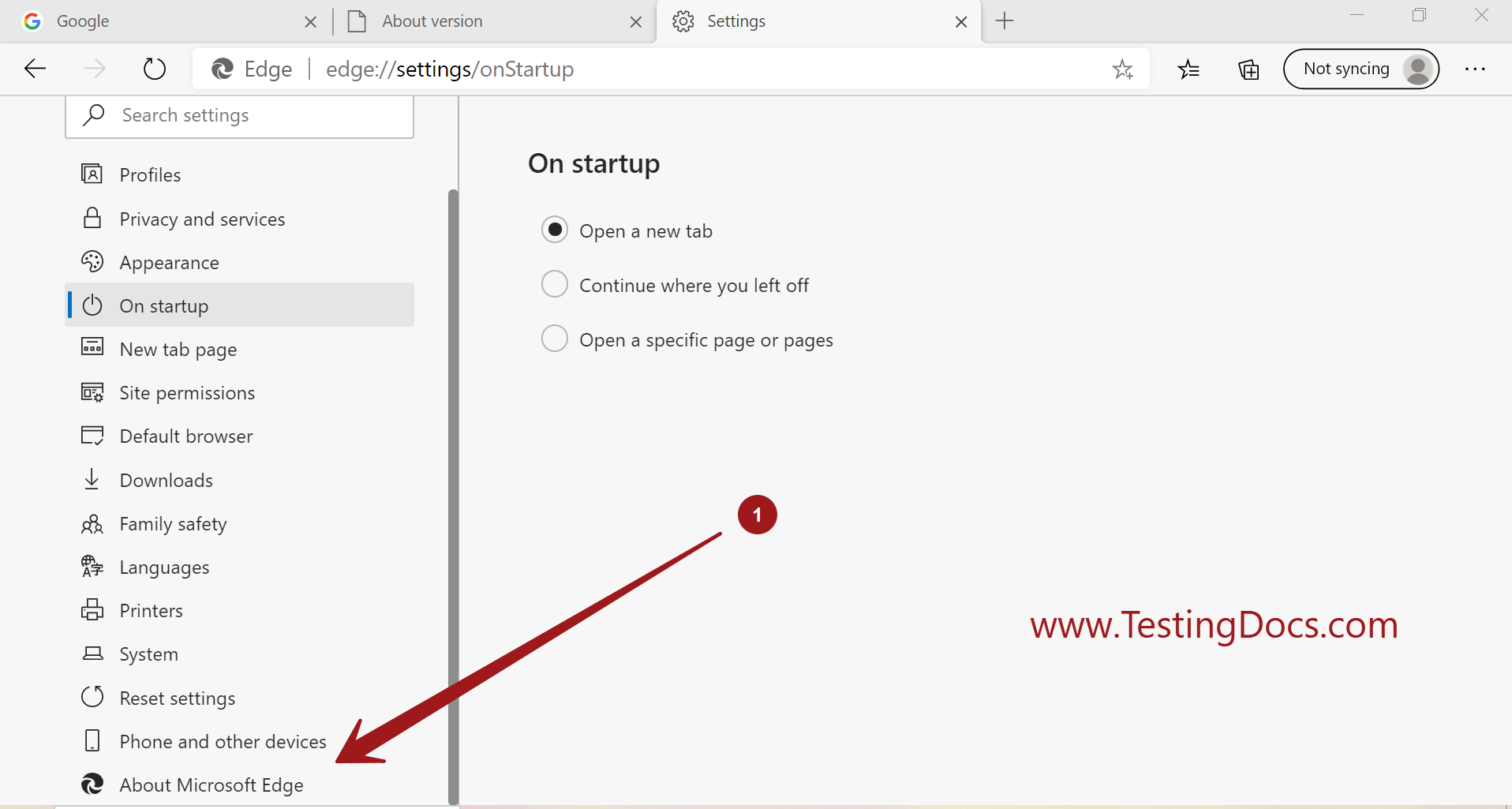
Click on the Settings ⚙️ gear menu item >> About Microsoft Edge
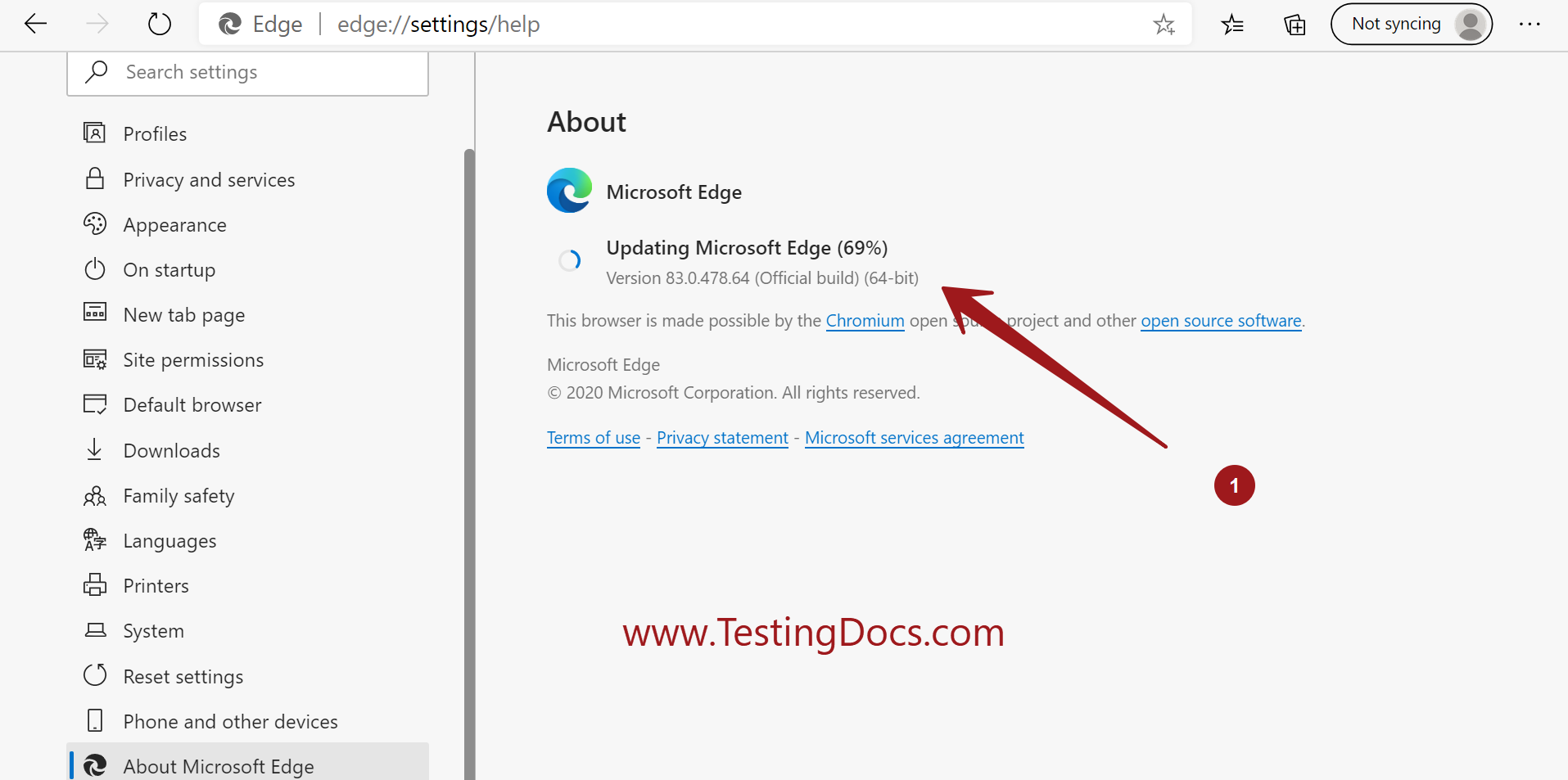
The Edge browser would check for the updates. If there is an update, the update would be downloaded and installed. Downloads will take time depending on your network speed.
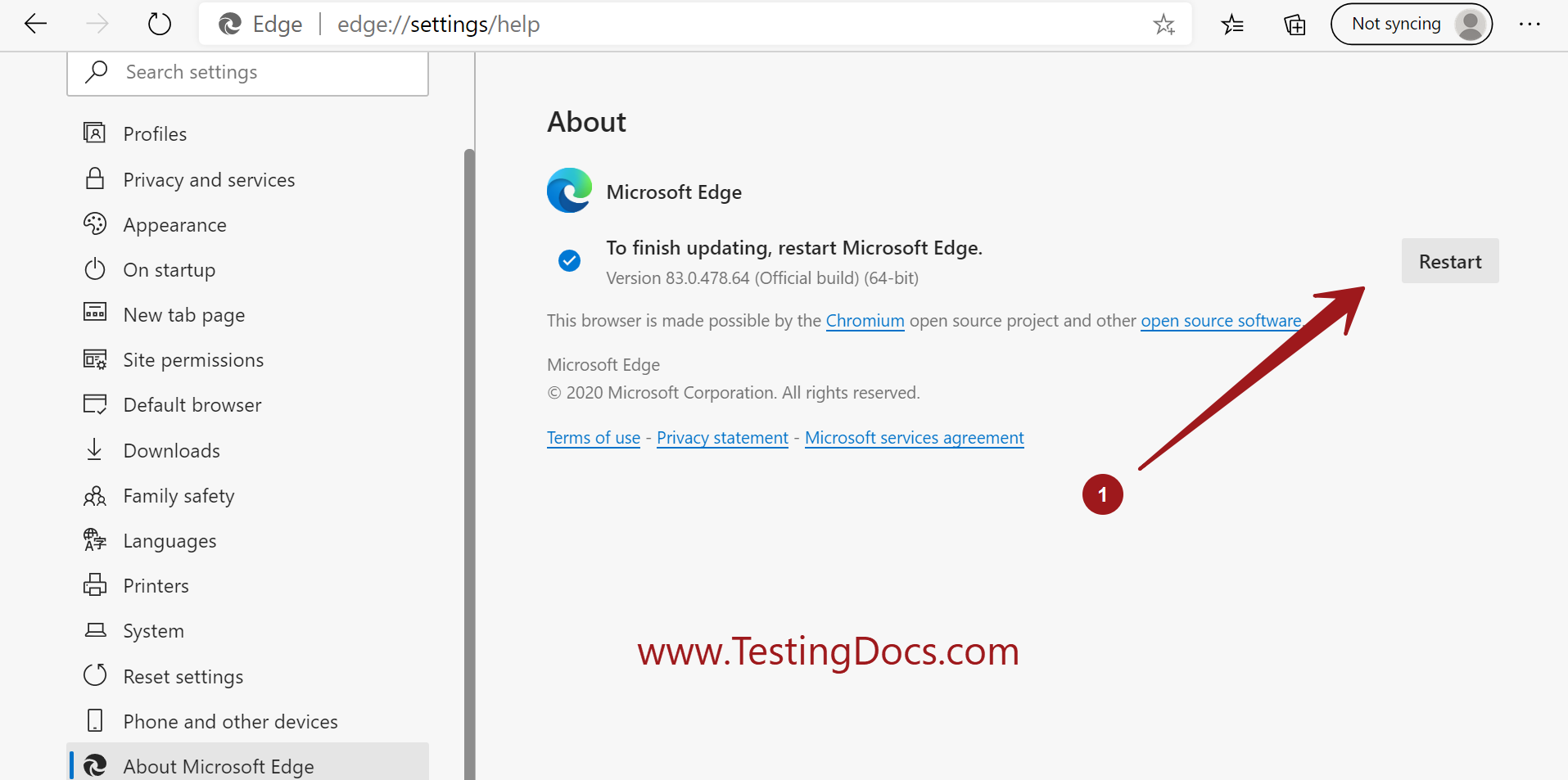
Restart the Microsoft Edge browser to finish the browser update. The updates will be applied on browser start.
Click on the Restart button.
Verification
You should see a message that the browser is up to date. Something like below:
Microsoft Edge is up to date.