
Download Linux Mint

Download Linux Mint (64-bit)
Linux Mint is a free and open-source operating system designed to offer a modern, sleek, and user-friendly experience, especially for users transitioning from Windows. If you’re looking to try Linux for the first time, Linux Mint Cinnamon (64-bit) is a stable and beginner-friendly choice.
What is Linux Mint?
Linux Mint 19.3, codenamed “Tricia”, is part of the 19.x series based on Ubuntu 18.04 LTS. The Cinnamon edition provides a Windows-like interface that is familiar to most users. It includes pre-installed software like LibreOffice, Firefox, GIMP, and multimedia tools, making it ready for day-to-day use right after installation.
This version comes with long-term support (LTS) until 2023, ensuring stability and security updates. Cinnamon is the desktop environment that gives it a traditional and intuitive feel, ideal for beginners and experienced users alike.
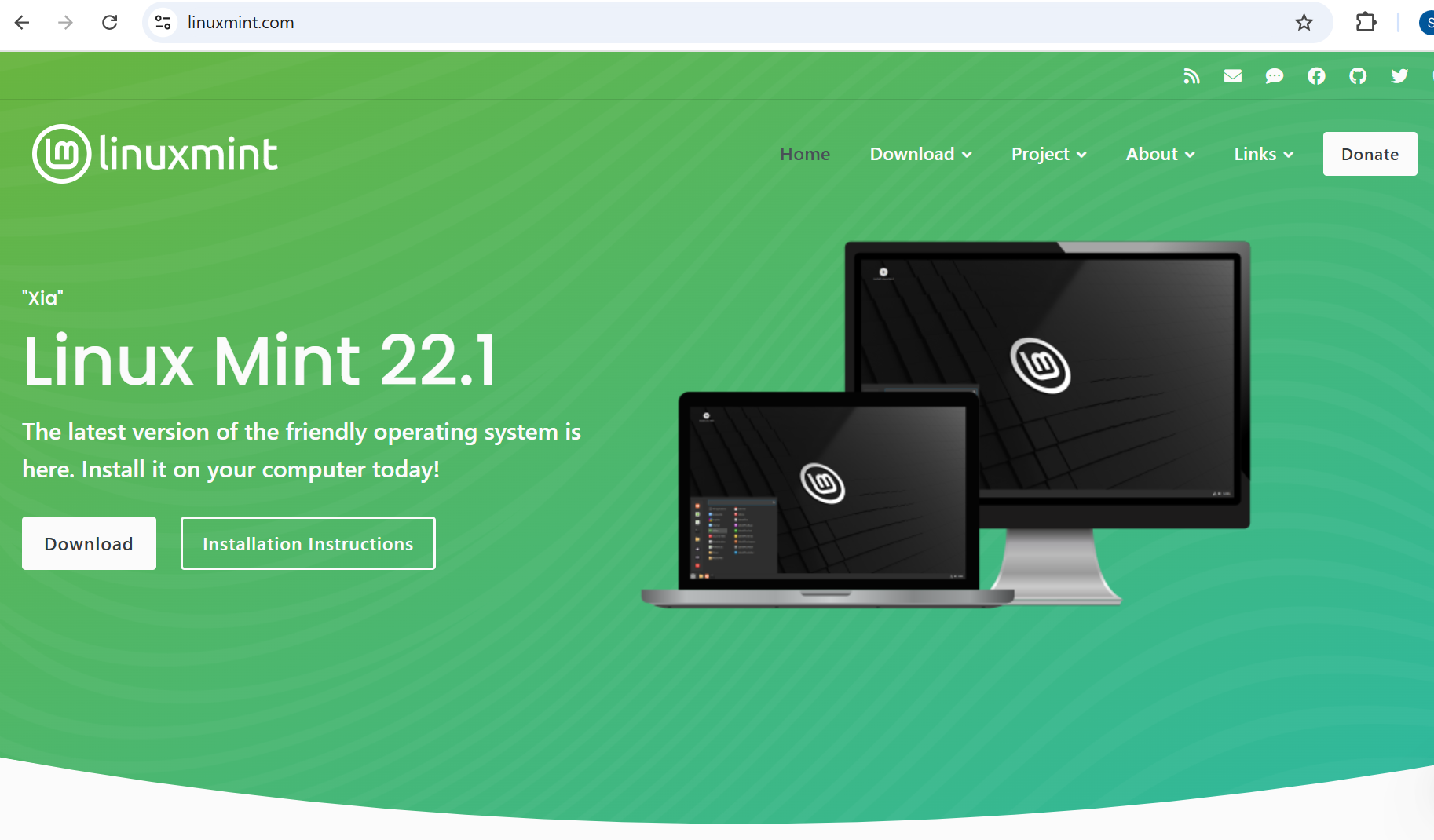
Steps to Download Linux Mint
- Open your web browser and go to the official Linux Mint website: https://www.linuxmint.com
- Click on the Download tab in the main menu.
- Select the latest version. For example, Linux Mint 19.3 “Tricia” from the list of available versions.
- Choose the Cinnamon (64-bit) edition.
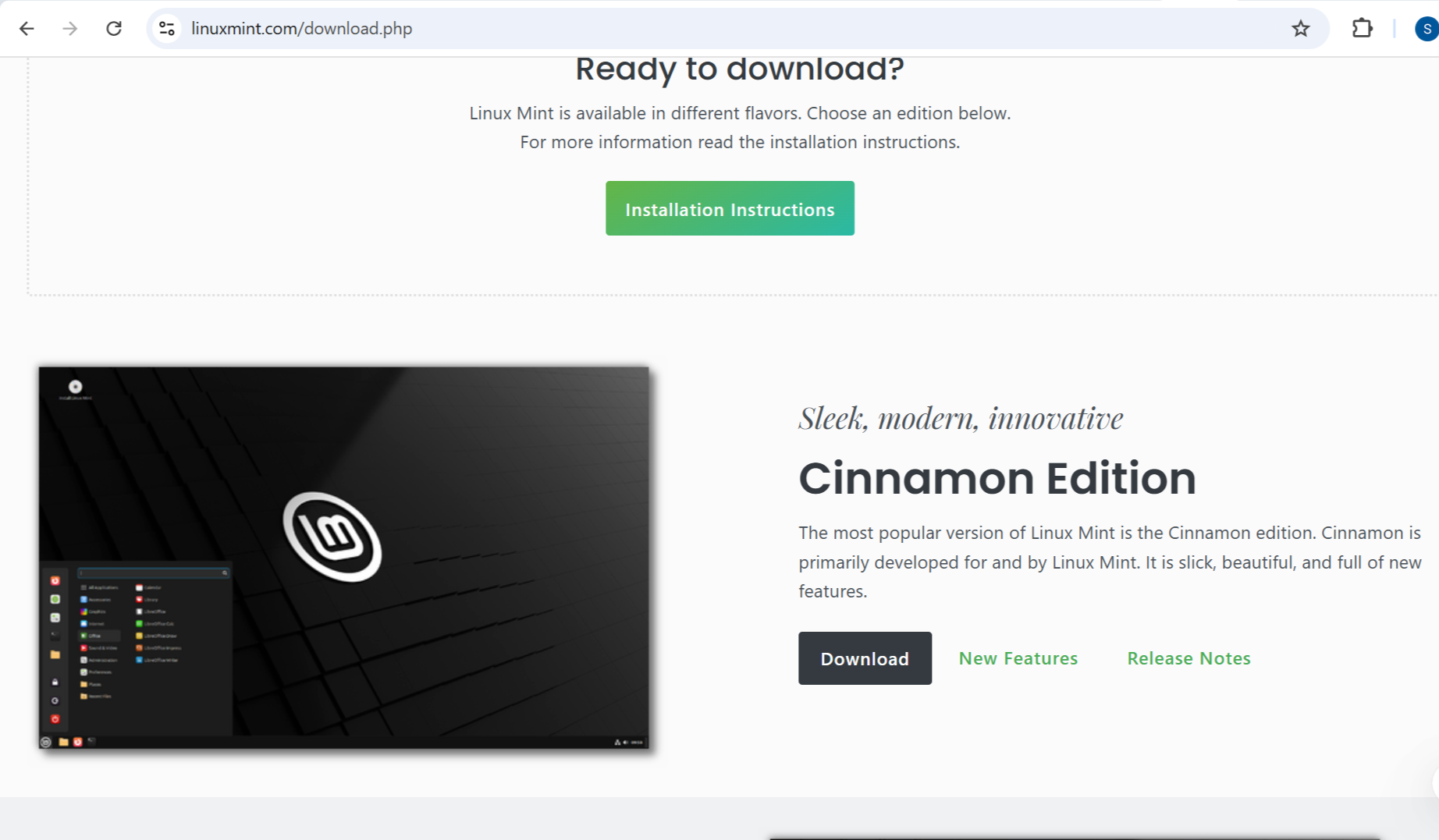
- Click on one of the mirror links to start downloading the ISO file.
- Optionally, you can verify the integrity of the ISO file using the provided SHA256 checksum.
Steps to Install Linux Mint
- After downloading the ISO file, create a bootable USB drive using tools like Rufus (for Windows) or Etcher (cross-platform).
- Insert the USB drive into your computer and restart the system.
- Enter the BIOS/UEFI setup (usually by pressing F2, F12, Esc, or Del during boot) and change the boot order to boot from the USB drive.
- Save and exit BIOS/UEFI. The system will boot into the Linux Mint live environment.
- On the desktop, double-click the Install Linux Mint icon to start the installer.
- Follow the on-screen instructions: choose your language, keyboard layout, and installation type.
- Select your disk for installation and configure partitions if needed.
- Set your user account details (name, password, etc.).
- Click Install Now and wait for the process to complete.
- Once installed, restart your system and remove the USB drive when prompted.
That’s it. You now have Linux Mint Cinnamon installed and ready to use on your computer.