
How to Hide Taskbar on Windows 11

How to Hide Taskbar on Windows 11
Taskbar is a handy tool to launch frequently used pinned applications on Windows 11 machine. Its saves a lot of time for the windows users. However, sometimes we may want to hide the taskbar on Windows 11 so that it doesn’t show on the screen. For example, when you like to watch your favorite movie on full screen mode.
Hide Taskbar on Windows 11
Right click on the Taskbar and choose Taskbar settings.
Alternatively, Launch Settings app >> Personalization >> Taskbar
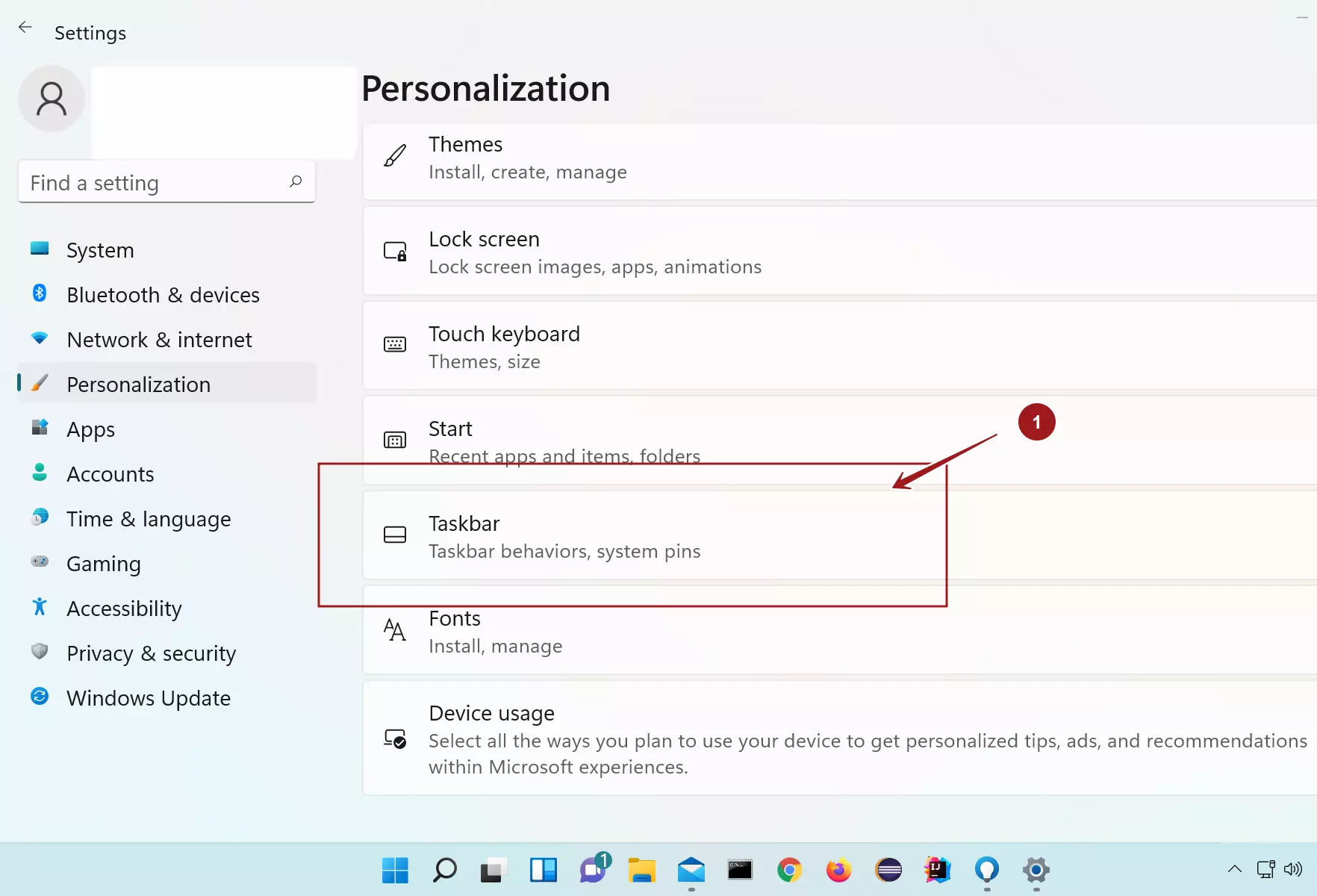
Expand Taskbar behaviors tab.
Check the checkbox option: Automatically hide the taskbar

Notice that the taskbar would hide automatically when the option is checked. Mouse over the mouse icon near the taskbar region to display it.
Hide Taskbar Items
Just in case if the Taskbar is filled with too many items, we can choose to hide the Taskbar items. Toggle Off the taskbar icons to hide them.

We can hide both he taskbar items and the corner task icons.
Related
Add, Remove Windows 11 Widgets
https://www.testingdocs.com/questions/how-to-add-widgets-on-windows-11/