
How to lock Windows 11 PC

How to lock Windows 11 PC
There are multiple ways to lock Windows 11 PC. The easiest way is to hit the Windows key + L keyboard combination. This keyboard shortcut will lock your Windows 11 computer.
Lock screen is a security measure and it is always advised to lock the screen whenever the user is not physically present before the PC/Workstation. ( especially when working in a corporate work environment or working in public places. )
Start screen
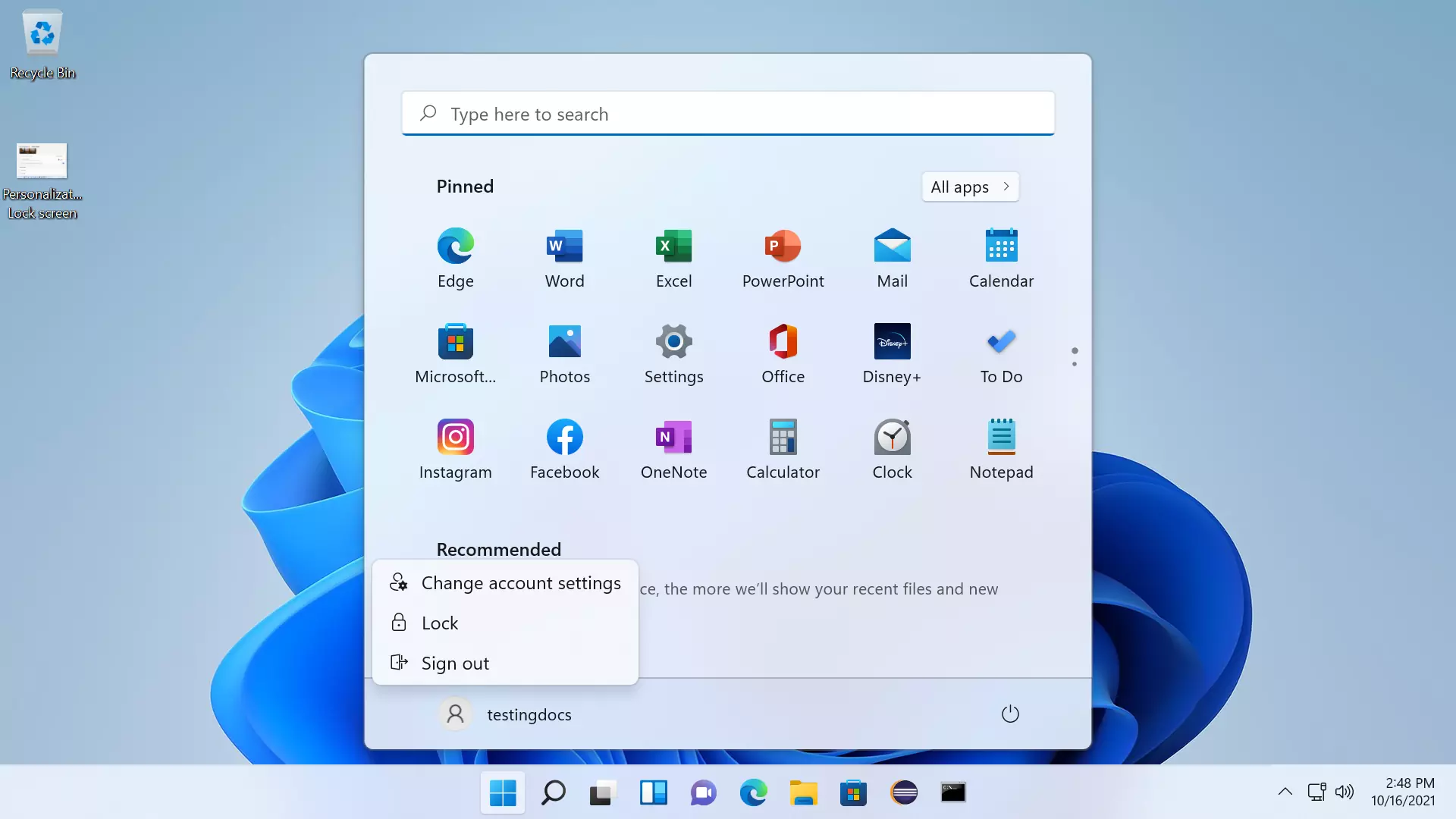
Click on the Start menu icon in the Taskbar. Click on the user account link and choose the Lock context menu option.
Lock screen settings
To change Lock screen settings, open the Lock screen settings screen.

We can configure and personalize lock screen settings. The options for the lock screen are:
- Windows spotlight
- Picture
- Slideshow

By default the lock screen is set to Windows spotlight. Windows spotlight is a lock screen feature that automatically displays pictures from Bing. The pictures are overlaid with short descriptions, fun facts about the picture and place.
Windows spotlight Lock screen

We can also choose a picture or custom slideshow of picture album in the lock screen.
To set screen saver on the PC, click on the Screen saver tab in the lock screen setting. Choose the relevant screen saver.