
Connect to Pluggable Database

Connect to Pluggable Database (PDB)
This tutorial will teach us how to create and connect the pluggable database (PDB) using the SQL*Plus command line tool. The general steps are:
- Launch SQL*Plus command line.
- Issue SQL commands.
This tutorial is based on Oracle 19c—the steps for installing Oracle 19c on the Windows operating system.
First, let’s understand the two different types of database architectures in Oracle:
- CDB (Container Database)
- PDB (Pluggable Database)
Container Database( CDB )
CDB is a single physical database that contains multiple PDBs. Each PDB functions as an independent database with its own data dictionary, schema objects, and users. CDB’s advantage is that it allows you to manage multiple databases as if they were separate entities while efficiently sharing resources like memory and CPU. This makes it ideal for large-scale deployments where you need to isolate different applications or teams but still want to benefit from shared infrastructure costs.
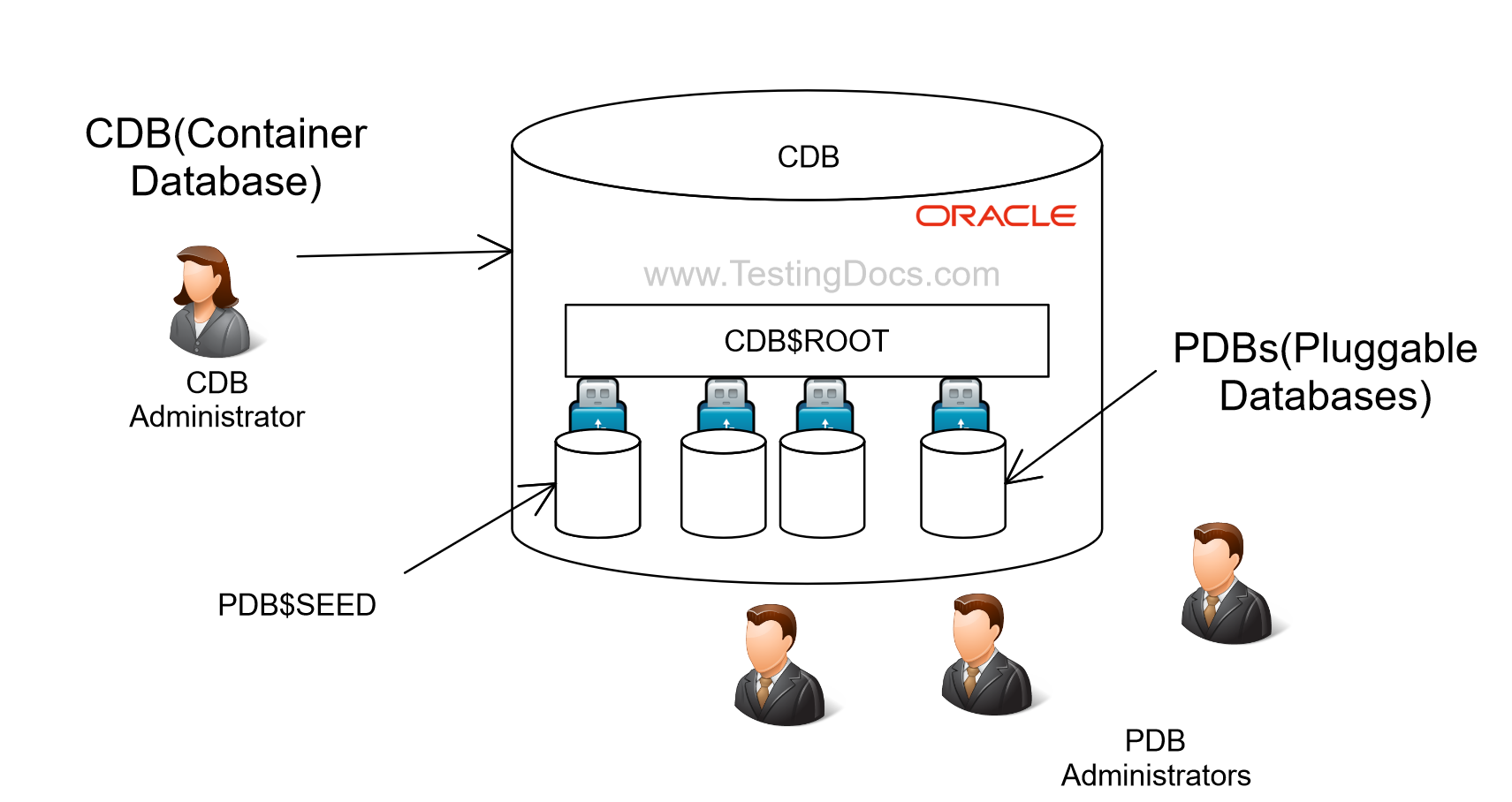
Pluggable Database( PDB )
Each pluggable database has its background processes running on dedicated threads within the same process space (as opposed to separate processes).
PDB provides more flexibility when managing your data by allowing you to create new schemas within an existing container without affecting other parts of the system or requiring downtime for maintenance operations such as upgrading software or patching security vulnerabilities across all containers simultaneously.PDBs enhance performance by reducing context switching overhead between tasks associated with different databases within a single instance of Oracle Server.
Commands
Open the PDB if the database is not open. The name of the PDB in this example is: orclpdb
Error indication:
ERROR:
ORA-01109: database not open
Warning: You are no longer connected to ORACLE.
Connect as SYS
\>sqlplus / as SYSDBA
List PDBs Command
List the pluggable database instances, and type the following command at the SQL prompt:
SQL> SHOW pdbs;
On Single Instance database:
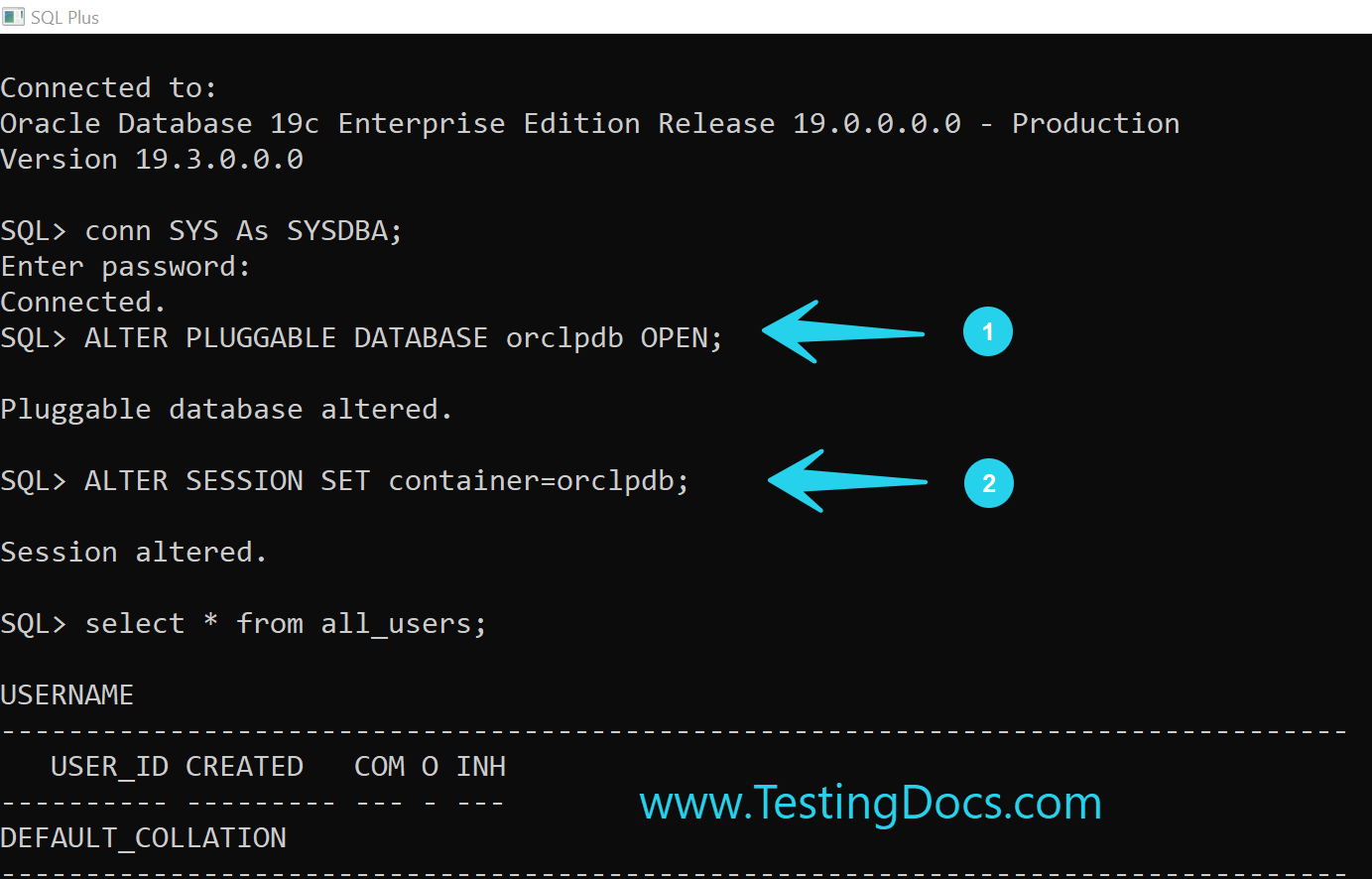
Issue the following command to open the database:
SQL> ALTER PLUGGABLE DATABASE orclpdb OPEN;
On multi-tenancy RAC environment:
We need to open on all instances:
SQL> ALTER PLUGGABLE DATABASE orclpdb OPEN instances=all;
Common Error
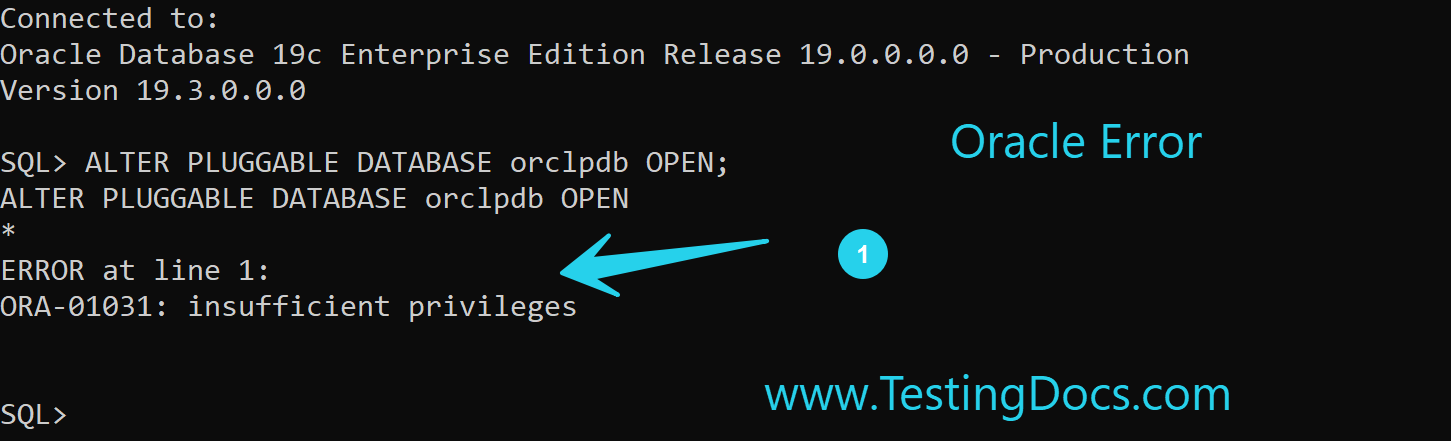
We need to have sufficient privileges to execute this command. Error when we execute this command with insufficient privileges. For example, connect as SYSDBA role to rectify this error.
SQL> ALTER PLUGGABLE DATABASE orclpdb OPEN;
ALTER PLUGGABLE DATABASE orclpdb OPEN
*
ERROR at line 1:
ORA-01031: insufficient privileges
Connect to the database:
SQL> ALTER SESSION SET container=orclpdb;

Session altered.
We can now work with the database by creating local users and objects. Add the information of the PDB to the tnsnames.ora file.
Locate the tnsnames.ora file. Path to the file
ORACLE_HOME\network\admin
ORACLE_HOME is an environment variable set to the Oracle install home location. The steps to set the environment variable are listed here.
Add the host string to the file.
Save the file.
ORCLPDB =
  (DESCRIPTION =
    (ADDRESS = (PROTOCOL = TCP)(HOST = localhost)(PORT = 1521))
    (CONNECT_DATA =
      (SERVER = DEDICATED)
      (SERVICE_NAME = orclpdb)
    )
  )
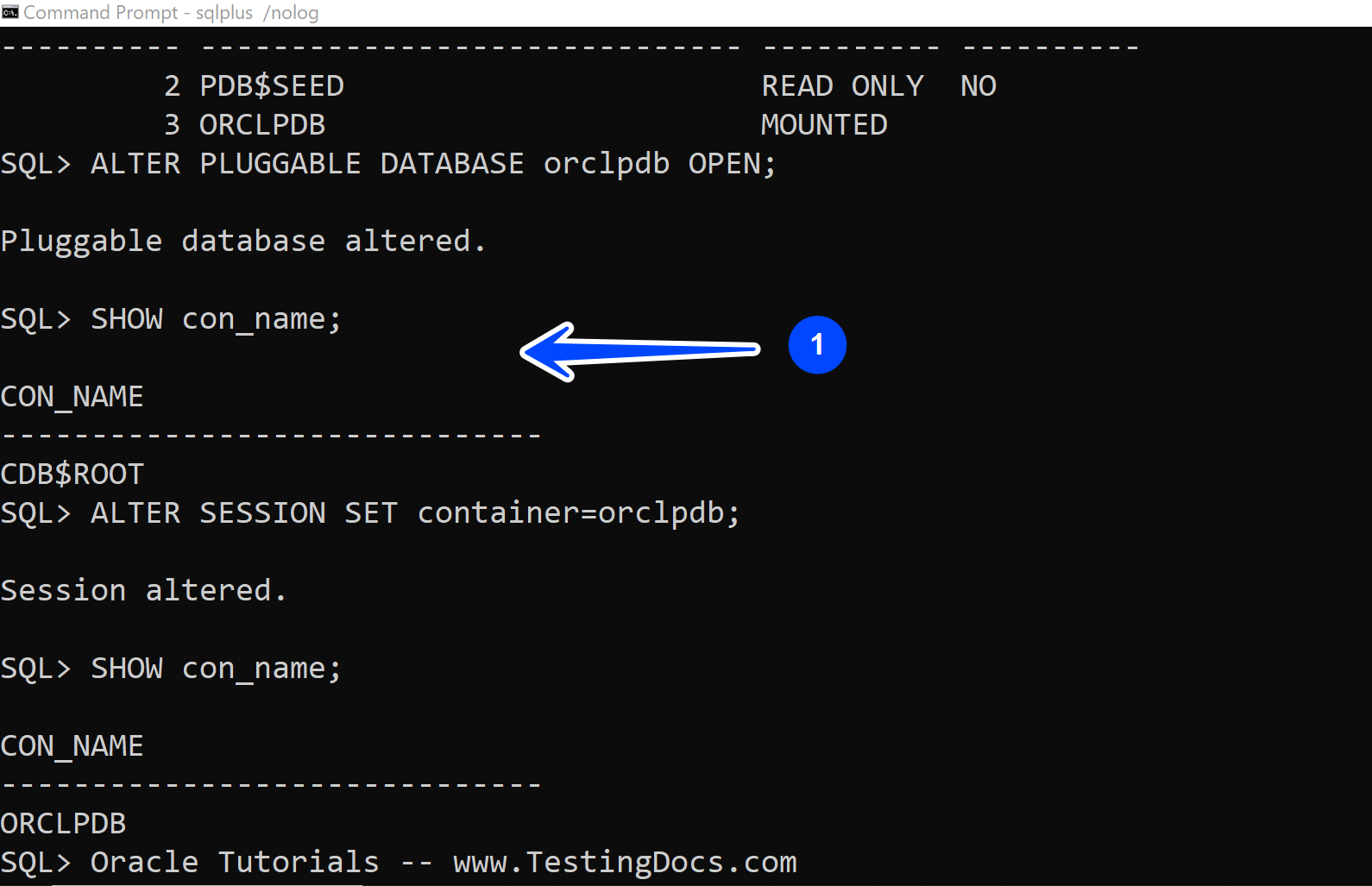
Check the connection to the pluggable database using the following command:
SQL> SHOW con_name;
CON_NAME
——————————
ORCLPDB
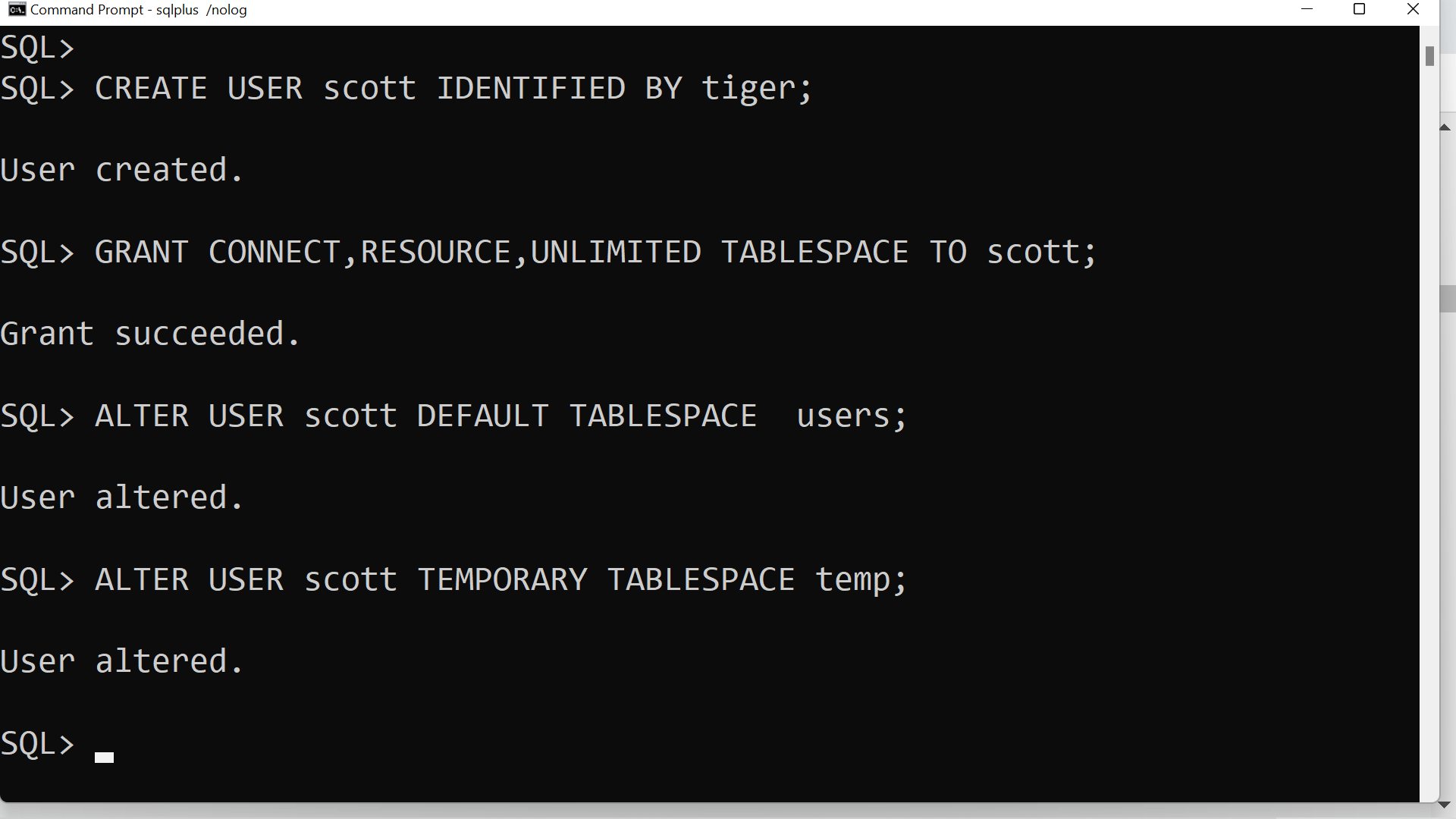
Create User to connect
Create a user in the pluggable database:
SQL> CREATE USER scott IDENTIFIED BY tiger;
Grant privileges to the user.
SQL> GRANT CONNECT,RESOURCE,UNLIMITED TABLESPACE TO scott;
Connect to Pluggable Database
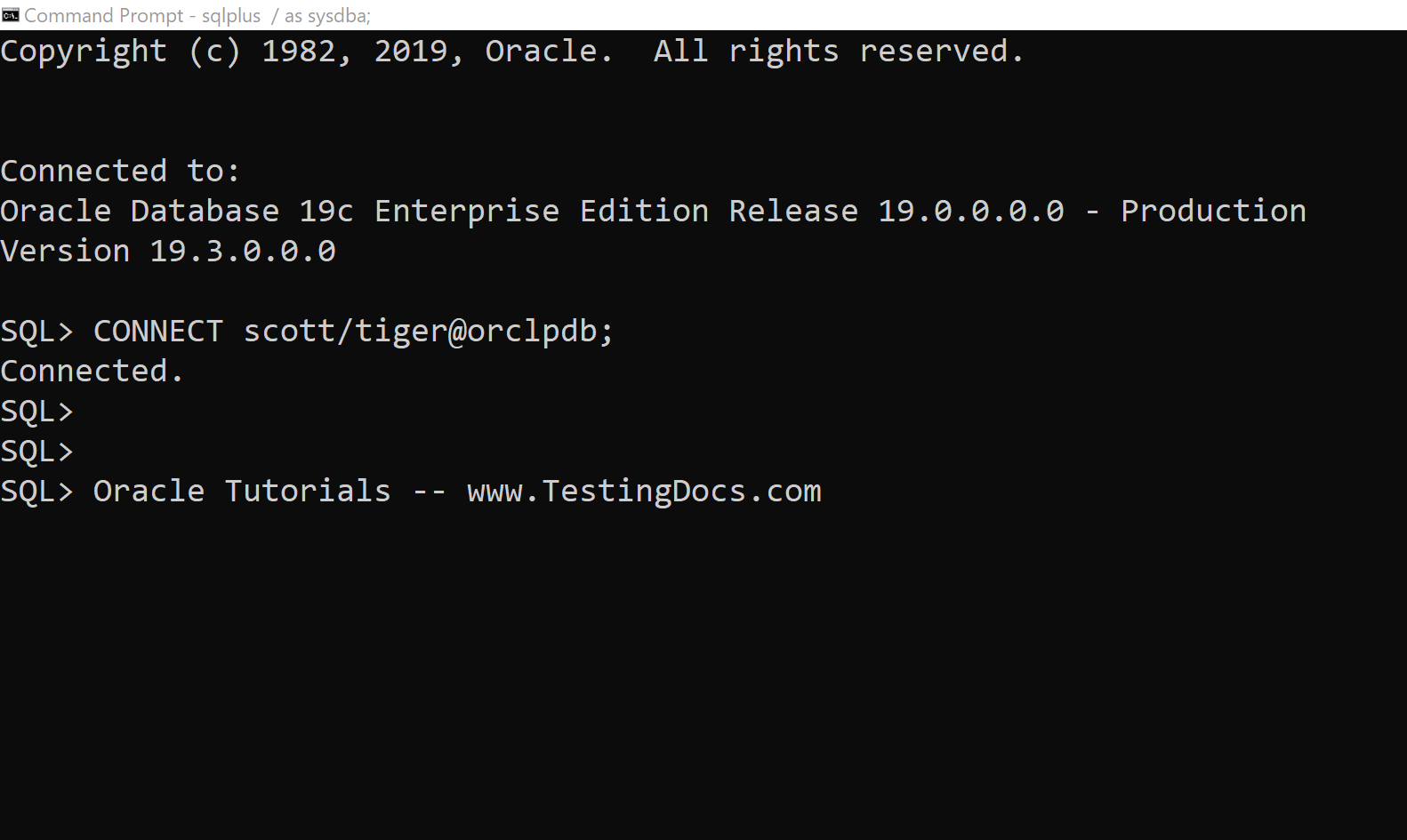
We can connect to the database using the CONNECT command. For example, to connect as the scott database user:
CONNECT username/password@pdbdatabase
SQL> CONNECT scott/tiger@orclpdb;
Connected.
SQL>
Connect to Pluggable Database
That’s it. You are now connected to the database. Following the steps mentioned in this tutorial, you should be able to connect to an Oracle Database using SQL*Plus and perform various database operations.