
How to Create Windows 10 ISO file

How to create Windows 10 ISO file
In this post, we will learn the steps to create Windows 10 ISO file.
A Windows 10 ISO file is a single file that contains all the necessary Windows 10 installation files. Think of it as a digital copy of a Windows installation DVD.
It is used to install, reinstall, or repair the Windows 10 operating system on a computer.
We can use this .iso file to Install Windows 10 on a different PC, create Windows 10 virtual machines etc. We can create ISO file using the Windows media creation tool.
Link for the Media creation tool:
https://www.microsoft.com/en-in/software-download/windows10
Steps
Download the Windows 10 media tool on to the computer.
Lunch the tool. ( the file named would be MediaCreationTool<version>.exe )
Read and Accept the license terms of the tool.
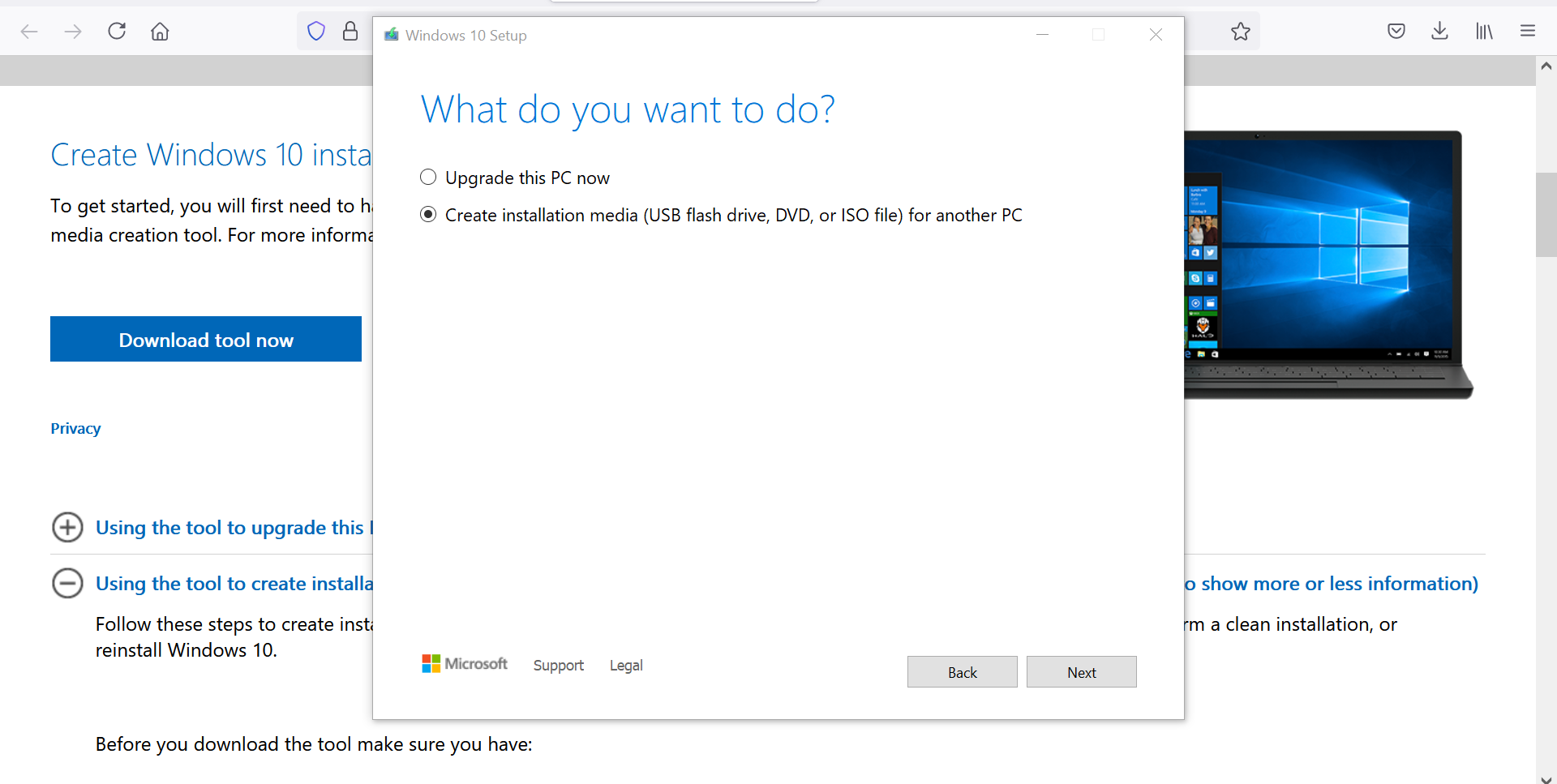
Choose the option Create installation media for another PC.
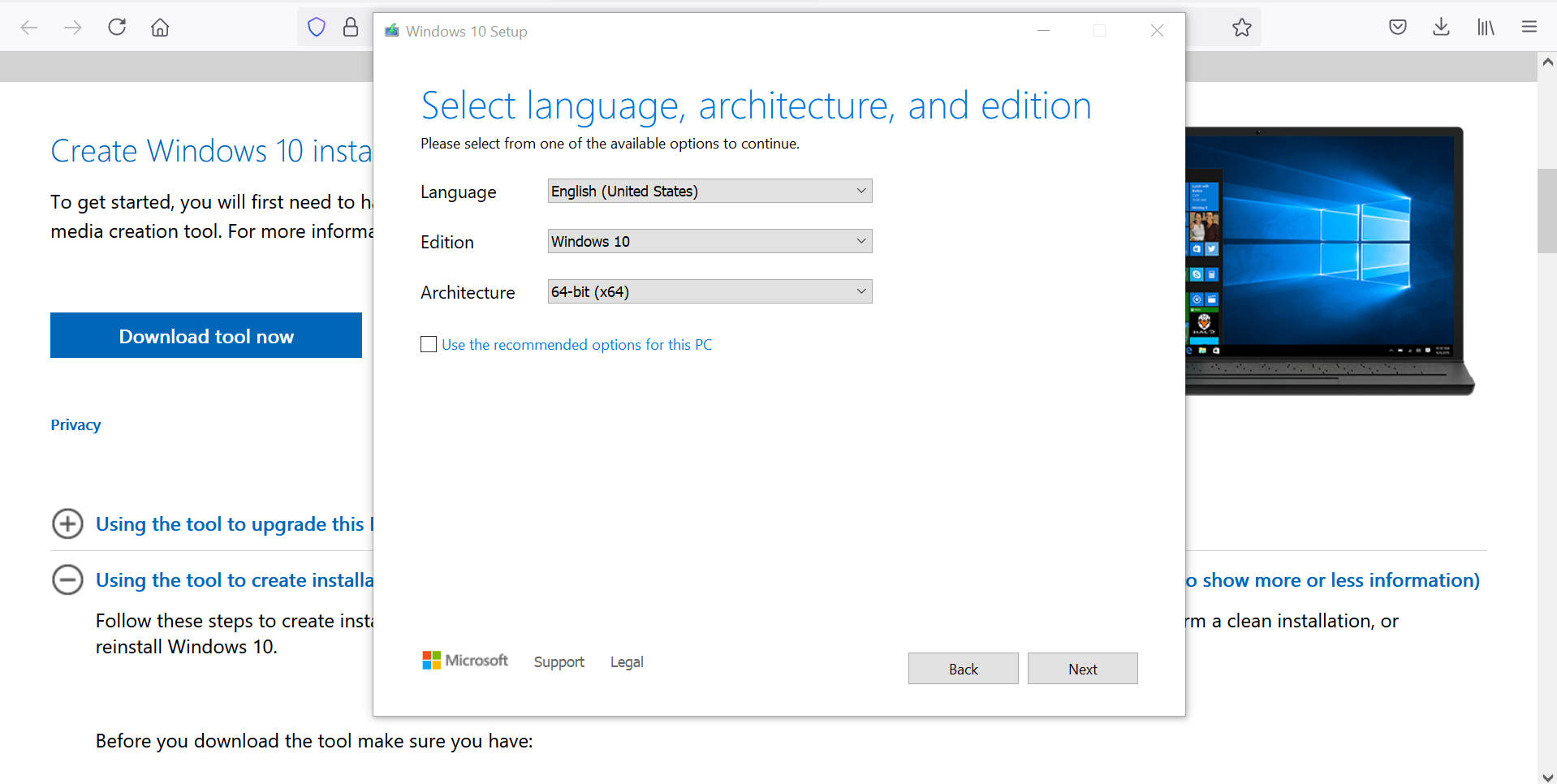
Choose the language, edition and architecture for the Windows 10 that needs to be installed.
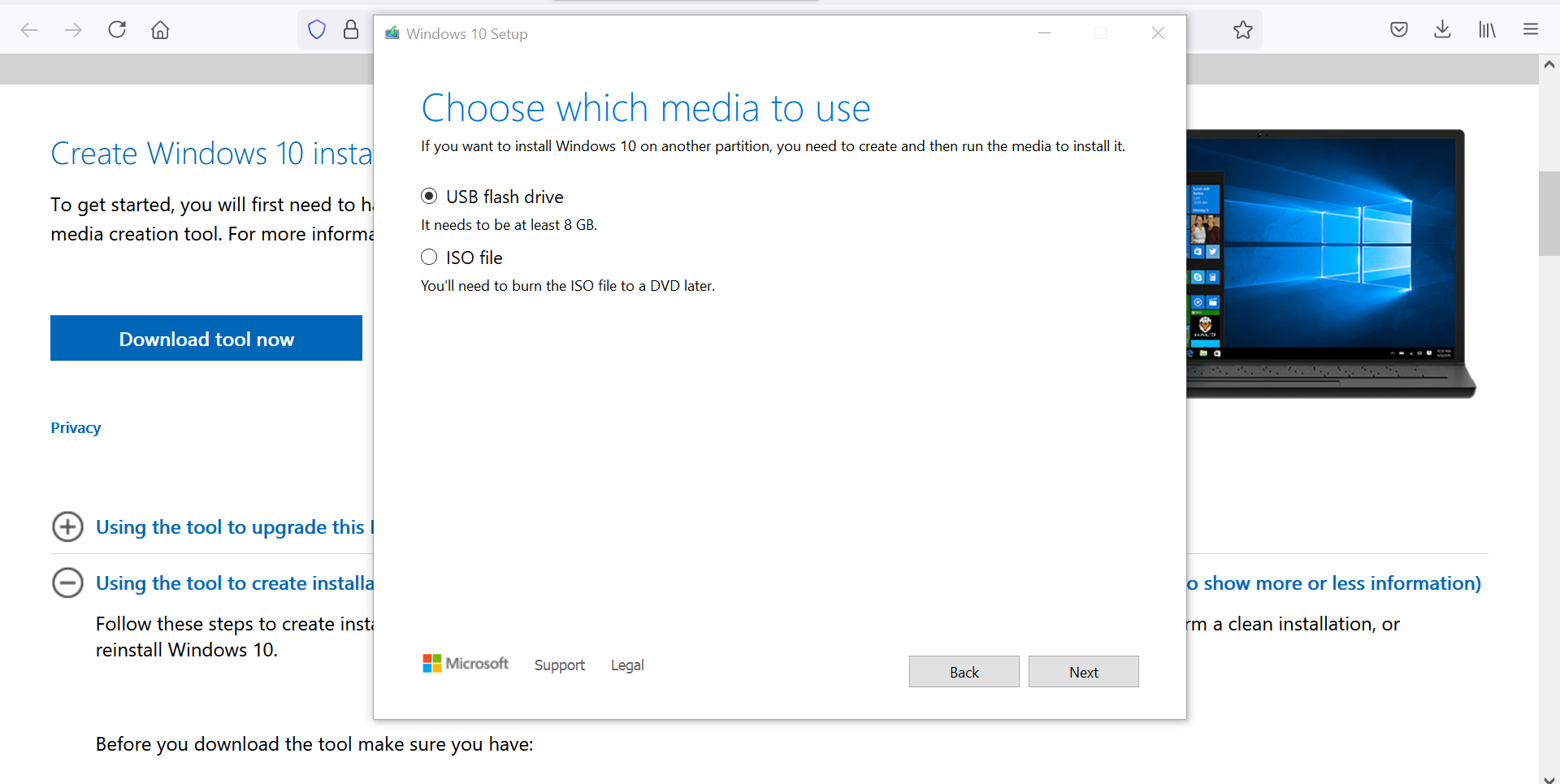
The first option creates the installation files on USB. We need formatted USB drive with minimum 8GB.
To create .iso file choose the ISO file option.
Give a name to the ISO file. The tool might take some time to create the Windows 10 ISO file.
That’s it. We are done with the steps to create the Windows ISO file.
—
Windows 11 Tutorials
https://www.testingdocs.com/windows-11-tutorials/
More Information on Windows 11