
Blog
Create the First Java Application

Create the First Java Application
In this tutorial, you will learn the steps involved in creating the First Java Application. The following instructions are for users of the Windows operating system.
To code the first Java program, we’ll need:
- JDK(Java Development Kit)
- Set JAVA_HOME environment variable
- Appended the JDK bin directory to the PATH variable
- Text editor like Notepad, Notepad++, etc.
Steps to download and install JDK on Windows:
Instructions to download and install Notepad++ text editor on Windows:
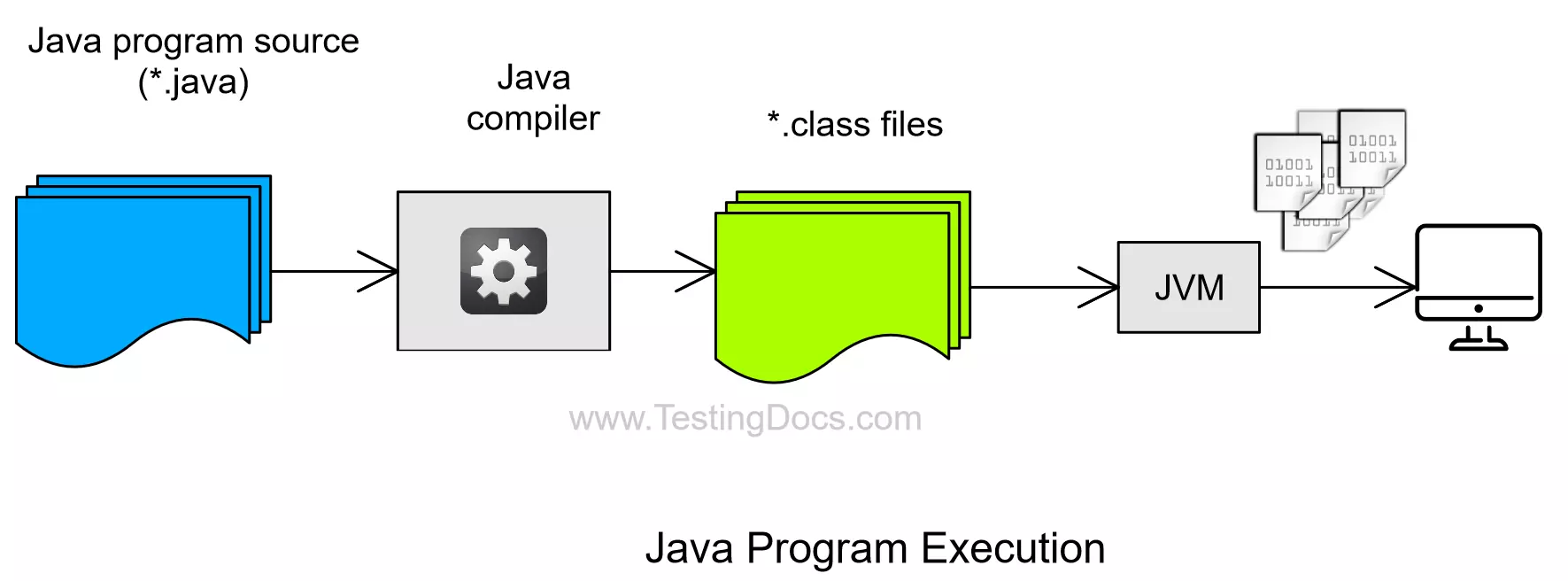
Java Program
Our first Java program, HelloWorldJavaApp, will display the “Hello world!” greeting message on to the console output. To create this Java program, we will:
- Create a Java Source File
- Compile the Java source file to .class file
- Run the Java Application
Create a Java Source File
The source file contains the Java code, written in the Java programming language. The source code is in human readable format, so that we can understand the code. We can use the text editor to create the source files.
Open Text Editor.
Add the following Java source code.
/**
 * The HelloWorldJavaApp application
 * Prints the message "Hello World!" to standard output.
 * Java Tutorials - www.TestingDocs.com
 */
public class HelloWorldJavaApp {

    public static void main(String[] args) {
        System.out.println("Hello World!");
// Display the greeting.
    }
}
Save the file as HelloWorldJavaApp.java

Compile the Java source file to .class file
The Java programming language compiler (javac) takes the source file and translates it into instructions that the JVM (Java Virtual Machine) can understand. The instructions contained within this file is the Java bytecode.
To compile the Java source file, change the current directory to the directory where the Java source file is located. At the prompt, type the following command and press Enter.
\> javac HelloWorldJavaApp.java
The compiler will generate a bytecode class file, HelloWorldJavaApp.class
We can find the javac and java in the JDK bin directory.(%JAVA_HOME%\bin)
We can set the JAVA_HOME environment variable and appended the JDK bin directory to the PATH variable.

Run the Java Application
The Java tool (java) uses the JVM to run the application. Enter the following command at the prompt:
\> java HelloWorldJavaApp

That’s it. We have successfully created and run a sample Java Application.
Java Tutorials
Java Tutorial on this website: