
Blog
Download & Install Node.js on Windows 10

Download & Install Node.js on Windows 10
In this post, you will learn how to download and install Node.js on Windows 10 operating system. Node.js is an open-source, cross-platform, asynchronous event-driven JavaScript runtime environment that allows you to run JavaScript code outside of a web browser. It is built on Google Chrome’s V8 JavaScript engine and is widely used for building highly scalable server-side and networking applications.
Download Node.js
The steps to download Node.js are as follows:
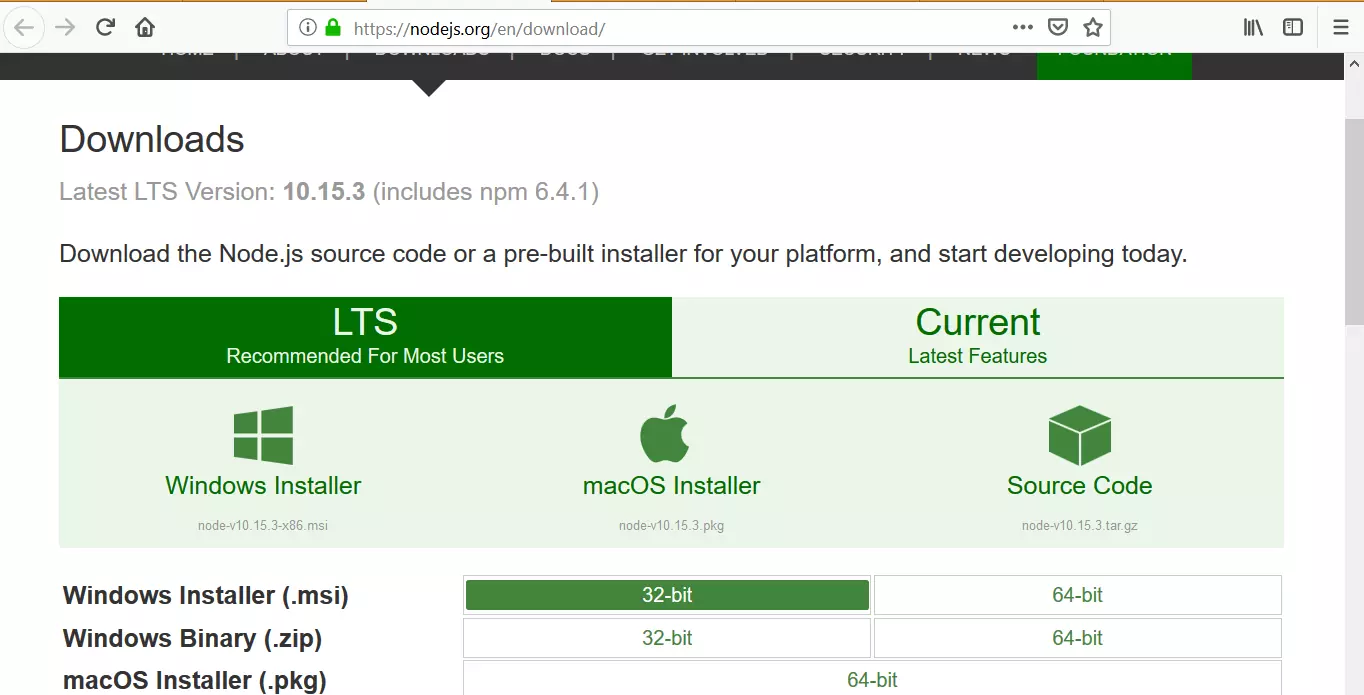
Open a web browser and navigate the following URL :
- https://nodejs.org/en/download/
Click on the Windows Installer tab as shown.
Pick the respective .msi installer for example 32-bit or 64-bit. Modern computers are 64-bit machines.
Pick the Long term support (LTS) version of the Node.js installer. This is recommended for most users. A long-term support build is a stable version with a commitment to support and maintenance of the software.
Download the MSI installer onto the hard disk.
Install Node.js
Locate the downloaded installer. Launch the setup wizard by double-clicking on it.
The setup wizard will install Node.js on your computer.
Click on the Next button to continue.

In the EULA (End-User License Agreement) screen, Read the license agreement and check the checkbox ‘I accept the terms in the License agreement
Click on the Next button to continue.

In the destination folder screen, you can choose a custom folder or accept the default location and click on the Next button.

In the custom setup screen, you can select the features to be installed. It’s recommended to leave the default components and click on the Next button.
Click on the Install button to install Node.js. In case you want to review the install settings you can use the Back button.

Install button elevates with a UAC(User Account Control) prompt. Click on the Yes button in the elevation prompt. Please wait for a while for the setup to complete.

Click on the Finish button to exit the setup wizard.
Verification
To check if the Node.js installation, open a command prompt and run the below commands:
\> node -v
\> npm -v
That’s it. We have successfully downloaded and installed Node.js software on Windows 10 operating system.