
Blog
Download & Install WildFly Server on Windows

Download & Install WildFly Server on Windows
In this tutorial, you will learn how to Download and Install the WildFly Application server on the Windows operating system. The Wildfly Application server was formerly known as the JBOSS server. This post will install the server using the .zip archive package file.
Download WildFly
Navigate to Wildfly’s official website:
- https://www.wildfly.org/
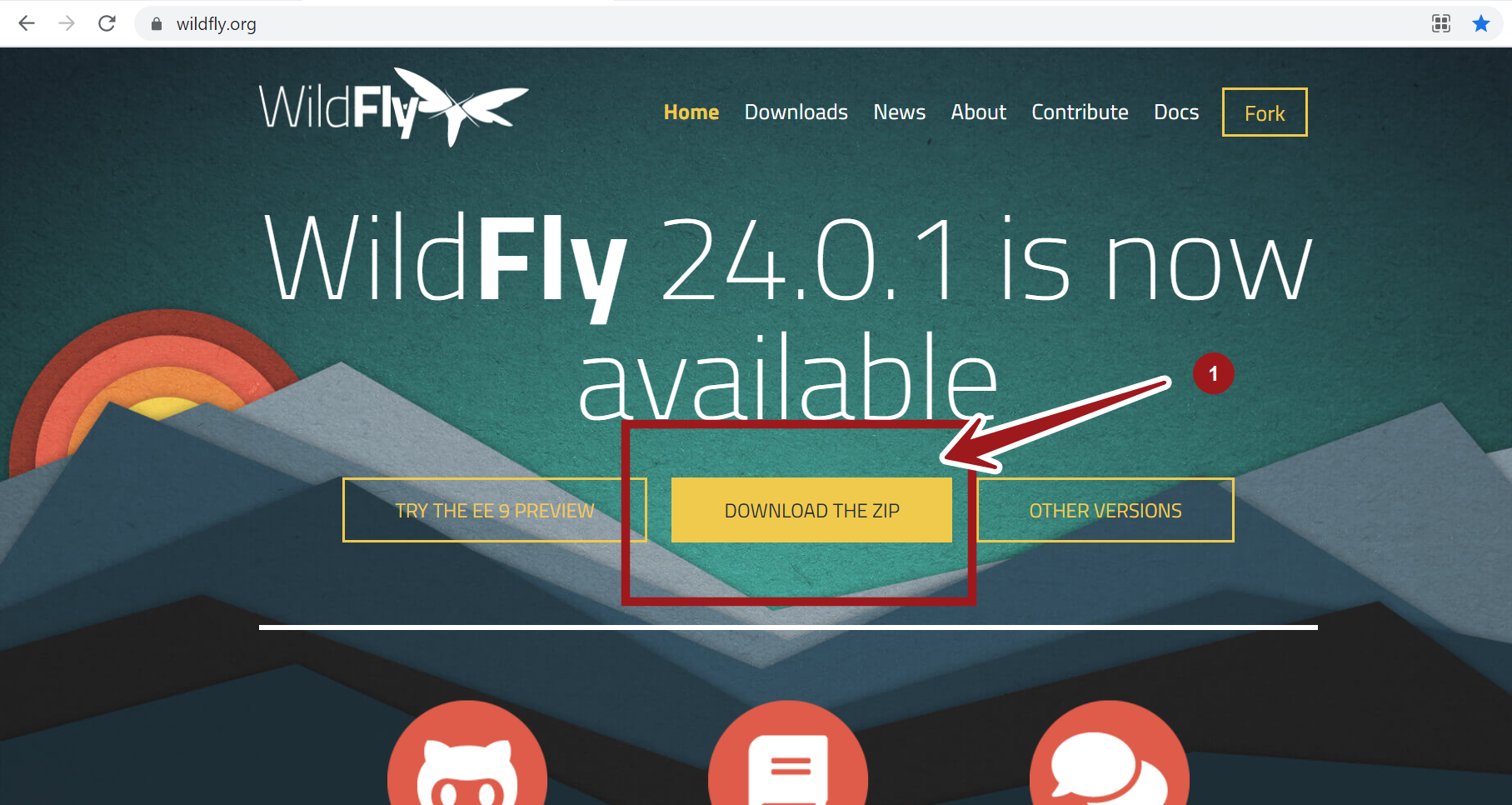
Download the Wildfly server zip package. Click on the DOWNLOAD THE ZIP button.
Install Wildfly
Extract the contents of the zip file. Use the standard extract tool or the zip utility like 7zip.
Move the JBoss folder to a standard disk location. c:\jboss
Set JBOSS_HOME
Set JBOSS_HOME environment variable to point to the install folder of the server. You can add the $JBOSS_HOME/bin directory to the PATH variable. We can refer to other directories under the home using this variable relatively. For example, to point to the bin directory, we can use $JBOSS_HOME/bin
Steps to set the variable:
https://www.testingdocs.com/set-jboss_home-variable-on-windows/
Verify the Install
Open the command prompt window.
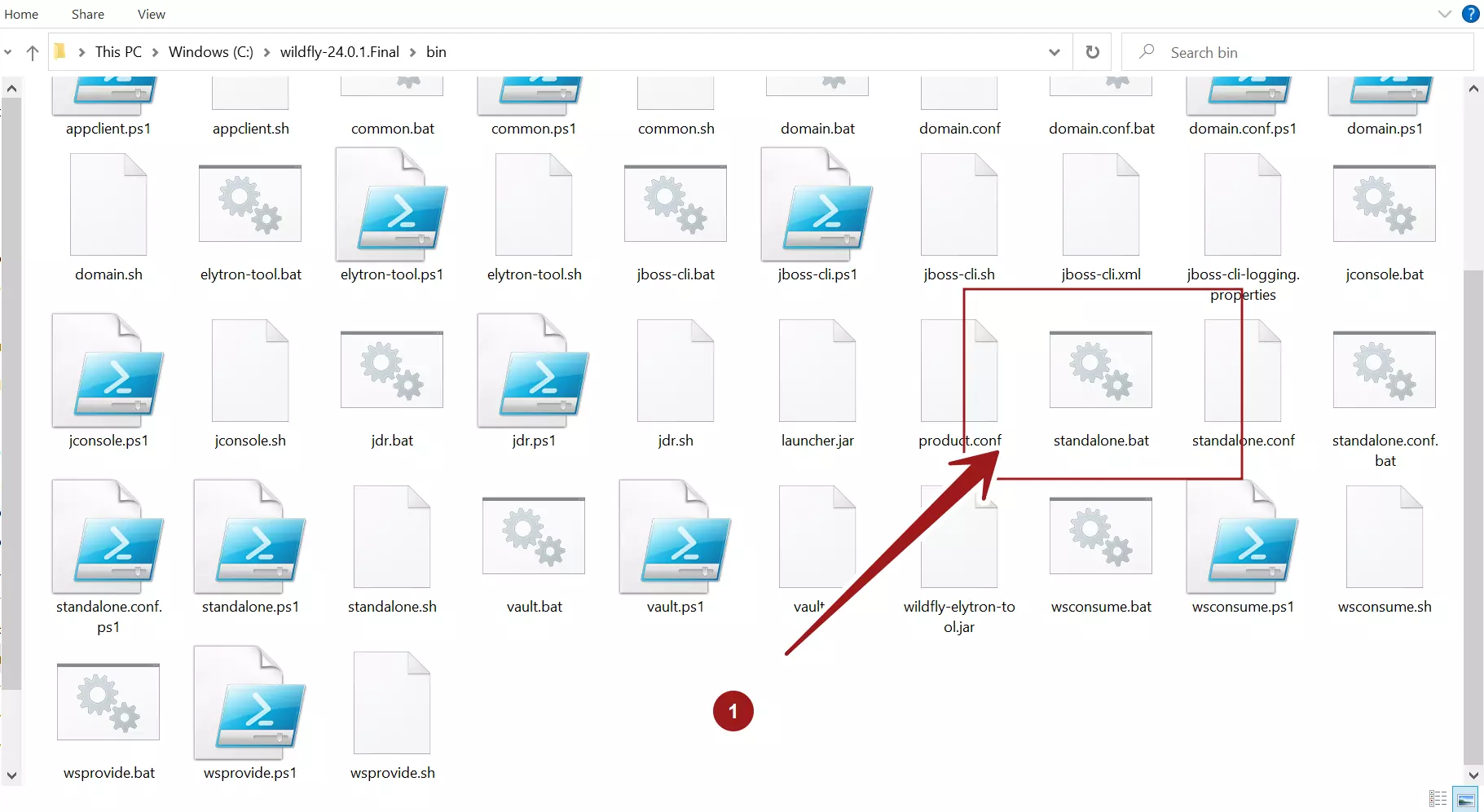
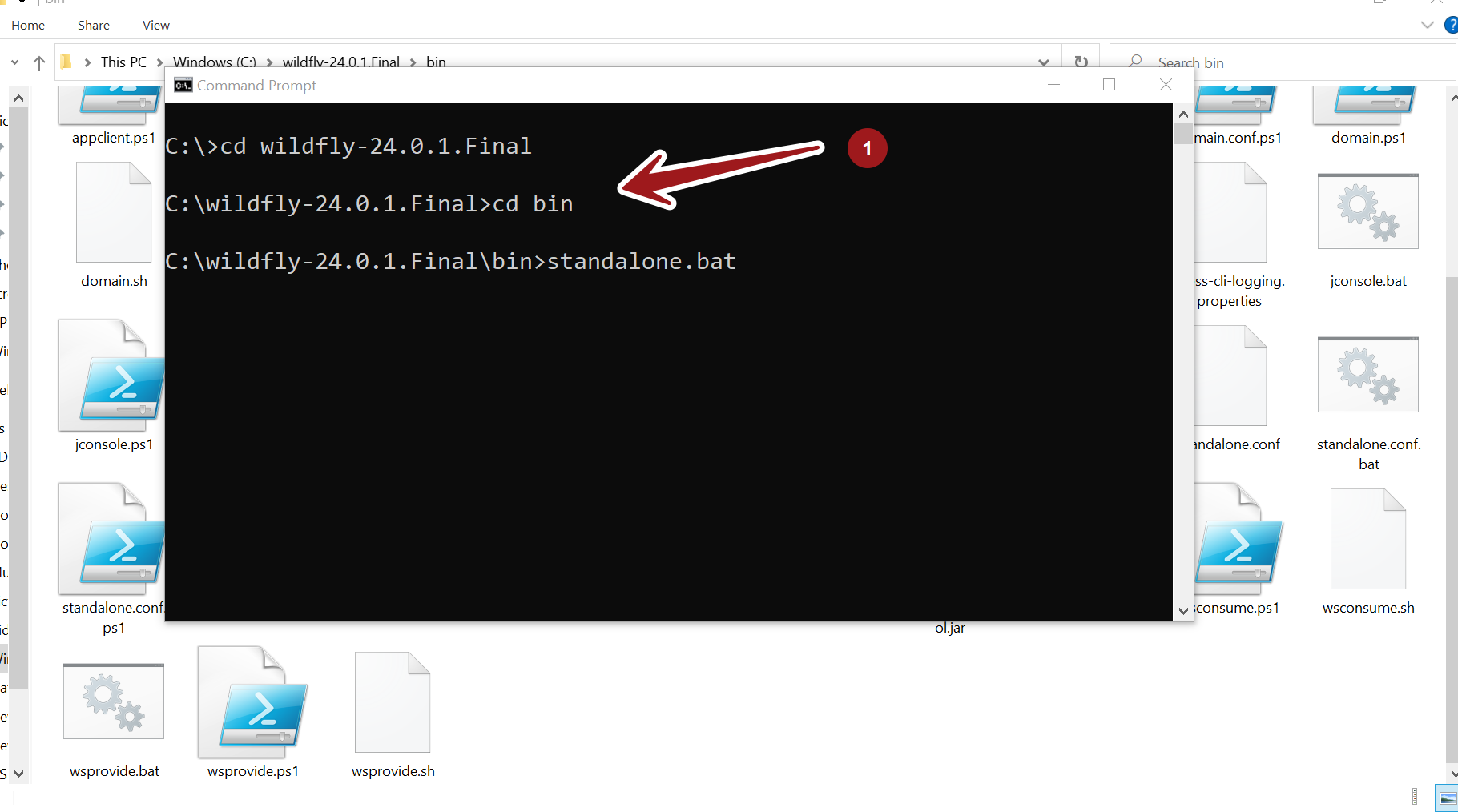
Change the directory to the bin directory.
Execute the standalone.bat script.
You should see the boot process of the server. Something similar to :
C:\wildfly-24.0.1.Final\bin>standalone.bat
Calling “C:\wildfly-24.0.1.Final\bin\standalone.conf.bat”
Setting JAVA property to “E:\jdk-14.0.1\bin\java”
===============================================================================
JBoss Bootstrap Environment
JBOSS_HOME: “C:\wildfly-24.0.1.Final”
JAVA: “E:\jdk-14.0.1\bin\java”
JAVA_OPTS: “-server -Dprogram.name=standalone.bat -Xms64M -Xmx512M -XX:MetaspaceSize=96M -XX:MaxMetaspaceSize=256m -Djava.net.preferIPv4Stack=true –
Verification
Open the browser and navigate to the default server URL:
http://127.0.0.1:8080Â or
http://localhost:8080
The default Wildfly server page should be displayed in the browser.
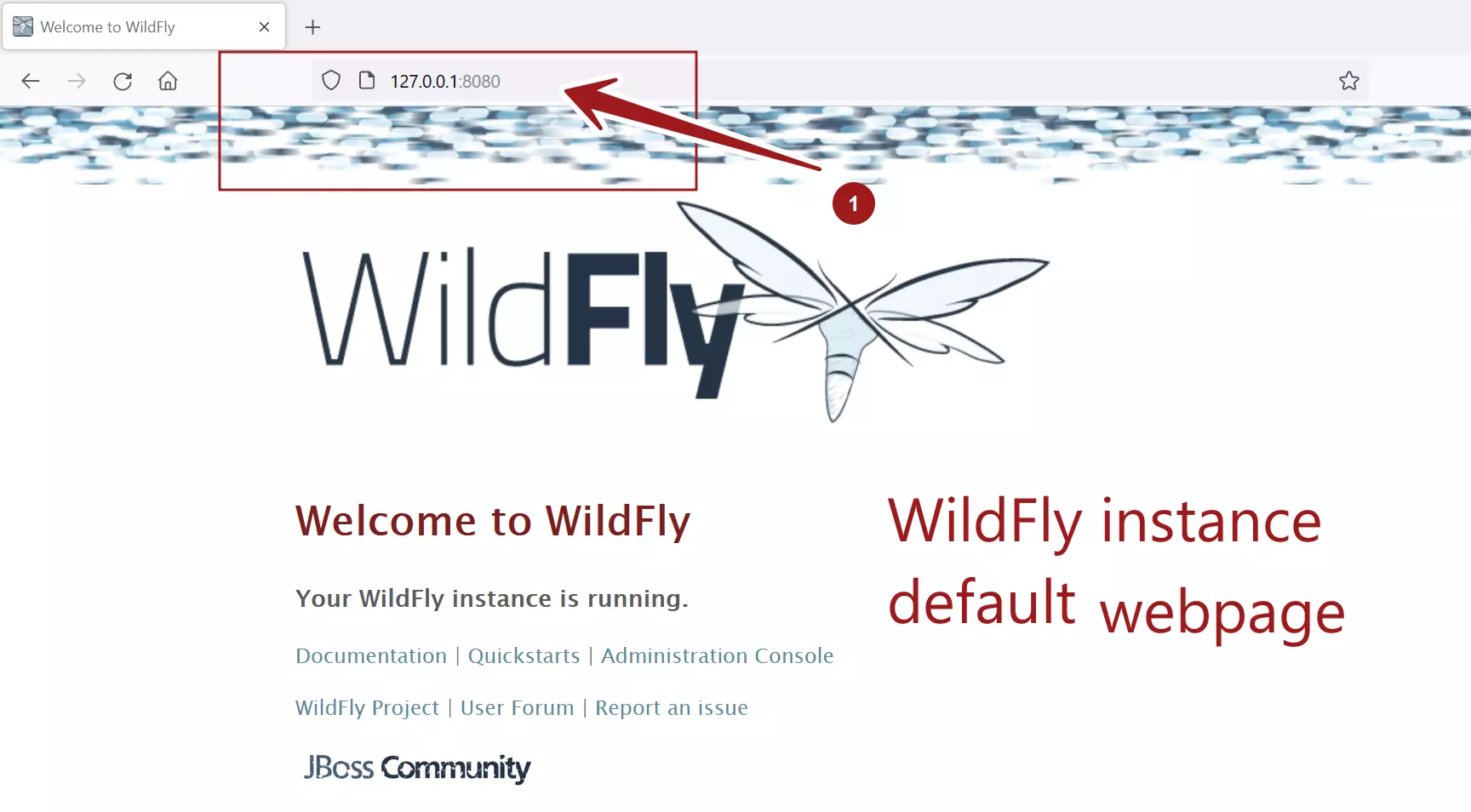
That’s it. You have successfully installed the Wildfly server on the Windows platform.
Related
JBoss Install on Ubuntu Linux machine:
JBoss EAP
Now Wildfly is also available as JBoss EAP ( Enterprise Application Platform). This is more secure version of the JBoss Application Server for Enterprise development and supported by Red Hat, Inc.