
Blog
Download Maven on Windows

Download Maven on Windows
In this tutorial, we will Download Maven for the Windows 11 operating system and install and set up the Maven tool. Windows 11 is Microsoft’s latest operating system.
Apache Maven is an open-source build automation tool. Java should be installed on the machine, and the JAVA_HOME environment variable should be set to the JDK home directory.
Environment
This post uses the following environment
- Windows 11 Operating System
- JDK 17
- Any web browser( Chrome browser / Firefox / Edge browser)
- Maven 3.8.x
Download Maven
Open the Web browser and navigate to Maven’s official website.
- https://maven.apache.org/
Click on the Download link. Download the .zip compressed archive file.
Verify the Maven Download
C:\Users\testingdocs\Downloads>certutil -hashfile apache-maven-3.8.3-bin.zip SHA512
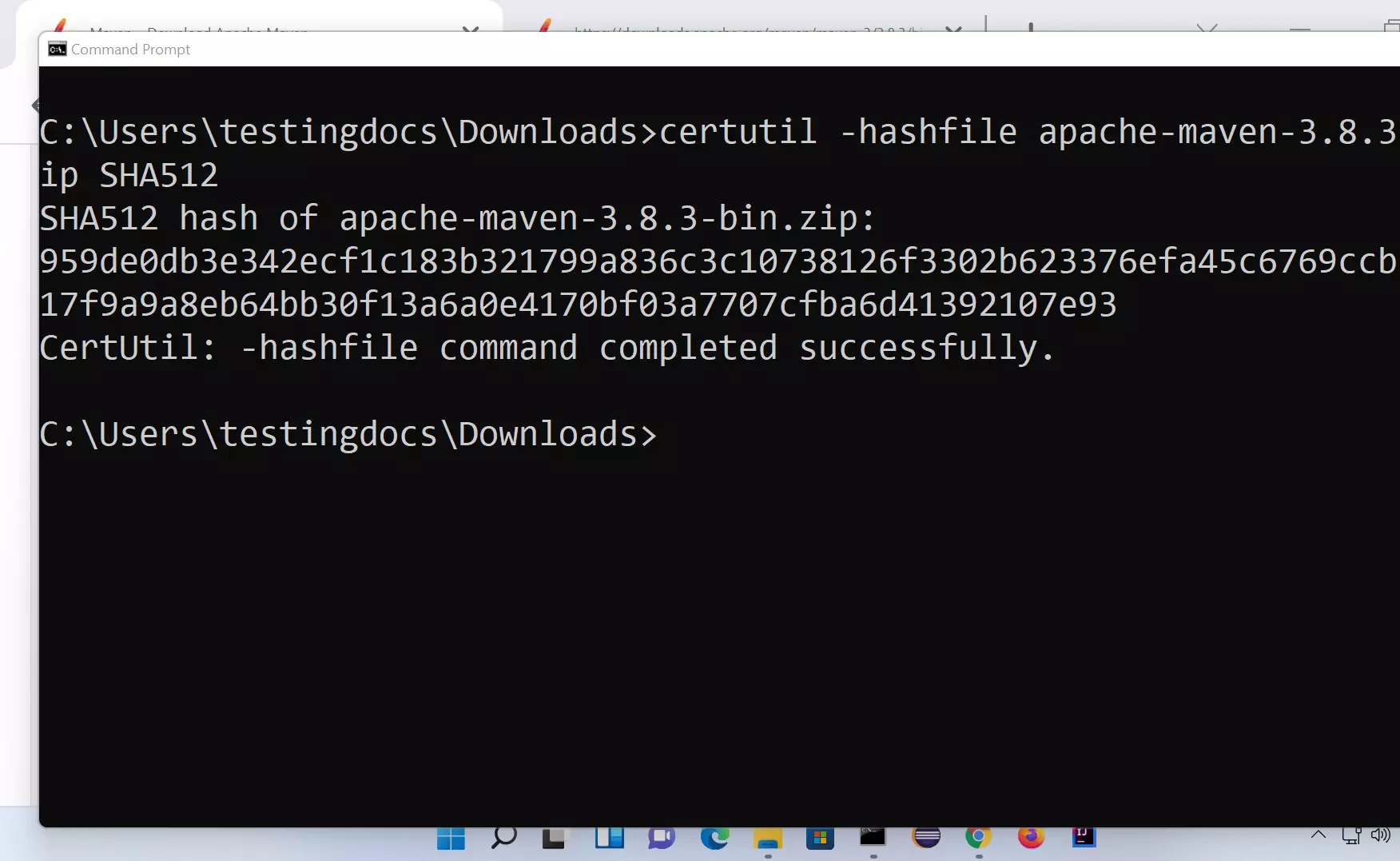
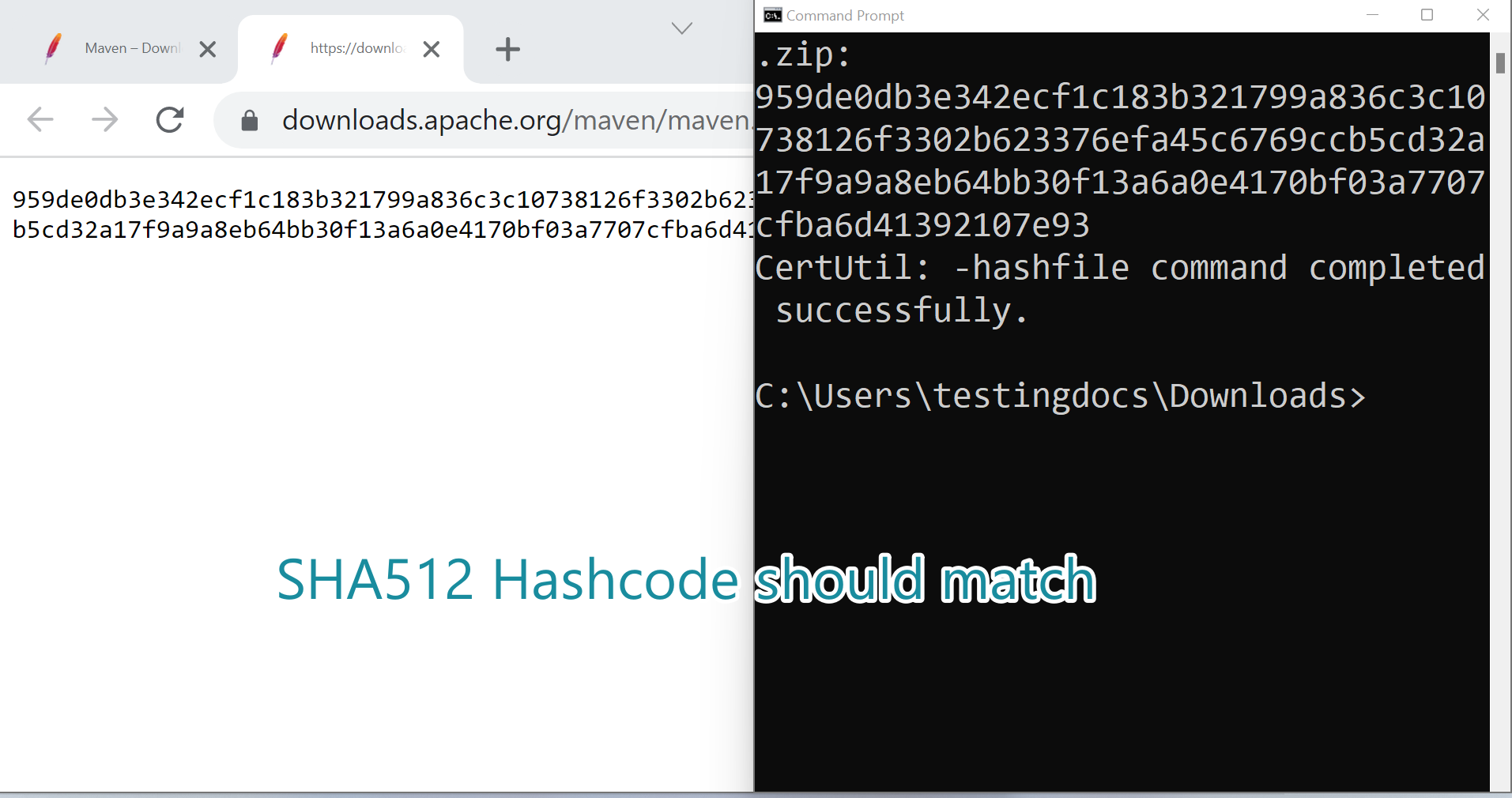
The generated SHA512 hashcode should match the hash listed on the Maven website.
This step verifies the integrity of the download. Verification of the checksums is recommended on production systems.
Install Maven
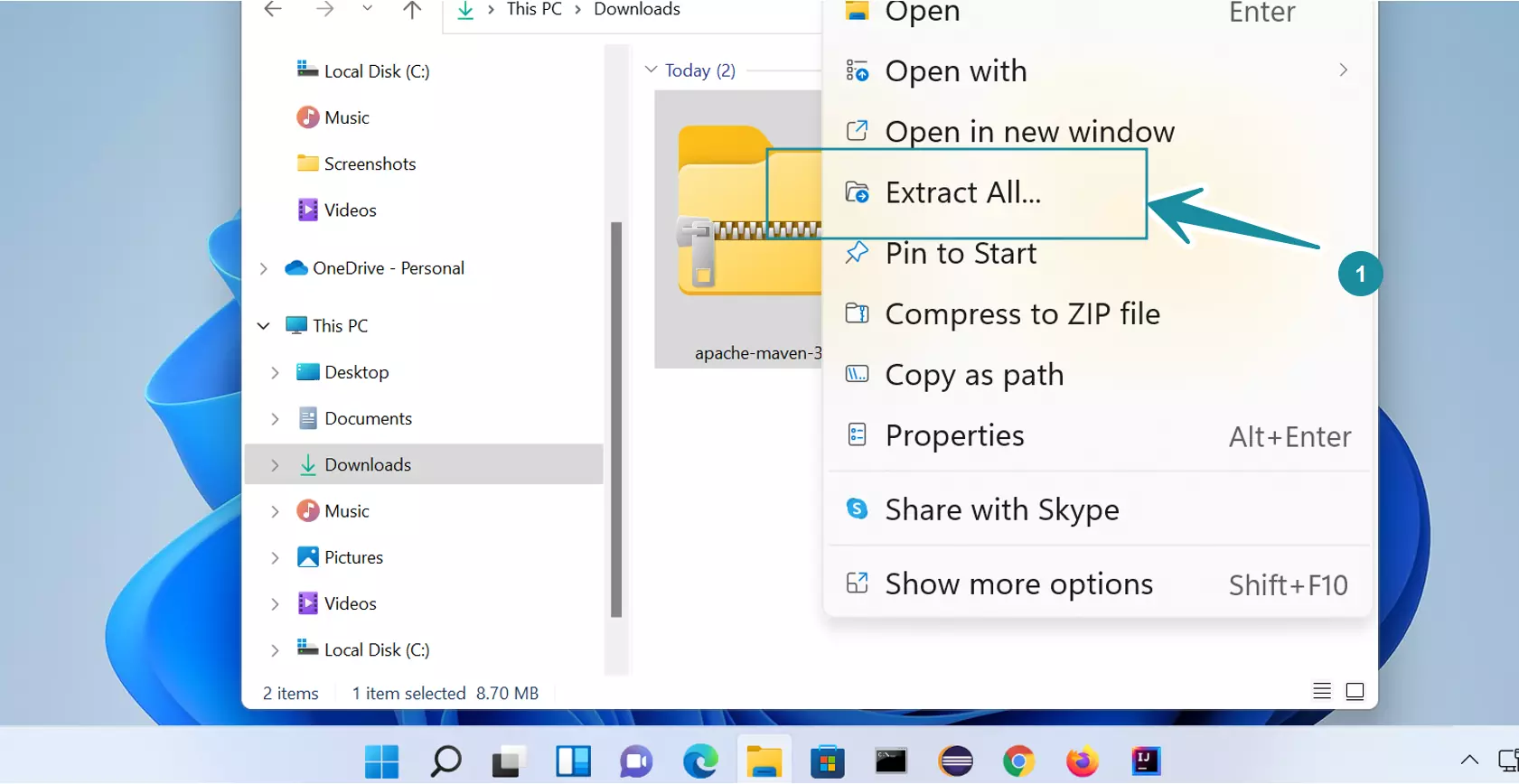
To install Maven, extract the contents.
Right-click on the maven zip file and choose the Extract All… menu option.
This will extract the .zip file contents.
Set System Variables
Copy the maven folder to a suitable path on the computer. For example, to C:\maven
Set the MAVEN_HOME environment variable pointing to the machine’s maven install directory.
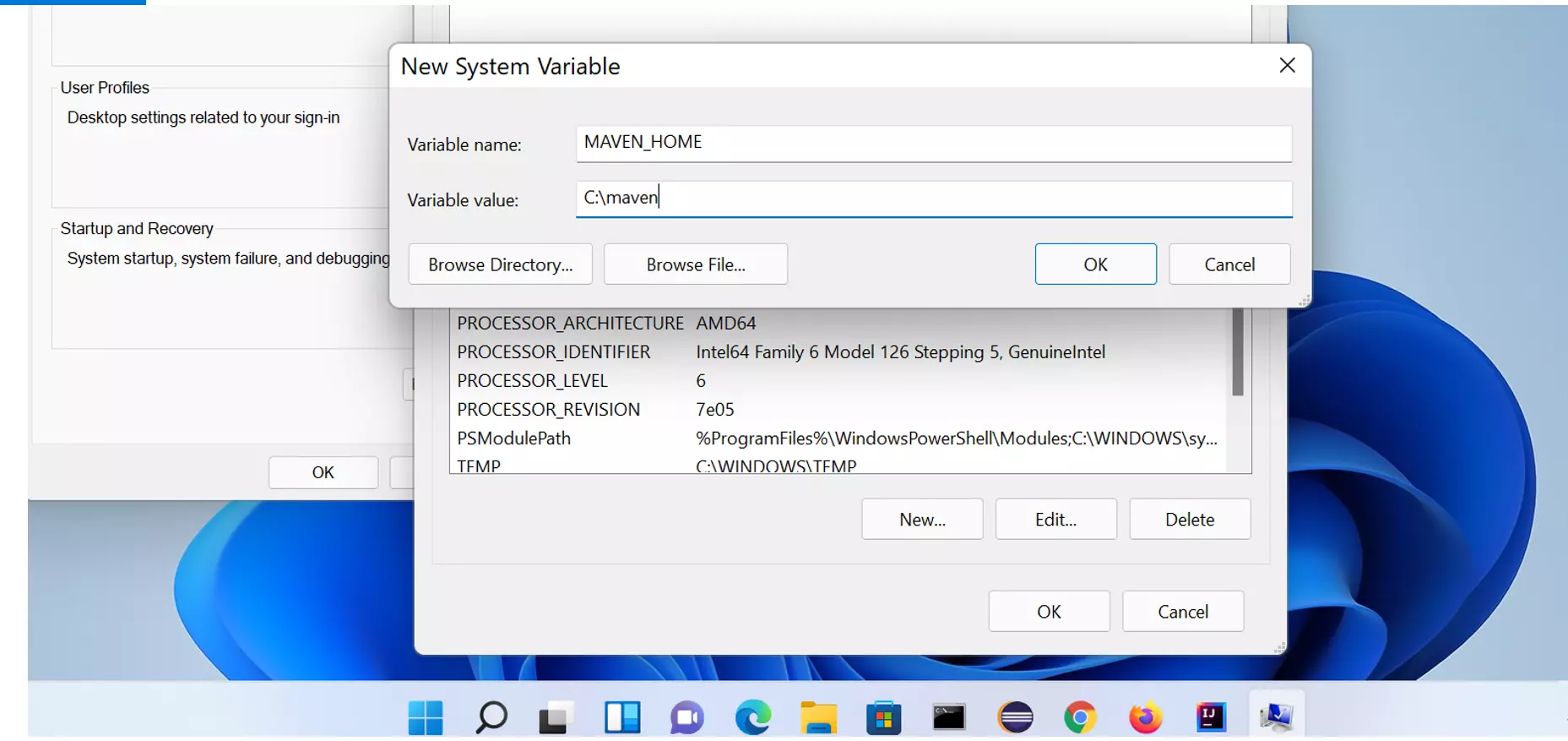
Add the %MAVEN_HOME%\bin to the PATH environment variable.
Verify Maven Setup
Launch a command prompt and issue the following command:
\> mvn -vÂ
This should display the version of the Maven tool.
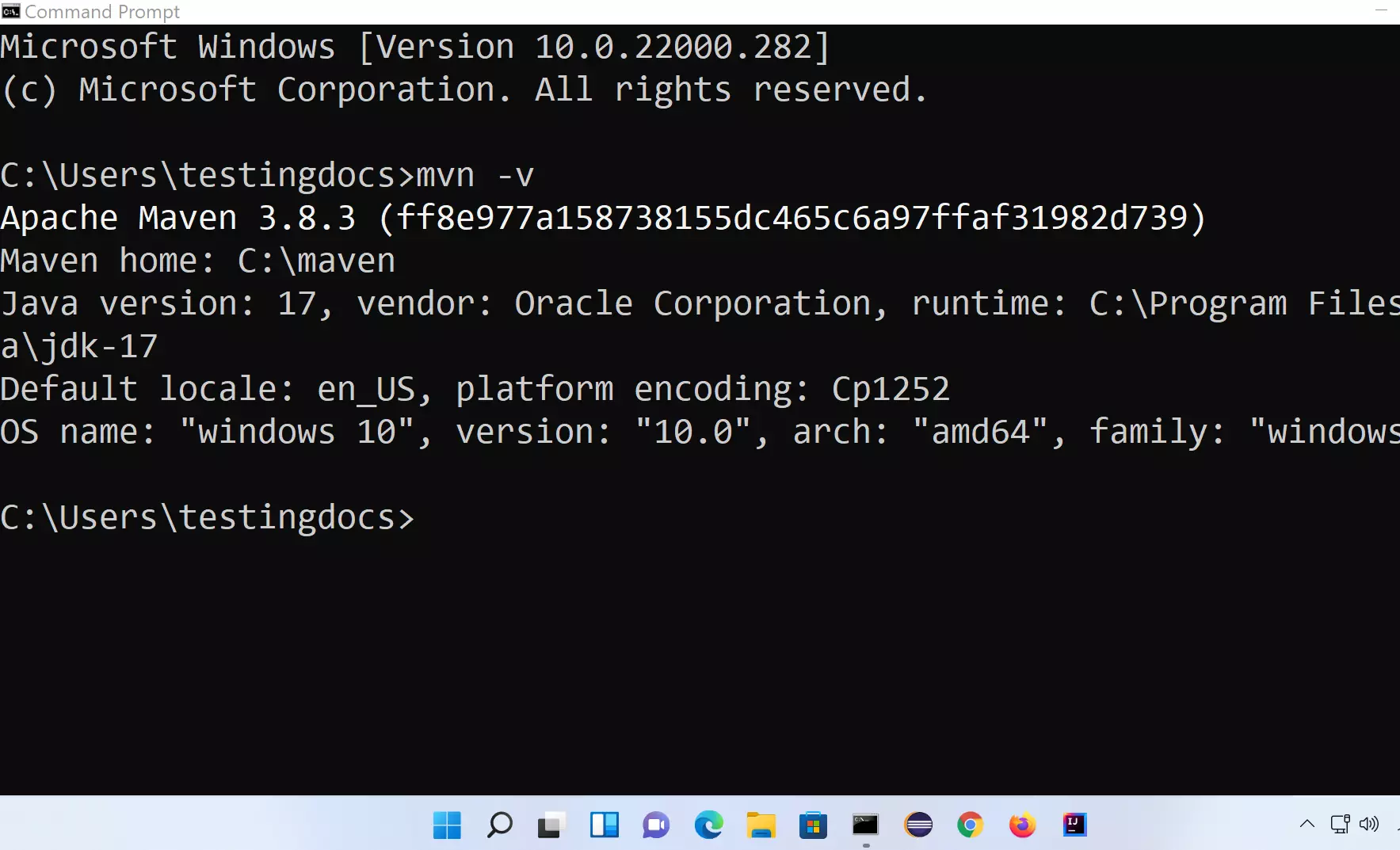
That’s it. We have successfully downloaded and installed the Maven tool on the Windows 11 machine.
Maven Tutorials
Maven Tutorials on this website can be found at: