
Blog
Execute Test Case in Jira

Execute Test Case in Jira
In this tutorial, you will learn how to execute test cases in Jira software. Once you have added the test cases to a test cycle, you can execute them.
Execute Test Case
In the Cycle Summary page, select the Test Cycle.
We can click the bulb icon on the top-right corner to start the tour of the page features.
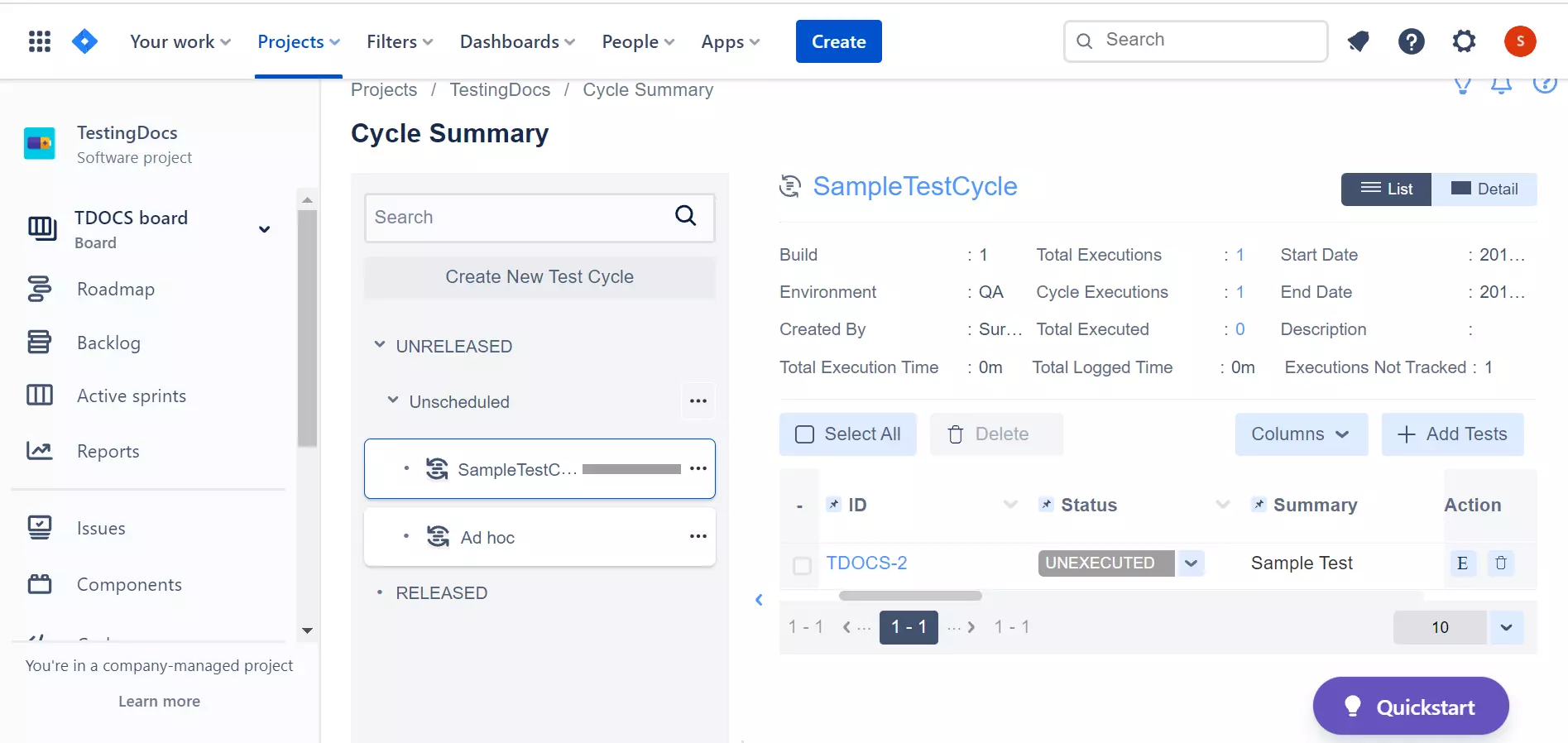
We can use the Breadcrumb that displays the complete path to navigate to different screens.
Click on the Execute E button to execute the test case. Alternatively, click on the Test link to execute the test.
The test Execution Status consists of the following options:
- UNEXECUTED
- PASS
- FAIL
- WIP
- BLOCKED
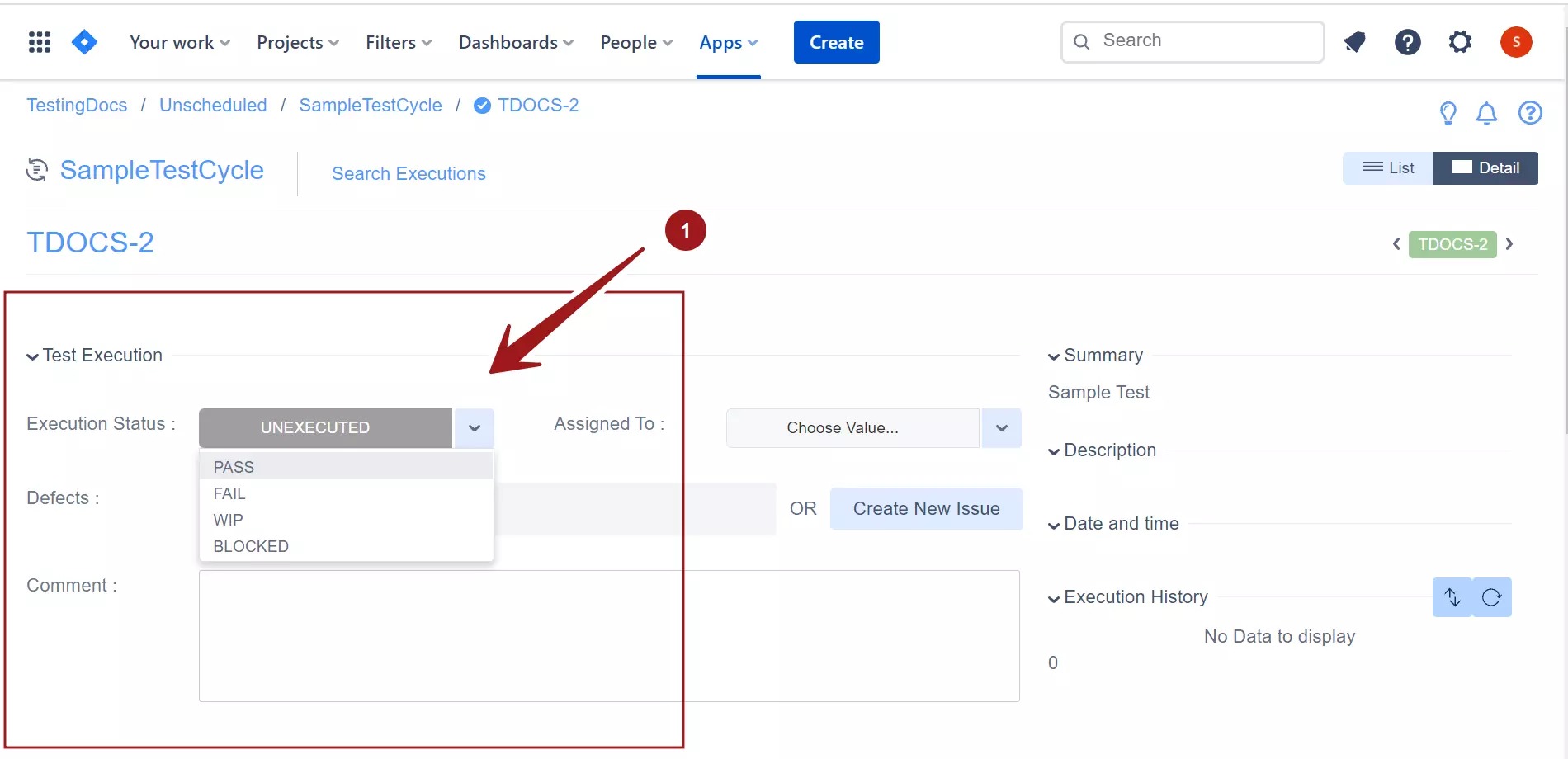
When we select the test as PASS, a green color button will appear and the test will be marked as passed.
When we select the test as FAIL, a red color button will appear and the test will be marked as failed.
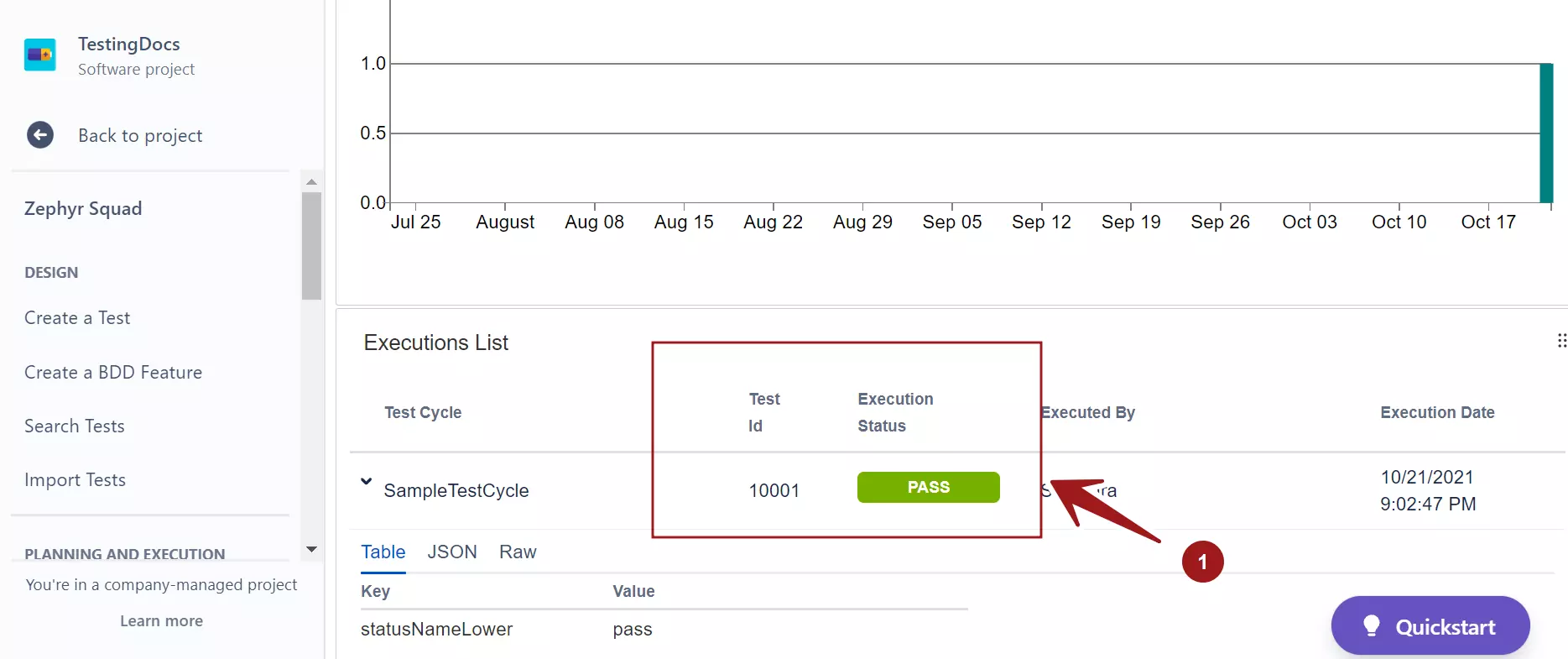
Application tests can be executed either manually or through automation.
—
Jira Tutorials
Jira Software Tutorials link on this website: