
How to use selection symbol in Raptor flowchart

How to use selection symbol in Raptor flowchart
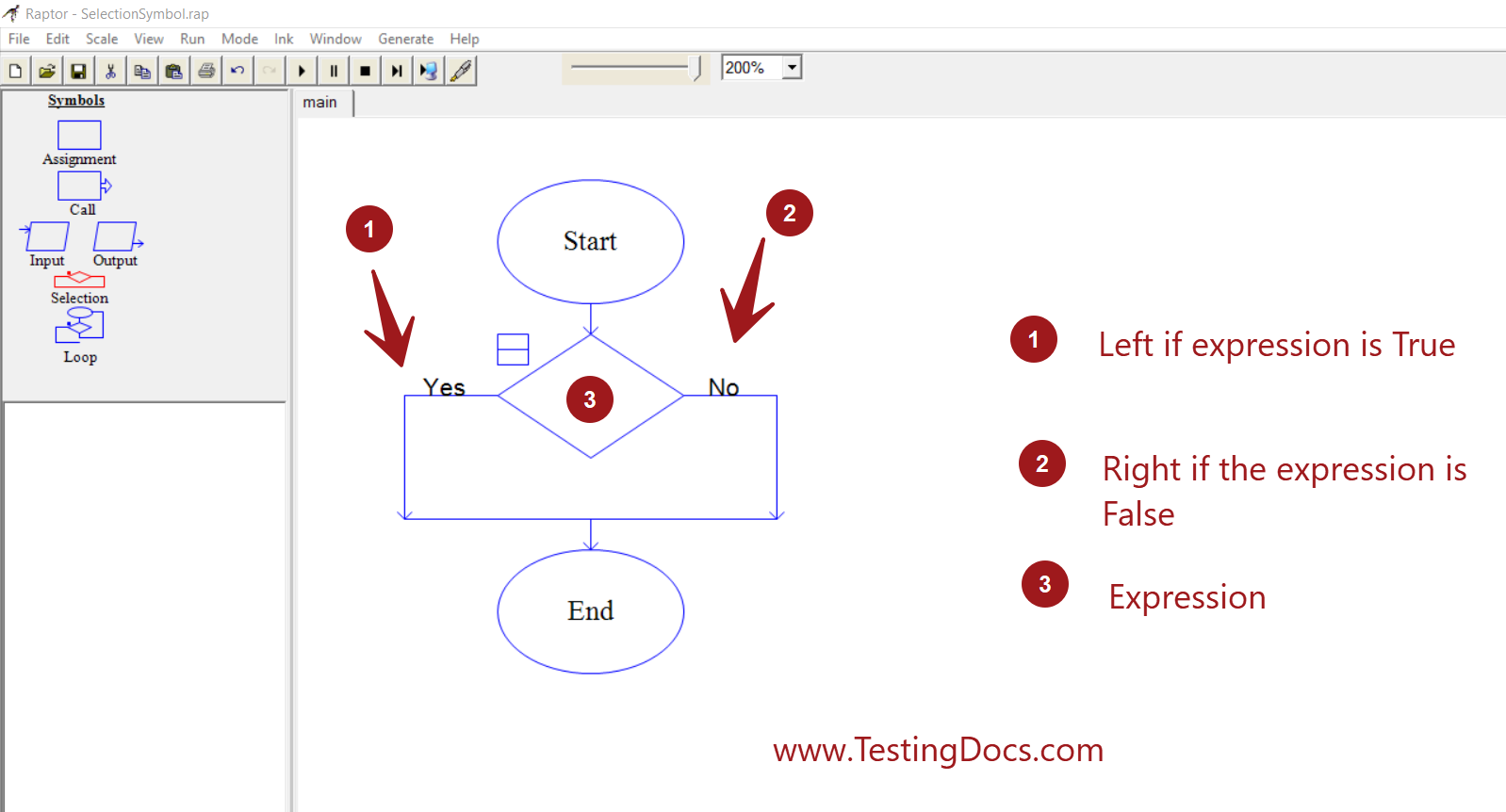
The selection symbol in the Raptor flowchart is used for decision making. It is a diamond-like structure with two branches. Based on the expression in the diamond box, the control of the program will branch either left or right.
- Left -> (Yes/ True)
- Right -> (No/ False)
How to add Selection Symbol
We can add the selection structure to the flowchart in multiple ways.
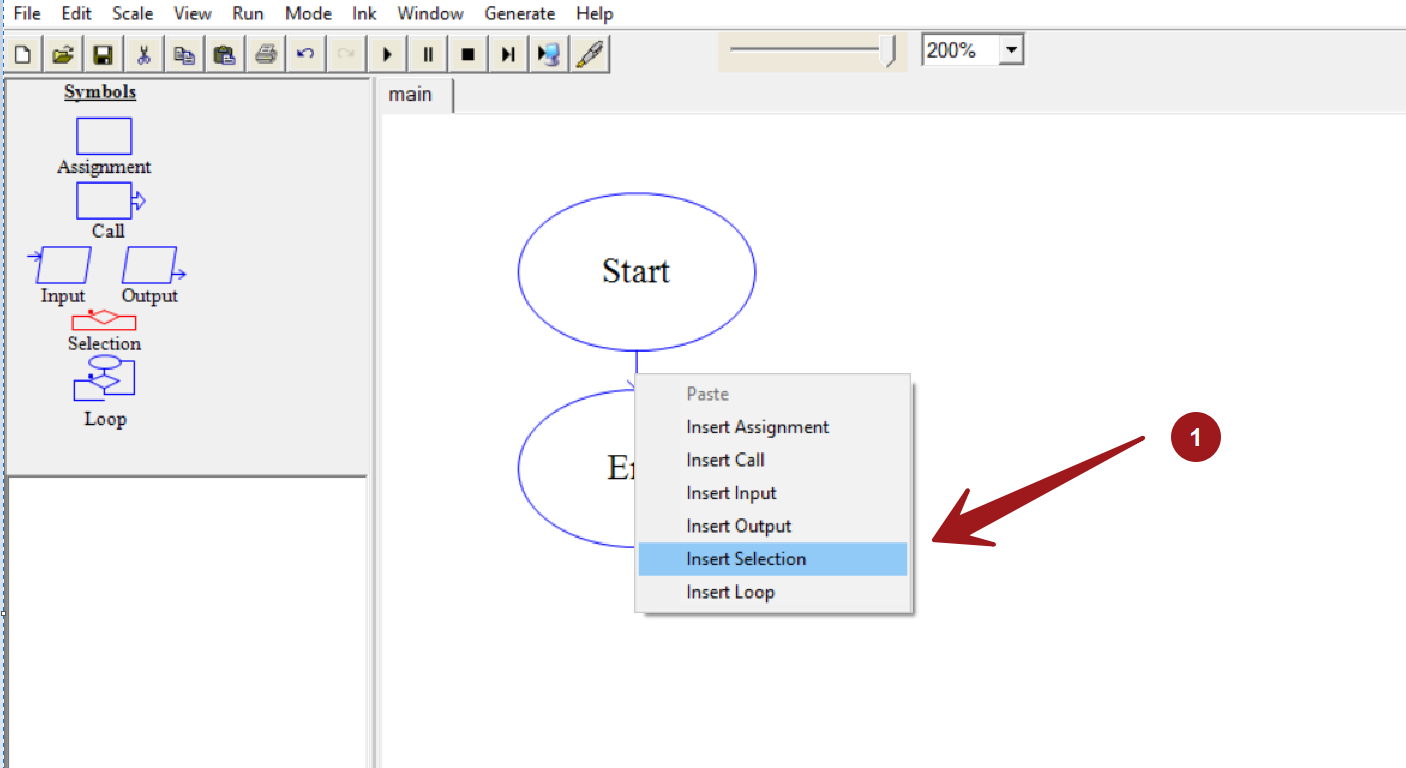
Drag and drop the symbol from the Symbols pane to the flowchart workspace.
Right-click on the workspace >> Insert selection
Nested Selection
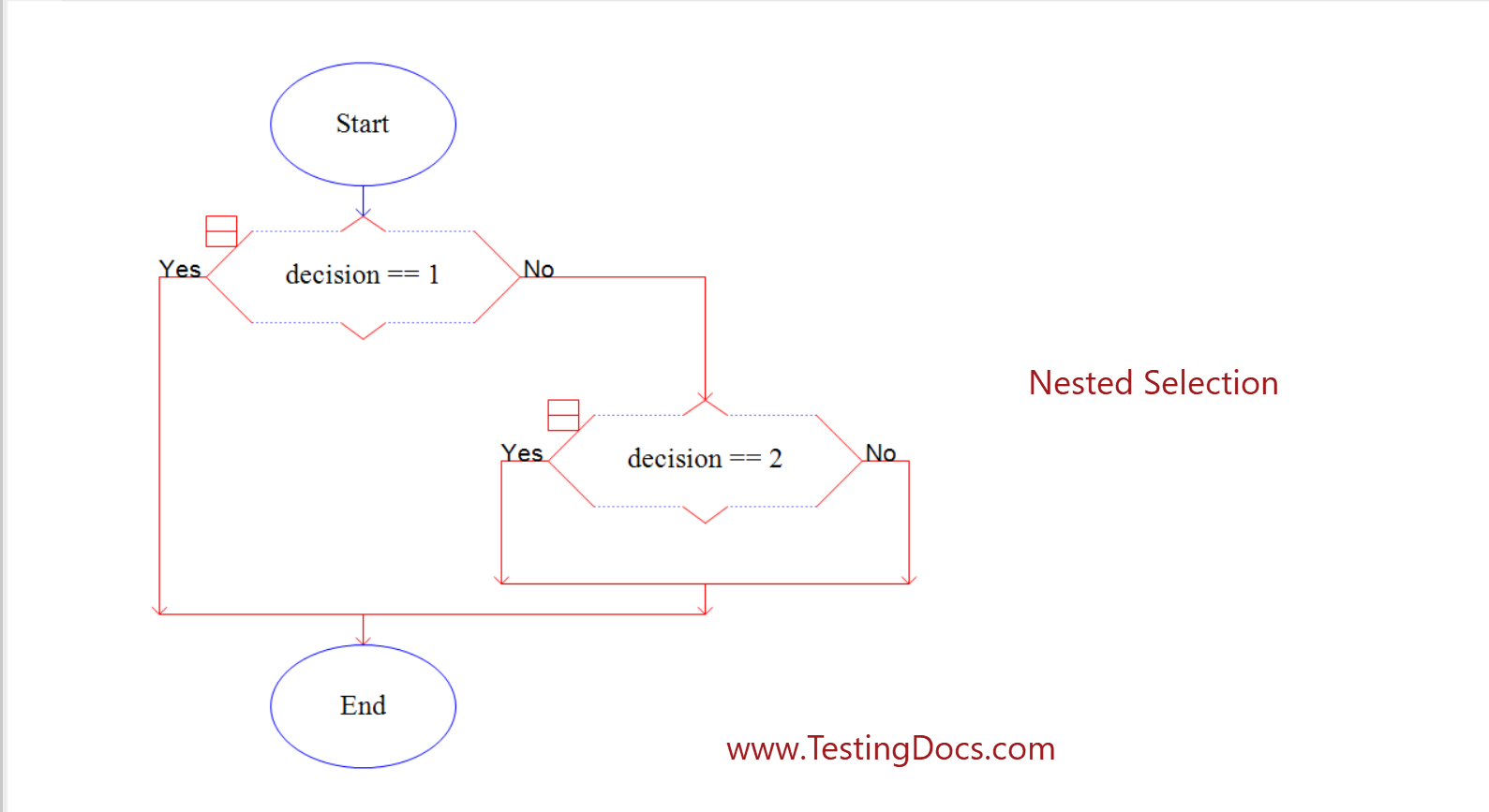
We can nest many selection symbols when we make multiple decisions in the flowcharts.
Sample Usage
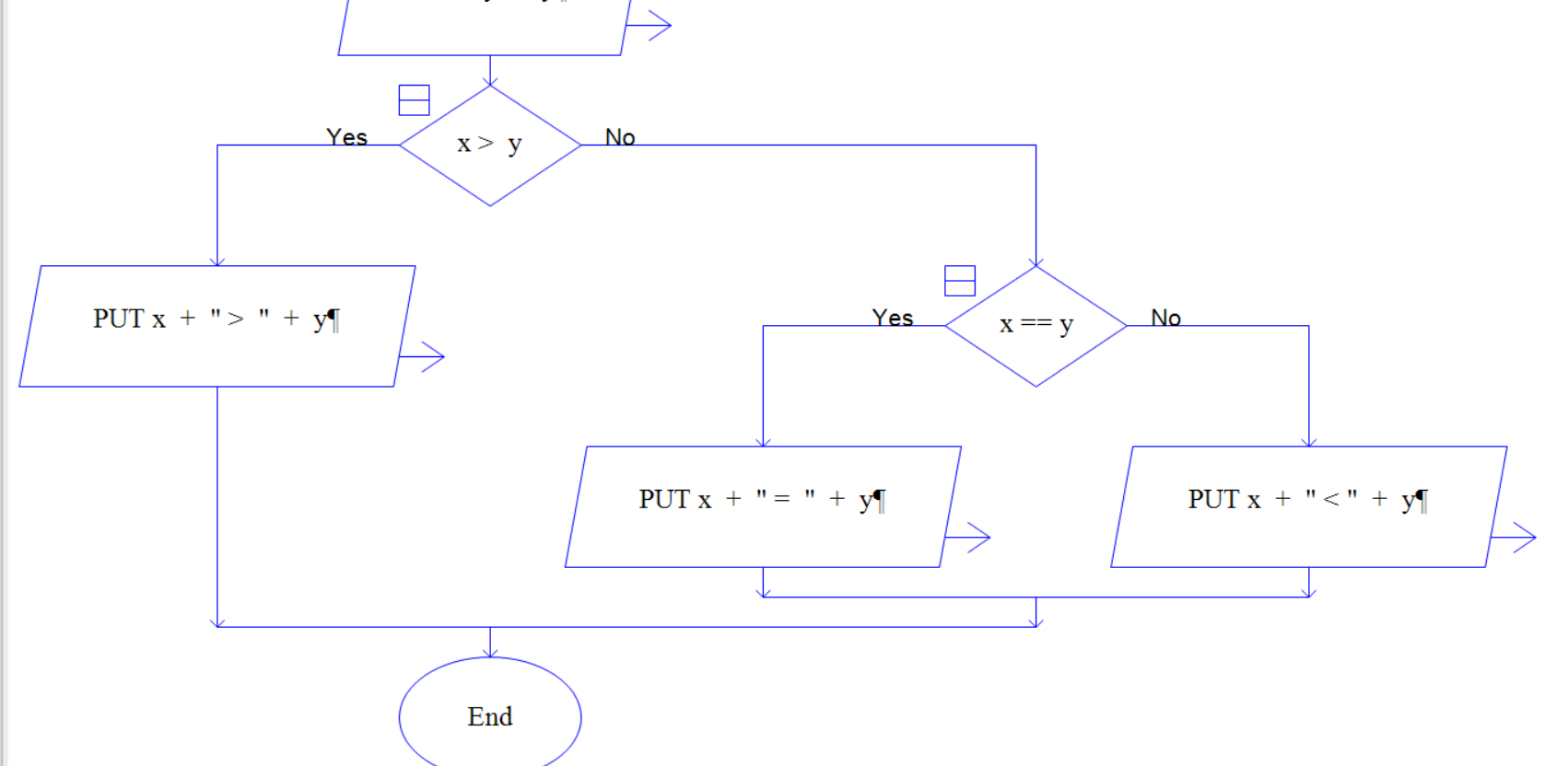
Let’s see a sample usage of the flowchart using the Selection symbol.
Pseudocode
START
DECLARE x,y

PROMPT "Input x"
INPUT x
PROMPT "Input y"
INPUT y
PRINT "x=" + x
PRINT "y=" + y

IF x > y THEN
    PRINT x + " > " + y
ELSE
   IF x = y THEN
      PRINT x + " = " + y
   ELSE
      PRINT x + " < " + y
   END IF
END IF
END
Common mistake
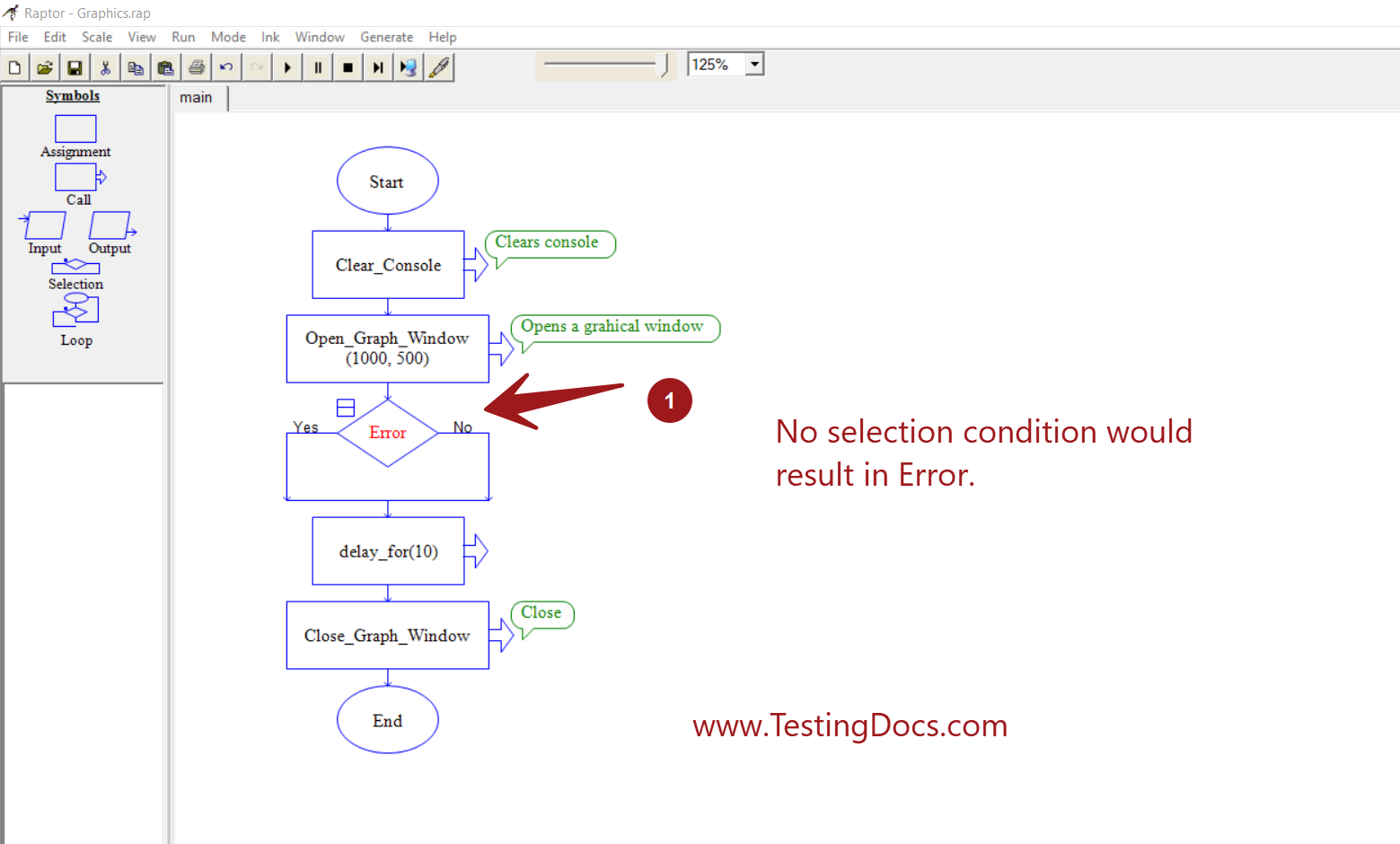
A common mistake when adding a selection structure to flowchart is to miss the selection condition. This would result in Error. We need to add the condition to the flowchart so that the logic would decide which path to take based on the condition.
RAPTOR Tutorial Page: https://www.testingdocs.com/raptor-a-flowchart-tool/
RAPTOR official website: https://raptor.martincarlisle.com/