
Blog
Install Notepad++ Editor on Windows 10

Install Notepad++ Editor on Windows 10
In this post, we will learn the steps to install the Notepad++ editor on the Windows 10 platform. Notepad++ is an open-source source code editor tool that supports many programming languages. It has many features and is very useful for testers in their daily activities.
Official Website of the tool:
- https://notepad-plus-plus.org/
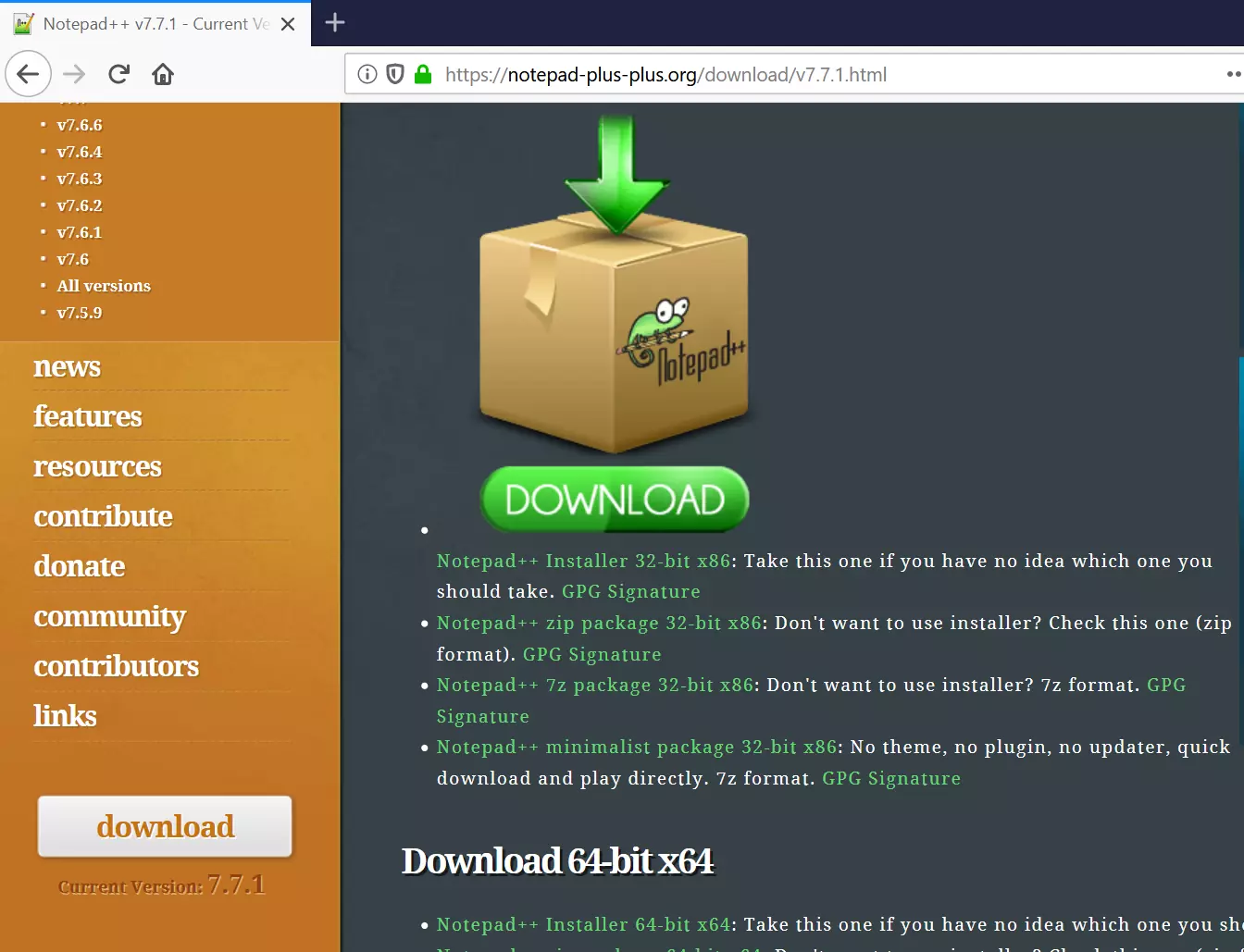
Download Notepad++ Editor
Navigate to the official website.
Click on the Download button.
Based on the machine architecture pick the 32-bit or 64-bit installer. Save the .exe file on to your computer. Modern computers are 64-bit architecture.
Install
Locate the file on the hard disk and double-click on the .exe file.
Click the Yes on the UAC elevation prompt. Non-administrators need to enter the administrator credentials.
Select the language.
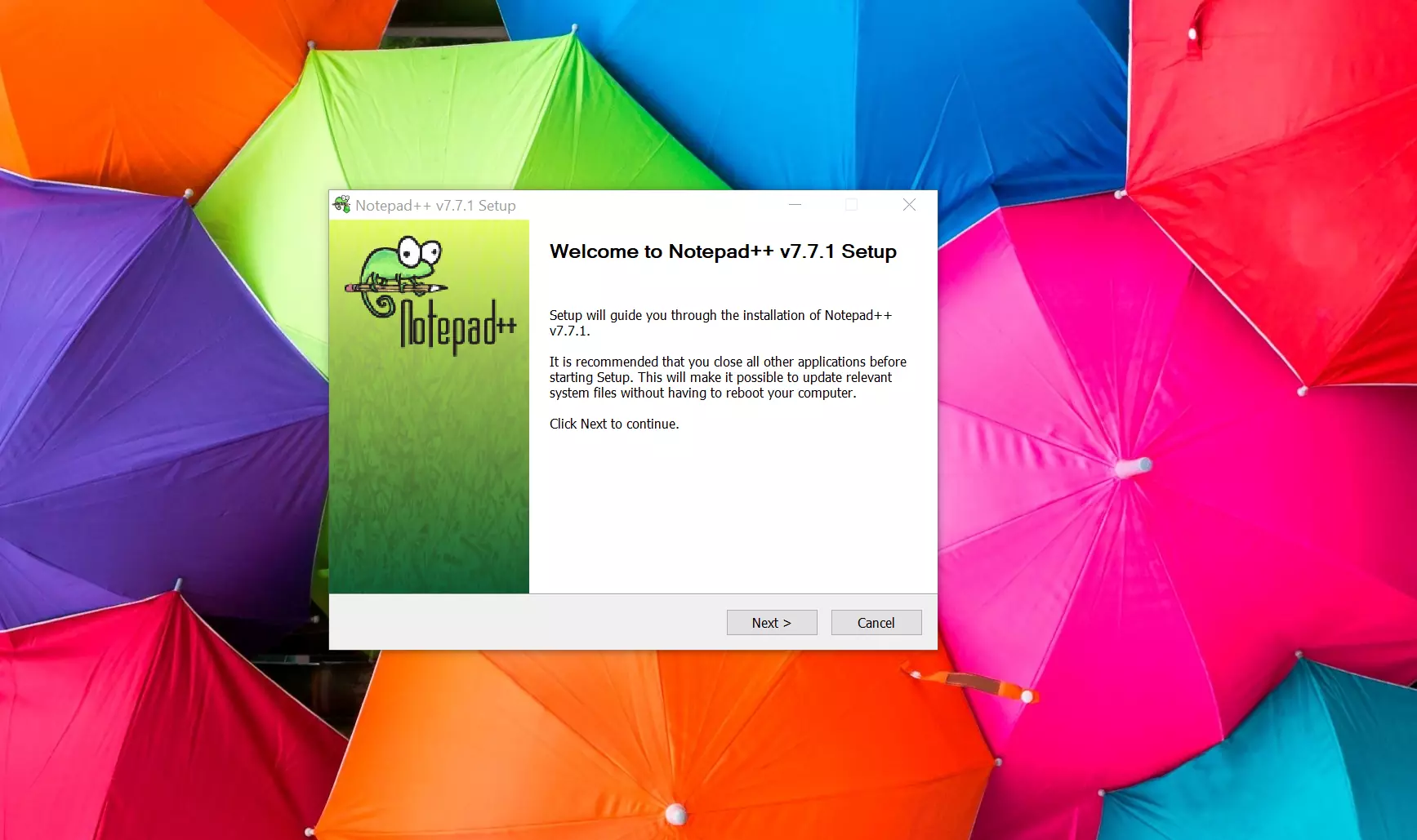
Click on the Next > button.
Read the License agreement and click on the âI agreeâ button.
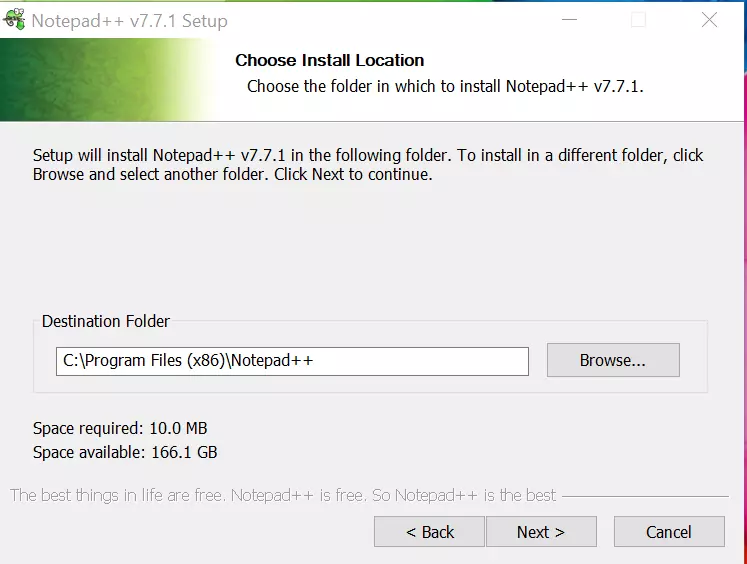
Choose the destination folder and click on the Next > button.
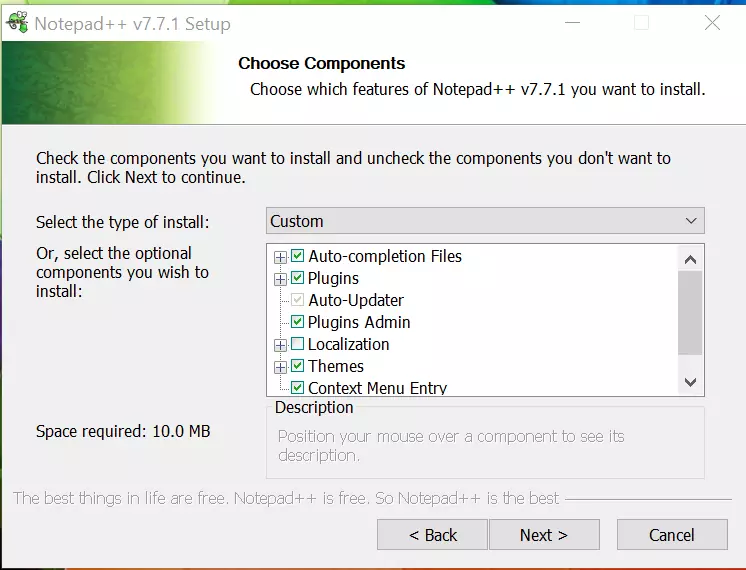
Choose the features and components and click on the Next > button.
Optionally, you can check to create a desktop icon.
Click on the Install button to install the tool.
Click on the Finish button to complete the installation.
Check the option Launch Notepad++ to start working with the Notepad++ editor.
That’s it. We have successfully installed the tool on the Windows operating system.
Useful Tools
Other useful tools: