
Blog
Install Tomcat Server on Windows

Install Tomcat Server on Windows
This page will teach us how to install the Tomcat Server on the Windows operating system. Apache Tomcat Server Official Website:
- https://tomcat.apache.org/
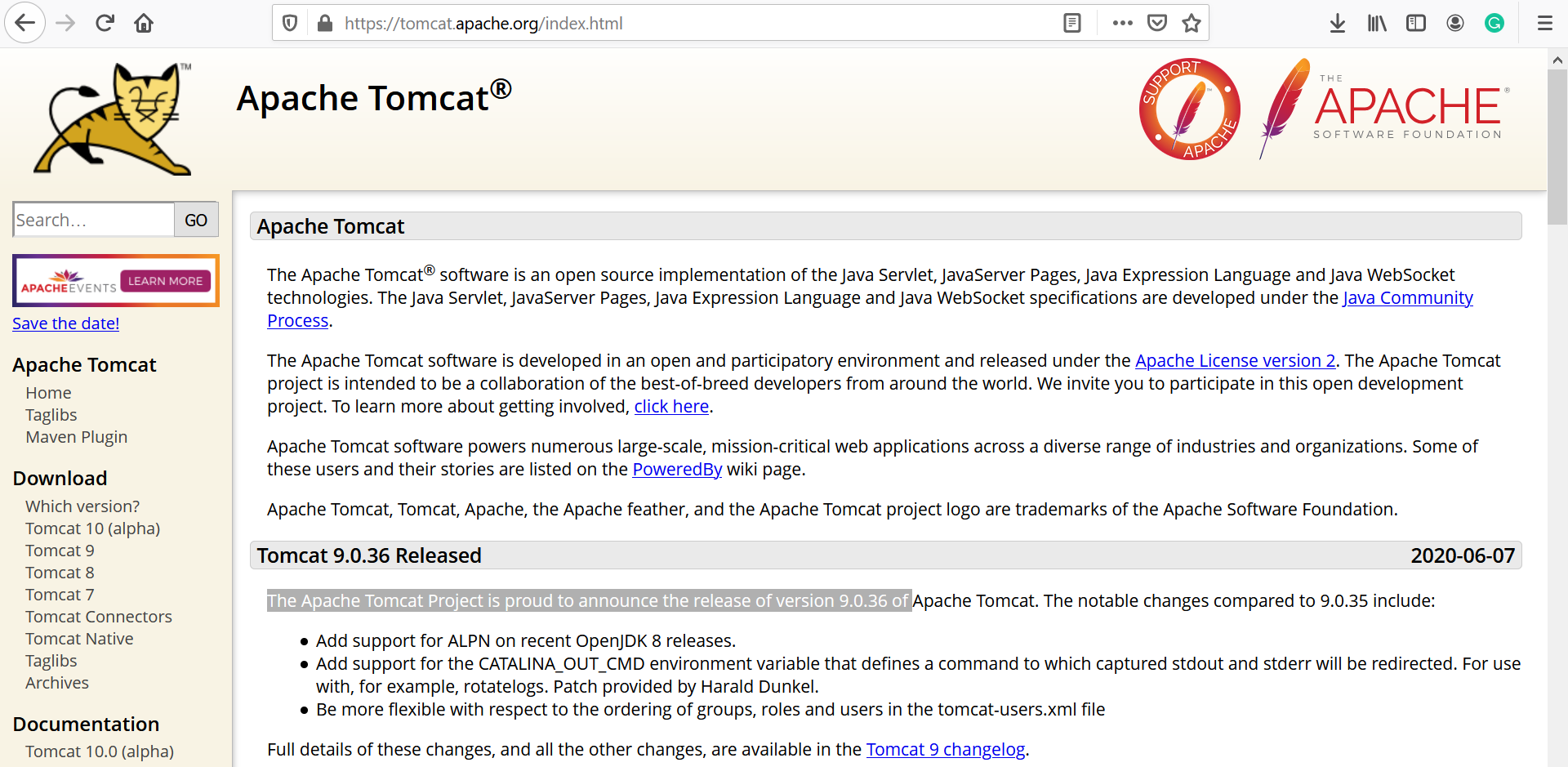
Download Tomcat
Choose the latest version and click the Download button to download the server.
Download the zip file. Extract the zip contents.
Copy the Apache Tomcat apache-tomcat folder contents to a favorable location on the computer.
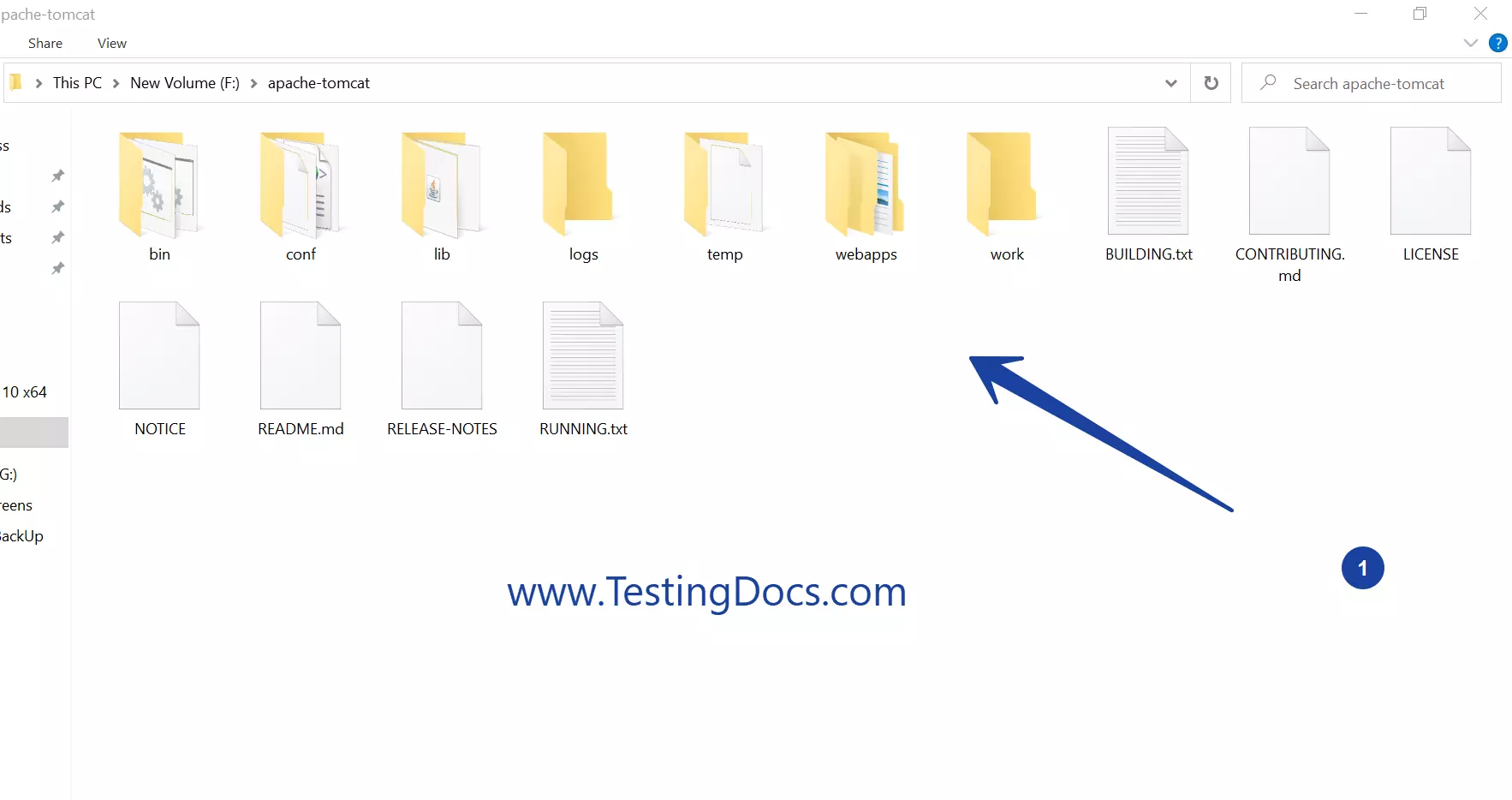
The bin folder contains the .sh scripts and .bat scripts to start and stop the server.
On the Windows platform, we need .bat scripts.
Set JAVA_HOME
Start Server
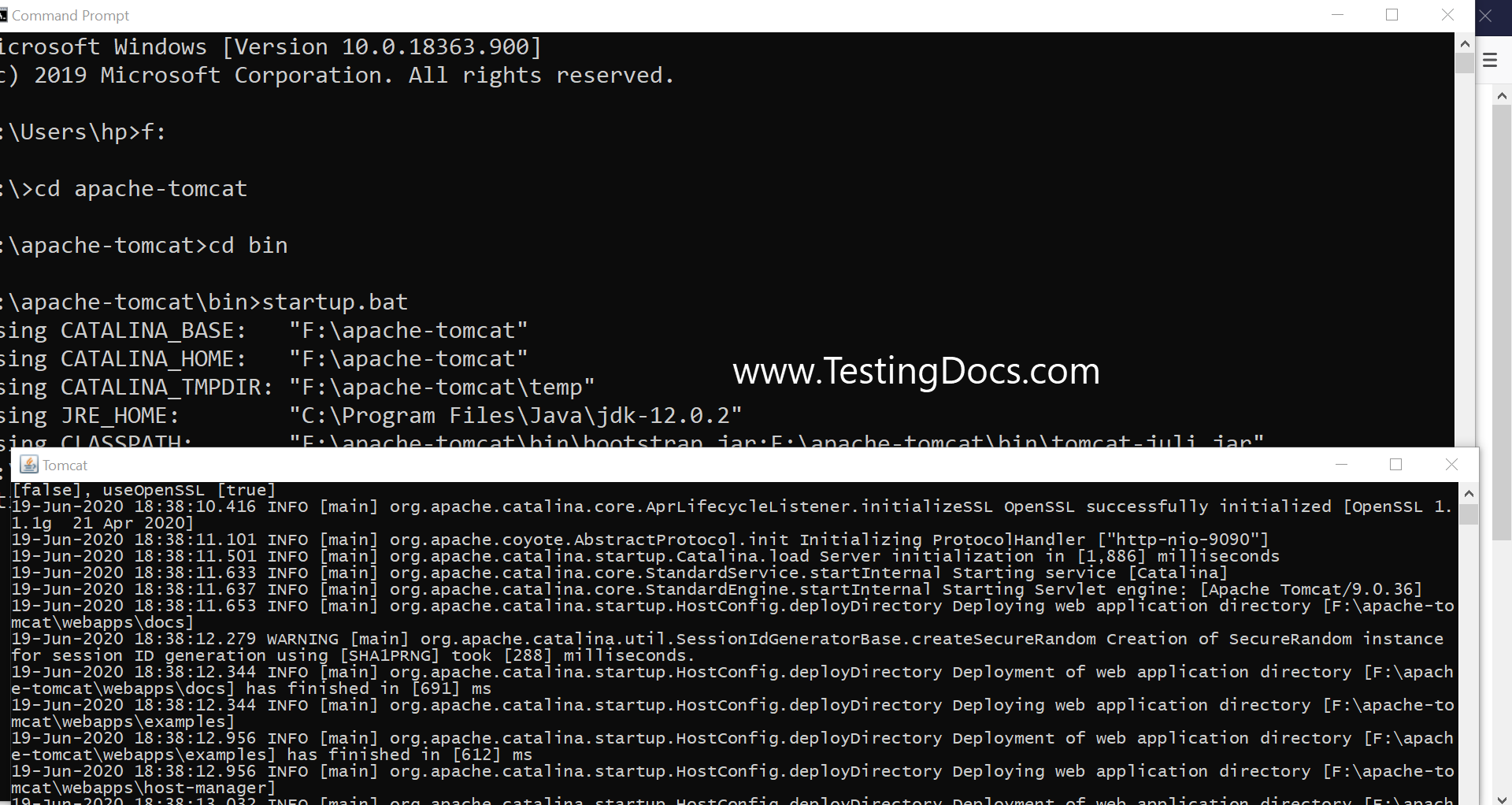
Run the startup.bat script to start the Tomcat server.
F:\>cd apache-tomcat
F:\apache-tomcat>cd bin
F:\apache-tomcat\bin>startup.bat
Using CATALINA_BASE: “F:\apache-tomcat”
Using CATALINA_HOME: “F:\apache-tomcat”
Using CATALINA_TMPDIR: “F:\apache-tomcat\temp”
Using JRE_HOME: “C:\Program Files\Java\jdk-12.0.2”
Using CLASSPATH: “F:\apache-tomcat\bin\bootstrap.jar;F:\apache-tomcat\bin\tomcat-juli.jar”
Verify Tomcat Install
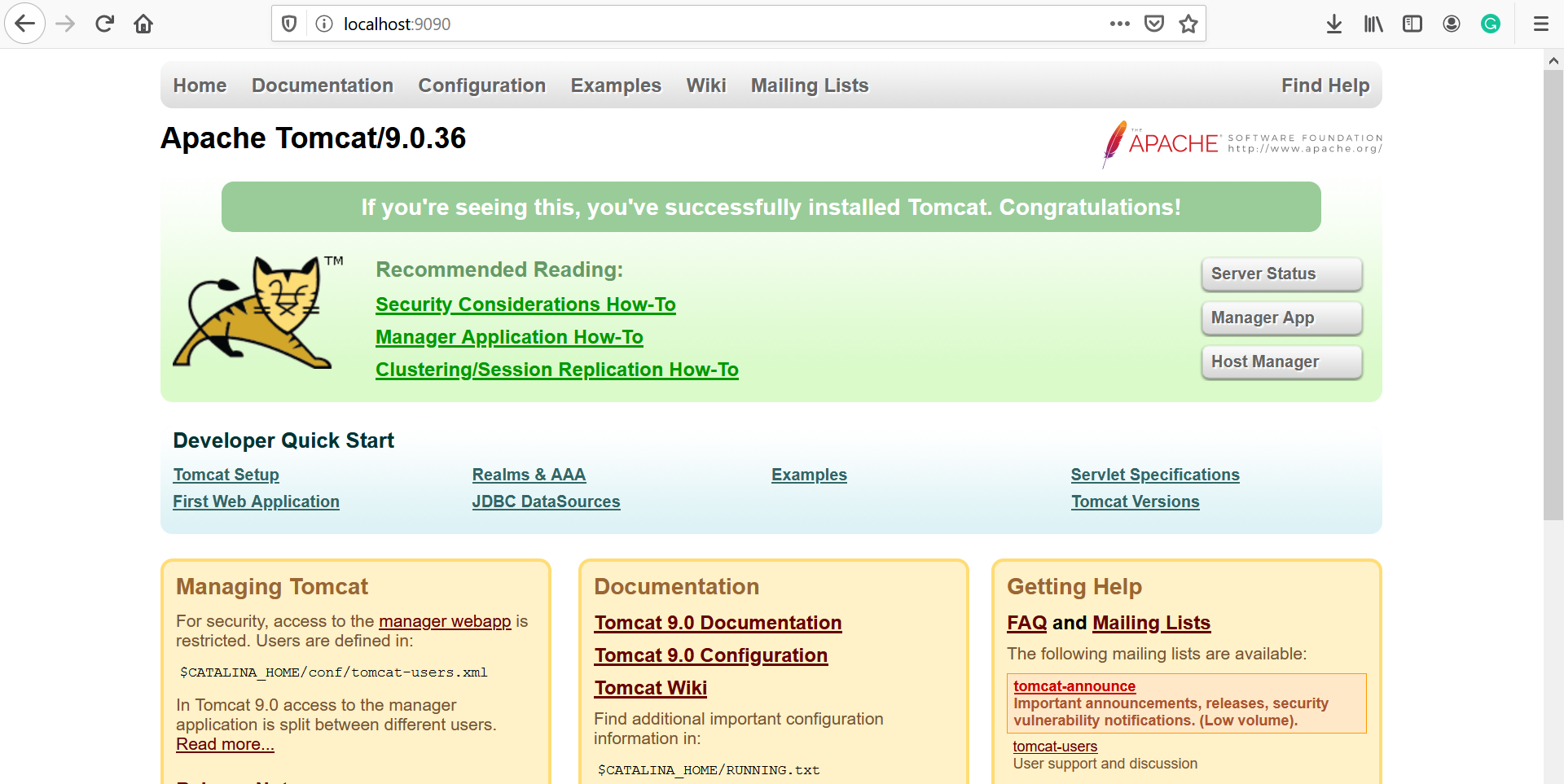
After a clean startup, open the default URL on the browser.
For Example http://localhost:8080
We should get the Tomcat webpage displayed. ”
If you’re seeing this, you’ve successfully installed Tomcat. Congratulations!
Java Tutorials
Java Tutorial on this website: