
Blog
Run Jenkins in a Docker Container

Run Jenkins in a Docker Container
Jenkins is one of the most popular open-source automation servers used for Continuous Integration (CI), Continuous Delivery (CD), and Continuous Deployment. Running Jenkins inside a Docker container provides a convenient and isolated way to install, configure, manage, and test Jenkins without installing Jenkins directly on the host operating system.
In this tutorial, we will learn how to run Jenkins in a Docker container, access the
Jenkins web interface, unlock the initial installation, inspect container logs, and understand the
important Docker options used when starting Jenkins.
What Is Jenkins?
Jenkins is an automation server that helps development and testing teams automate software build, test, integration, and deployment activities. Jenkins can execute pipelines, run automated test suites, integrate with source-control systems, and publish build results.
For software testers, Jenkins is especially useful for automatically triggering functional,
regression, API, integration, and other automated tests whenever new code is committed or a pipeline is executed.
What Is Docker?
Docker is a containerization platform that packages an application and its dependencies into an
isolated environment called a container. A Docker container is created from a
Docker image and can run consistently across systems that support Docker.
The official Jenkins documentation recommends the jenkins/jenkins Docker image for
running Jenkins. The official image provides the Jenkins Long-Term Support (LTS) release suitable for
production use.
Why Run Jenkins in a Docker Container?
Running Jenkins with Docker has several advantages:
- Easy installation: Jenkins can be started without installing Jenkins directly on the host.
- Isolation: Jenkins runs independently from many host-system dependencies.
- Portability: The same Jenkins container approach can be used across supported Docker environments.
- Easy cleanup: Containers can be stopped, removed, and recreated when required.
- CI/CD integration: Jenkins can be connected with Docker-based build and test workflows.
- Persistent data: Docker volumes can preserve Jenkins configuration and job data.
Prerequisites
Before running Jenkins in Docker, make sure Docker is installed and running on your machine.
Jenkins officially supports running its Docker image on platforms including Linux, macOS, and Windows with Docker configured appropriately. On Windows, the Jenkins project documentation specifies using Linux Containers because the Jenkins project provides a Linux container image.
Jenkins documentation currently lists Java 21 or later as a software requirement for Jenkins, although when Jenkins is run using the official Docker image, the required Java runtime is included in the image.
Verify Docker Installation
Run the following command in your terminal or command prompt:
$ docker --versionExample output:
Docker version 28.x.x, build xxxxxxxThe exact version depends on the Docker release installed on your system.
Pull the Jenkins Docker Image
You can download the official Jenkins image from Docker Hub using:
$ docker pull jenkins/jenkins:lts-jdk21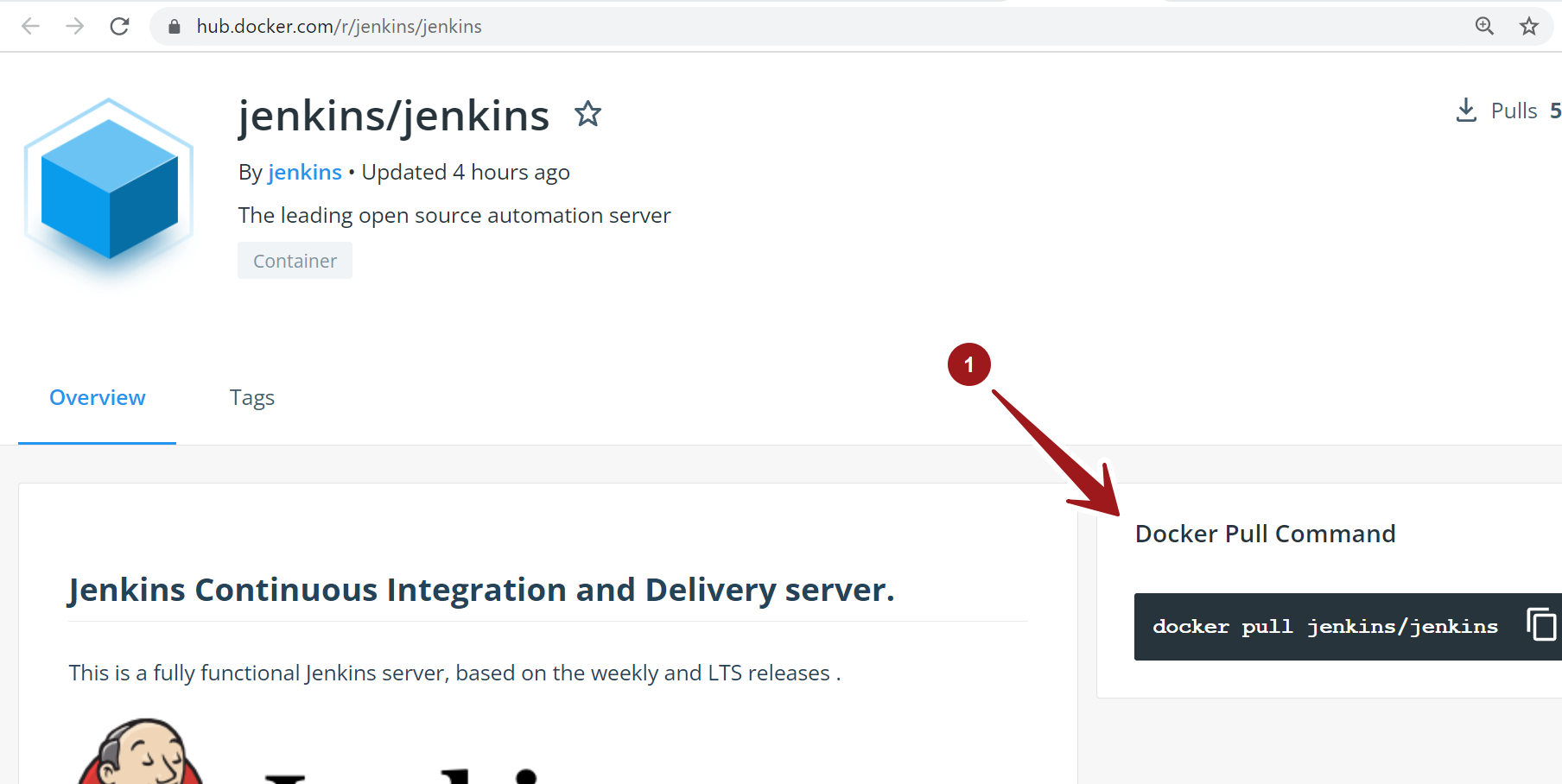
Using an explicit image tag is useful because it makes the selected Jenkins/JDK image visible in your deployment configuration. The Jenkins Docker documentation provides LTS-based images and publishes updated Jenkins images as new Docker releases become available.
Run Jenkins in a Docker Container
For a straightforward Jenkins installation, create a persistent Docker volume and then start Jenkins.
Step 1: Create a Jenkins Volume
$ docker volume create jenkins_homeThis volume stores Jenkins data outside the temporary writable layer of the container. Keeping
/var/jenkins_home on persistent storage is important because Jenkins stores configuration,
jobs, plugins, credentials, and other data there.
Step 2: Start the Jenkins Container
docker run --name jenkins \
  --restart=on-failure \
  --detach \
  --publish 8080:8080 \
  --publish 50000:50000 \
  --volume jenkins_home:/var/jenkins_home \
  jenkins/jenkins:lts-jdk21
This starts Jenkins in the background and exposes the Jenkins web interface through port
8080. The Jenkins documentation also documents port 50000 for inbound
Jenkins agents when that communication mode is configured; WebSocket agents do not require this
port mapping.
Understanding the Docker Run Command
| Option | Purpose |
|---|---|
--name jenkins |
Assigns the container the name jenkins. |
--restart=on-failure |
Requests Docker to restart Jenkins when the container exits because of a failure. |
--detach |
Runs Jenkins in the background. |
--publish 8080:8080 |
Maps host port 8080 to Jenkins port 8080 inside the container. |
--publish 50000:50000 |
Publishes the inbound Jenkins agent port when that communication mode is used. |
--volume jenkins_home:/var/jenkins_home |
Stores Jenkins home data in the persistent Docker volume. |
jenkins/jenkins:lts-jdk21 |
Specifies the Jenkins Docker image to run. |
Jenkins documentation uses the same core concepts of publishing port 8080, optionally publishing 50000 for inbound agents, and mapping /var/jenkins_home to persistent storage.
Check Whether Jenkins Is Running
Use the following command to list running containers:
$ docker psYou should see an entry similar to:
CONTAINER ID   IMAGE                        PORTS
xxxxxxxxxxxx   jenkins/jenkins:lts-jdk21   0.0.0.0:8080->8080/tcp
You can also check the Jenkins container by name:
$ docker ps --filter "name=jenkins"Access Jenkins in a Web Browser
Open the following URL in your browser:
http://localhost:8080Jenkins will display its initial setup and unlock page when the container starts for the first time.
The Jenkins post-installation setup wizard is used to unlock Jenkins, install plugins, create the first
administrator account, and complete the initial configuration.
Get the Initial Jenkins Administrator Password
A new Jenkins installation generates an initial administrator password. When Jenkins is running in
Docker, you can retrieve it directly from the container.
$ docker exec jenkins cat /var/jenkins_home/secrets/initialAdminPasswordCopy the password and enter it on the Unlock Jenkins page.
Jenkins officially documents this Docker-specific approach for retrieving the initial administrator
password.
Complete the Jenkins Setup Wizard
1. Unlock Jenkins
Paste the initial administrator password into the Unlock Jenkins screen and continue.
2. Install Jenkins Plugins
Jenkins provides an option to install suggested plugins or select plugins manually. For beginners,
Install suggested plugins is usually a convenient starting point. Additional plugins
can be installed later from Jenkins plugin management.
3. Create the First Administrator Account
Create an administrator username and password and complete the setup wizard.
4. Start Using Jenkins
After setup is complete, Jenkins will open its main dashboard.
View Jenkins Docker Logs
Docker logs are very useful when Jenkins does not start correctly or when you need to troubleshoot
startup issues.
$ docker logs jenkinsTo continuously watch the logs, use:
$ docker logs -f jenkinsJenkins documentation specifically recommends Docker logs as one way to inspect the Jenkins console log during the initial setup process.
Open a Shell Inside the Jenkins Container
When troubleshooting, testers and DevOps engineers may need to inspect files or execute commands inside the Jenkins container.
$ docker exec -it jenkins bashThis opens an interactive shell inside the running Jenkins container. The Jenkins documentation provides the same docker exec approach for accessing the container terminal.
Stop the Jenkins Container
$ docker stop jenkinsThis stops the running Jenkins container without removing the persistent volume.
Start Jenkins Again
$ docker start jenkinsBecause Jenkins data is stored in the Docker volume, restarting the container allows Jenkins to reuse its existing configuration and data.
Restart Jenkins
$ docker restart jenkinsThis is useful when Jenkins needs to be restarted after configuration changes or troubleshooting.
Remove the Jenkins Container
To remove the Jenkins container after stopping it:
$ docker stop jenkins
$ docker rm jenkins
Removing the container does not remove the jenkins_home volume unless you explicitly
delete that volume.
Remove the Jenkins Docker Volume
Be careful with this command because deleting the volume removes the persistent Jenkins data stored in it.
$ docker volume rm jenkins_homeDo not run this command on a Jenkins installation whose jobs, credentials, plugins, and configuration you need to preserve.
Run Jenkins on a Different Host Port
Port 8080 on the host might already be used by another application. Docker allows you to map another
host port to Jenkins’ container port 8080.
docker run --name jenkins \
  --restart=on-failure \
  --detach \
  --publish 9090:8080 \
  --volume jenkins_home:/var/jenkins_home \
  jenkins/jenkins:lts-jdk21
Jenkins can then be accessed at:
http://localhost:9090The Jenkins Docker documentation explains this host-to-container port mapping pattern and notes that
the host-side port can be changed while Jenkins continues listening on its container port.
Run Jenkins with Docker Compose
Docker Compose is useful when you want Jenkins configuration to be represented as a file and easily
recreated. A simple Compose configuration can look like this:
services:
  jenkins:
    image: jenkins/jenkins:lts-jdk21
    container_name: jenkins
    restart: on-failure
    ports:
      - "8080:8080"
      - "50000:50000"
    volumes:
      - jenkins_home:/var/jenkins_home

volumes:
  jenkins_home:
Start Jenkins with:
$ docker compose up -dView the logs with:
$ docker compose logs -f jenkinsStop the Compose application with:
$ docker compose downRunning Docker Commands from Jenkins
A common requirement in modern CI/CD pipelines is for Jenkins to build Docker images or run Docker commands as part of a pipeline. The official Jenkins Docker documentation provides a more advanced setup using a customized Jenkins image and a Docker-in-Docker (docker:dind) container. That setup uses a dedicated Docker network, TLS certificates, and the Docker CLI inside the customized Jenkins image.
This is more advanced than simply running Jenkins. It should be introduced only when your CI/CD pipeline actually needs Docker operations.
Using Jenkins for Software Testing
From a software testing perspective, Jenkins in Docker can become the central automation server for
executing test pipelines.
A typical testing pipeline can look like:
Developer Commit
       |
       v
Source Code Repository
       |
       v
     Jenkins
       |
       +---- Build Application
       |
       +---- Run Unit Tests
       |
       +---- Run API Tests
       |
       +---- Run UI Tests
       |
       +---- Run Regression Tests
       |
       +---- Generate Test Report
       |
       v
   Pipeline Result
Jenkins can trigger automated testing after code changes, schedule recurring test execution, and make
test results available as part of the CI/CD process.
Useful Jenkins Docker Commands
| Command | Purpose |
|---|---|
docker pull jenkins/jenkins:lts-jdk21 |
Downloads the Jenkins Docker image. |
docker volume create jenkins_home |
Creates persistent storage for Jenkins. |
docker ps |
Shows running containers. |
docker logs jenkins |
Displays Jenkins container logs. |
docker logs -f jenkins |
Follows Jenkins logs continuously. |
docker exec -it jenkins bash |
Opens a shell inside the Jenkins container. |
docker stop jenkins |
Stops Jenkins. |
docker start jenkins |
Starts Jenkins again. |
docker restart jenkins |
Restarts Jenkins. |
docker rm jenkins |
Removes the Jenkins container. |
Common Problems When Running Jenkins in Docker
1. Port 8080 Is Already in Use
If another application is using port 8080, Jenkins will not be able to bind to that host port.
Use another host port such as 9090:
--publish 9090:80802. Jenkins Container Stops Unexpectedly
Check the container logs:
docker logs jenkins3. Jenkins Data Disappears
This usually indicates that Jenkins was run without persistent storage or that the wrong volume was
mounted. Always map /var/jenkins_home to persistent storage for a Jenkins installation
that needs to survive container recreation.
4. Jenkins Cannot Be Accessed from the Browser
Verify that the container is running and that port 8080 is correctly published:
docker ps
docker logs jenkins
5. Windows Container Mode Is Enabled
On Windows, switch Docker Desktop to Linux Containers before using the Jenkins Linux
image. :chatgpt-content-reference{index=”13″}
Docker Jenkins Architecture
A simple Jenkins Docker architecture looks like this:
+---------------------------+
|        Host Machine       |
|                           |
|   +-------------------+   |
|   |  Jenkins Docker   |   |
|   |    Container      |   |
|   |                   |   |
|   |  Jenkins Server   |   |
|   +---------+---------+   |
|             |             |
|        Jenkins Home       |
|             |             |
|      Docker Volume        |
|                           |
+-------------+-------------+
              |
              v
      Browser / CI Clients
         http://localhost:8080
Best Practices for Jenkins in Docker
For a reliable Jenkins Docker deployment, use persistent storage for /var/jenkins_home,
select an appropriate Jenkins image tag, regularly back up Jenkins data, and monitor the container logs.
Avoid treating the Jenkins container itself as permanent storage. The container can be recreated,
while Jenkins’ important data should remain in persistent storage.
For production environments, also consider access control, secrets management, TLS, backup and restore,
plugin maintenance, resource sizing, and appropriate Jenkins controller/agent architecture.
Jenkins Docker vs Traditional Jenkins Installation
| Feature | Jenkins in Docker | Traditional Installation |
|---|---|---|
| Installation | Container-based | Installed directly on the operating system |
| Isolation | High application-level isolation | Runs directly on the host |
| Portability | Easy to move between Docker environments | More dependent on host configuration |
| Data Management | Usually handled with Docker volumes or mounted storage | Stored directly on the host filesystem |
| Cleanup | Containers can be recreated easily | Manual application cleanup is generally required |
| CI/CD Integration | Well suited to containerized CI/CD workflows | Depends more heavily on host setup |
Frequently Asked Questions
Can Jenkins run in Docker?
Yes. Jenkins provides an official Docker image and documentation for running Jenkins as a Docker container.
What port does Jenkins use in Docker?
Jenkins uses container port 8080 for its web interface. Port 50000 is
traditionally used for inbound Jenkins agents when configured; WebSocket agents do not require that port mapping.
Where is Jenkins data stored in the Docker container?
Jenkins stores its primary data under /var/jenkins_home. Mounting this directory to a
Docker volume provides persistent storage across container recreation.
How do I get the initial Jenkins password in Docker?
Use:
docker exec jenkins cat /var/jenkins_home/secrets/initialAdminPasswordThis retrieves the automatically generated initial administrator password from the running container.
Can Jenkins run on Windows using Docker?
Yes. Jenkins’ official Docker documentation instructs Windows users to configure Docker Desktop to run Linux Containers because the Jenkins project provides a Linux container image.
Conclusion
Running Jenkins in a Docker container is a practical way to build a portable and
isolated CI/CD environment. The basic process is simple: install Docker, pull the official Jenkins
image, create persistent storage, run the Jenkins container, open Jenkins on port 8080, retrieve the
initial administrator password, and complete the setup wizard.
For software testing teams, Dockerized Jenkins can serve as an automation hub for continuous testing, regression testing, API testing, UI automation, build verification, and deployment pipelines. As your CI/CD environment grows, you can extend the setup with Jenkins agents, Docker-based build environments, pipelines, reports, notifications, and other automation tools.
Key Takeaways
- Jenkins can be easily deployed using the official Docker image.
- Port
8080is used for the Jenkins web interface. - Use persistent storage for
/var/jenkins_home. - Use
docker logswhen troubleshooting startup issues. - Use
docker execto access the Jenkins container. - Jenkins in Docker is well suited for CI/CD and automated software testing workflows.
<