
Blog
Set JBOSS_HOME on Windows

Set JBOSS_HOME on Windows
In this tutorial, we will learn the steps involved in setting the JBOSS_HOME environment variable on the Windows platform. This variable should point to the install location of the JBoss/Wildfly application server on the machine. We can set this variable after the JBoss install on the machine.
JBoss Install on Windows:
For example, if the Wildfly server is installed on c:\wildfly then we need to set this variable to:
JBOSS_HOME=C:\wildfly
Check on the machine if the variable is set. Open the command prompt and issue the following command.
\> echo %JBOSS_HOME%

If we get the same name displayed on the screen and not the real folder path, then the variable is not set on the machine.
Set JBOSS_HOME
Let’s see the steps to set the variable on Windows.
Type the following “system environment variables” in the Search Bar.
Click on the ‘Edit the system environment variables’Â Control Panel search result.
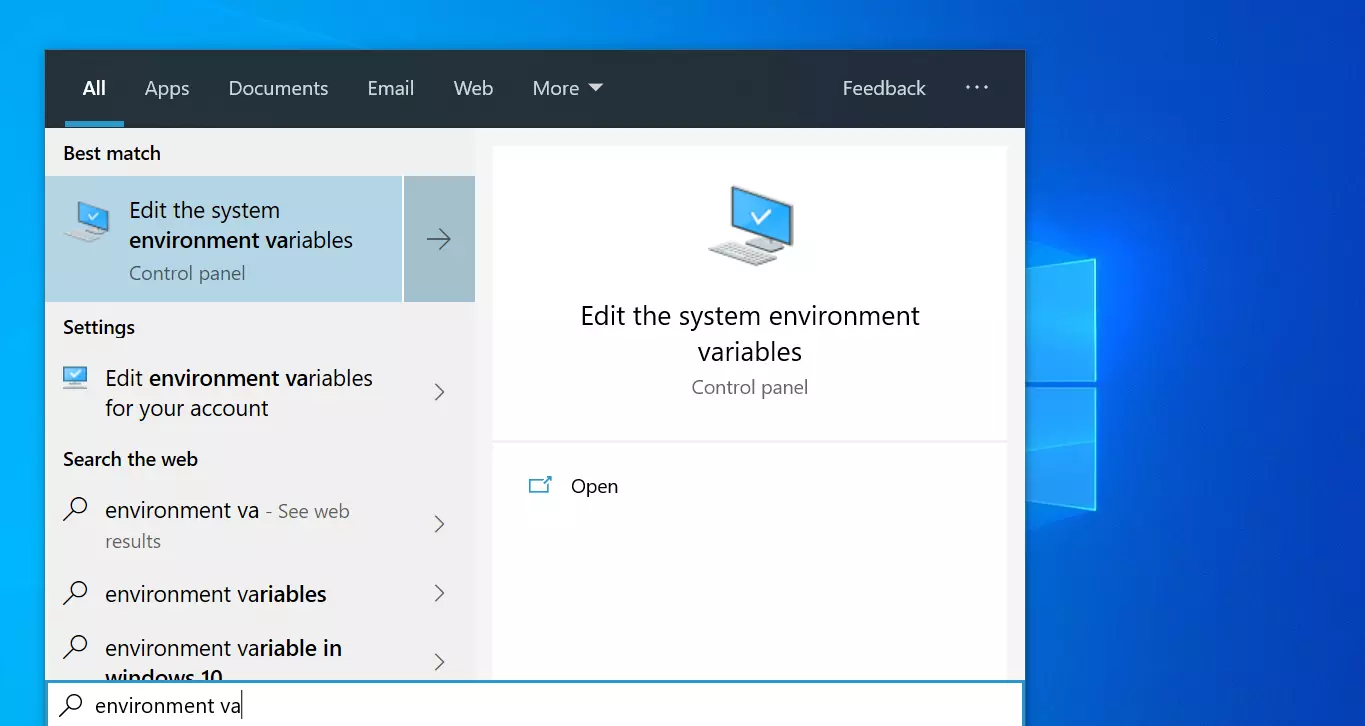
In the System Properties window, choose the Advanced tab. Click on the Environment Variables… button.
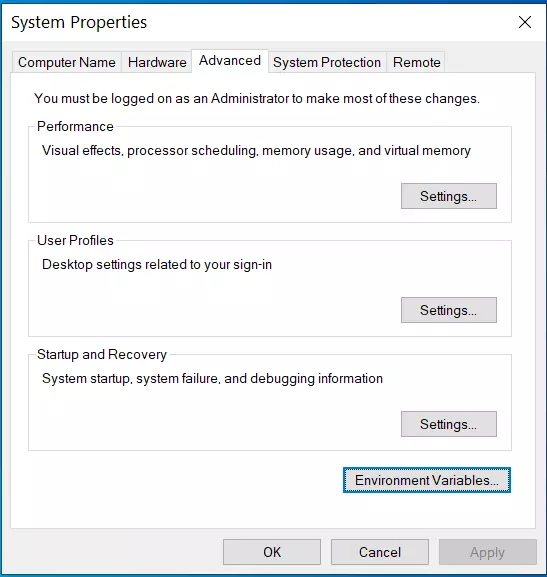
In the System Variables section, click on the New… button.

Add the environment variable
Variable name: -> JBOSS_HOME
Variable value: -> C:\wildfly

Click on the OK button. Alternatively, we can choose the install folder by clicking on the Browse Directory… button.
Verification
Open command prompt and issue the echo command to verify that the variable is set.
\> echo %JBOSS_HOME%

That’s it. The environment variable has been set on the machine.