
Blog
Setup Selenium IDE on Ubuntu

Setup Selenium IDE on Ubuntu
Selenium IDE is a browser extension for Firefox and Chrome. We have two options for setting it up on Ubuntu Linux.
1. To install the tool on the Firefox browser.
2. To install the tool on the Chrome browser.
Let’s see the steps involved to setup Selenium IDE on Ubuntu Linux machine.
Environment
- Ubuntu Linux
- Firefox / Chrome Browser
Steps to Install Chrome browser on Ubuntu:
https://www.testingdocs.com/install-google-chrome-on-ubuntu/
Chrome Browser
Make sure Selenium IDE is not installed in the browser. The easiest way tp perform the check is to launch Chrome browser and open extensions page.
chrome://extensions
Check if the tool is listed on this page. If the tool is no listed we have to install it.
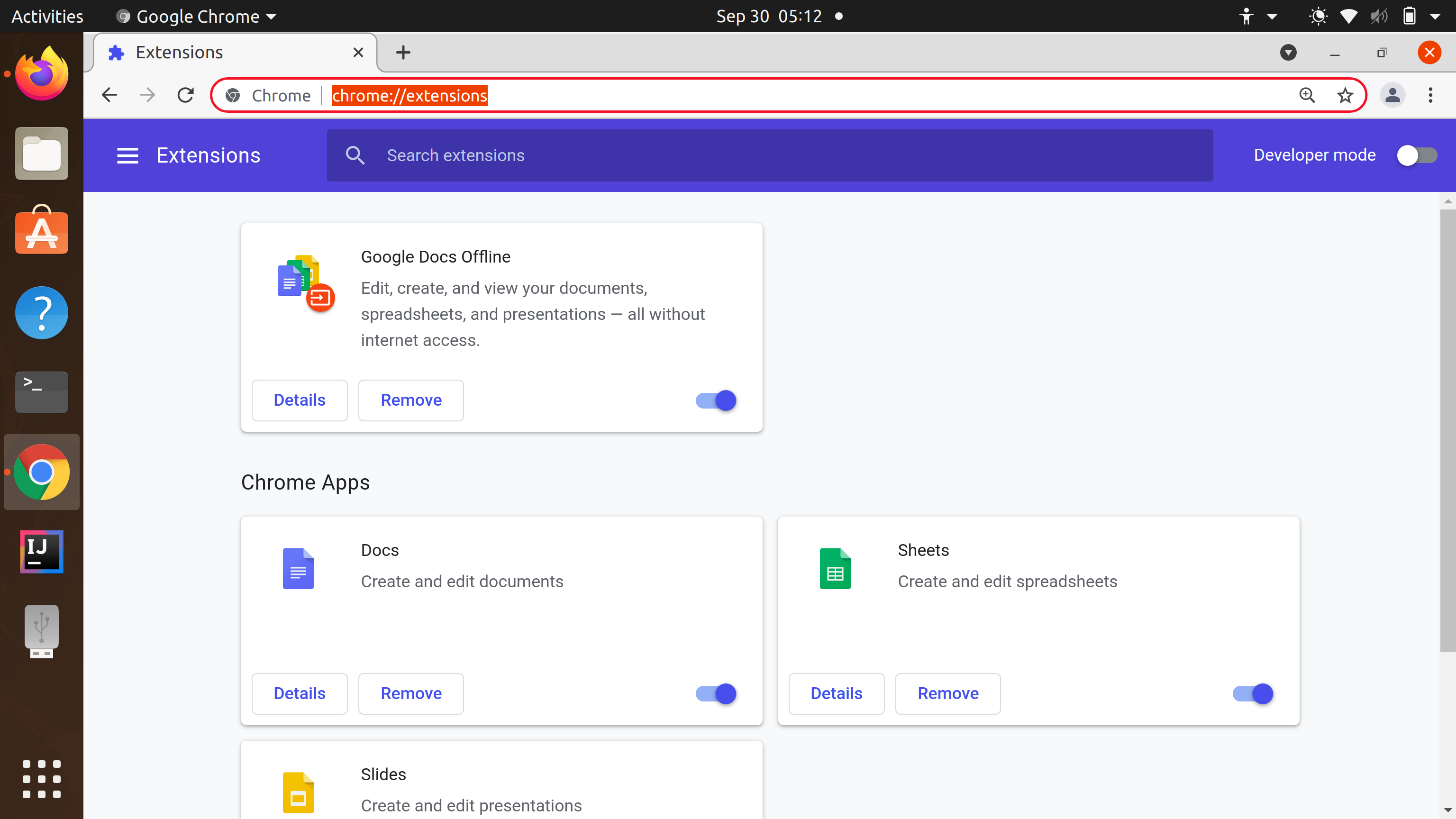
Search for Selenium IDE on this page. If not result show up proceed to next step.
Chrome Web Store
Open Chrome Web store.
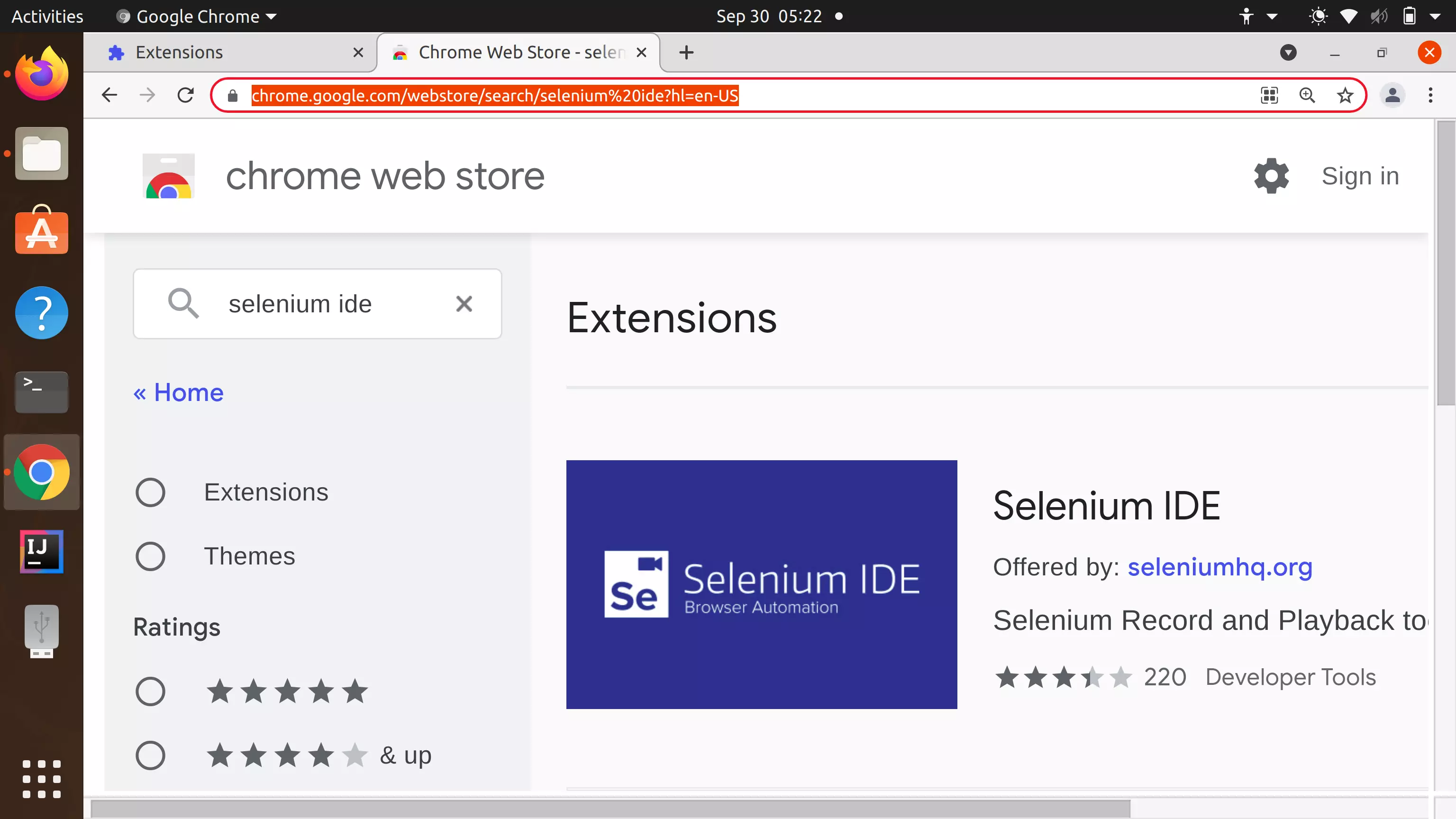
Search for Selenium IDE on the web store. Alternatively, Navigate to or open the below URL in Chrome browser
https://chrome.google.com/webstore/search/selenium%20ide?hl=en-US
Click on the Selenium IDE search result.
Click the Add to Chrome button to install the tool.
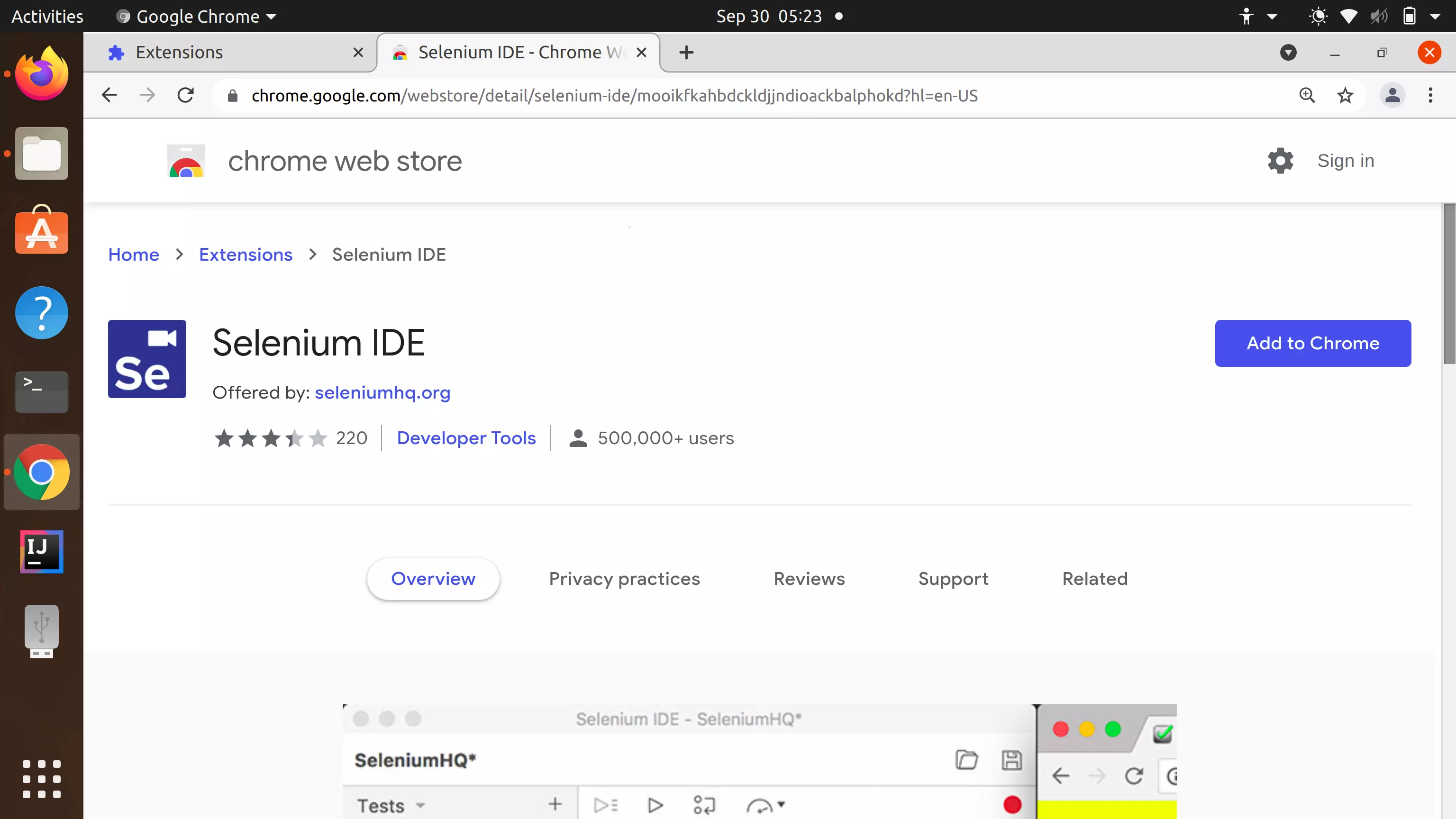
Click on Add Extension button to install Selenium IDE.This will install and add the extension to Chrome browser.
To verify the setup re-launch the Chrome extensions page by typing:
chrome://extensions
Selenium IDE should be listed on the extension page. That’s it we have successfully installed and setup the tool on Ubuntu Linux. Next step, we can create a Project and start recording test scripts.