
Blog
Command-Line MySQL Client

Command-Line MySQL Client
In this tutorial, you will learn about the command-line MySQL client. We can use the command-line client to connect to the MySQL Server and execute SQL queries.
MySQL Client
On Windows open the command prompt and type the MySQL command.
Instructions to start the MySQL client can be found here:
Get Help
We can get help by using the help command:
/> mysql –help
Command-Line Options
Some of the command-line options are as follows:
| Flag/Option | Parameter | Description |
|---|---|---|
| -h | hostname | hostname or the IP address of the host machine where the MySQL Server is running or trying to connect. |
| -u | username | Specify the username of the user. |
| -p | password | Specify the password of the user. |
| < | script file | .sql file to execute commands in the file. |
| > | output file | Save the output to the file. |
Examples
Let’s look at some examples of the usage of the mysql command.
In this example, we will connect to the local MySQL Server as a root user. If the MySQL Server and client run on the same machine, we can omit the -h hostname flag.
/> mysql -u root -p
C:\Users\testingdocs>mysql -u root -p
Enter password: **********
Welcome to the MySQL monitor. Commands end with ; or \g.
Your MySQL connection id is 9
Server version: 8.0.27 MySQL Community Server – GPL
Copyright (c) 2000, 2021, Oracle and/or its affiliates.
Oracle is a registered trademark of Oracle Corporation and/or its
affiliates. Other names may be trademarks of their respective
owners.
Type ‘help;’ or ‘\h’ for help. Type ‘\c’ to clear the current input statement.
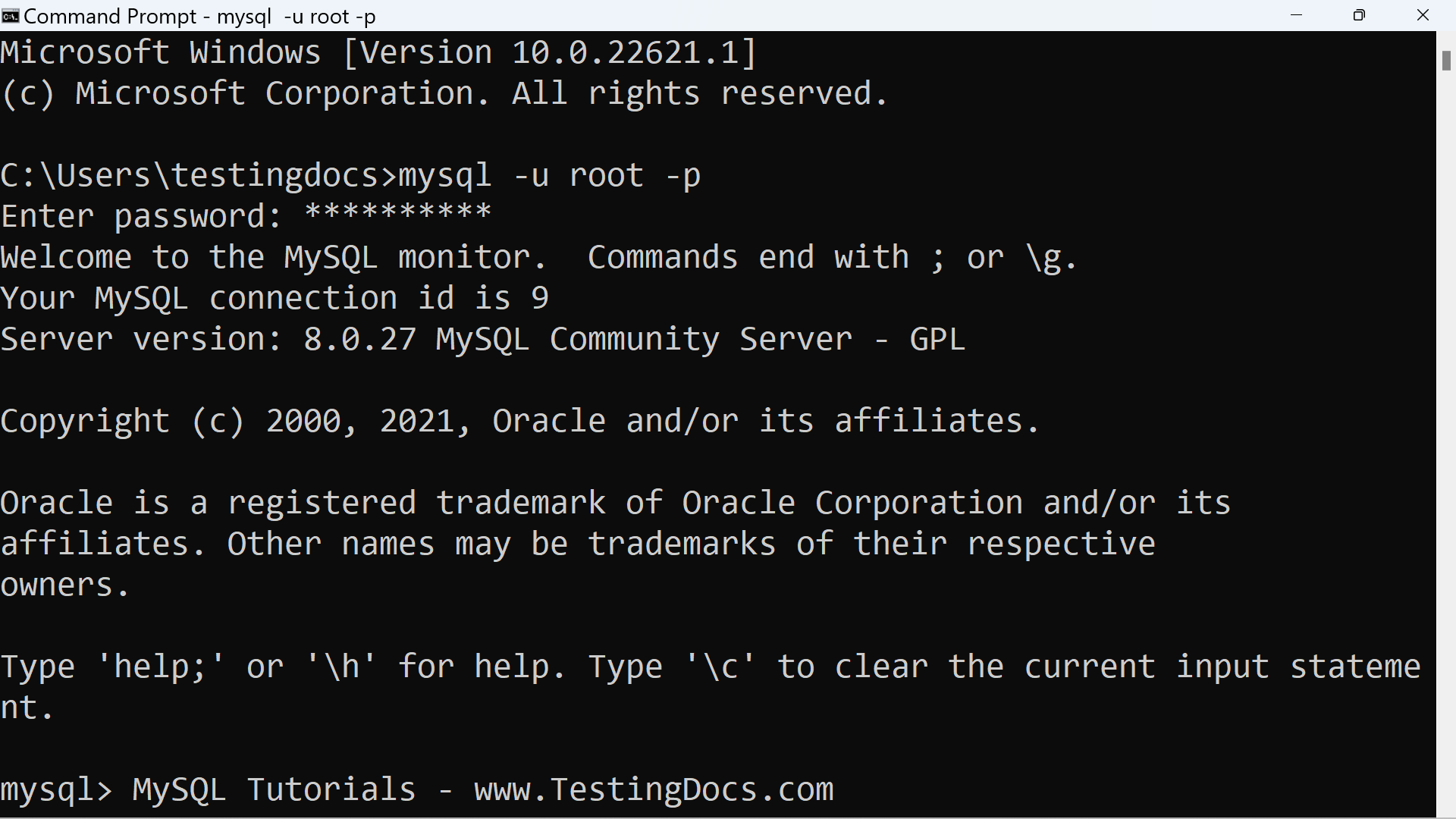
Successful connection displays the Welcome message, Copyright information, help information, and the mysql> prompt.
In the next example, we will connect to a MySQL Server running on remote demo.testingdocs.com as the john user and execute commands in the createTables.sql SQL statement file.
/> mysql -h demo.testingdocs.com -u john < createTables.sql -p
—
MySQL Tutorials
MySQL Tutorials on this website: