
Add an exception to allow pop-up in Firefox browser

Add an exception to allow pop-up in Firefox browser
In this tutorial, we will go through the steps involved to allow a pop-up to show up in the Firefox browser.
Environment:
Firefox browser: 78
Windows 10 operating system
Firefox Options
Launch the Firefox browser.
Open Firefox Options.
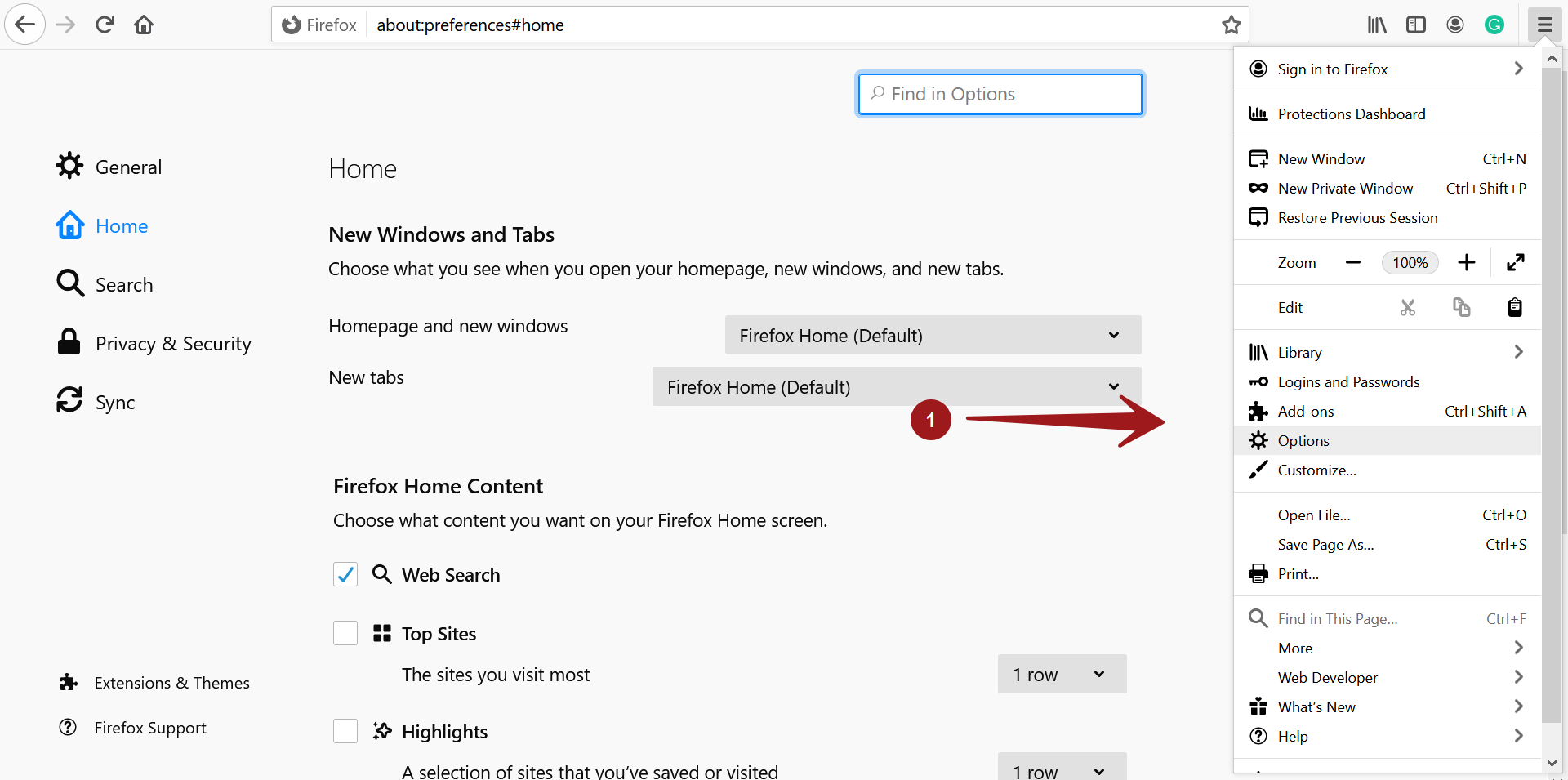
Navigate the Privacy & Security tab.
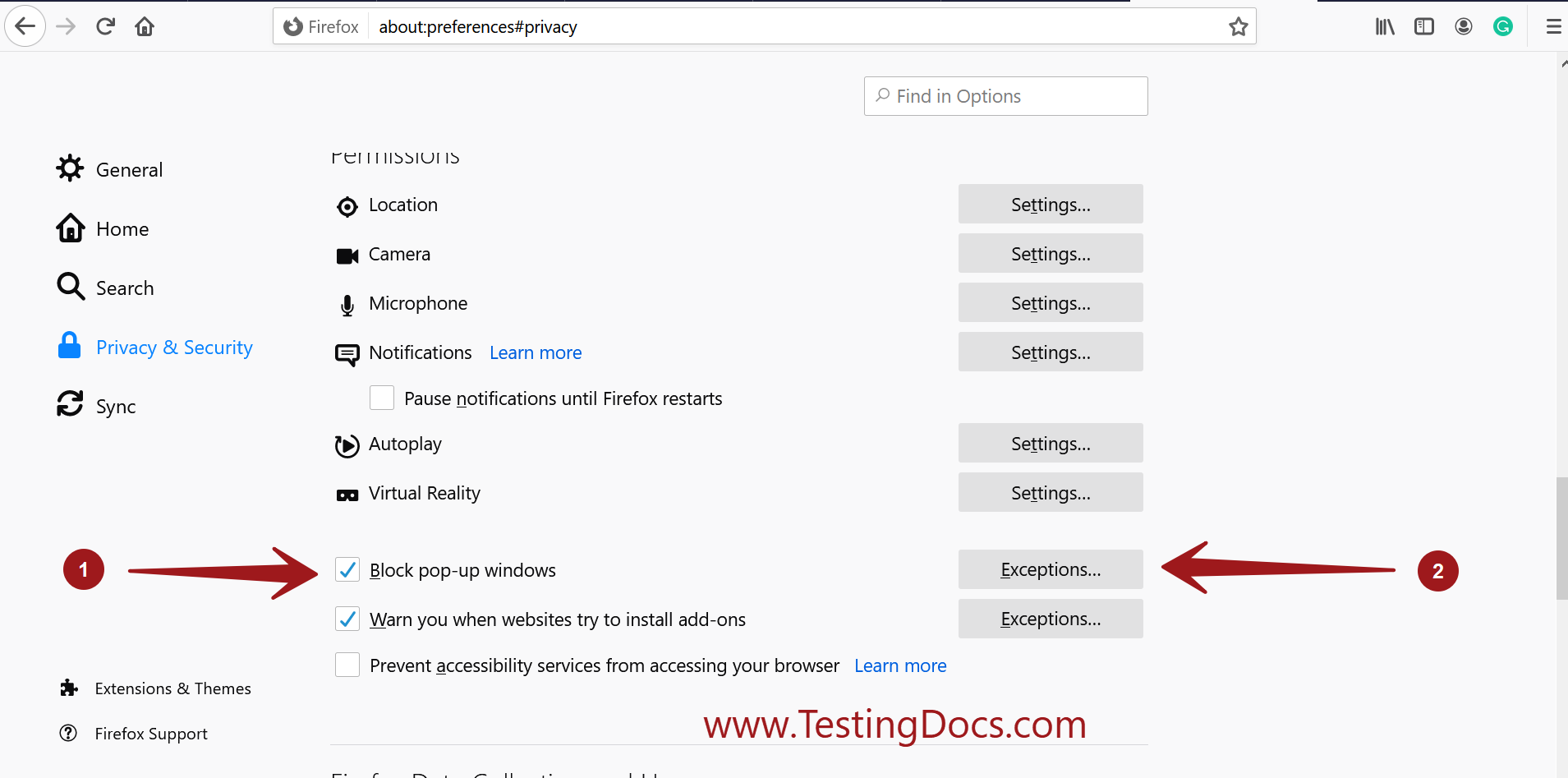
We can check Block pop-up windows and click on Exceptions… button to add an exception.
This setting would only those websites configured in the Exceptions tab would allow a pop-up to show up on the browser.
Add an Exception
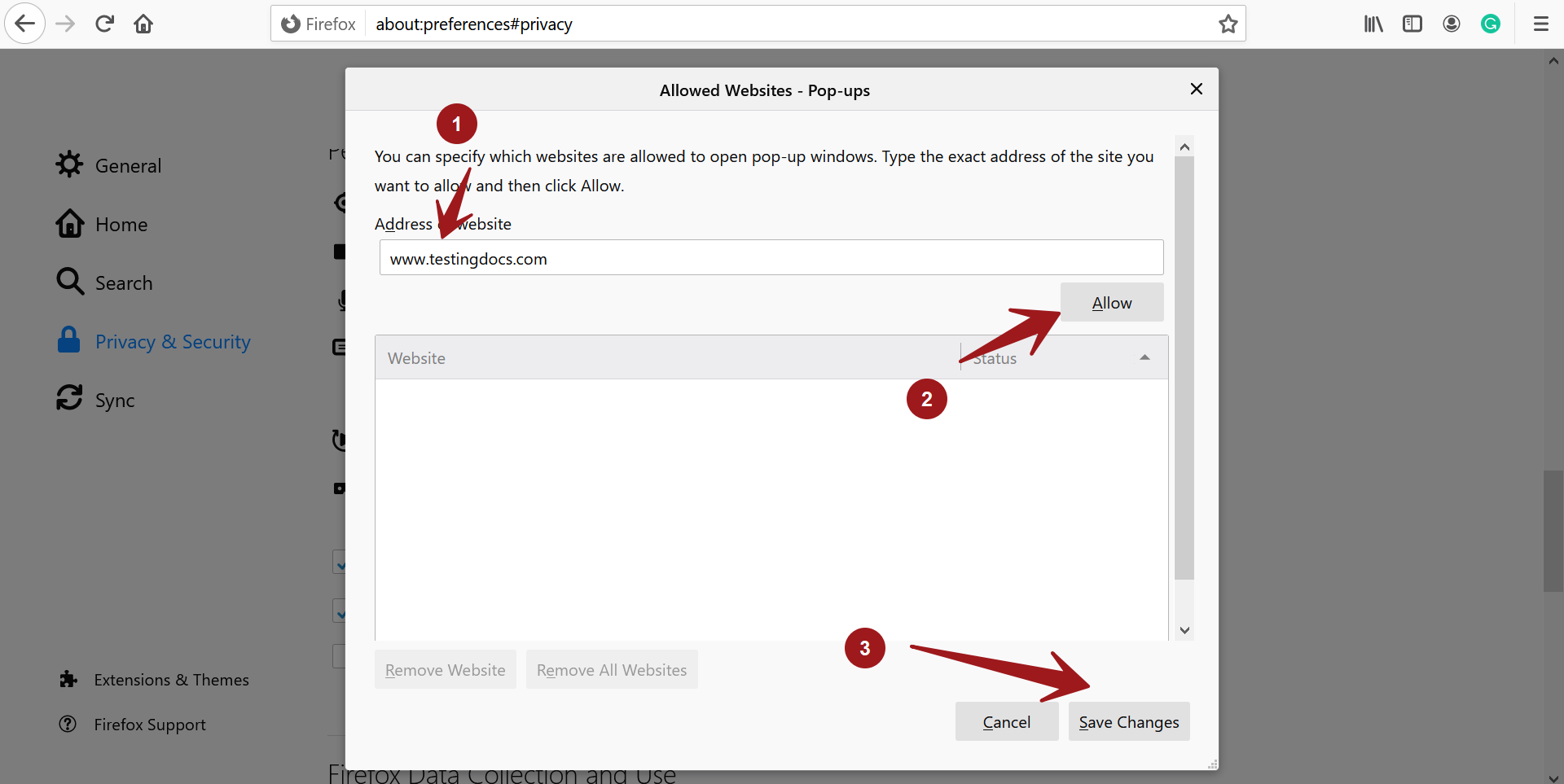
To allow a website to show a pop-window, we need to add an exception. This is because we have Block pop-up windows setting enabled.
To add an exception:
- Add the website. For example: www.example.com
- Click on the Allow button.
- Click on the Save Changes button.
Now we can get pop-up windows to show up on the website.