
How to Add Grammarly to MS Word

How to Add Grammarly to MS Word
To write better software artifacts like Project plans, Test Plans, Bug reports, or E-mails we need assistance to check the grammar and spelling mistakes. Grammarly is a tool that helps in better writing.
In this Step-by-step tutorial, we will learn the steps involved in adding Grammarly plugins to MS Word documents.
Environment
- Windows 10 Operating System.
- Microsoft Word 2019.
About Grammarly
Grammarly is an online writing assistant. The tool is AI-based( Artificial Intelligence) and it will run hundreds of checks on the text to check writing and grammar issues.
Grammarly Apps
Grammarly Products Portfolio:
- Basic Checks.
- Premium Checks.
- Add-ins for Microsoft Office and Outlook.
- Grammarly Native Windows Application.
- Grammarly for iPad.
Browser Plugins for :
- Google Chrome
- Mozilla Firefox
- Microsoft Edge.
Steps to Add Grammarly to Word document
To get the apps, log in to your Grammarly account.
- https://www.grammarly.com/
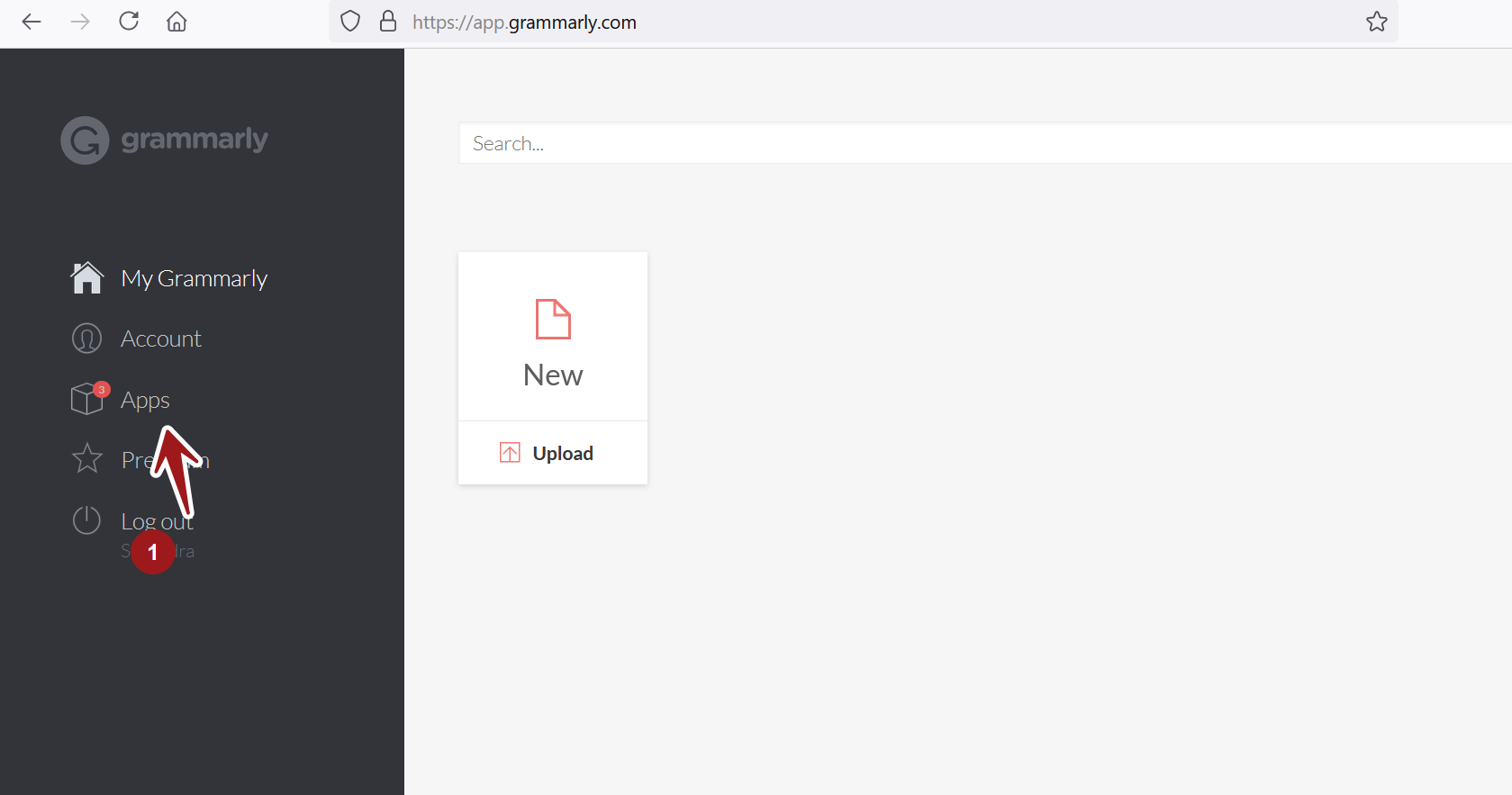
On the MyGrammarly Page, click on the Apps link in the sidebar.
Click on the Install or Re-Install links to download the Installers.
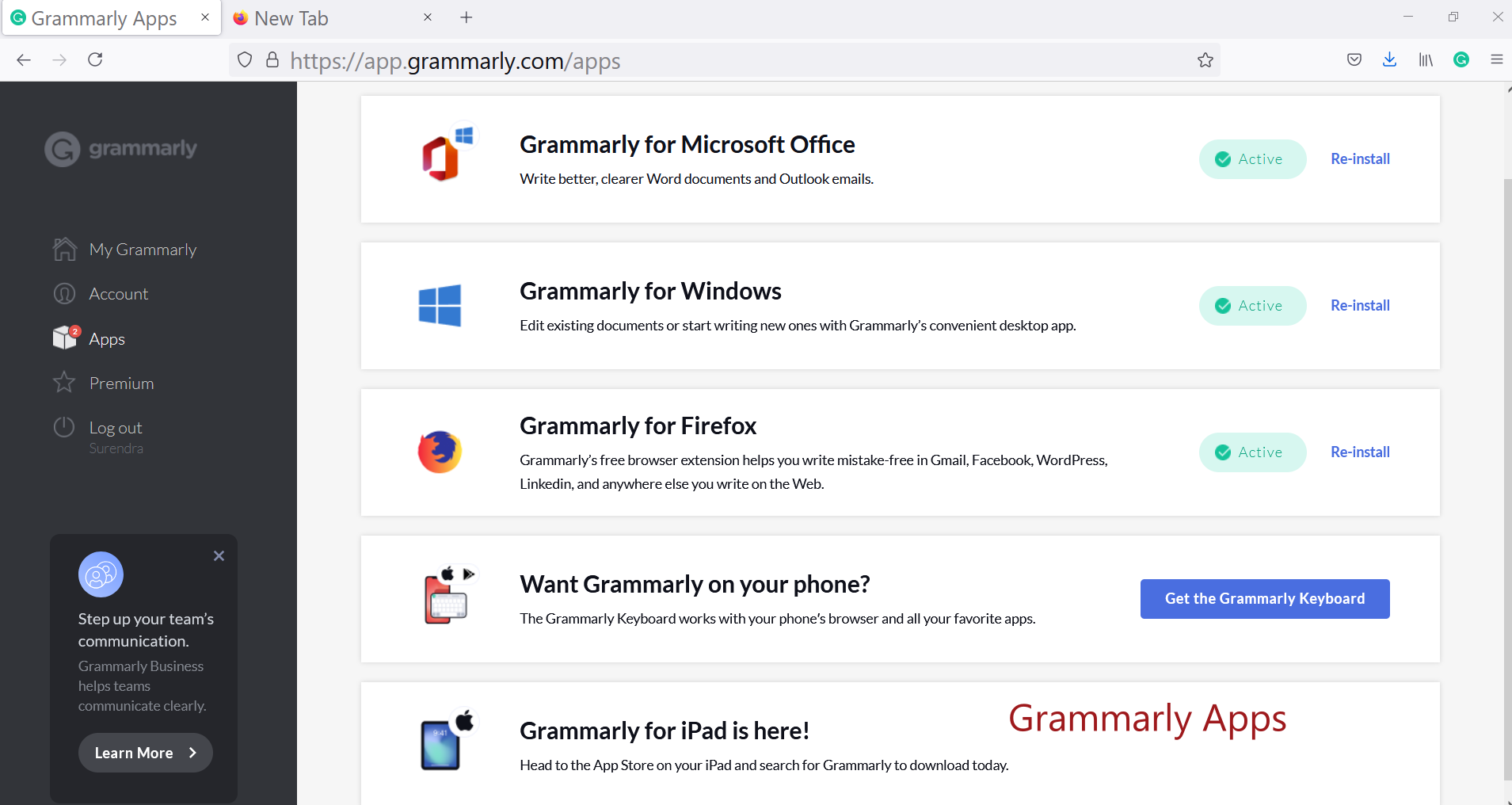
There are two products that we can install on Windows PC.
- Grammarly for Windows
- Grammarly for Microsoft Office
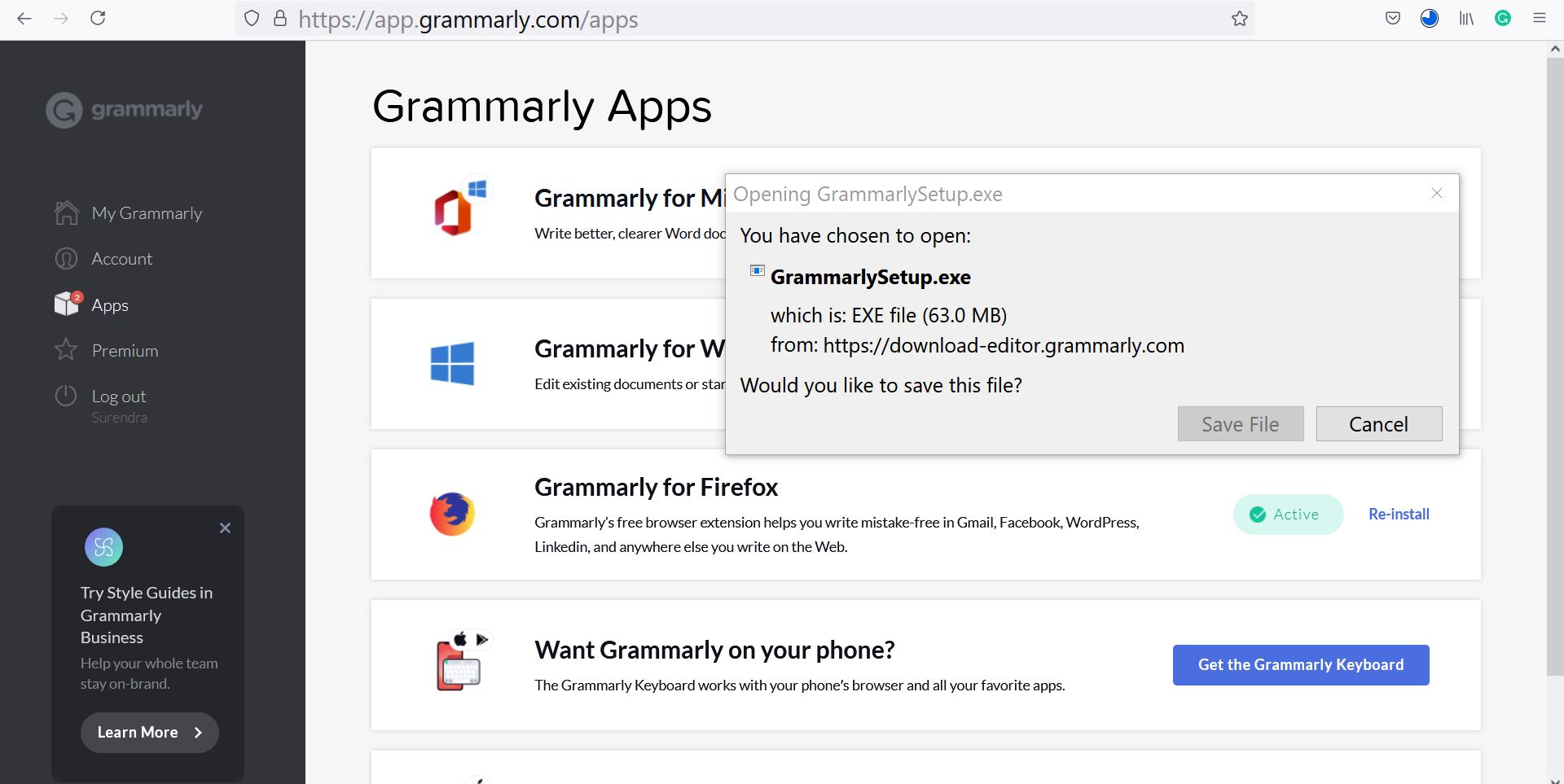
Save the installers onto the hard disk.
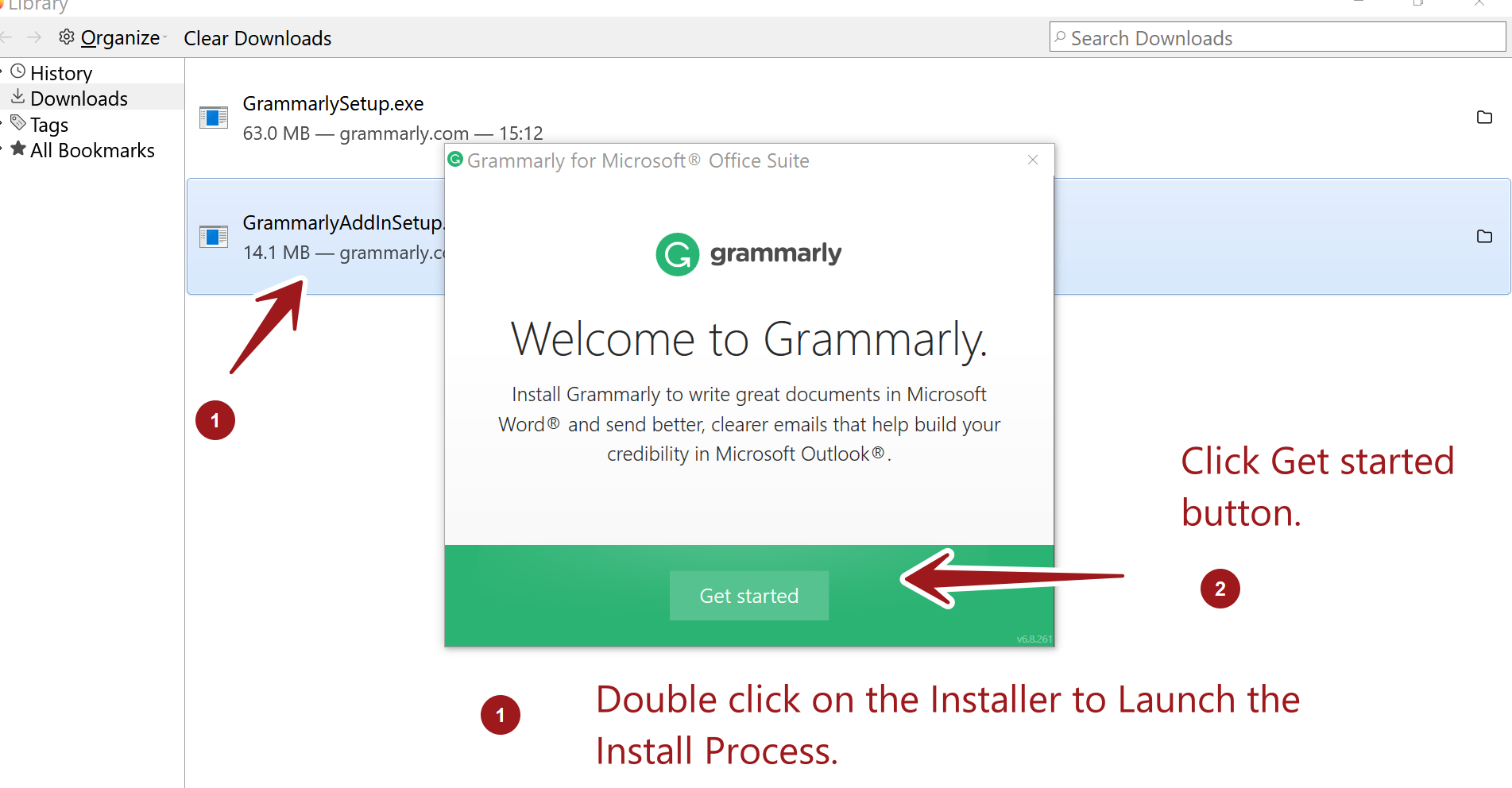
GrammarlySetup.exe
GrammarlyAddInSetup.exe
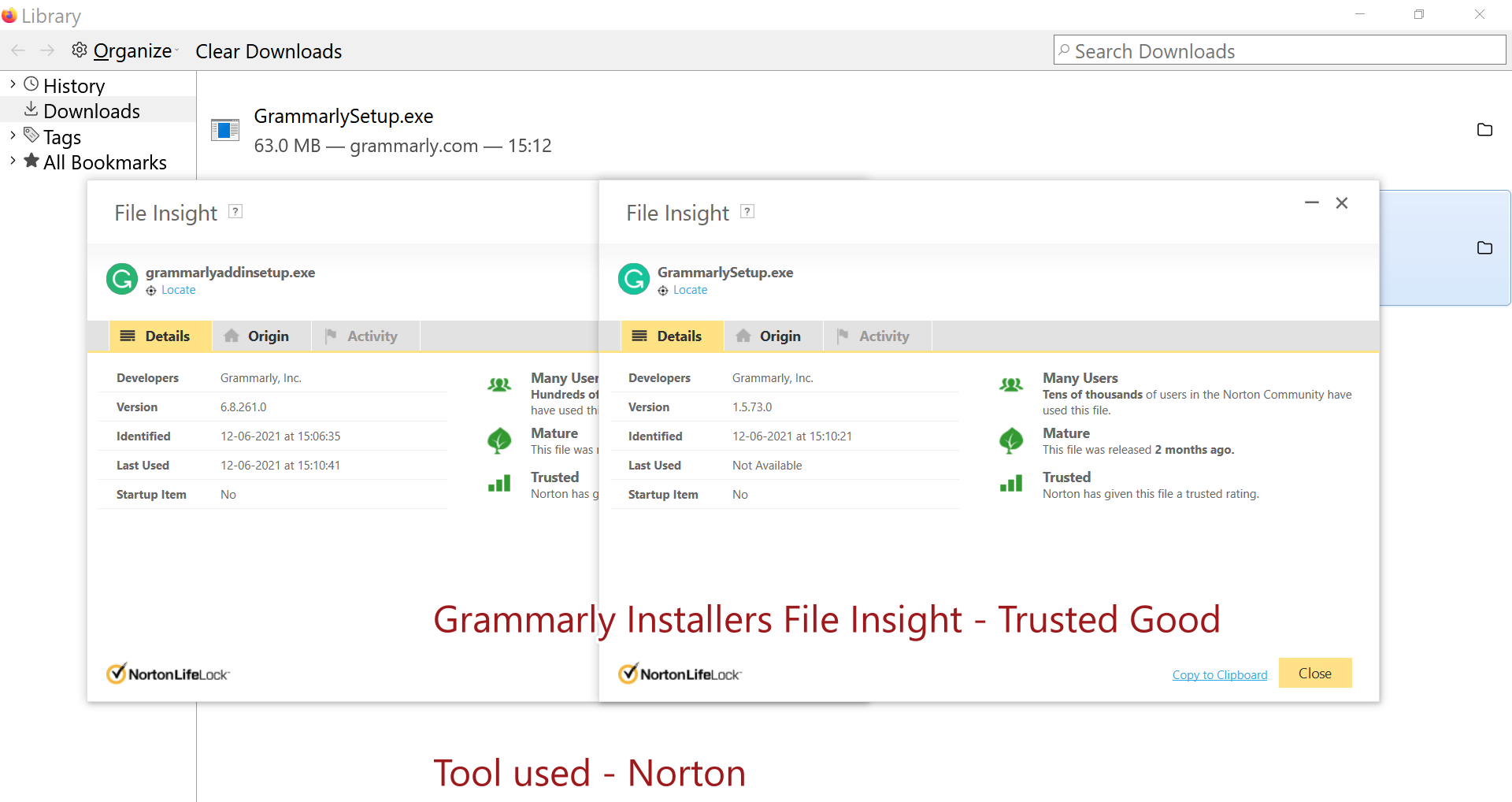
The product installers are trusted and good. The file insight report by Norton.
Grammarly for Microsoft Office
Double click on the installer to launch the install process.
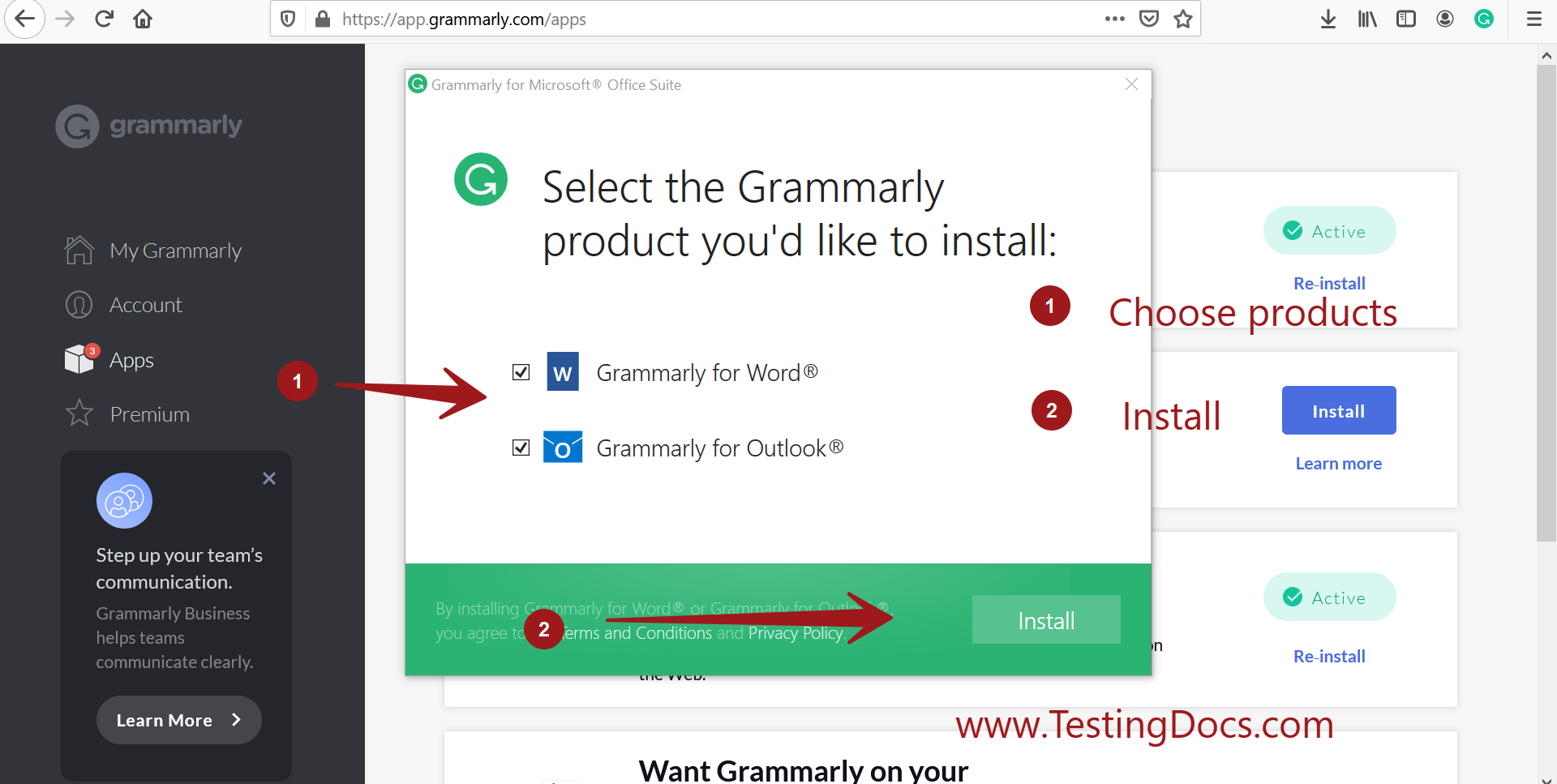
Select the products and click on the Install button.
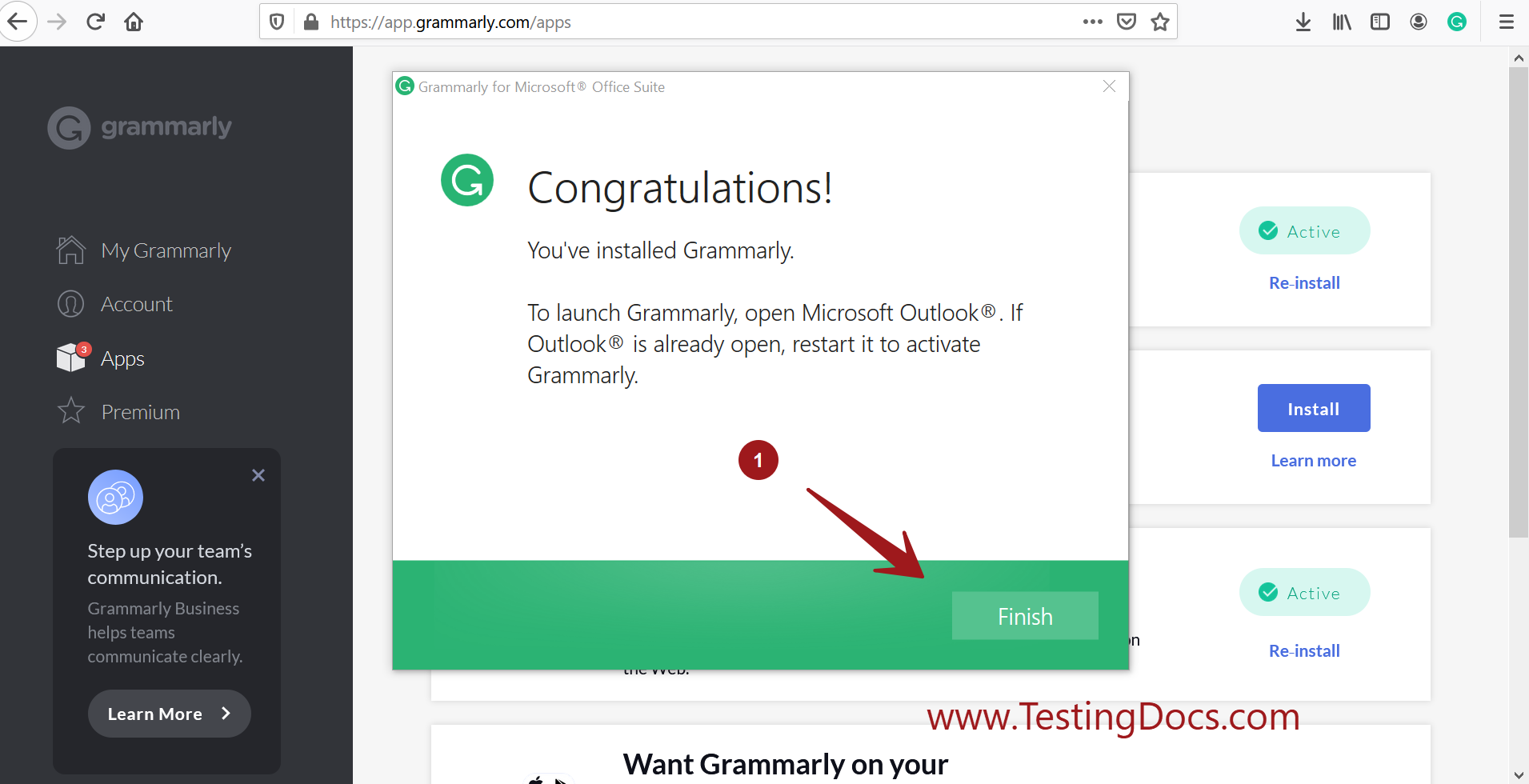
Click on the Finish button to complete the setup.
Install Verification
Launch MS Word document.
The Grammarly connect button should be displayed in the MS Word tool ribbon.
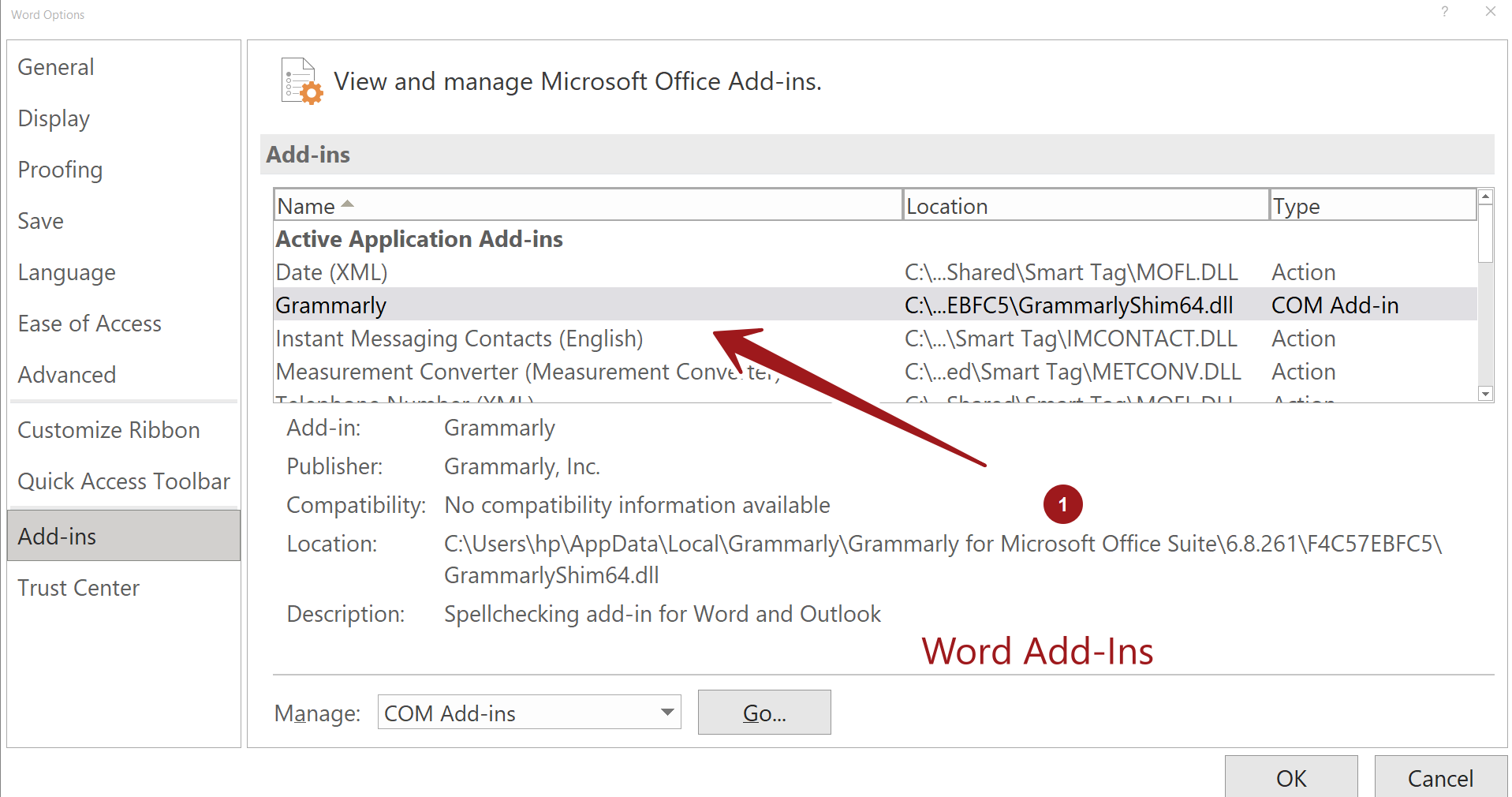
We can also verify the Add-in with the below option:
File >> Options >> Add-ins
Verify that Grammarly is listed in the Add-ins list.
Connect the Account
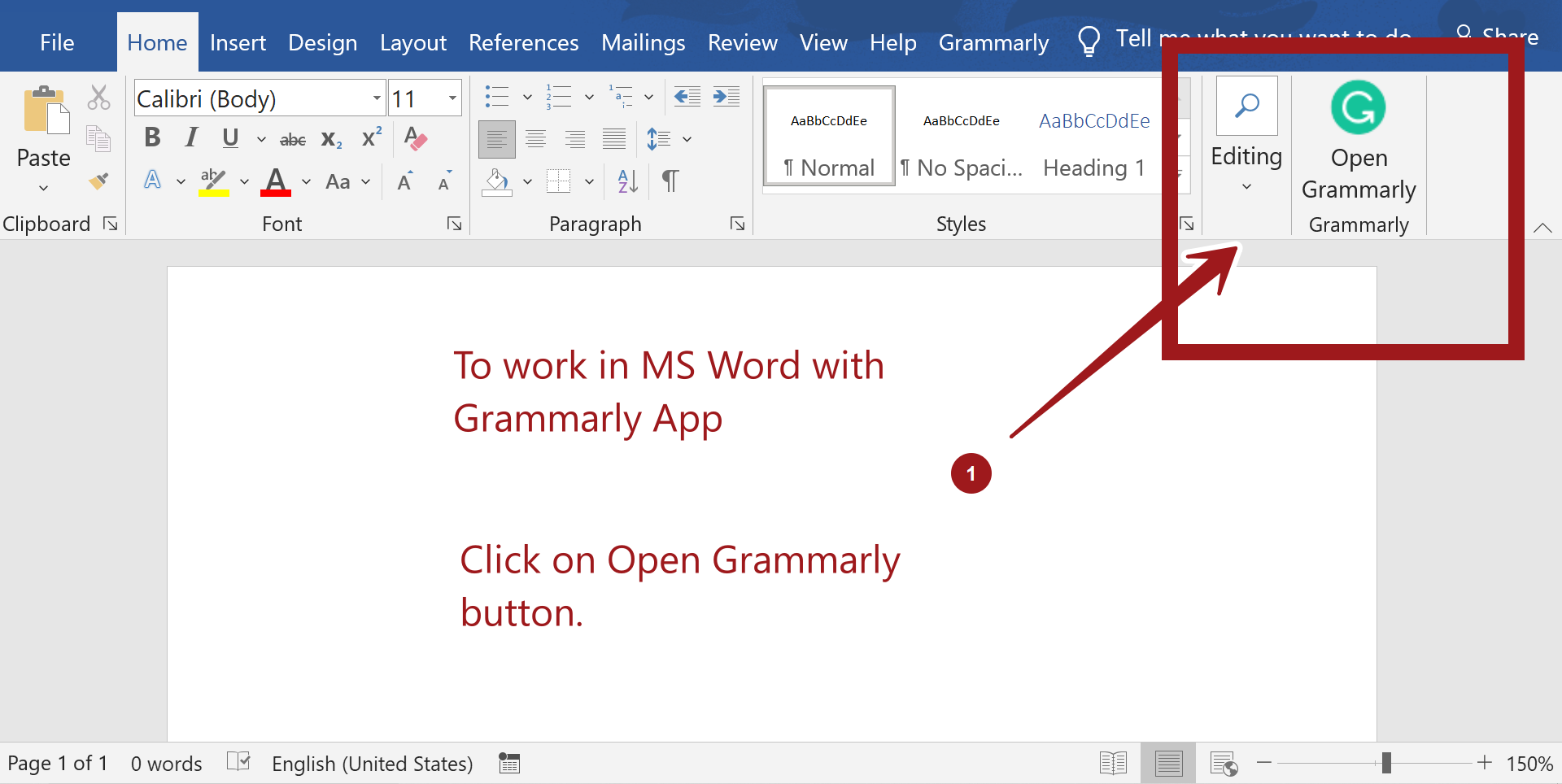
To start working with Grammarly apps in MS Word. Click on the Open Grammarly button and log in to your Grammarly account.
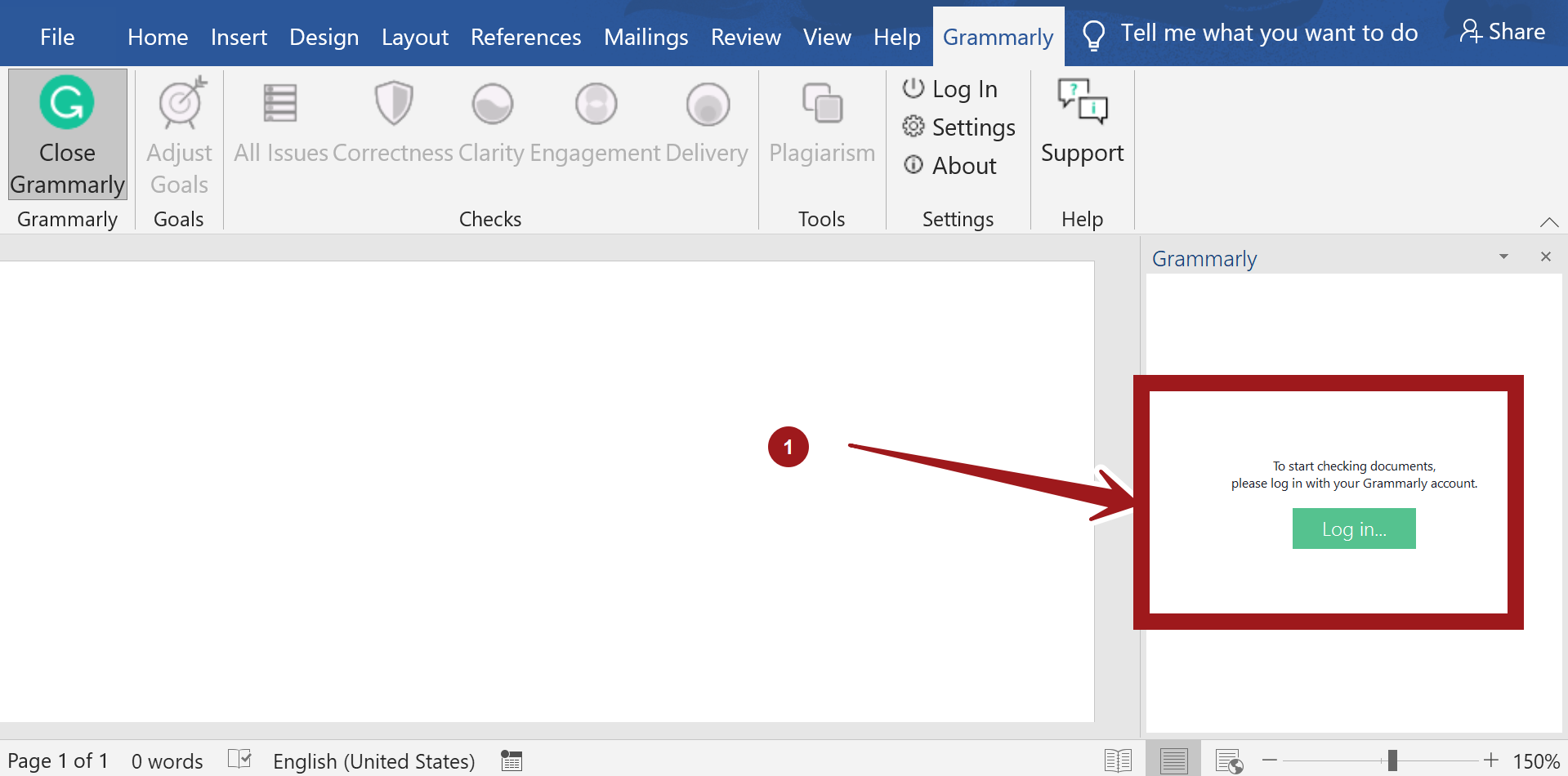
Connect the application to your Grammarly cloud account. Click on the Log in… button.
Start working on your artifact.
The tools connect to the AI service for writing suggestions, grammar checks, spelling mistakes, punctuation, the tone in writing, plagiarism checks, etc.
Demo of the tool correcting the mistakes in a sample Test Plan document.
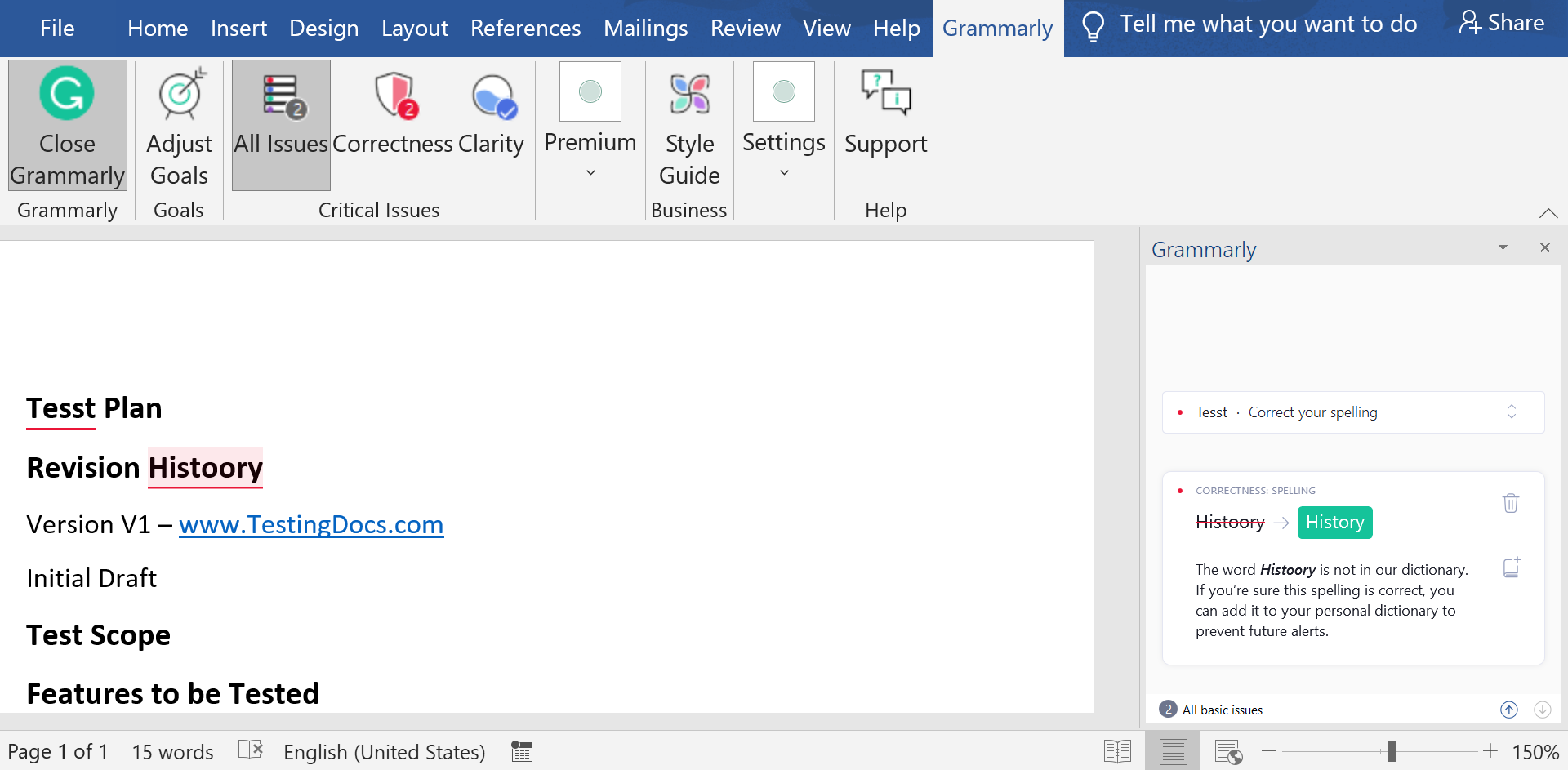
That’s it. We are done with the installation of the application, connecting the app to the cloud account. Verification of the tool install.
Official Grammarly Website:
- https://www.grammarly.com/
Steps to install the Mozilla Firefox plugin: Install Grammarly Mozilla Firefox Plugin