
How to enable Developer tab in Microsoft Excel?

How to enable Developer tab in Microsoft Excel?
Let’s see how we can enable the Developer tab in Excel application on Windows platform. Developer tab is packed with features like :
- Visual Basic Editor
- Record Macros
- Excel Add-ins, etc
Excel version:
Excel Office 2019.
Enable Develop Tab
Steps to enable the Developer tab are as follows:
Launch the Excel Application.
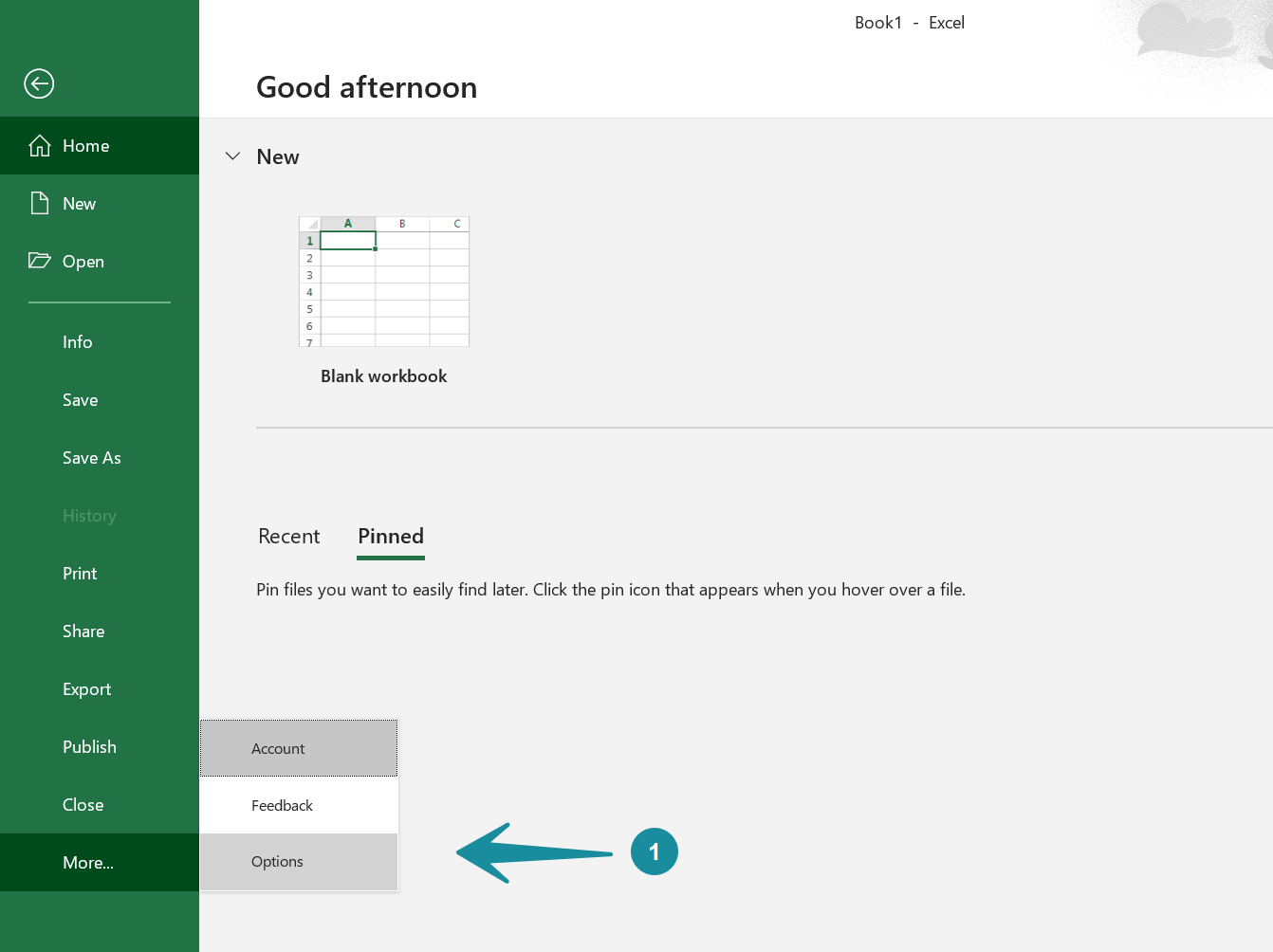
Choose File >> More… >> Options tab
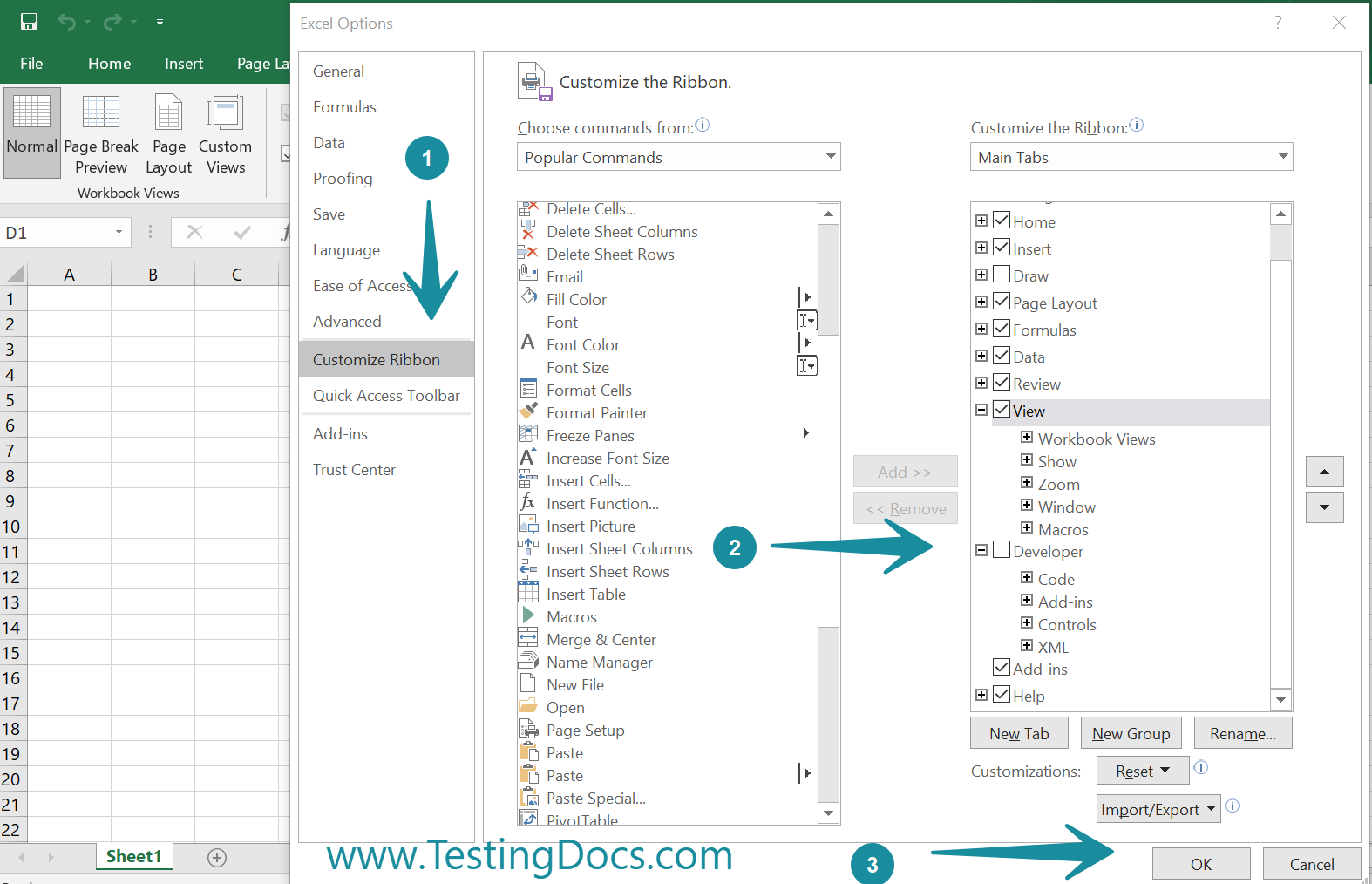
In the Excel options window, Click on the ‘Customize Ribbon‘ Excel options.
Check on the Developer check box.
Click on the OK button.
We can notice a new tab added to the Excel ribbon.
Features
Some of the features and functions that we can perform on this tab:
Visual Basic
- VB Code Editor
- Design Forms
- Run VB Code
Macros
- Record macros
Import XML data.